Using Processes in AVIX
Watch video: Process library
The traditional way of working with AVIX is to create the data material in the Method tree. With this approach, one could say that the processes are owned by the station where they are performed and there isn't any common connection between a task performed at variant A and a more or less identical task being performed at variant B.
However, in AVIX it is possible to create a library of process data. This is another way of working, where each specific process definition can be used in multiple process flows (workstations). The biggest difference is that layout dependent factors (steps, bending, heavy lifting) are added once we know where the specific process is being used. By creating a process library this way, it is possible to re-use the same task (process definition) in multiple process flows, and the need for data collection can be kept at a minimum level.
Instead of video recording and analyzing the task "assemble switch" for both variant A and B (given that the method is more or less the same), it is enough with one task that will be the process/method definition of “assemble switch” and store it in the process library.
This task will be picked from the process library and used (together with several other tasks from the library) to create the actual assembly sequence being performed at one or several workstations.
The build-up of a process library is done in the tab “processes”. The principle of creating tasks and analyzing is the same as in the traditional way of working with AVIX. Note, that the data material should be created layout independent, meaning that steps, bending's and so on, will be added later depending on the physical layout of the workstation.
If the tab ”processes” is not available, click the ”open perspective” button in the lower right corner and select processes.

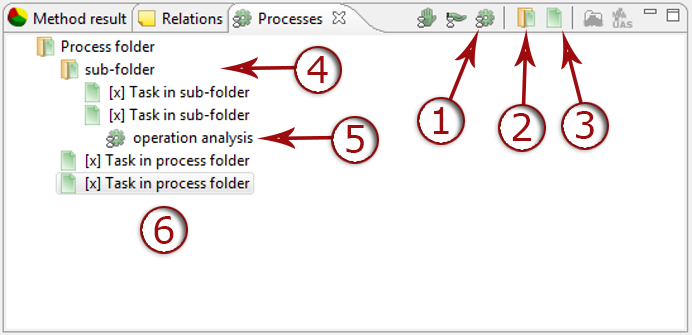
- Create operation analysis
- Create process folder
- Create task
- The process folder structure can be freely build depending on needs. Folders and sub-folders can contain tasks and is used to sort/organize the data material.
- As usual a task can be analysed using operations (standard time analysis).
- Press and hold ”shift” to add folders/tasks at the same level.
The creation of the actual assembly sequence is done by dragging tasks from the process library and dropping them on a workstation in the method tree.
Again, the logic is that the process definition is stored in the process library (processes tab) and in the Method tree, the actual process (assembly sequence) is created by a combination of different tasks.
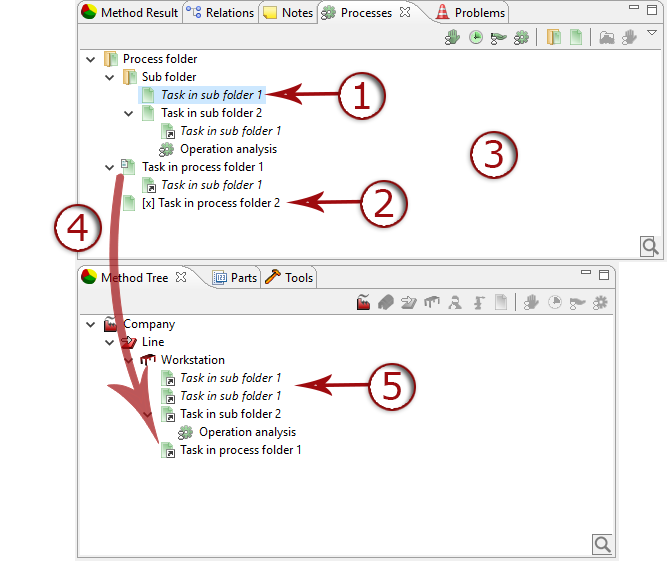
- Tasks without [x] is used in the process flow.
- [x] Symbolizes that the task is not used in any process flow.
- Italics in the process library mean that the task is used in more than one place in the process library.
- Tasks are added to the process flow by ”drag and drop”.
- Italic symbolizes that the tasks are used in more than one process flow.
Once the actual assembly sequence has been created, it’s possible to add layout dependent factors by so-called “delta analysis”.
Tasks created in the process library (process tab) are “owned” by the library and can be used in multiple processes. Tasks created In the method tree are ”owned” by the actual workstation and are unique for this process.
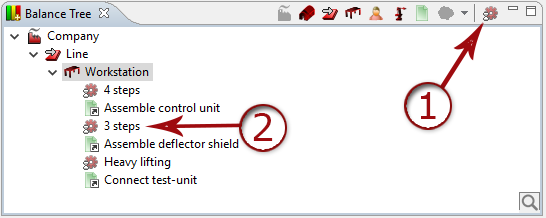
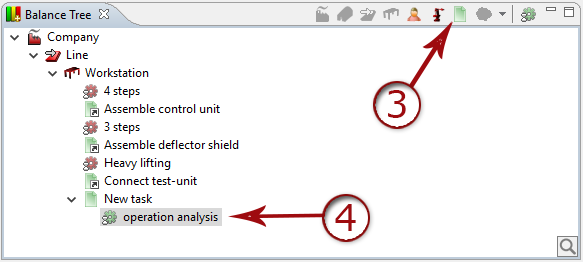
- Create Δ (delta) operation.
- The red Δ-operation can be added between tasks, and is used to add layout dependent factors e.g. steps, bending's, heavy lifting.
- Create task.
- When using processes in AVIX, it is still possible to create tasks/operations directly in the Method tree. Note the different task icons, an arrow symbolizes a connected to the process library.
The principle of ownership makes a task that is created in the process library impossible to edit directly in the Method tree (the task will be grayed in the editing tab).
It is, however, possible to “disconnect” a task from the process library.
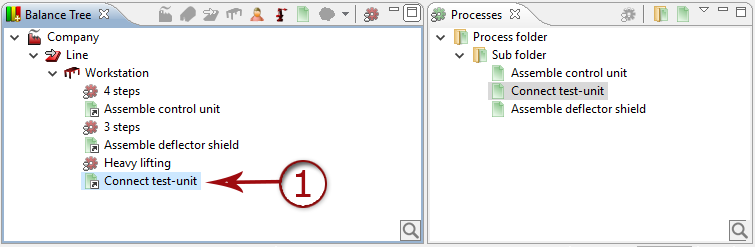
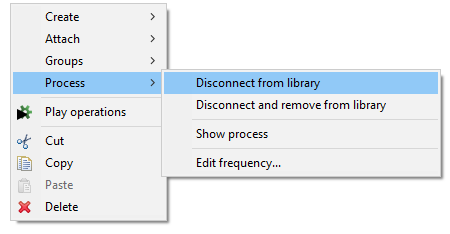
1. Right click the task that you want to disconnect from the process library and select
Process -> Disconnect from library
This task will instead be owned by the workstation, and possible to edit.
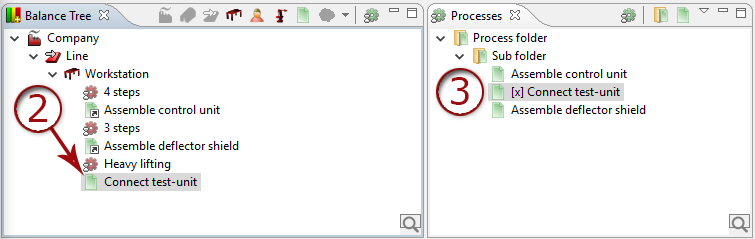
2. You can see that the icon decoration disappear when it is no longer connected to the process library.
The original task will still appear in the library and won’t be affected.
3. You can see that the name is now preceded by [x] to denote that it is no longer used in any process flow.
In the same way, it’s also possible to “connect” a new task to the library by dragging it from the method tree and dropping it in the library.
Note that if you first disconnect a process and then drag it from the Balance tree to the process library, you will get a new instance of the tempo with the same name in the Process library.
Finally, when working with processes in AVIX, sometimes the library of processes becomes quite big. In order to easily find a specific process there are two ways:
- Use the processes filter described in the chapter Filters.
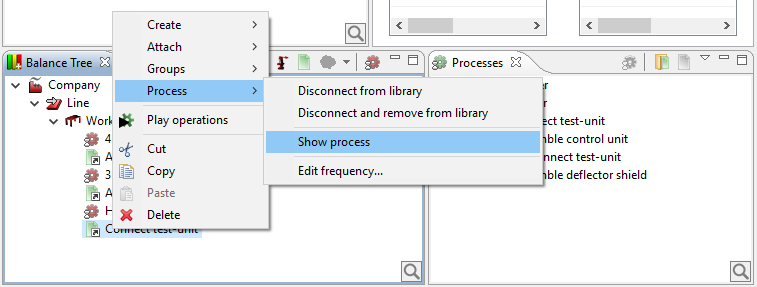
- In the Method tree, right-click a task ⇾ Process ⇾ Show process.