
Filters
Filters make it easy to find what you are looking for.
Don’t spend time scrolling through your data, use the filters instead.
There are filters available for the balance tree, SMED tree, DFX tree, ergo tree, FMEA editor, method tree, parts, tools, and processes.
Clicking or hovering with the mouse over the magnifying glass, will open the filter dialog pop-up. Ctrl+f can also be used.
Before AVIX 4.6.3 the magnifying glass was invisible until you hovered over the corner.
To de-activate the filter, open the dialog and deselect the filter by clicking its icon.
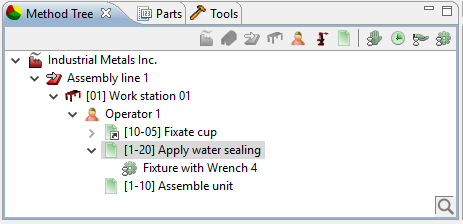
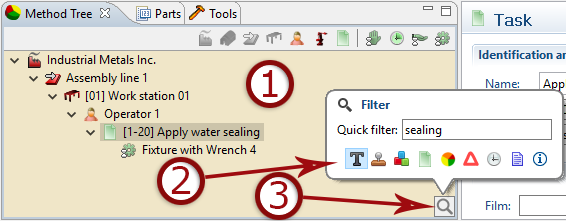
- Dark background = Filter activated
- Icons toggle filters on/off
- Magnifying glass shows filter menu
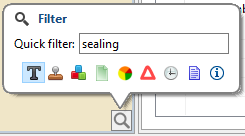
The filters for the Method tree are:
 Quick filter shows all levels (task/operation) containing the search string.
 Approval status filter (available in enterprise version) shows tasks/operations with different approval statuses.
 Variant code filter shows tasks with/without variant codes, with undefined variant codes or matching a search string.
 Task filter hides all tasks (also called processes) NOT in the process library (if used).
 Classification filter shows all tasks with a manually set/not set work classification (if used).
 Delta filter shows all delta operations (if used).
 Time filter shows all tasks with overridden time setting method.
 Document filter shows tasks with embedded, linked, markup or no documents.
 Change filter shows what parts, processes etc. are new, updated or deleted in an imported file.
Parts Filter
The filters for the parts are:
Quick filter shows parts containing the search string in the name or number field.
 Part type filter shows parts based on part type (if used). This works if e.g. an MBOM structure with assemblies and sub-assemblies are used.
See Adding parts/tools for details about part levels.
 Part version filter shows parts not used in any process or not used in any sub-assemblies (if working with different part levels).
 Category filtering in 4.6.9 this is only available if you have categories and categories are only set if you import (Excel) documents that have set categories.
Document filter shows parts with the following documents: Embedded, linked, markup or no documents.
Tools Filter
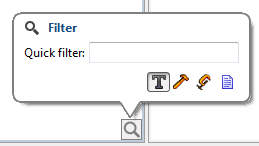
The filters for the tools are:
Quick filter shows tools with name or number matching the search string.
 Tools filter shows tools (hides fixtures).
 Fixture filter shows fixtures (hides tools).
Document filter shows tools/fixtures with embedded, linked, markup or no documents.
Process Filter
The filters for processes (also called tasks) are:
Quick filter shows all levels containing the search string.
Approval status filter (available in enterprise version) shows processes with different approval statuses.
Variant code filter shows tasks with/without/undefined variant code or matching a search string.
Classification filter shows all tasks with a manually set work classification (if used).
Time filter shows all tasks with overridden time setting method.
 Unused processes show processes not used in any process sequence (e.g. in the method tree).
Document filter shows processes with the following documents: Embedded, linked, markup or no documents.
Change filter shows what processes are new, updated or deleted in an imported file.