Product Structures
AVIX also features a specific assembly view to allow for more BOM focused workflow
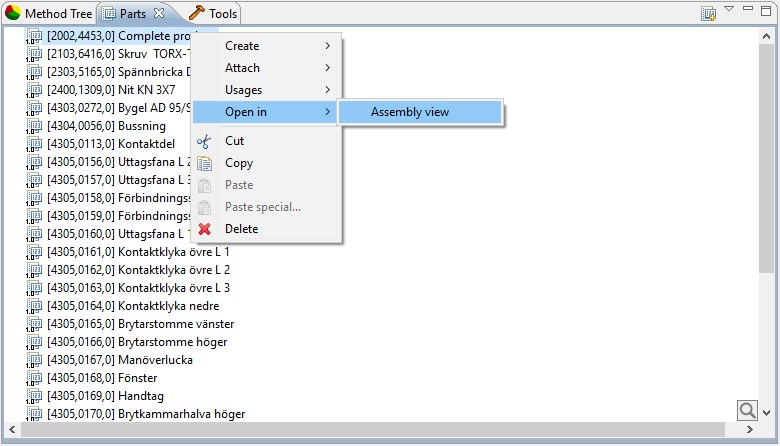
This will open up the part with the assembly in a new BOM focused view.
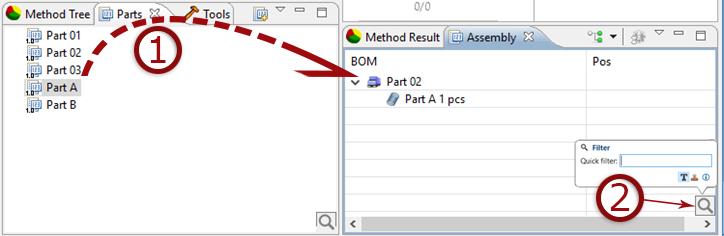
Drag and drop is available from within the assembly view and also from the parts view.
The assembly view also allows for filters to be applied, to filter out specific instances of a part in the BOM.
- Parts/items can be ”dragged and dropped” to create sub-assembly's and thereby creating a BOM.
- Filtering the content of the BOM.
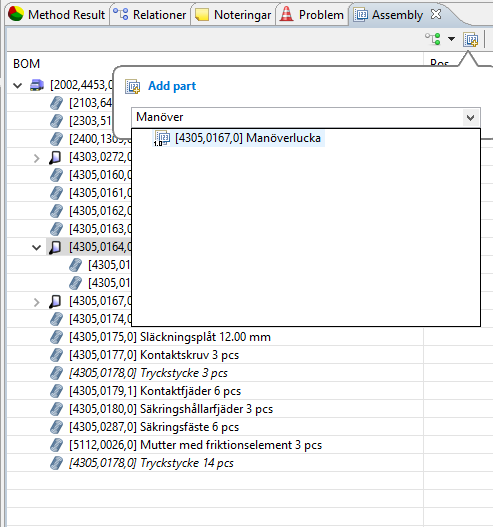
Existing item components can be added as sub components by using the “Add component to subassembly” button.
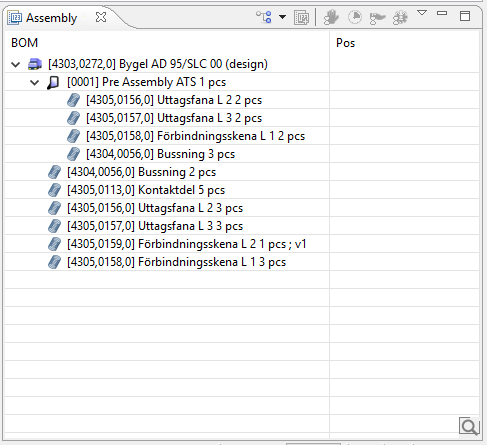
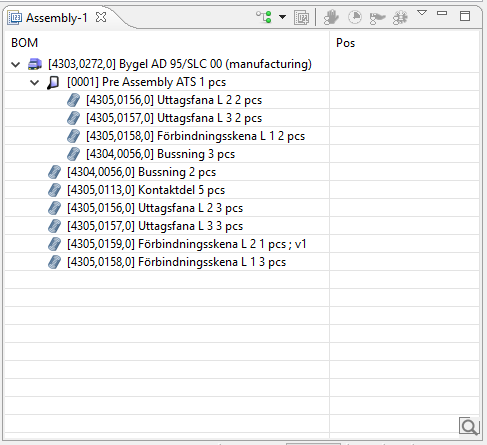
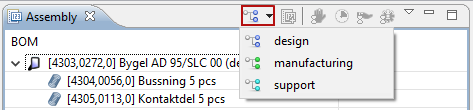
In AviX you have the possibility to manage different views of a BOM. Three different BOM types are available. “design”, “manufacturing” and “support”. The Manufacturing BOM view is the default type, this can however be configured in the preferences.
The BOM view that is shown in the assembly view is indicated by the “structure icon” in the toolbar, and can be changed by selecting another through the drop down menu.
Here are two examples of a design BOM and the corresponding manufacturing BOM view.