
Icon / Label Decoration
Icon/label decorations can be turned on or off in the preferences:
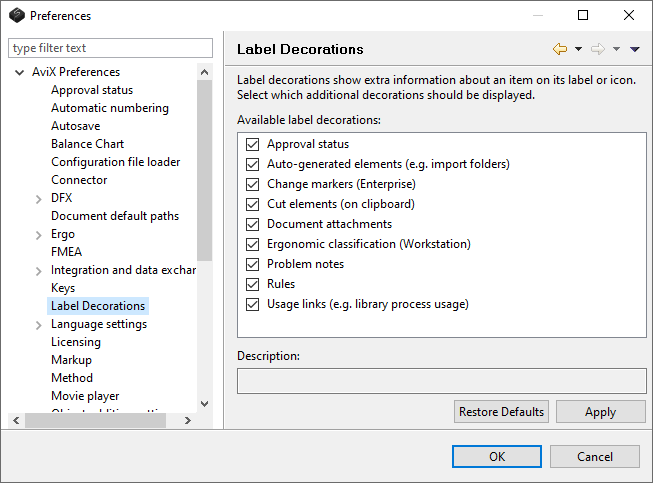
Icon/label decorations can appear in the 4 corners of the icon and have the following meaning:

Task has an attached document/image/link. This can be turned on/off in the preferences by checking/unchecking Document atachments.

There are rules applied to this task. This can be turned on/off in the preferences by checking/unchecking Rules

Change markers from previous sync/import. Task changed, removed or added. This can be turned on/off in the preferences by checking/unchecking Change markers (Enterprise)

Autogenerated elements (import folders). This decoration will also show on all parent folders of e.g. a changed task. This can be turned on/off in the preferences by checking/unchecking Autogenerated elements (e.g. import folders)
Approval status. Status approved has no icon.
The approval status decoration can be turned on/off in the preferences
by checking/unchecking Approval status

Red - Not approved.

Yellow - Preliminary.

Black - Withdrawn.

Orange - Not yet approved.

Task has an attached note (of type problem or suggestion). This can be turned on/off in the preferences by checking/unchecking Problem notes

Usage link (task is linked in from the process library). Italic text indicates that the there is more than one usage. This can be turned on/off in the preferences by checking/unchecking Usage link (e.g. library process usage)

Physical situation in underlying task. (severity 3-4). This can be turned on/off in the preferences by checking/unchecking Ergonomic classification (Workstation)

Physical situation in underlying task. (severity 5-10). This can be turned on/off in the preferences by checking/unchecking Ergonomic classification (Workstation)

Person icon: Ergonomic classification/physical situation

Psychosocial situation.

REBA.