License Filtering with Component Filters
Component filtering can be used to restrict access to components in a multiuser environment so not all users see everything available on the license server.
When component filtering is enabled via the setting “avix.licensing.filterComponents” only the components with component ids that are allowed are visible in the floating license dialog. To allow a component to be shown a file or folder named as the component id of the component must exist in the folder specified by the setting “avix.licensing.filterComponentsPath”. The content of the files or folders are irrelevant, so empty folders and files are recommended.
Below you find a list of the current component ids used in AVIX.
| Module name | Component id |
|---|---|
| Admin * | AQDreDAZcXKbFQAF |
| Balance | AQDreDAZcXLyygAH |
| Base ** | AQDreDAZcXJjzgAE |
| Connector | AQHdrCxfcYay1CyT |
| Cost | b0zI2OZyUfAw87Rr |
| Custom Time System | AncL4zFxncveMzm5 |
| DFX | AQDreDAZcXMaGwAI |
| Enterprise | AQF2iwpIzDQzrM1r |
| Ergo | AQDreDAZcXOETgAJ |
| Ergo SAM | AQGo7PQrNDFxCfZP |
| Execution Optimizer | AQF2iwpNuT3oJsjk |
| FMEA | AQBVEI4Z3btaMwDq |
| Method | AQDreDAZcXLMpAAG |
| Production Planner | AQA901hbhpd0Lask |
| Resource Balance | AQEEaCIgJBtR13tU |
| SAM | AQEEaCIf2_7dq1NL |
| SMED | AQFAIakkOflBiByl |
| Stopwatch | AQF2iwpIz_YyT9pV |
| UAS | AQFAIakkNGH0tBhv |
* Administrative component that very rarely is available in end user licenses.
** Base is a required component. It cannot be deselected in the component list.
EXAMPLE
With no filtering enabled a client sees all available components when connecting to a license server.
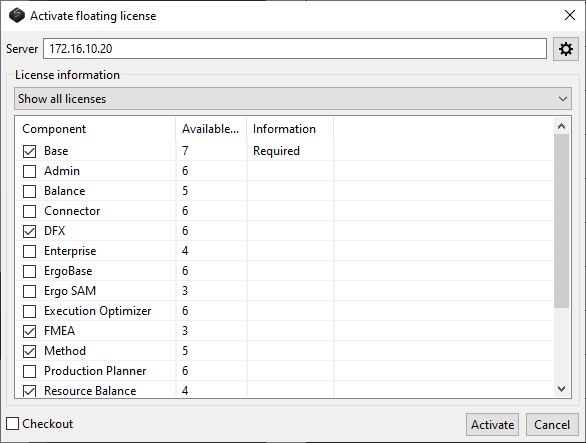
If filtering is enabled and files or folders with the names
“AQDreDAZcXLMpAAG” (Method),
“AQEEaCIgJBtR13tU” (ResourceBalance) and
“AQFAIakkOflBiByl” (SMED)
are added in the directory specified by the setting “avix.licensing.filterComponentsPath”,
the same client sees this:
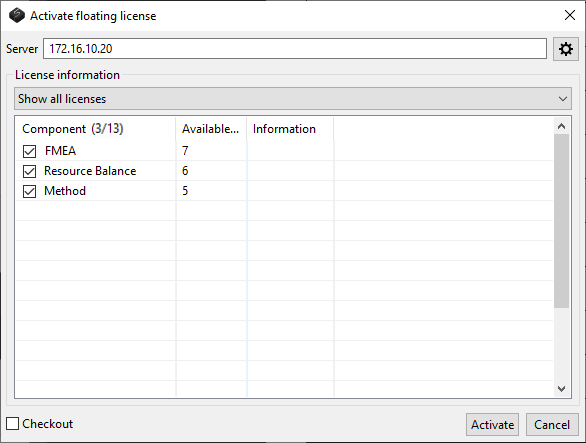
All components apart from Method, Resource Balance and SMED are hidden and therefore unavailable to the user.
If the component list is filtered, this is indicated by "Component (X/Y)", where X is the number of available components and Y is the total amount of components.
In the example above (which is filtered), 3 of 13 components are visible and this is shown as “Component (3/13)”.
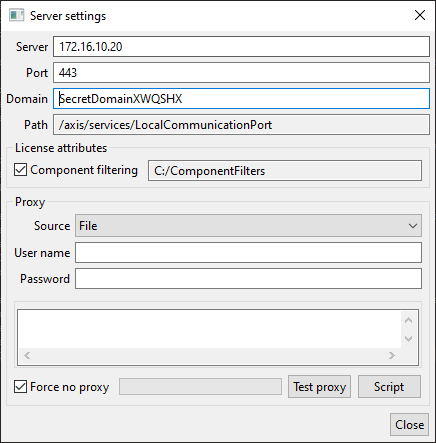
If filtering has been enabled and a path is set for the files/folders that turns on each component, then in the floating license settings dialog in the “License attributes” section the "Component filtering" checkbox is checked and the path is shown in the textfield.