
Configuring License Server Manager
Due to how the license software works and that new modules sometimes are added to AVIX the License Server Manager can get out of sync with the available modules in licenses on the License Server. This is due to the fact that the information used to translate license data retrieved from the License Server to entries in the License Manager UI are stored in the file “defaultValues.txt” that is located in the root of the License Server Manager’s installation directory. For example if the license server sends data to the license manager that include information of the state of the module “Ergo SAM” and the current “defaultValues.txt” file used by the license manager does not contain any data of that module’s existence, that module will not be visible in the license manager.
Note that even if a License Server Manager cannot show a license module, clients can still use it and the License Server will keep track of license usage.
- Download the latest License Server Manager from Solme’s customer center (http://customers.solme.se). Uninstall the currently used manager and install the new one.
- Download the latest “defaultValues.txt”-file from Solme’s customer center (http://customers.solme.se) and copy it into the root directory of the license manager (overwriting the existing file)
INITIAL SETUP OF LICENSE SERVER VIA LICENSE SERVER MANAGER
The first time the License Server Manager connects to the Secureon License Server, it must be configured. It is not much that needs to be done - the default password must be changed and the Secureon License Server must be assigned its license server id. The most crucial part is the license server id. It MUST be assigned and if it is not or if it is setup wrong the server must be reinstalled (or the database must be replaced with a fresh one without the faulty license server id information). To initialize the process, start License Server Manager. It can be found in the start menu in the folder “Secureon/License Manager” and in the root of the installation directory.
The first time a License Server Manager connects to a local license server you should login with the default account information - username “admin” and password “default”.
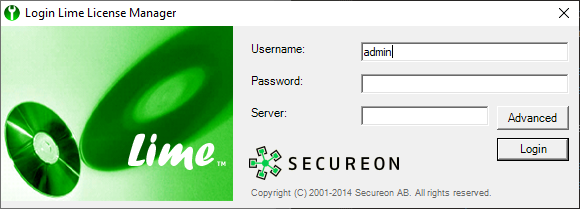
The password must be changed after logging on. Be sure to make a note of the new password. If for some reason the password gets lost, it can be reset to its default value by running the tool “LicenseServerPasswordReset” found in the root directory of the License Server installation. For more information see the chapter Reset License Server password.
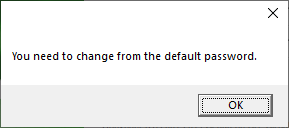
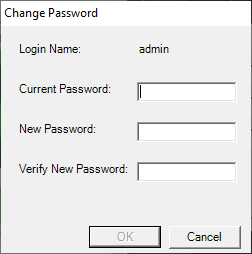
When a new password has been selected, it is time to assign the important license server id to the server. This is the license server’s identity and it is obtained from Solme. An assigned license server id cannot be changed once it has been entered. The only way in which to assign a new license server id is by either reinstalling License Server or by replacing the license server database with a fresh one.
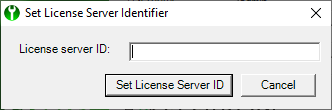
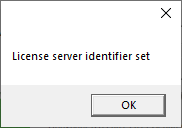
A license server id looks very different from license numbers. It is not possible to successfully use and activate a license server id as a license number or the other way around.
License server id example: AQGo7PQsvFuRxDZ5
License number example: 84535-22D32-67753-9853F-CC36E-BD45F37