Error Handling
UNABLE TO CONNECT TO LICENSE SERVER FROM LICENSE SERVER MANAGER
- Verify that the service “Secureon License Server” exists.
If it does not exist the license server has not been installed or the installation has gone wrong or not been completed.
Reinstall License Server and try again. - Verify that the service “Secureon License Server” is started.
If the service is not started, try to start it. - Verify that the License Manager uses the correct port when it tries to connect to the License Server. The used communication port can be configured so make sure that the one used in License Manager corresponds to the one assigned in the License Server configuration. To find out which port is used, see the chapter “Configuring used communication ports” where the process used to set this port is described.
THE SERVICE “SECUREON LICENSE SERVER” SHUTS DOWN AS SOON AS IT IS STARTED
- As a test try to start the License Server by the installed bat-script
<installpath>\LicenseServer\jboss\bin\run.bat
• Wait until the script has started the License Server.
• Try to connect a License Server Manager to the License Server.
If this works there is a problem in the java service wrapper used to run the license server as a service. Check the JDK-related tips further down in this chapter. If this does not work, there is a deeper problem. Send the logfiles
<installpath>\ LicenseServer\jboss\server\default\log\boot.log
<installpath>\ LicenseServer\jboss\server\default\log\server.log
together with a simple error description to support@solme.se and we will try to help you solve the problem. - Open a register editor, for example regedit, and navigate to the folder
HKEY_LOCAL_MACHINE/SYSTEM/CurrentControlSet/Services/Secureon License Server/Parameters
• Check which JDK that is used by inspecting the value of the key “JVM Library”. The JDK 6 is known to cause startup problems if it does not have access to a folder that is added to the system path when the license server was installed. The easiest way to force this path update to be available is to restart the computer that the license server is hosted on. If a restart is out of the question, download JDK 5, install it and modify the register keys “JVM Library” and “JVM Option Number 0” so that they use JDK 5 instead of JDK 6. After doing these modifications, restart the service.
UNABLE TO SYNCHRONIZE THE LICENSE SERVER. 1
- Verify that it is possible to communicate with the main license server, licensing.solme.se, from the computer running the license server on the required ports (port 443 and port 8080).
Try the following links in an Internet browser.
• http://licensing.solme.se:8080/
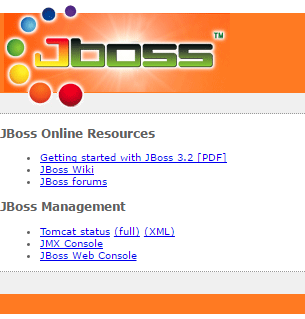
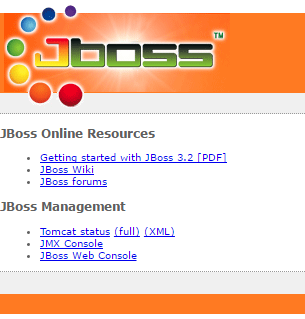
• https://licensing.solme.se:443/ - If communications works, the following page should be displayed. For the https link, a certificate must be approved in order for the page to be displayed, but if the certificate request is displayed, this is sufficient proof that communications are working.
- If the links are not working, this is most likely caused by a firewall blocking these ports or that there is a problem with the internet connection either at your end or at Solme’s end.
UNABLE TO SYNCHRONIZE THE LICENSE SERVER. 2
Communication on ports 443 & 8080 works
- Is the license server id already in use? If a license server using the same license server id has been synchronized, the main license server at Solme still holds that installation as the rightful owner of the license server id. If a license server is reinstalled, even on the same computer, the main license server at Solme must be cleared of the old data to let a new server take over ownership. To get that information cleared, send an email containing the license server id to licensing@solme.se and request that the public key be cleared for that license server id.
- Check if proxy settings are required for internet access. If this is the case, proxy settings need to be setup for the license server. Please refer to the section titled “Proxy settings” for further information on how to configure this.
UNABLE TO SYNCHRONIZE THE LICENSE SERVER. 3
Proxy settings have been setup or are not needed
- Check that the right license server ID has been entered. If you connect to your license server with License Server Manager, you can see your server’s license ID in the dialog title surrounded by parenthesis.
UNABLE TO SYNCHRONIZE THE LICENSE SERVER. 4
Proxy settings have been made (if needed ) and the license server id is correct
Try to use the file synchronization method instead.
- Start License Server Manager and connect to License Server.
- Under the “File” menu there is an option called “Export Sync Data”. Select this and save the file “LicenseServerData.dat”
- Send the file to licensing@solme.se
- Solme will try to activate the server using the received file, which involves generating a license file that will be sent back to you.
- Once you have received an activated license file “<name>.dat” from Solme, save it and connect License Server Manager to your License Server.
- Select “Import License File” under the “File” menu and navigate to the license file that you saved earlier.
- License Server will now be activated.
FLOATING LICENSE DIALOG IS EMPTY
Can be caused by component filtering being active and no filter files available in the specified folder. It is pretty easy to spot if this is the problem in the floating license dialog. In the highlighted suffix of the component column title the number of visible components and the total number components are shown if the component list is filtered. In this example 0 of 13 is shown, hence the empty list.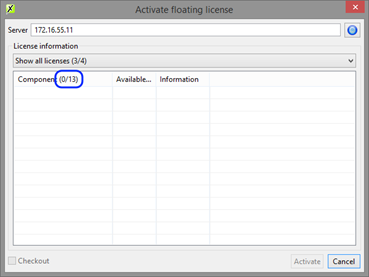
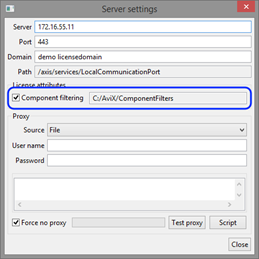
The current component filtering setting is also visible in the floating license settings dialog. In the example below component filtering is enabled and the filter file folder is set to “C:/AVIX/ComponentFilters”.