
Built-in logic and features
There are quite few features in AVIX FMEA in order to enhance the quality of the analysis, to reduce the time consumed when performing the analysis and to reduce the RPN systematically. Some of these features are described below.
Balancing
The analysis information is tied to the process or task usage itself. When a Process Task is balanced, moved from one workstation to another, the FMEA for the two workstations are updated automatically. In other words, the FMEA row for the task that is being moved will disappear from the original workstation and instead appear on the destination workstation. A prerequisite is that there are FMEA´s for the two workstations. Make sure to consider that the analysis details may have to be reviewed in case the conditions differ between the two workstations. Rebalancing is typically done by other people than those responsible for FMEA. Hence, FMEA responsible will need to ensure that the FMEA details are still valid after rebalancing. Nevertheless, this feature will keep the FMEA up to date and drastically reduce time spent on updating the FMEA.
FMEA-actions management
In a cell in the FMEA-grid, as well as in the Control Plan-grid, it is possible to make notes. The notes will be tied to the process and the cell where the note was created. In general the notes can be of three types; Problem, Comment and Suggestion. However, a fourth type of note, FMEA-action, is created when the cell Recommended action is filled out. This cell refers to the action that intends to lower the RPN to an acceptable level. When the action has been decided the cell Decided action is supposed to be filled out. The cells to the right of Decided action are adding information about the FMEA-action such as responsible person, status and completion date.
The notes can be printed through a Notes report.
Class
The cell Class is used to classify the FMEA-row. The classification is done automatically depending on the evaluation of Occurrence and Severity (see Table 1).
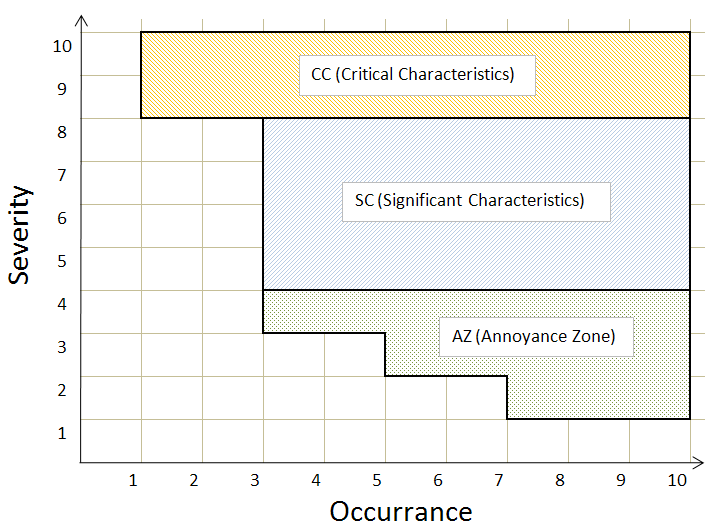
Table 1 The table describes the conditions for Critical Characteristics, Significant Characteristics and Annoyance Zone. Critical Characteristics requires severity 9 or 10, Significant Characteristics requires severity 5 to 8.
The user may override the automatic behavior of the class attribute, by right-clicking a dialog appears where the class can be set manually (see Picture 9).
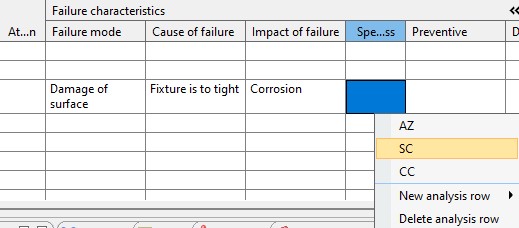
Picture 9 The dialog to manually set the class appears after right-clicking in the class cell.
Control when required
A control is required if the class of a FMEA-row is either SC or CC. This creates a row in the control plan automatically.
Attention
The attention cell is decorated with two warning lights when the FMEA-row requires attention. The prerequisite for attention is that the class is either CC or SC. The left warning light indicates that an action is required; the right warning light indicates that a control is required. The warning lights will disappear when action and control is implemented.
 Picture 10 The warning lights in the Attention column indicates that an action is required for row 0102.01 and a control is required for row 0102.02.
Override evaluation of Process Task
When a task usage is part of the FMEA analysis the evaluation may be done on the corresponding library task or the task usage. In the case a library task has been evaluated in the context of a process plan (Picture 11) that evaluation will be presented also in the FMEA of the workstation (Picture 12).

Picture 11 FMEA-evaluation of [B-10] Library task 2 in the context of a process plan.

Picture 12 The FMEA-evaluation is available at the workstation
The evaluation of the library task may not be valid due to changed conditions at the workstation. The evaluation in italic is overridden by simply editing the row. Note that the evaluation of the library task is not affected.

Picture 13 The evaluation of the library has been overridden on the task usage.