Schedule service restart
For one reason or another, the need to schedule a restart of the AVIX Server may arise. For instance, for deployed AVIX5.0 servers we've had experiences at customers when the SFV stops answering. One mitigating solution in this case was to schedule regular server restarts.
NET START can be used to start Windows services. NET STOP can be used to stop Windows services.
When typed at the command prompt, service names of two words or more must be enclosed in quotation marks. For example, NET START "Solme AviXServer" starts the Solme AviXServer service.
Some web resources on Windows task scheduler:
- https://helpcenter.gsx.com/hc/en-us/articles/360001491087-How-To-Restart-Windows-Services-Using-Task-Scheduler
- https://stackoverflow.com/questions/36309449/how-to-restart-a-windows-service-using-task-scheduler
- https://www.windowscentral.com/how-create-automated-task-using-task-scheduler-windows-10
- https://stackoverflow.com/questions/18428213/how-to-schedule-the-start-and-stop-of-a-windows-service
INSTRUCTIONS
We will define two tasks: one that will bring the server down, and one that will start the server again. Let's also leave a bit of space in-between, say 10 minutes, to give the server a chance to shutdown gracefully.
Preparations before DEFINING "stop" and "start" tasks
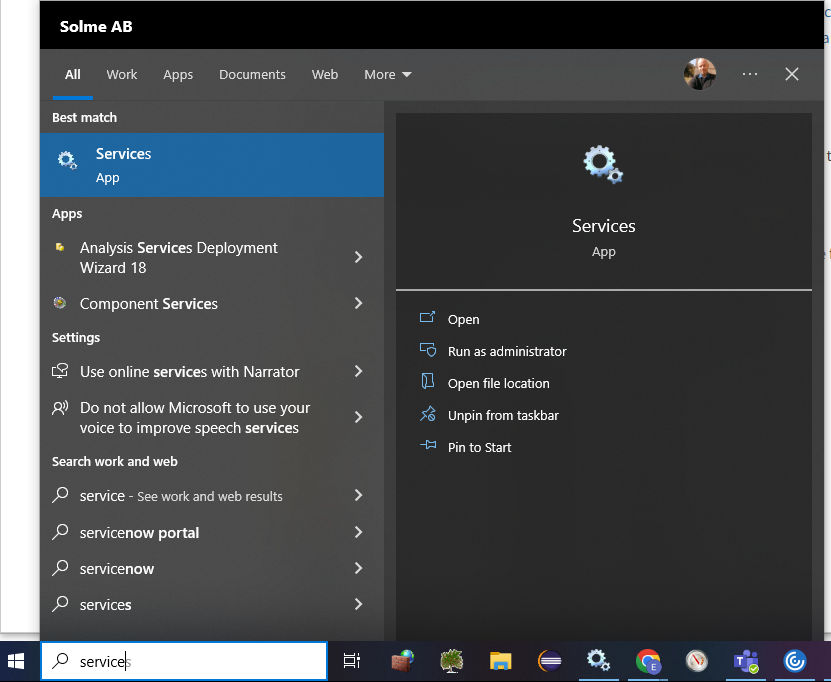
- Open the Windows Services Management Console by typing "services.msc" in the run box.
-
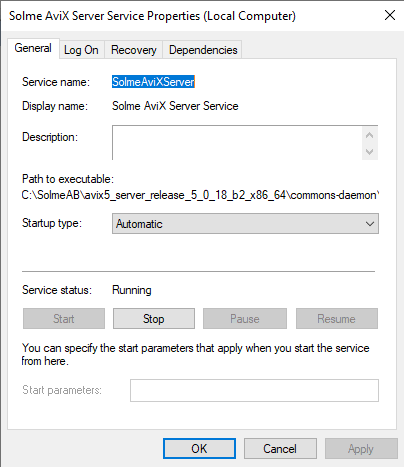
- Locate the AVIX Server service and open its properties.
- Take note of the Service name for future use:
-
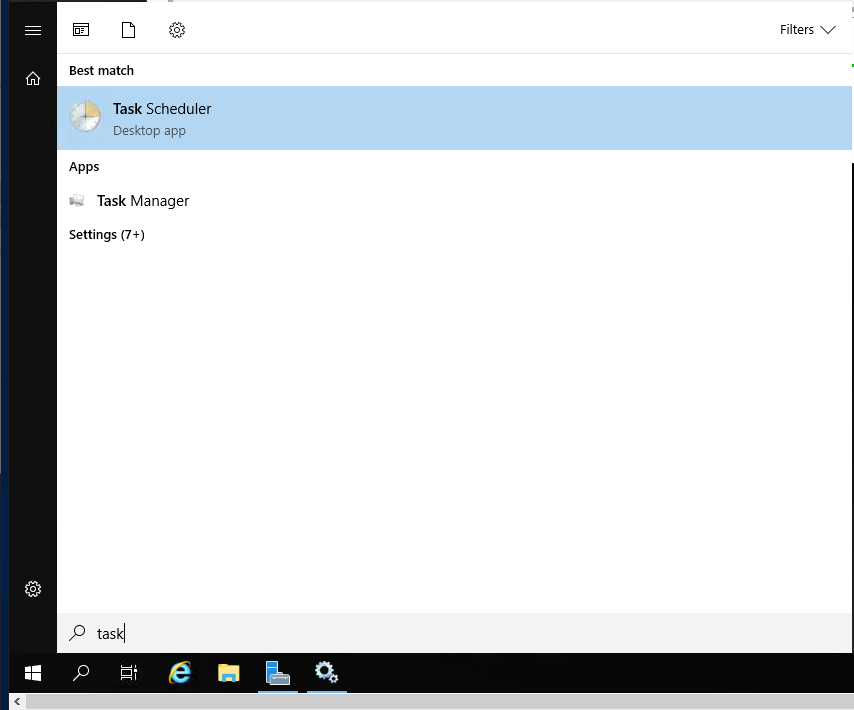
- Open the Task Scheduler by typing Task in the Windows search box:
-
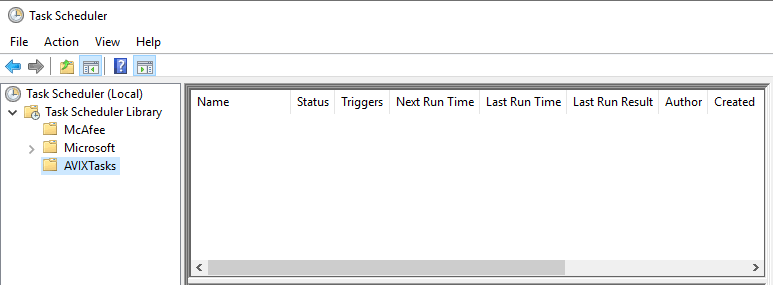
- Create a dedicated folder named "AVIXTasks", where we will define our tasks:
-
Define "Stop" Task
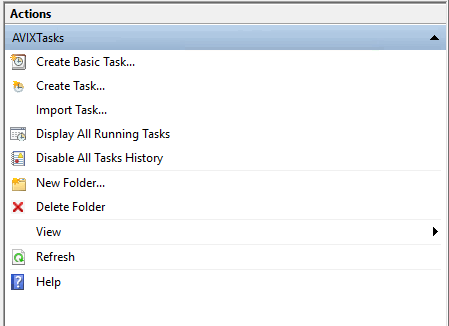
- Select Create a Basic Task from the Actions list on the right:
-
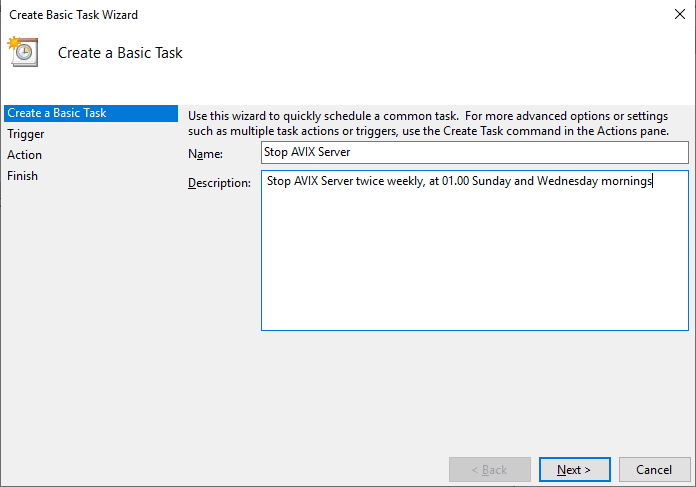
- Name the task Stop AVIX Server:
-
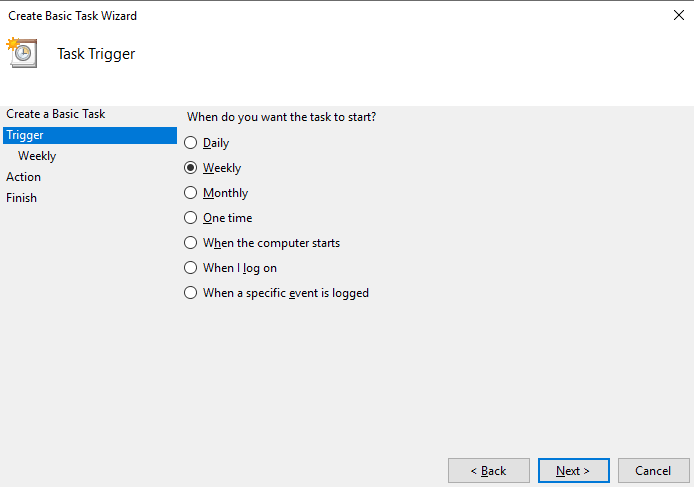
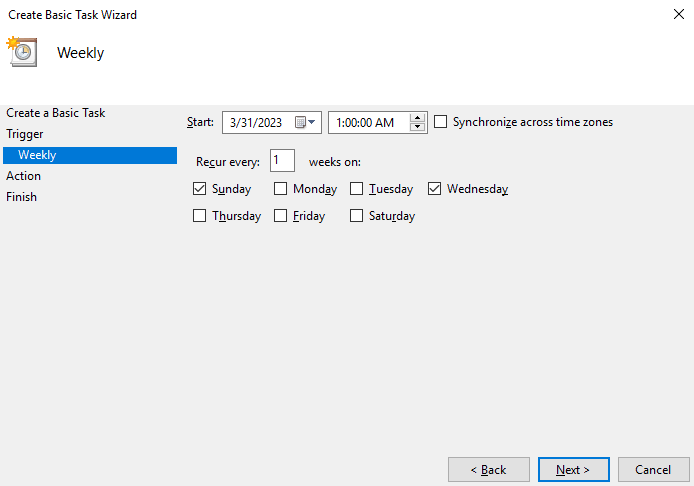
- Click Next and select Weekly Trigger:
-
- Pick time(s) when there will be little activity/usage. We select 01:00 AM, two days/week here:
-
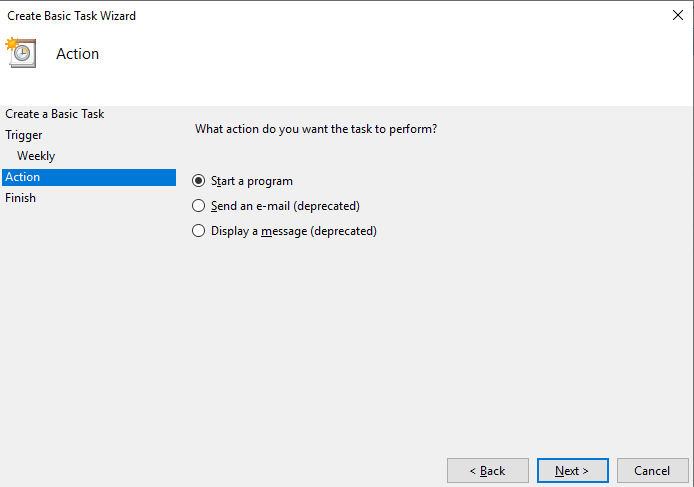
- Click Next and for the Action select Start a program:
-
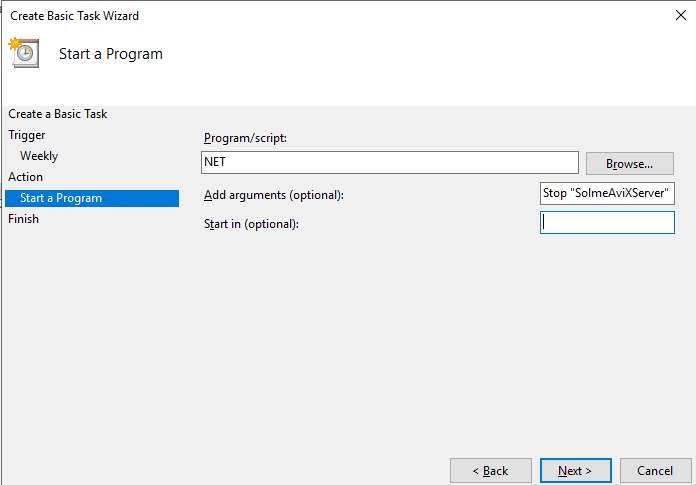
- For the Program/Script type NET and add the arguments Stop "SolmeAviXServer" (i.e. the service name):
-
- Before Finishing, select the Open the Properties dialog option:
-
- In the General tab select Run whether user is logged in or not and Run with highest privileges:
-
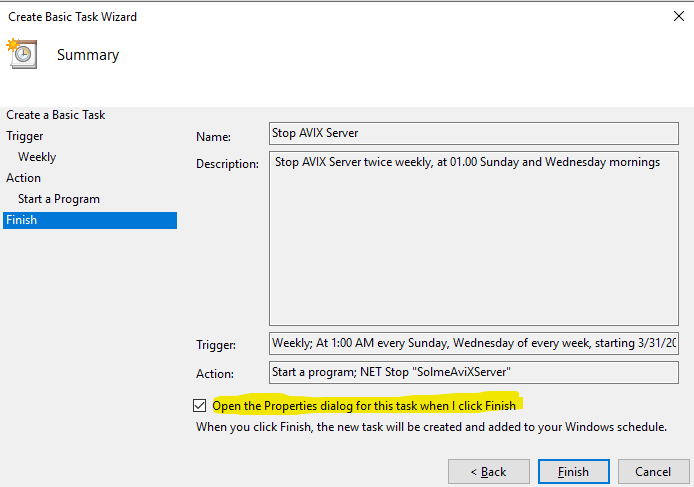
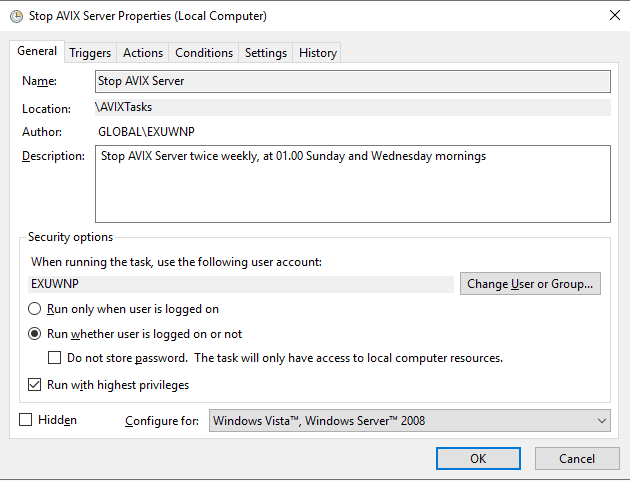
The task we have now defined will stop the AVIX Server service, twice weekly at a chosen time.
Define "start" Task
We will start AVIX Server 10 minutes later, to give the Windows Service some time to close all pending tasks before restarting.
- Select Create a Basic Task from the Actions list on the right.
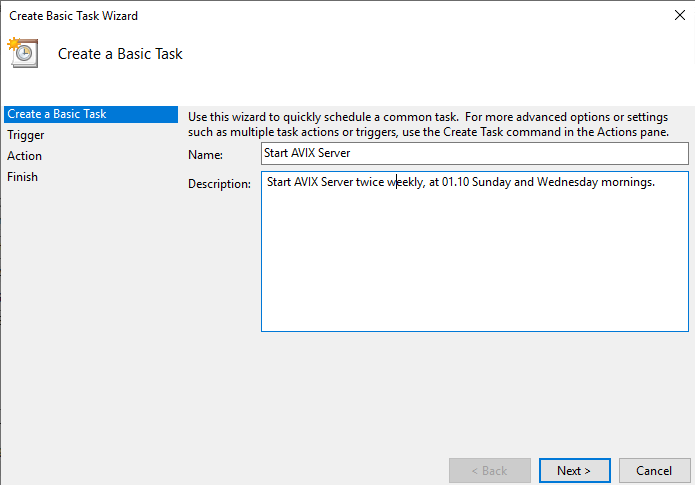
- Name the task Start AVIX Server:
-
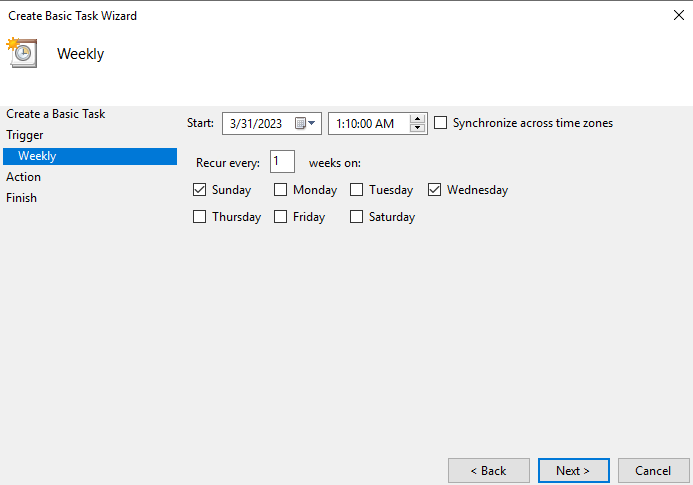
- Set the Trigger to start Weekly at 10 minutes after the stop time set previously:
-
- Click Next and for the Action select Start a program.
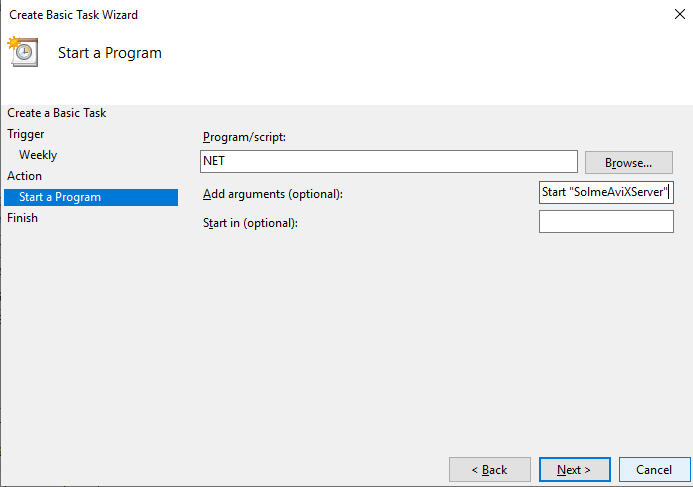
- For the Program/Script type NET and add the arguments Start "SolmeAviXServer" (i.e. the service name):
-
- Before Finishing, select the Open the Properties dialog option as before.
- In the General tab, select Run whether user is logged in or not and Run with highest privileges.
Summary
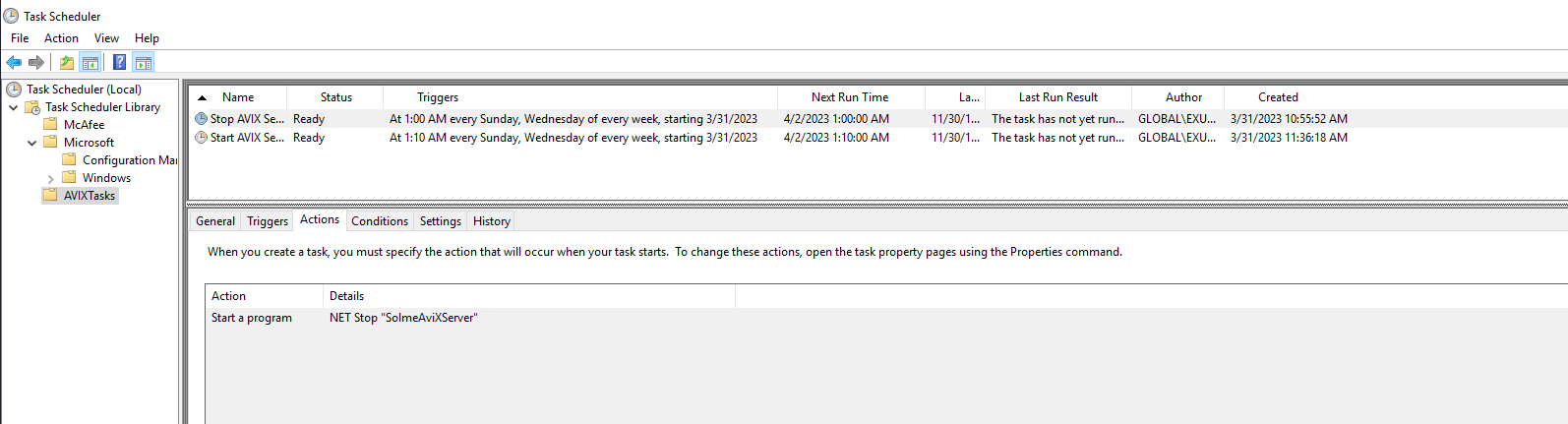
You have now created two scheduled tasks, one will stop the AVIX Server service and the other will start it again 10 minutes later. The overview of the tasks look like this:
addendum 1
It has been observed that scheduled tasks fail to execute, should the password be changed for the user account who is running them. In the screenshots above, the user is "EXUWNP".
Instead, a better approach could be to run the task with the "Administrators" group or similar:
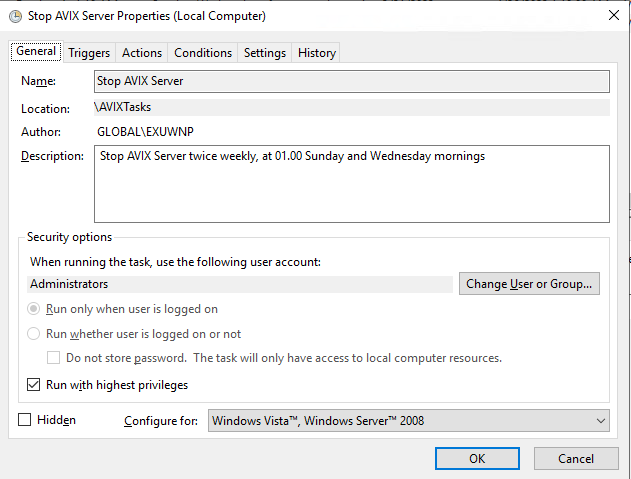
This can be specified by: Clicking on "Change User or Group...", and then clicking on "Advanced". Then, click on "Find Now" in the Common Queries section, and select the appropriate group.
addendum 2
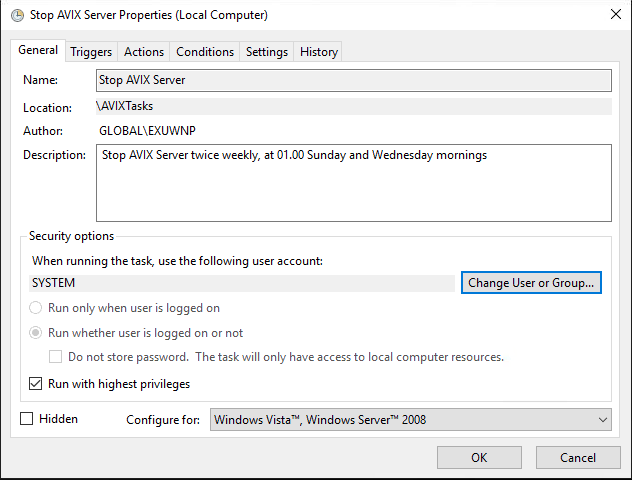
While the "Administrators" group approach is an improvement, there are still problems with it. Should the machine be re-started, it is likely that no user belonging to the "Administrators" group is logged on. Hence, the service will not execute after a restart.
Instead, make sure to run as "SYSTEM" instead:
Click on "Change User or Group...", and then clicking on "Advanced". Then, click on "Find Now" in the Common Queries section. Locate SYSTEM, and click OK:
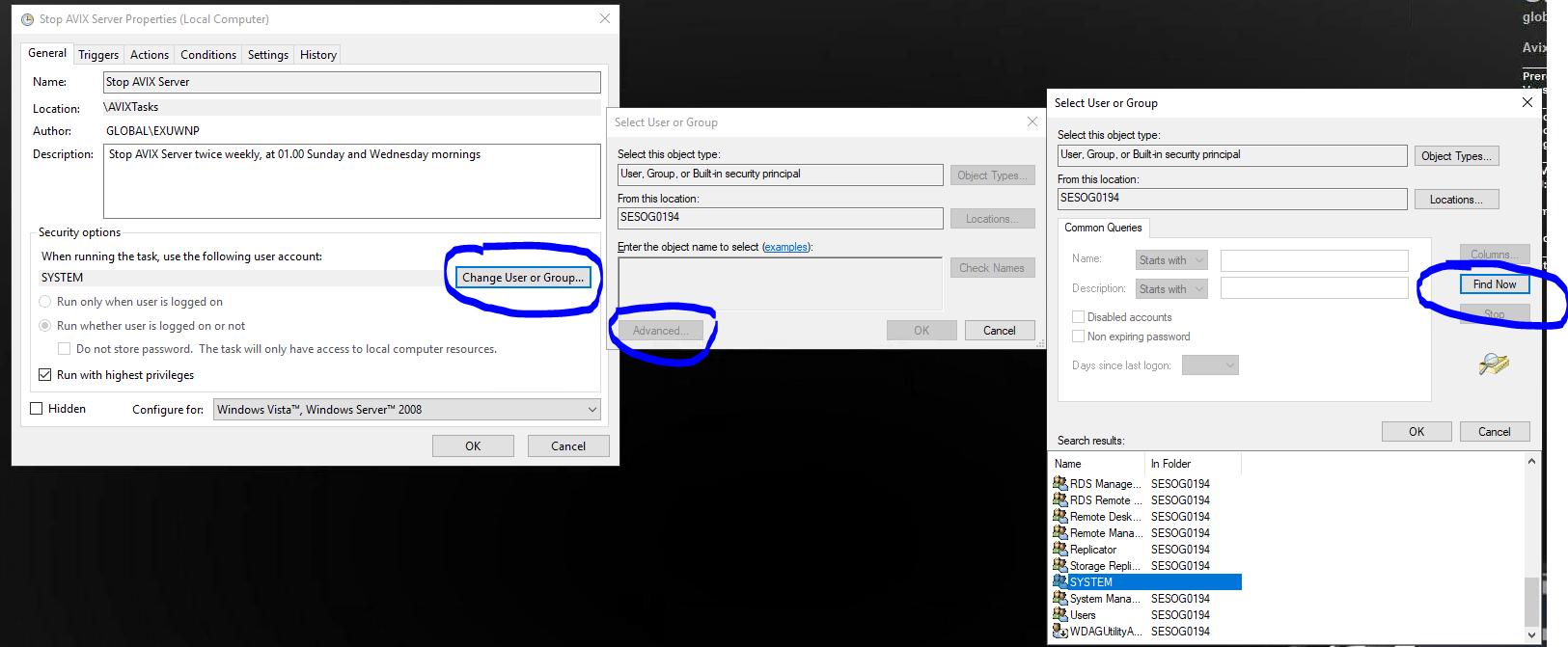
Notice the "Run whether user is logged on or not" (it was reset to this value automatically when I saved my setup):
This should be the end result: