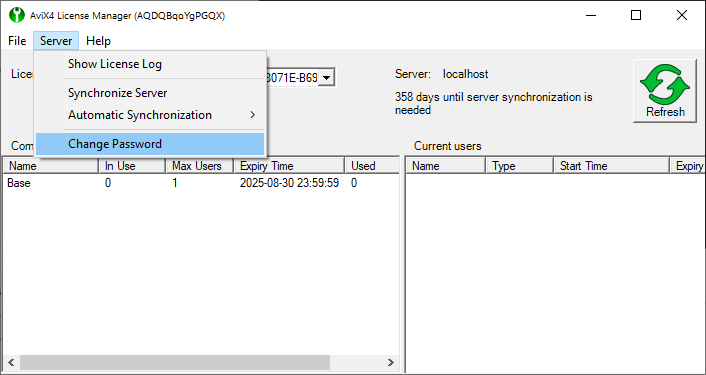
Reset the License Server Password
If you have forgotten the password to the license server, it can be reset.
This is how to do it.
Open the task manager. This can be done by opening the Windows menu and typing "task manager".
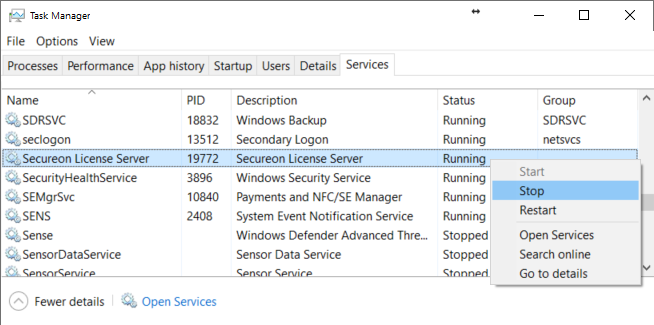
In the task manager, select the "Services" tab and locate "Secureon License Server".
Right click and select "Stop".
Then open the install folder of the license server.
Standard locations are C:/Secureon/ or C:/program files (x86)/Secureon/
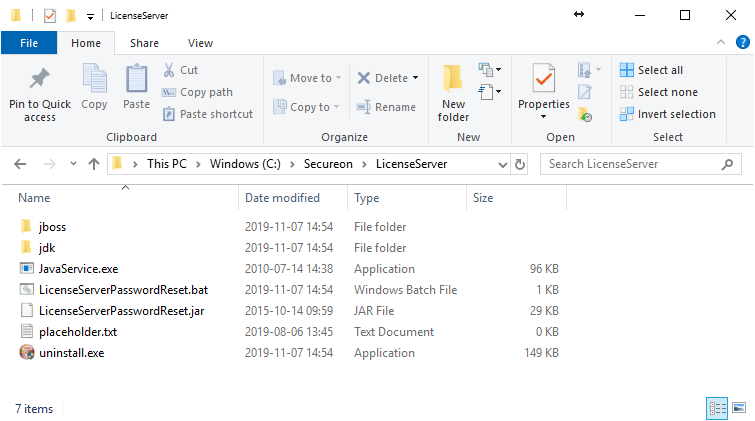
Right click the file "LicenseServerPasswordReset.bat" and select "Run as Administrator".

The install directory will be prefilled.
Click the button "Reset License Server Password".
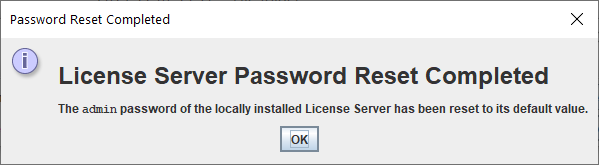
Your password is now reset to "default".
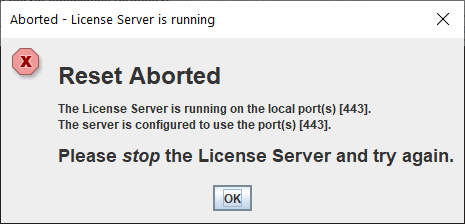
If you forgot to stop the service, you would instead see this error dialog.
You can now login with the license manager using user: admin (all lower case) and password: default
and fill in the ip number to your license server in the server field.
You can also use the hostname of the server.
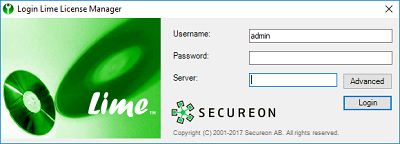
If you are running the license manager on the same computer as the license server,
you can also use the hostname localhost or the ip number 127.0.0.1 which both means "this" computer.
First time after a reset, you will be asked to change your password from default to your own.
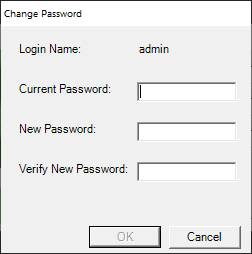
Password can be changed later using the Server menu