
Managing Floating Licenses
Floating licenses are intended to be used in locations where the user wishes to have AVIX installed on more computers than the amount that need to be run AVIX at any one time. For example, it is possible to have AVIX installed on ten computers and a local license server with two floating licenses that then can be shared by the ten computers.
An activated floating license is normally kept alive by contacting the local license server at regular intervals for as long as AVIX4 is used. When the AVIX application is closed down the license is returned to the server. It is also possible to check out licenses for a limited time, in which case the license server only needs to be contacted when a license is checked out. A license that has been checked out automatically becomes available on the license server once again after the checkout time has expired, but it can also be returned manually before that happens if needed. This is done via the license preferences in AVIX. In order to do this the AVIX client must be able to contact the license server which has issued the checked out license. A checked out license cannot be forcibly returned to the license server via the License Manager so if a checked out license is lost in for example a hard drive failure. It is therefore recommended to use short check out periods to lessen the risk of locked licenses. It is possible to control if checkout is allowed and also the max allowed checkout time (in hours) with settings on clients via settings. See the chapter “Customization of the installation” for more information about this.
When a user wants to run multiple instances of the AVIX4 software at the same time on the same computer each instance will need to activate a floating license. This is since no license related data is stored on the local computer when a floating license is activated. It is however possible to only consume one license for all application instances on a computer and this is accomplished by using a checkout license instead of an activated floating license. When a license is checked out the license information is persistently stored on the computer so multiple AVIX4 instances can detect and use that license. The use of multiple AVIX instances together with license changes is however problematic as each AVIX instance will save the license information it has when it shuts down. Solme recommend that only one AVIX is running when license information is changed with for example the “Activate new…” and “Deactivate” functions in AVIX to avoid problems. An example of a problematic situation is when two AVIX instances are started at the same time and share a checked out license. If that license expires while the applications are active and the license is extended in one of the instances it is very important that that AVIX instance is closed last so not the other instance where the license is expired gets the last word in and writes to disc (overwriting the new license data written by the first AVIX instance) that no valid license exist.
Infrastructure requirements for client computers:
Contact with local license server
- Name of local license server
- Port 443 open in your firewall
(or other ports if you have reconfigured your license server)
ACTIVATION
Start up AVIX4. If you have not previously used a floating license, the following dialog will be displayed.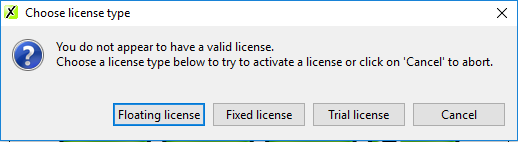
Select “Floating license”. After a short while a new dialog will be displayed. If the name of the local license server is OK, the dialog will look similar to the one to the right. If the name is not OK, then the dialog appears as on the left.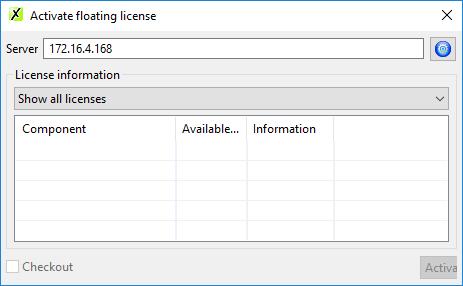
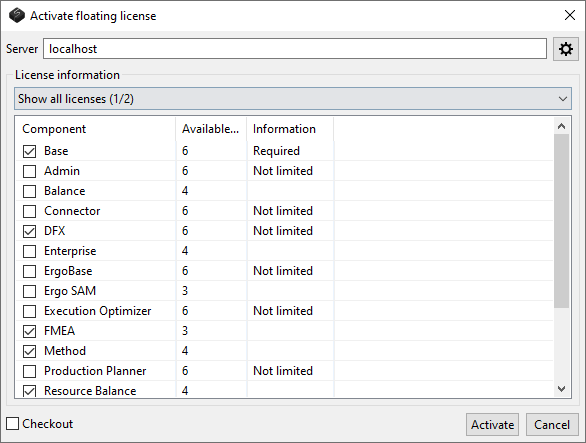
If you have an empty list, enter the name of the local license server that is to be used and press enter to get the current license status. If the license server operates on a different port than the standard port, port 443, you may need to open the advanced dialog mode and update the port number as well. Note however that the number of available licenses may be different from the actual number if other users acquire or release licenses while the dialog is open.
If you have a populated component list, select the desired components from the list. Click on ”Activate” to use the floating license, or tick the “Checkout” box and select the duration you want to check out a license and then click on ” Activate” to check out the license.
Only one license can be activated at a time so there may be problems in multi license environment if a user use “Show all licenses” and the selected components are not available in any individual license. If that happens, select a specific license in the “License” combo box. This will populate the component list with the information from that specific license which should prevent any such problems to occur.
If you have successfully obtained the license, AVIX will start. Otherwise an information dialog will be displayed and you can adjust the license and try again.
The dialog also has advanced settings accessible through the cogwheel button in the uppr right corner. In the advanced settings dialog you can configure the service address (IP or name), port, domain, communication port used to communicate with the license server, component filtering and proxy settings. You can also force no proxy to be used.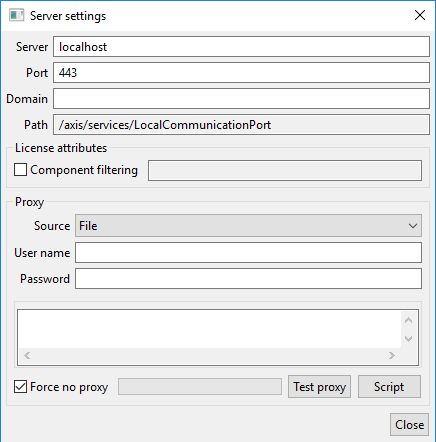
DEACTIVATION
Use the following procedure to return a checked-out floating license before it has expired: Open the Preferences in AVIX via the main menu
Window -> Preferences...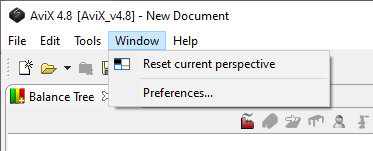
The Preferences dialog will then be displayed.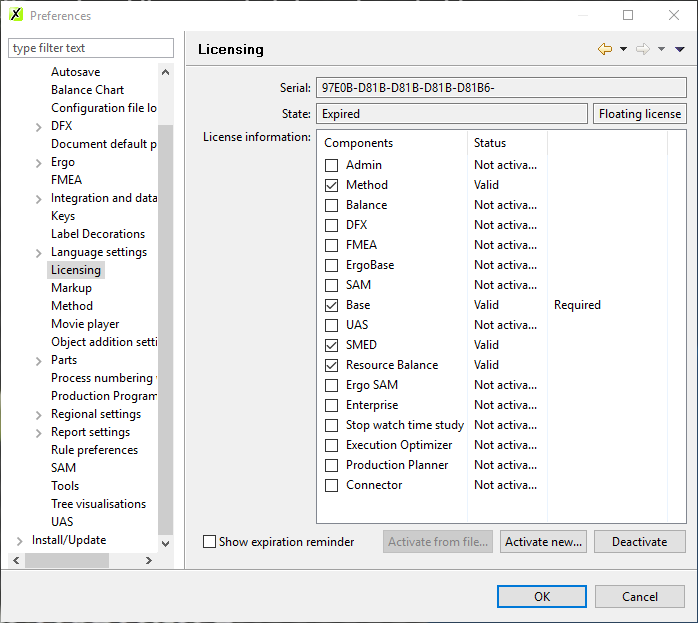
Browse to the licensing page in the tree to the left in the dialog. On this page there is a button labeled “Deactivate”. Click on this to deactivate the current license. This will fail if no connection can be established to the local license server from which the license was checked out.