Managing Fixed Licenses
Solme offers a number of different types of license, each with different properties. This section explains how to use the various types of licenses.
FIXED LICENSE
This type of license comprises licenses that are locked to individual computers. Once a license has been activated the maximal number of times for which it is configured it cannot then be activated again. A license usually allows one activation per user if you have a multiple-user license, or one activation per license if you have single user licenses. If there is an active license, AVIX will start up without any extra dialogs and the license will be retained when upgrading the AVIX software.
Infrastructure requirements:
- No local license server needed
- For license activation via internet Contact with license server at licensing.solme.se.
- Ports 443 and 8080 open in your firewall
- License key from Solme available
ACTIVATION
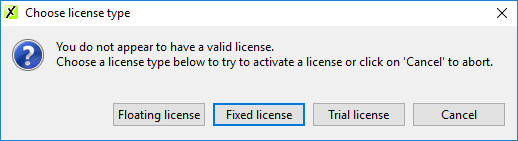
If the computer does not have an active valid license, a dialog will be displayed when AVIX4 is started.
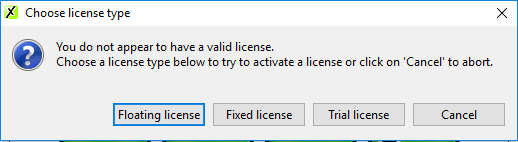
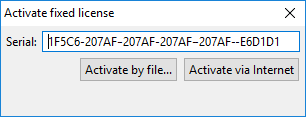
Select “Fixed license”, the following dialog will be displayed.
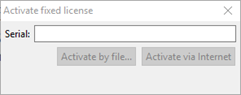
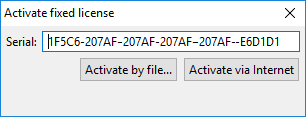
Enter the license number for the license that is to be used, and then click on "Activate via internet" or ”Activate by file…” depending on how the license is to be activated.
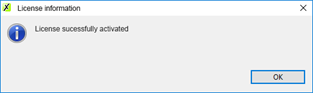
If ”Activate via Internet” is selected, one of the following dialogs will be displayed, depending on whether or not it was possible to activate the license.
Below is an example of what a dialog might look like when the license cannot be activated.
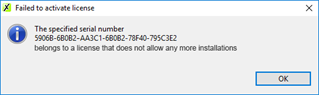
Common errors that can prevent activation of a license:
- An invalid license number was entered
- The maximum number of activated licenses has been reached
- It is not possible to establish a connection with the license server at Solme.
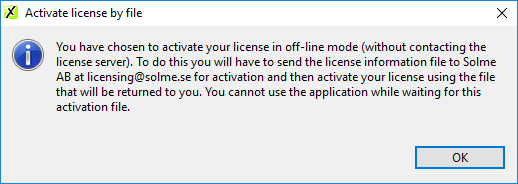
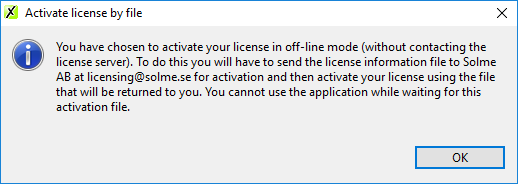
If “Activate by file…” is selected, the following dialog will be displayed
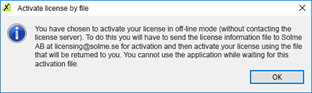
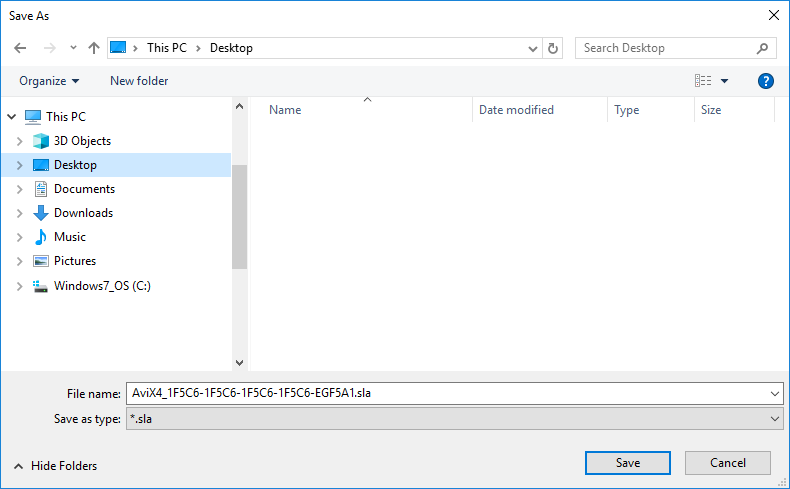
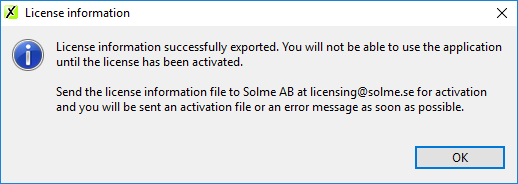
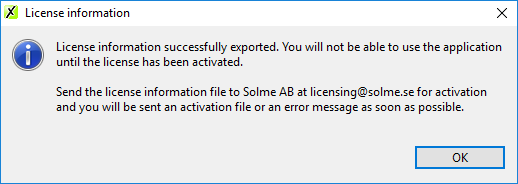
Click on “OK” and navigate to where the license file is to be saved. Once this has been done, the following dialog is displayed.
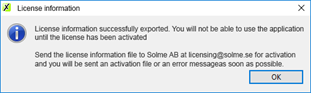
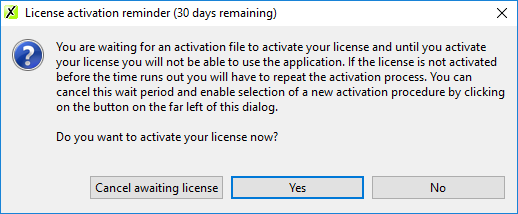
The license file that has been saved should be sent to licensing@solme.se for activation. AVIX cannot be opened until the license has been activated. Instead, each time the application is started, a reminder will be displayed that can be used to activate the license. If time runs out before the license has been activated, the license activation process must be repeated from the beginning. This waiting period can also be interrupted if you want to use a different license activation method or a different license key.
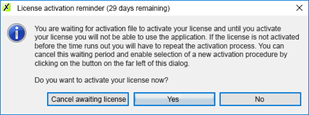
Selecting “yes” in the license reminder dialog opens a file manager where you can navigate to the activated license file you have received from Solme. After this file has been used to activate AVIX it is consumed and cannot be used again Also the exported license file is consumed and can not be used again. Delete them.
REACTIVATING A FIXED LICENSE VIA FILE
If your company needs to activate more than 1 license,
ALL computers need to do this procedure.
One sync file can only be used to activate the computer where it was exported.
It can not be used to activate any other computer.
This is how to do it:
- Start AVIX
- If this is the first time that you start AVIX, you will see the license type dialog. Continue on that step below.
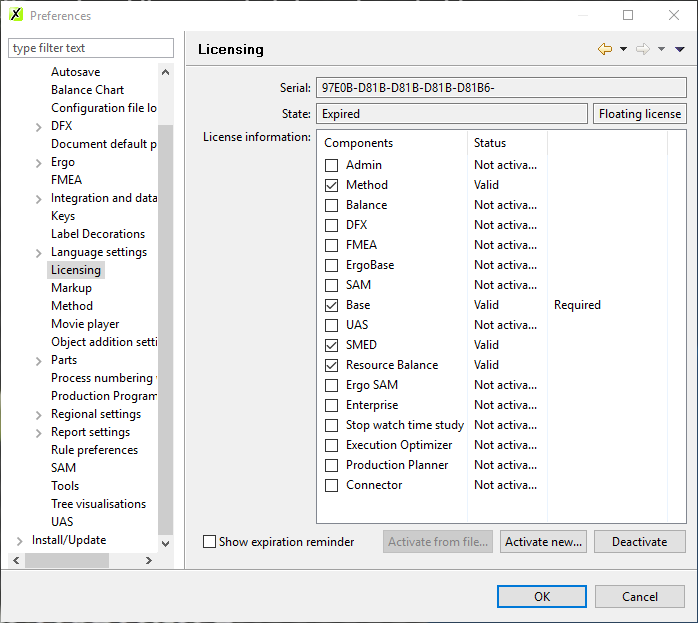
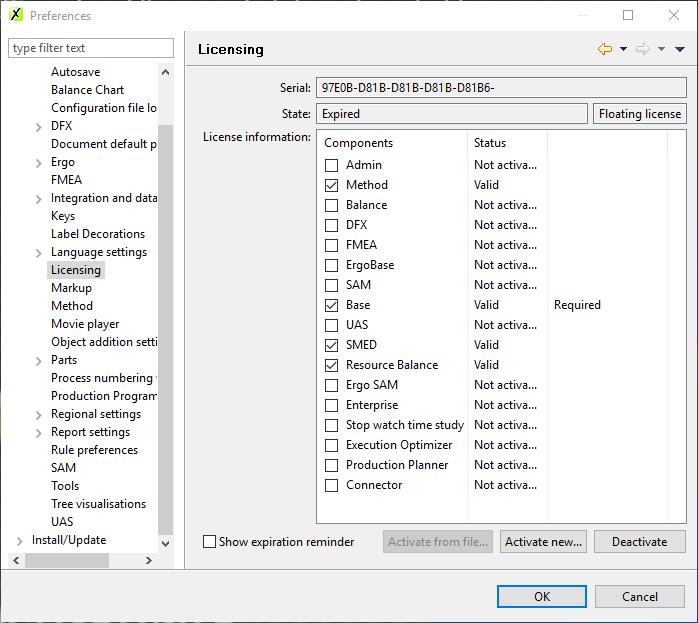
- Open ”Preferences” and browse to the license preferences
(using “Window->Preferences…->AviX Preferences->Licensing”) - Press "Deactivate"
- Press ”Activate new…”.
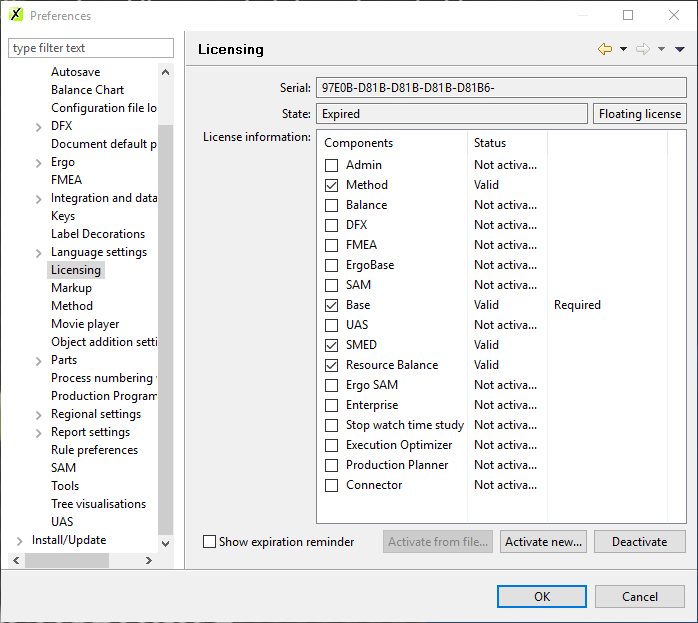
- The following dialog will appear:
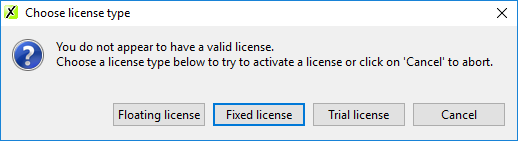
Choose ”Fixed license” - Select ”Activate by file...”
- Klick OK in the dialog
Save the resulting .sla-file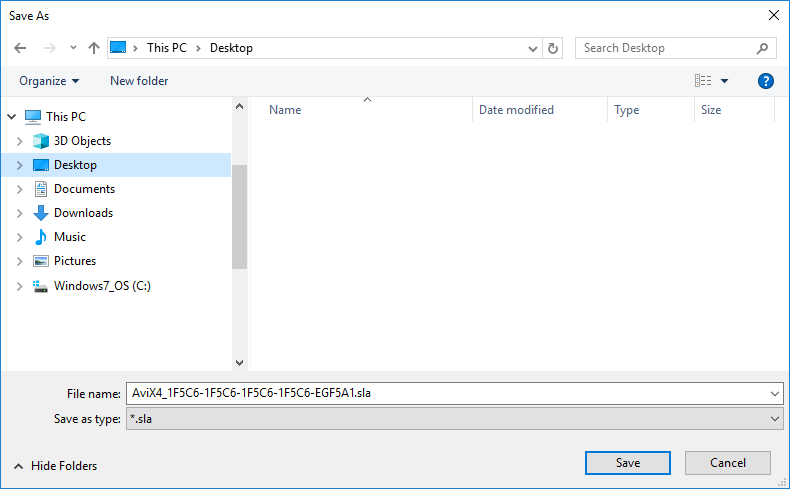
- Click OK and mail it to licensing@solme.se
- When you receive the activated license file (.sli), in your mail,
save it on your hard drive,
then if you did not close AVIX, go back to the license preferences page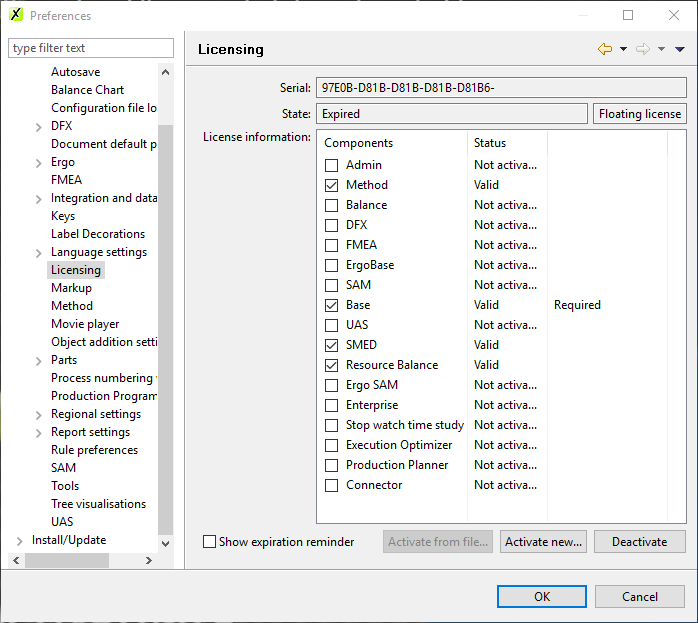
and click on "Activate new" - else if you restarted AVIX, you will see this dialog
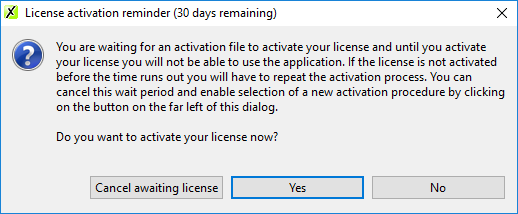
click on "YES" and - Navigate to where you saved the .sli-file and open it.
- AVIX is now activated.