
License Presentation
By default the floating license dialog show a combination of all available licenses in the component list. In scenarios where multiple licenses are available and their components do not overlap 100% it can cause problems as only one license can be used to acquire the requested components. If no single license can give the user all the selected components the license activation will fail and an error dialog be shown. If an error dialog is shown it usually contain some tips of common problems and how to check and fix them.
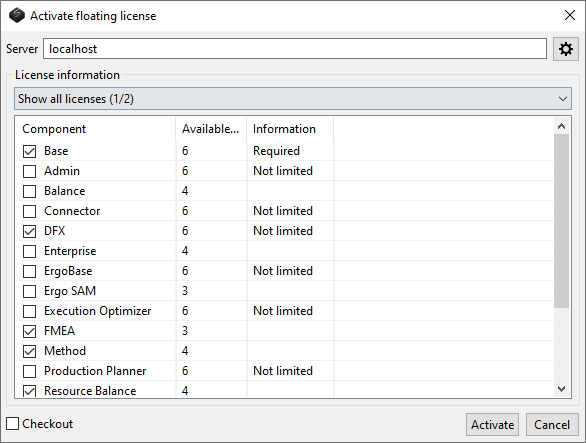
Users can change how the component list is populated and make it show only one license at a time. This is done by selecting the license to show with the dropdown list located above the component list. If licenses are filtered out due to for example license domain settings the number of included licenses and the total number of licenses are visible in the combined license list as a suffix to the “Show all licenses” component presentation mode entry.
In the figure below 1 of 2 (1/2) licenses are included in the list.
By default the identifiers for the different licenses in the list are license numbers which are in the format XXXXX-XXXXX-XXXXX-XXXXX-XXXXX-XXXXXXX. These can cause confusion for end users, but it is possible to show custom strings instead of these license numbers. Like this:
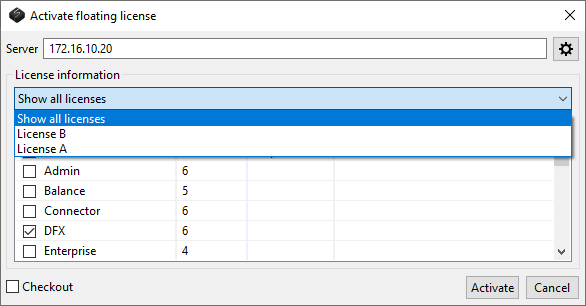
One such string can be assigned to each license, but as they are stored as license properties on the licenses themselves they have to be assigned by Solme. Contact us if such a need arises. When such strings have been set or updated to licenses, the local license server need to perform a synchronization to receive the updated license information.
The string can at the moment only contain standard ASCII 7-bit characters (just like domains) and should be short enough to fit in the license drop down list in the floating license dialog.