Checklist for Installing the License Server
CHECKKLIST FOR INSTALLING THE LICENSE SERVER
If you at any point during this procedure have any problem, please look at the instructional video associated with that stage, as it will probably show the solution to your problem.
INVOLVED SOFTWARES
There are 2 softwares involved in this process.
The Secureon License server is a service on the server computer that leases licenses to AviX clients.
The Lime License manager is a program that is used to connect to the Secureon License server service to eg. sync/activate the license.
Be careful not to mix up Secureon License server and Lime License manager.
Take a look at this page to get a better understanding of how things connect [Network overview]
- IMPORTANT!
If you need to do a test installation of the server, that is not in it's final destination,
don't use the real license. You must request a test license for this purpose.
When the license is activated, it will be locked to that computer and if you try to activate it on another computer, you will get an error. - IMPORTANT!
You need to make sure that you are using the Gregorian calendar (the one commonly used in Europe and America). Both on server and client.
If your country use another calendar, like e.g. Thai time, then the license will show as expired and cannot be used. [How to change calendar] - Locate your server ID
Find out your license server ID and have it ready for the step "Setting the server ID" below. It was mailed to you in the license mail. It looks something like this: AQXBTEUcvnytreH5
If you have run the manager before, it is located in the name bar of the license manager. - Download the Secureon license server from http://community.solme.se/
[instructional video] - In the same way, download the Lime license manager from http://community.solme.se/
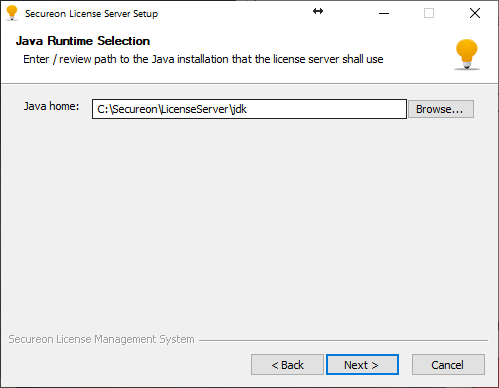
- In versions before Secureon license server v3.5.5, you had to install Java JDK 32-bit from Oracle. Such as Java JDK 8u202 32-bit.
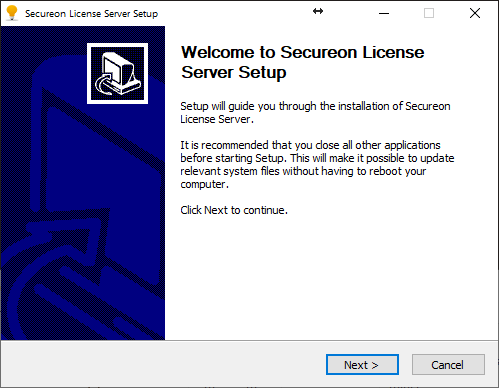
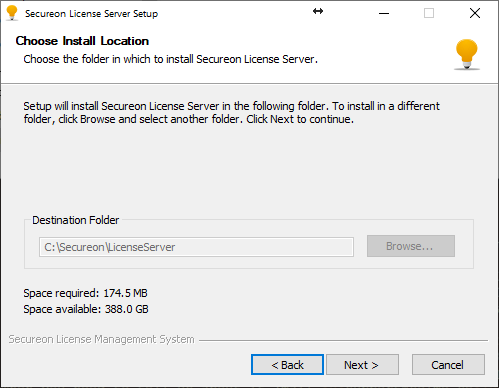
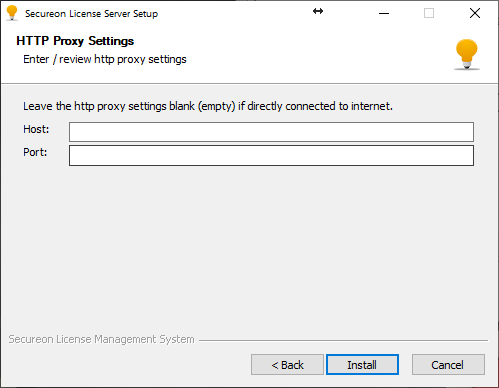
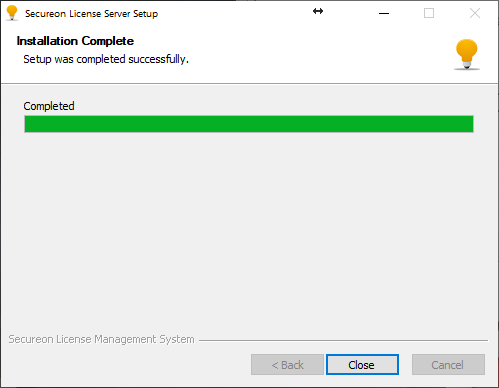
From version 3.5.5 this is no longer necessary, as the Secureon license server is now shipped with Adopt Open JDK included. - Install the Secureon license server service on the new server computer. [instructional video]
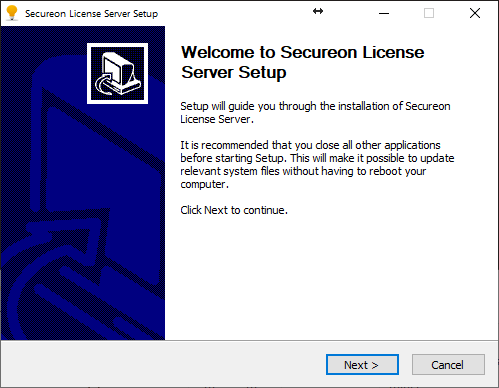
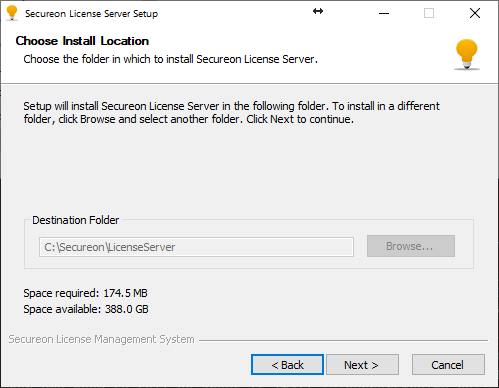
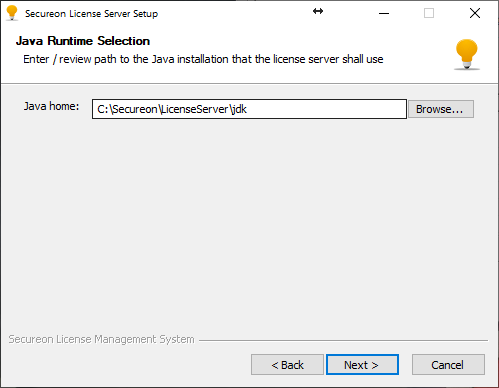
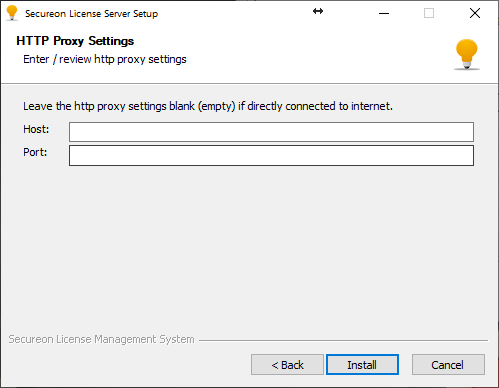
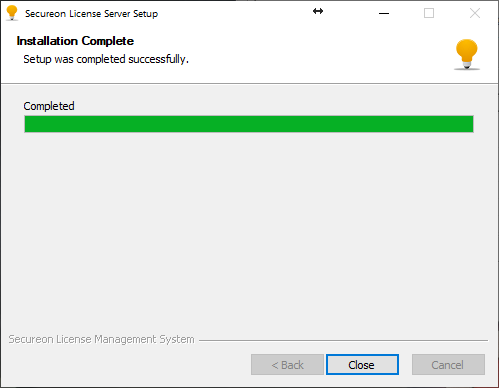
- In the same way, install the Lime license manager on the computer you like to use it from. It can be installed on your local computer or on the license server computer.
Note that the license manager does not work under Windows server 2012 or later.
If you install it on the server computer, then you have to login/remote login to be able to run it.
On older windows servers you might have to install .NET 3.5 to be able to install the License manager. - Find out the IP-number (or hostname/DNS-name) of the license server computer.
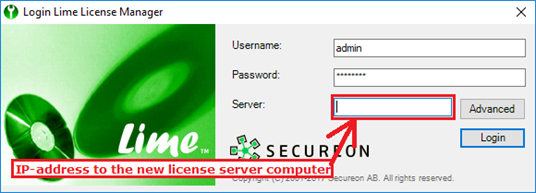
- Login to the Secureon License server, using the Lime license manager software.
[instructional video]
username: admin (case sensitive)
password: default
server: [the Secureon license server’s IP address (or network name)]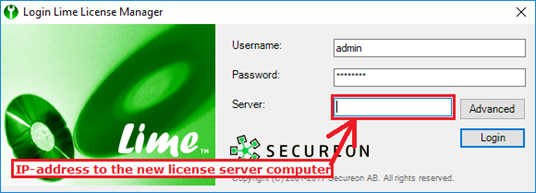
if you could not connect, it might be because the server computer firewall is blocking port 443/8080 or you have typed the wrong server address.
It might also be another service using these ports. - Setting the Server ID
Once you have logged in, you will be asked for the license server ID.
Enter the correct license server ID.
(From the step "Locate your License server ID". It looks something like this: AQXBTEUcvnytreH5)
If you fail to enter the correct license server ID, you will have to reinstall the Secureon license server to be able to reenter the correct ID. - There are two ways to sync the server.
If the First way doesn't work, use the second way.
The first, and easiest way needs to have ports 443 and 8080 open to licensing.solme.se, or else syncing is going to produce an internal error.
You will also get an internal error if you have previously installed and are now reinstalling.
Then you need to tell us about it (mail support@solme.se),
because there will be a lock to the old server computer that needs to be released. - First way. [Link to thorough description]
Sync the server using menu option
server → Synchronize Server
If you get "Internal error", ports 443 and/or 8080 are blocked in the firewall. - Second way. [Link to thorough description]
Use the menu option
file → Export Sync Data
send resulting file to support@solme.se and then import the file that is sent back to you
file → import license file
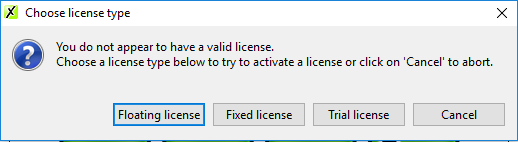
[instructional video] - Start AviX and and select “Floating license” in the dialog.
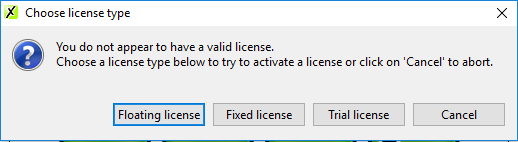
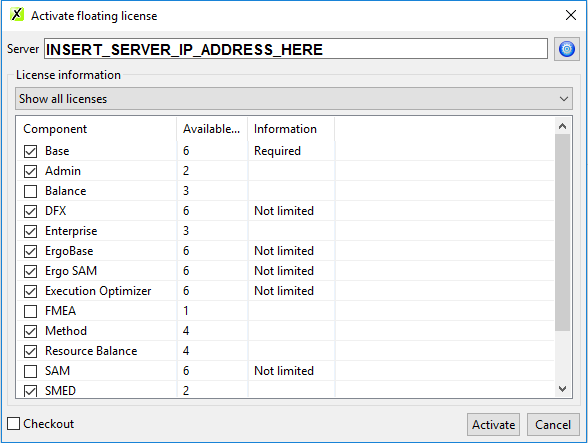
- Enter the server ip address in the “Server” text field and click “Activate”.
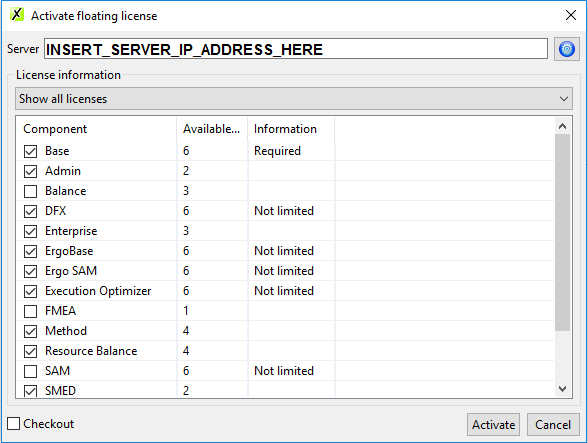
AviX should now start. You now know that the server is handing out licenses to AviX clients. If you could not get a license, it might be because the server computer firewall is blocking port 443/8080.
AVIX is a Java program. It use the Adopt Open JDK Java - Congratulations! Good job. You're done.