
Importing Data
There are different types of data which can be imported to AVIX. Often it is related to parts used for the process description or in work instructions.
It is also possible to import a task or a process step sequence from Excel. This is useful if some data is already present in Excel.
And instead of manually entering parts/tools, they can be imported directly into AVIX .
In AVIX there’s a built-in wizard to import parts and tools from an Excel document (.xls/.xlsx).
This is how it works:
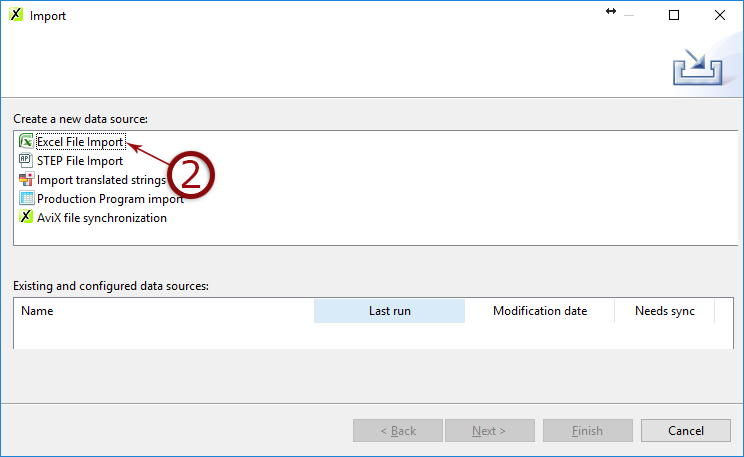
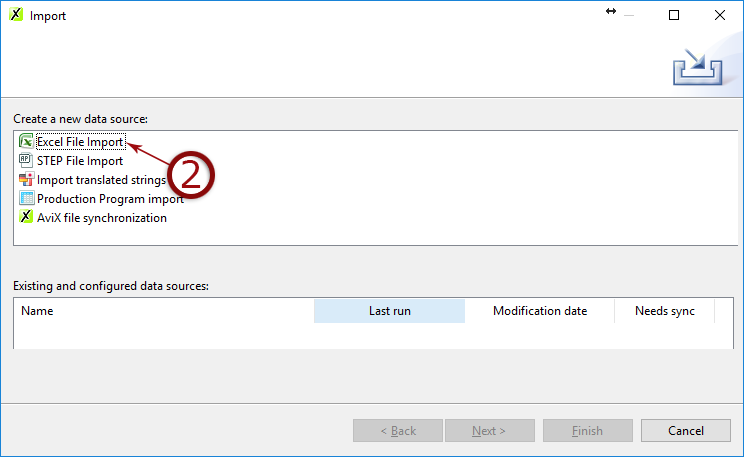
- Click menu File → Import
- Select Excel file import and click next.
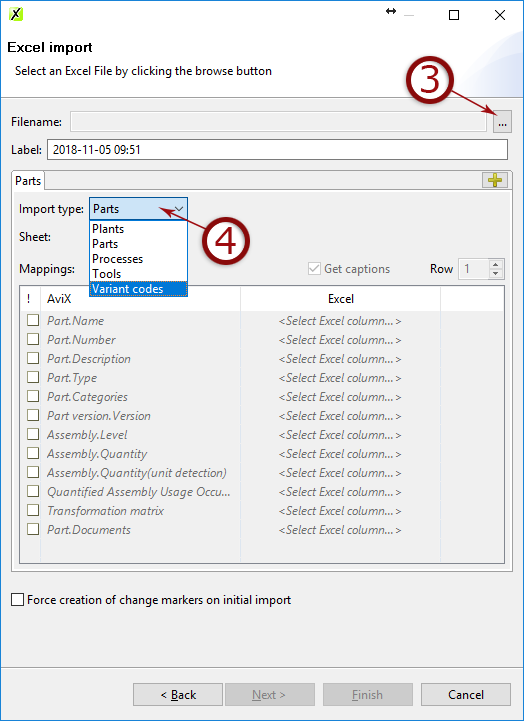
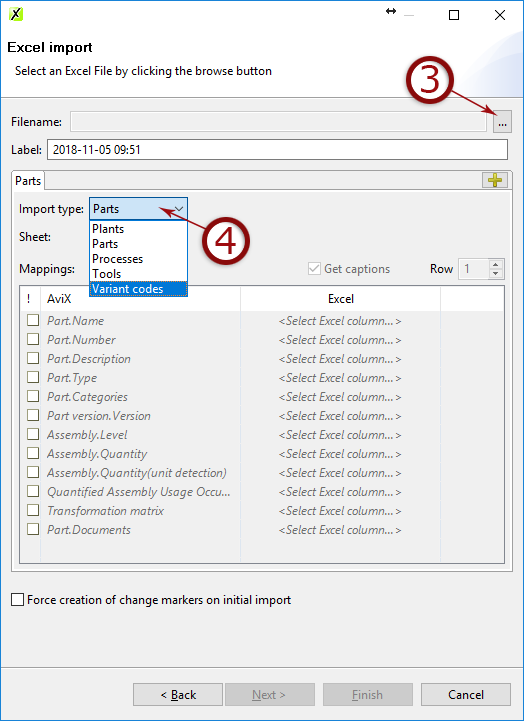
- Select the Excel document
- Select what to import and click next.
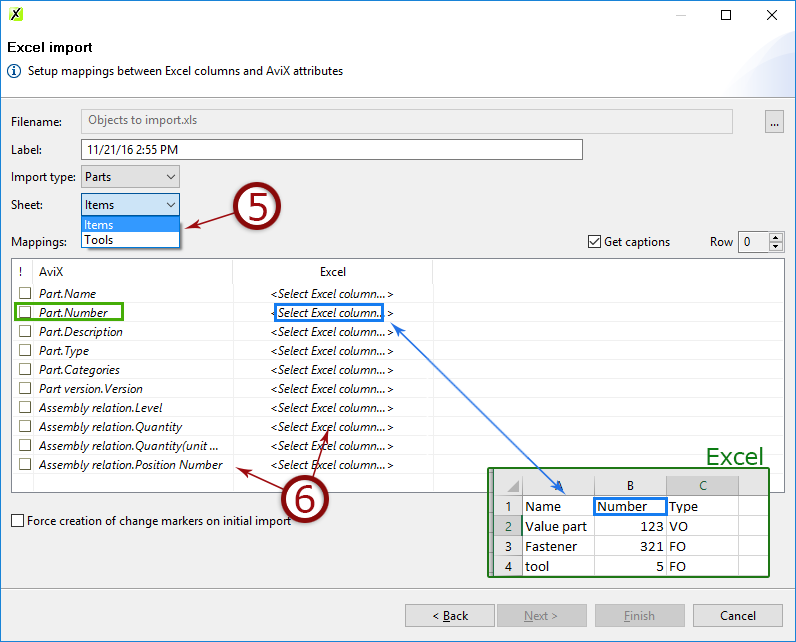
- Select the sheet from Excel document that contains the data
- Map the fields containing data
- Click next to see a preview or click finish.
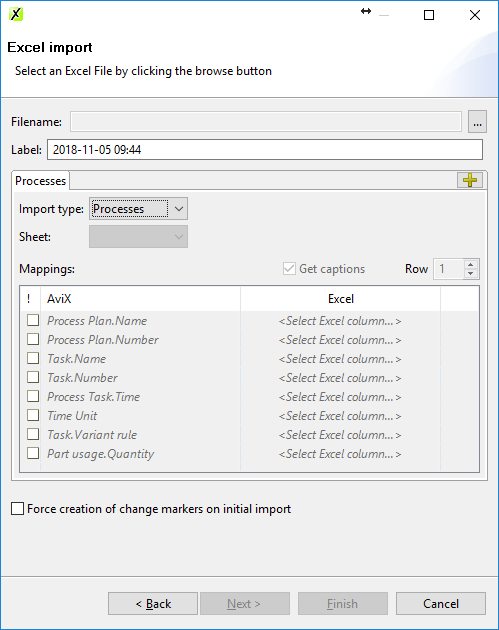
The way of importing process steps/tasks/time is the same as for parts and tools. Use the menu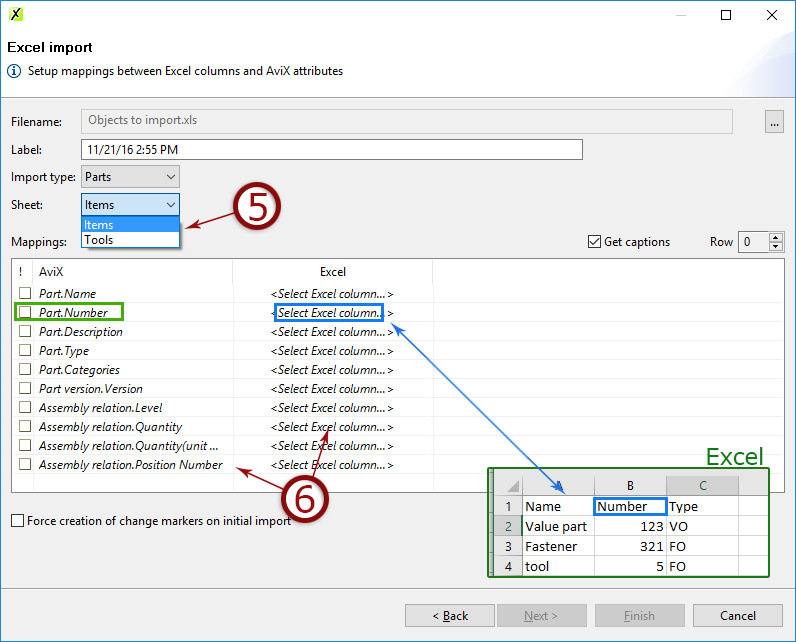
File → Import → Excel File Import
Follow the wizard and map the data in AviX to the columns in Excel.
Done!
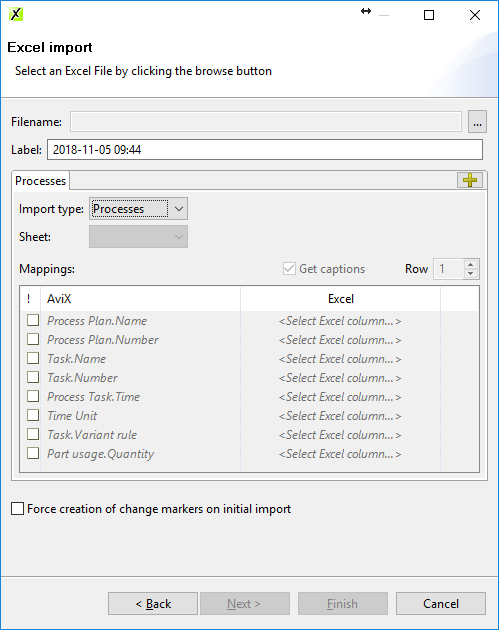
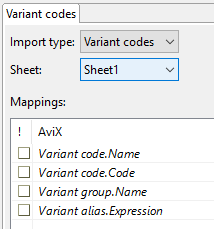
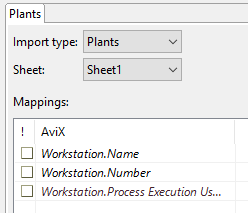
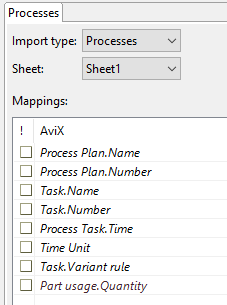
Following are the properties for all import types that can be imported via Excel:
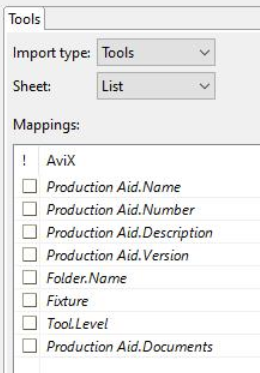
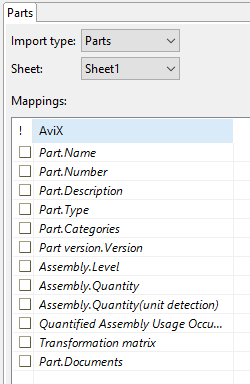
When importing parts/tools images linked can also be imported. This is done by adding the source of the image, e.g. c:\images\hammer.jpg. Multiple images can be imported by separating the link using a semi-colon (;) e.g. c:\images\hammer1.jpg;c:\images\hammer2.jpg
