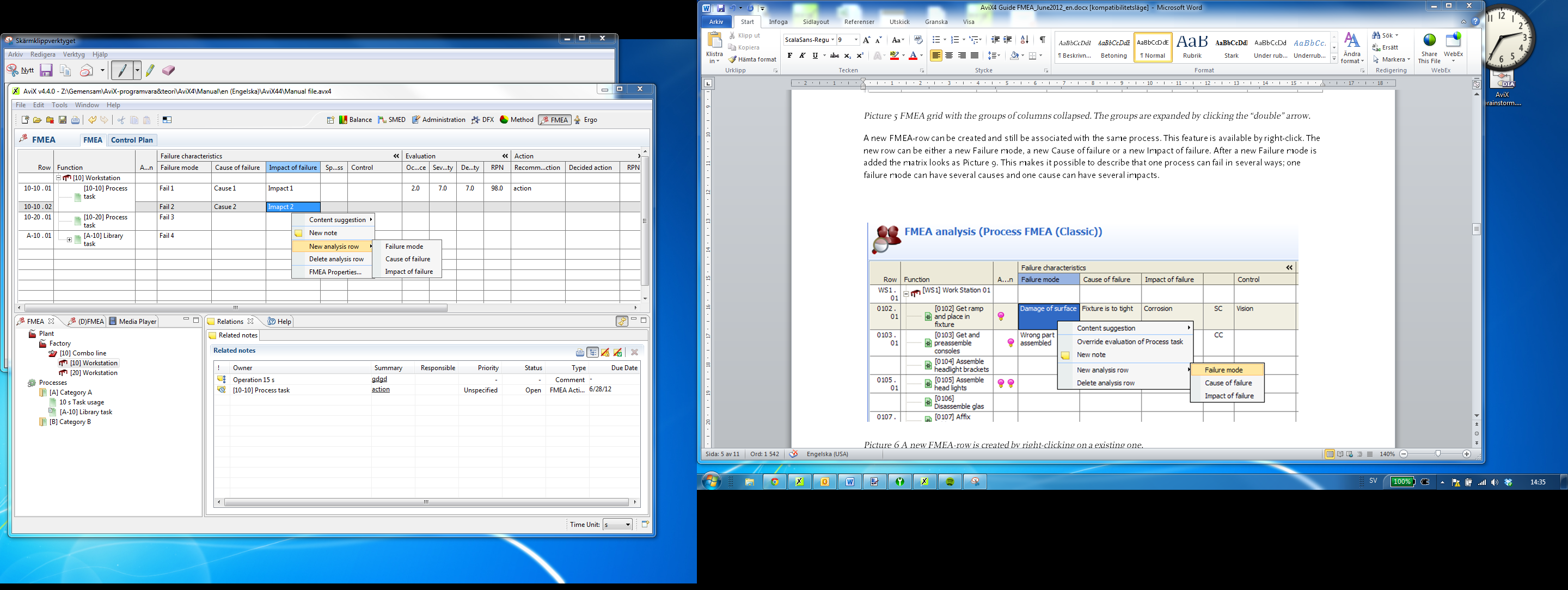
Process FMEA
Either a workstation or a process plan is a valid selection to perform a process FMEA. Under the icons in the FMEA-window the analyzable objects created in other modules of AVIX appear. Neither workstations nor process plans or tasks can be created in the FMEA perspective.
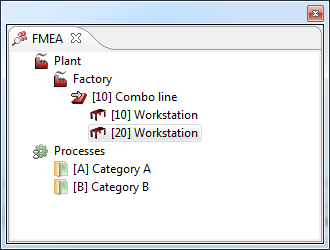
Picture 2 The analyzable workstations and process plans appears in the FMEA-window.
Simply select the workstation or process plan that shall be shown or analyzed and it will open in the FMEA-grid.
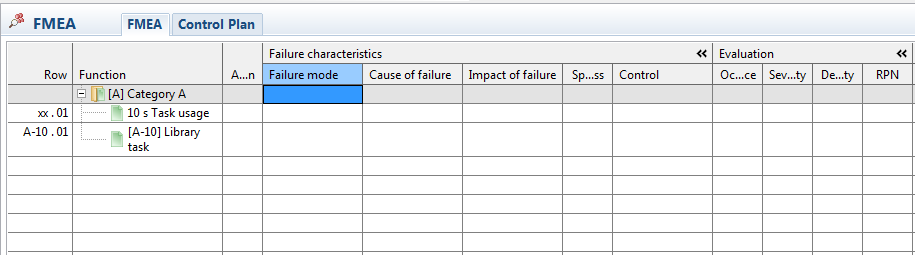
Picture 3 FMEA grid populated by a process plan.
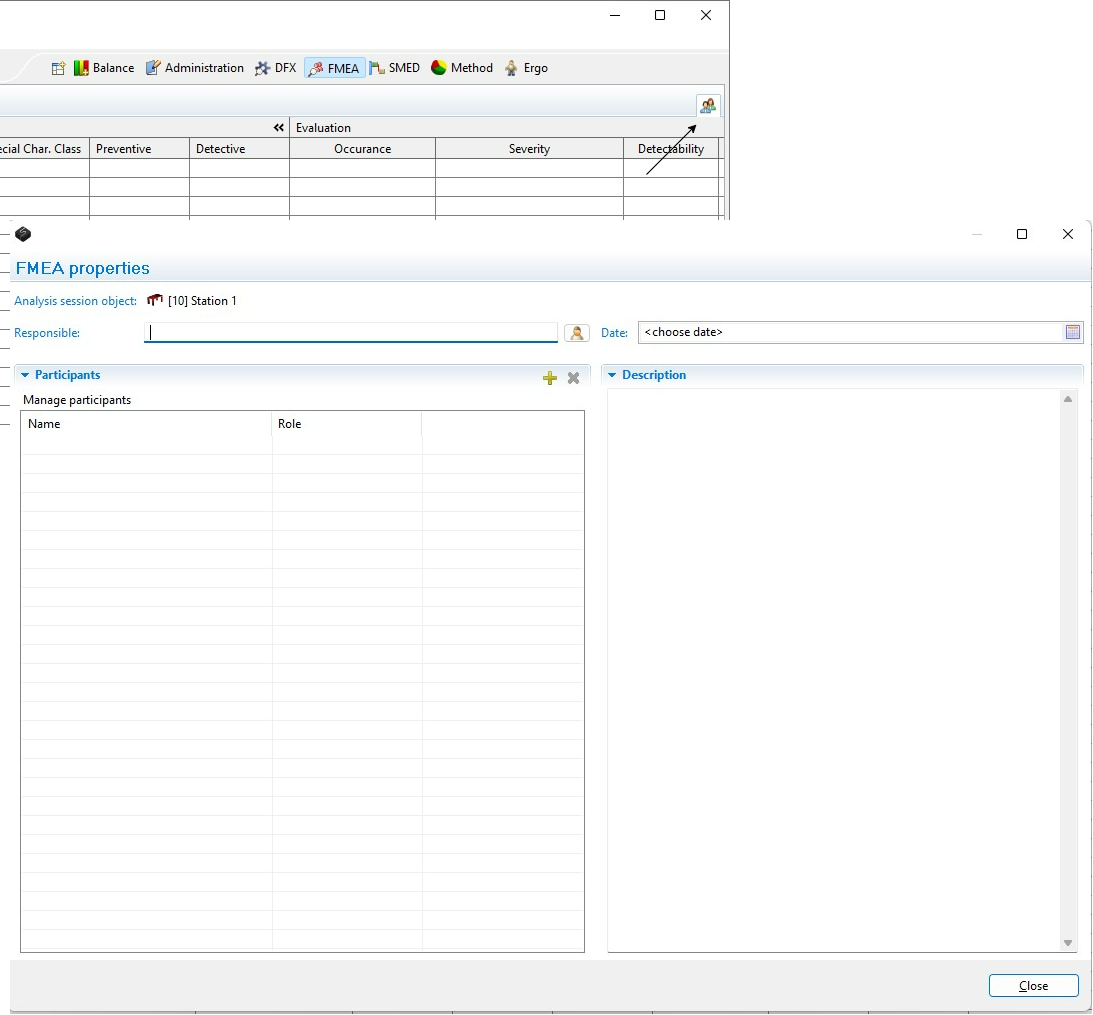
FMEA Properties
The properties provide basic data such as participants, responsible, date and description about the FMEA. Right-click on the process plan or the workstation in the grid and select FMEA properties to edit the properties.
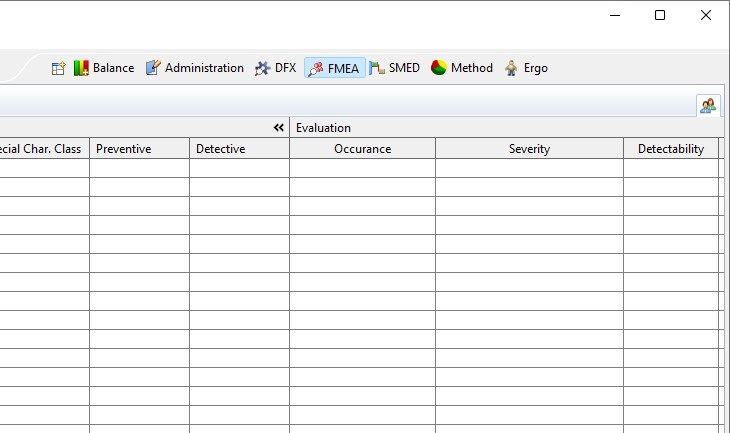
Picture 4 FMEA properties with basic data
Performing the analysis
A free text cell in the matrix becomes editable when cell is active (cell is blue). The cells containing the RPN-factors are set by right-click and a drop-down list appears, you may also enter a number, one to ten directly.
The columns in the analysis matrix are grouped to enable hide and show to save space temporarily.
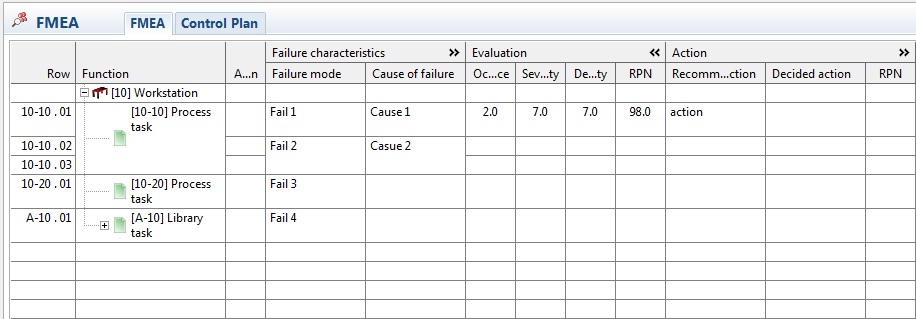 Picture 5 FMEA grid with the groups of columns collapsed. The groups are expanded by clicking the “double” arrow.
A process in the FMEA may of course have more than one possible failure mode and failure mode may have multiple causes and/or impacts. New rows can be added in the grid to create cells accordingly. Select the row where you want to insert a new row, right-click and select the type of row that is needed (failure mode, cause of failure or impact of failure).