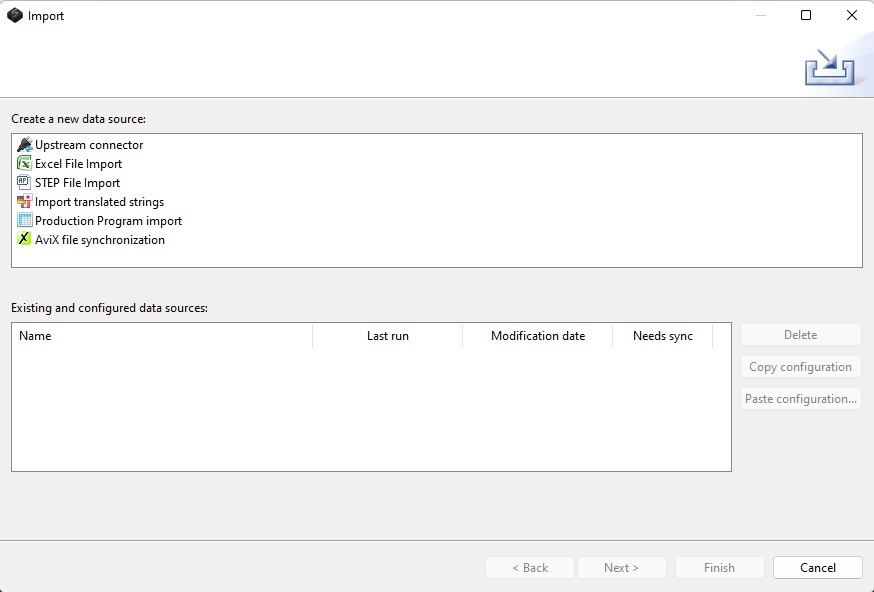
Language settings
There are two separate kinds of language settings in AVIX. They control the application language and multi-language behavior respectively.
Application language settings
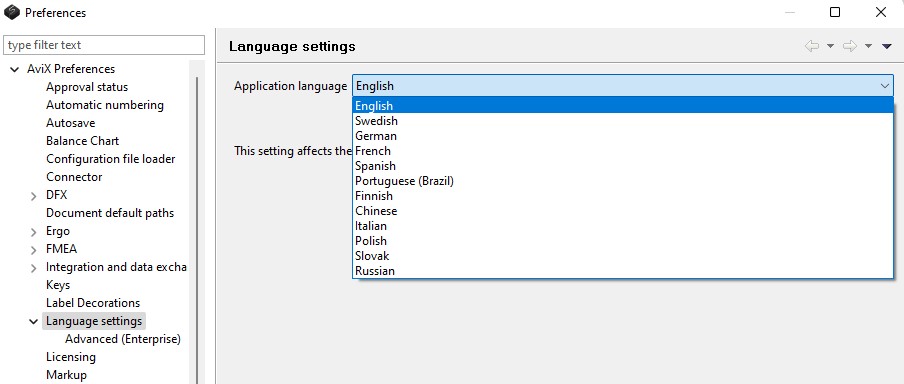
By default, AVIX runs in the same language as the computer’s operating system. On the Language settings page, AVIX can be set to run in any of the available languages (see below). If a certain term is not translated to the selected language, the term will be presented in English as fallback. After changing the Application language setting, AVIX will need to be restarted for the change to take effect.
Advanced language settings
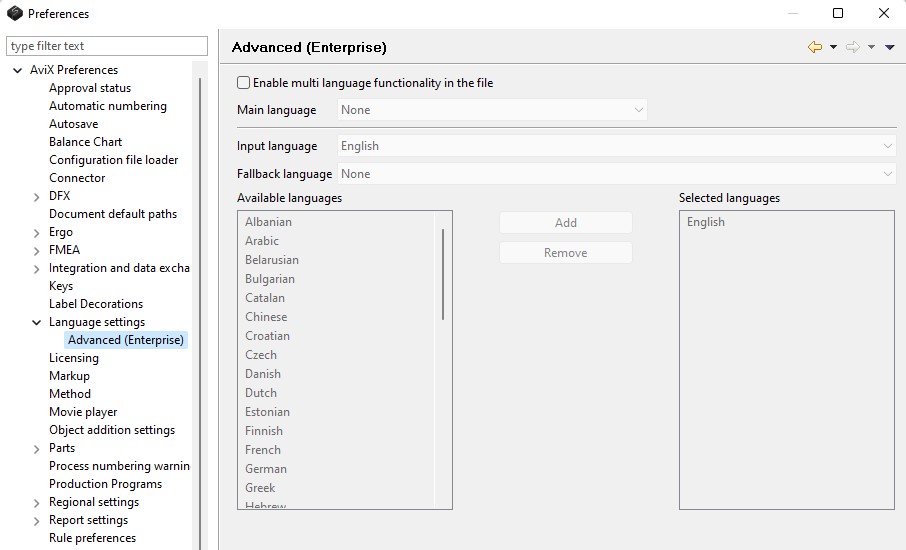
The multi-language functionality is by default disabled. There is a checkbox on the Advanced settings page to enable the multi-language functionality. Note that this requires an Enterprise user license to be available.
There are four parameters in the advanced language settings:
Main language – the main language is a file setting, meaning that it is stored in and thus follows the file. The main language has to be set to enable the file for multi-language functionality. In most cases, the company standard language should be used as the main language.
Input language – text that is typed into a text field will end up in the input language “container”. The text in the input language “container” is also shown in structure trees and editor fields if not empty.
Fallback language – if there is no text in the input language “container”, the text in the fallback language “container” will be shown in structure trees and editor fields. The fallback language is there to help the user during translation, as well as for work-instruction purposes. If the language selected while generating the report is empty, the fallback language will be used. Should the fallback also be empty the main language is used as a last resort.
Selected languages – other languages that shall be shown in the multi-language pop-up.
Language information in status bar
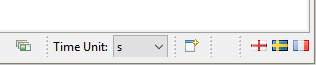
In the status bar at the bottom of the AVIX application window, language information icons are presented.
When the multi-language support is not enabled, there is a blue circle with a white question mark in the status bar.
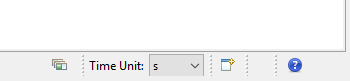
Clicking on the question mark opens the advanced language settings. Before a Main language can be set, the multi-language has to be enabled by checking the box (see below).
When the multi-language is enabled and the language settings are done, the toolbar will show the settings using flags. There are three flags representing, from left to right, Main language, Input language and Fallback language.
Language feedback in editor´s text fields
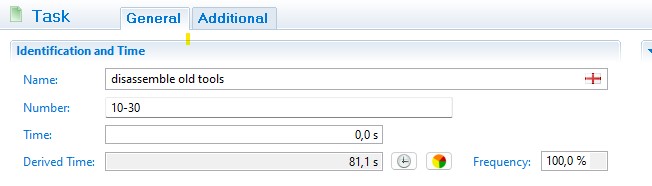
The text fields with multi-language support enabled will have a flag in the field. When the field is not being edited, the flag represents the language of the text that is shown.
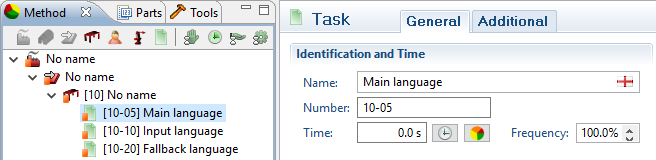
When the field is edited the text typed will end up in the input language. The flag in the text field will switch to the flag representing the input language.
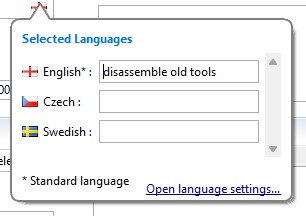
By clicking on the flag icon, a pop-up with all selected languages is shown. Here the user can enter texts to any language. There is also a shortcut to the Advanced language settings.
Recommended language settings
Consider the following use case:
The company language is English. The company have production facilities in Sweden, Germany and France.
One part of the organisation has the responsibility to prepare the processes in company language (English), and provide these processes to the production sites.
For the users in the “global preparation” role, the following Advanced language settings are recommended:
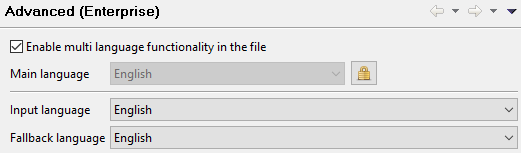
All texts entered will end up in the English “container”.
These processes are then provided to the other production sites. Initially, these processes will have English text strings only.
The persons at the French site may want to translate to French directly in AVIX. The settings according to below is then recommended:
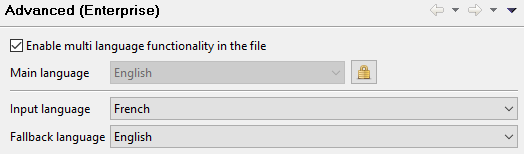
The Fallback language is in this case not adding any value. But in a scenario where the strings were also available in German, and the French engineer actually knew some German from her studies at University of Berlin, the German strings would be helpful while translating. The settings as below would show the German strings with higher priority than the English strings.
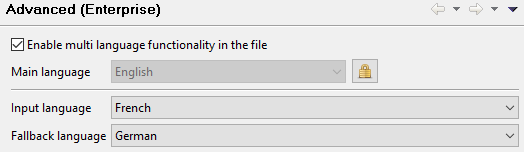
Recommended Advanced language settings
The recommended settings below are based on the above example.
|
|
Global process preparation |
French site |
Swedish site |
German site |
|
Application language |
English (optional) |
French (optional) |
Swedish (optional) |
German(Optional) |
|
Main language |
English |
English |
English |
English |
|
Input language |
English |
French |
Swedish |
German |
|
Fallback language |
English |
Optional |
Optional |
Optional |
|
Selected languages |
Optional |
Optional |
Optional |
Optional |
Translation techniques
There are two methods to do translations of text strings for AVIX data.
Translation directly in AviX
As described above, the input language is where text will end up when typing in a field in AVIX. Until an object has a text in the input language, the fallback language is shown. If the fallback language is also empty, the text in the standard language is shown.
Translation via Excel
There is a function in AVIX that exports all text strings to Excel. The export is sensitive to the current selection, so that only the selected object and its children are exported. If no selection is done, all translatable text strings are exported.
At the time of writing only .xls is supported for export and import of translated strings.
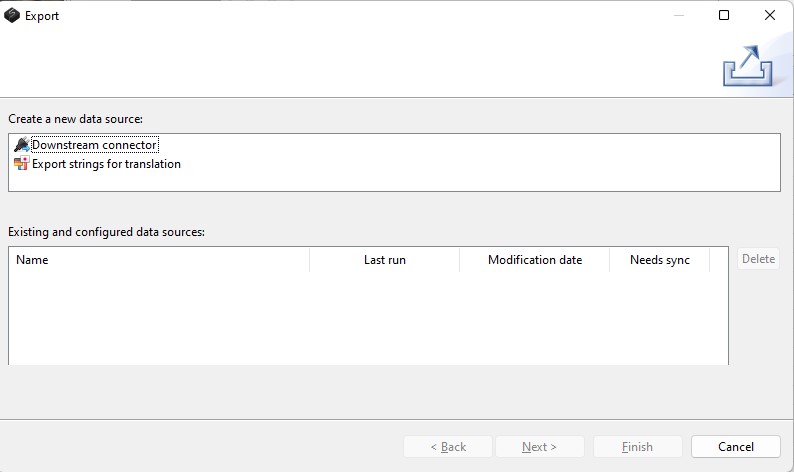
In the Excel file that is produced from the export there are columns prepared for the selected languages. The export for translation of the structure in AVIX (below left) gives the result in Excel as below to right.
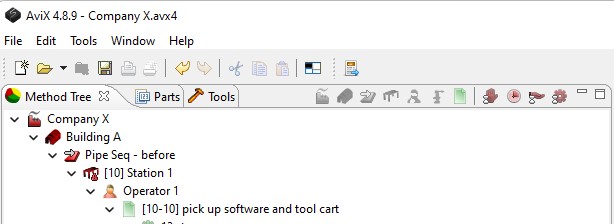
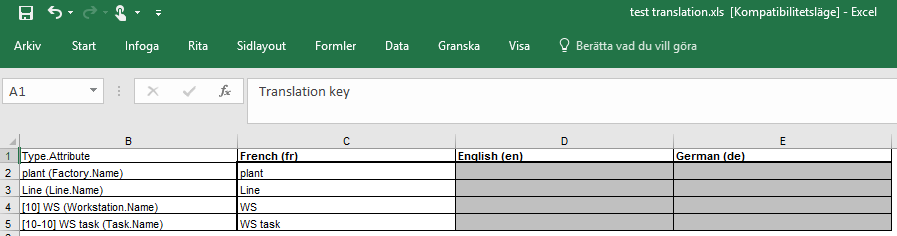
In the Excel file that is generated by the export there is a hidden column A. The column contains the Translation key and is critical to make a correct import of the translation. Make sure that rows are not partly copied or that the content of column A is changed.
The translation to English and German is done into the dedicated columns. Partial translation is accepted both when it comes to the rows and the columns.
To get the translated objects into AVIX, there is an import functionality. Simply point out the excel-file with the translated strings.