Excel import
Importing the product data from an Excel file
AVIX supports the importing of product data from an Excel file. Supported formats are Excel 97-2003 (.xls) and Excel 2007 (.xlsx).
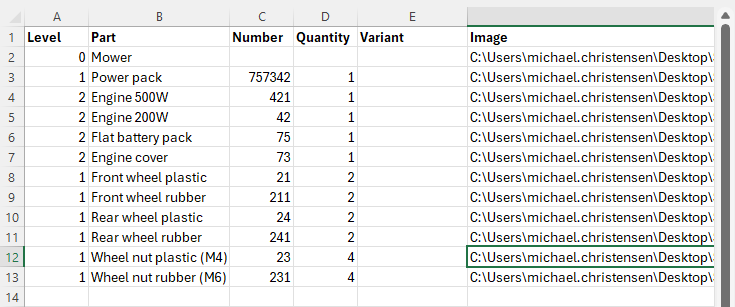
The image below is an Excel example file, with a few basic columns containing information we would like to import into AVIX.
Watch video: Import of parts
Once we have imported the parts, select the top part and right-click "show in assembly", and MBOM looks like below. Note that based on the “level” attribute in the Excel sheet we get the correct structure of the different sub-assemblies.
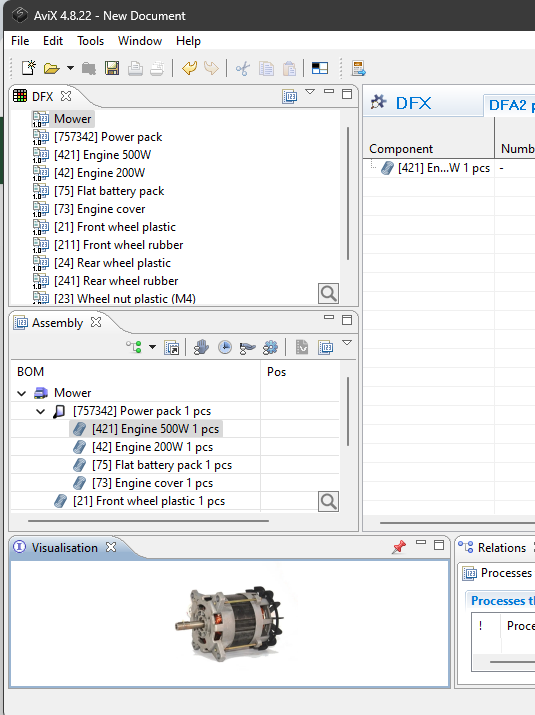
Done! You can now start working with the data and your DFA analysis
“Matching” when re-importing items and components
AVIX tries to be as smart as possible regarding re-importing the same items. This means that if you’ll attempt to import the same item again, you can affect the “matching” item that already exists in AVIX. The matching principle is by number (if found), and by name (if number is missing).
Matching limitations: If you have refined data in AVIX, for instance updated the VO/FO-attribute for a specific item, a re-import that “matches” on this item will overwrite all attributes in AVIX.
More complex import situations, or direct connections with other system can be done using the AVIX Connector interface. Refer to your AVIX representative for more information.
Creating/updating the product data manually
Of course, one can also create the Items and BOM Components manually, or update the data with e.g. new versions.
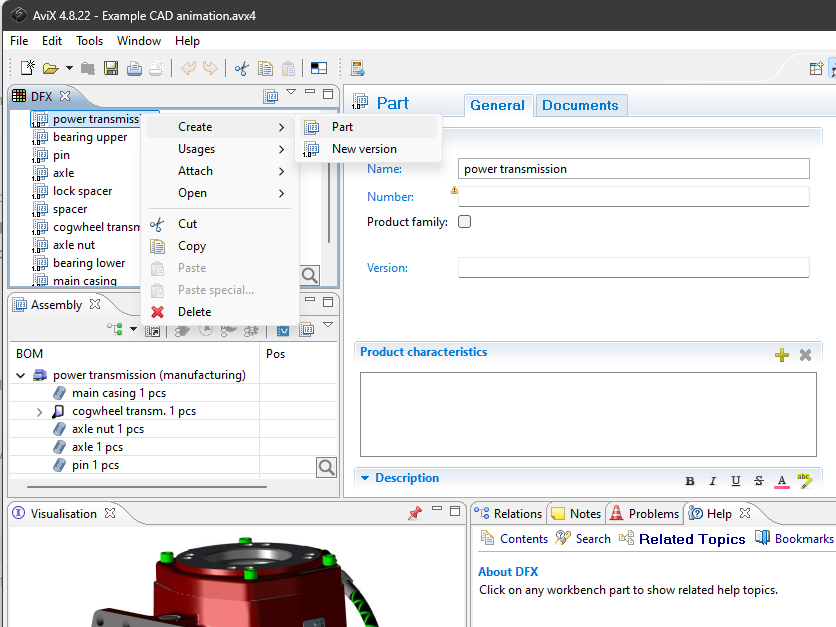
Right click, Create "Part" or "New version"