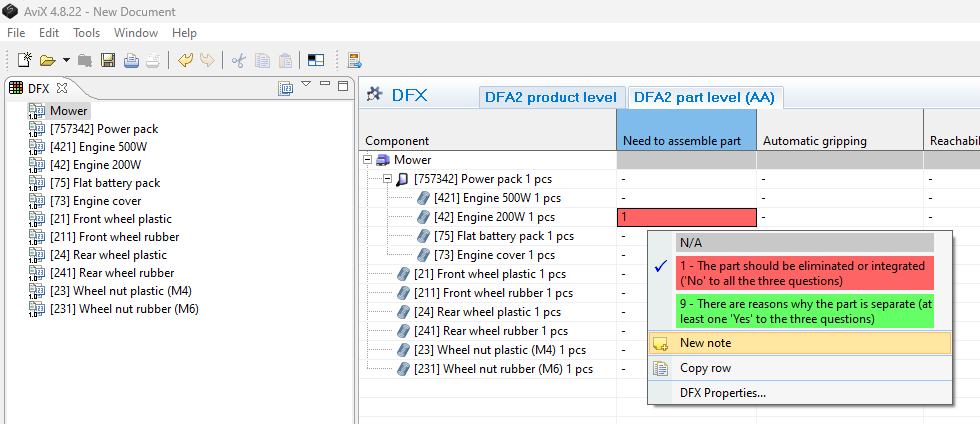
DFX analysis
Adding project properties
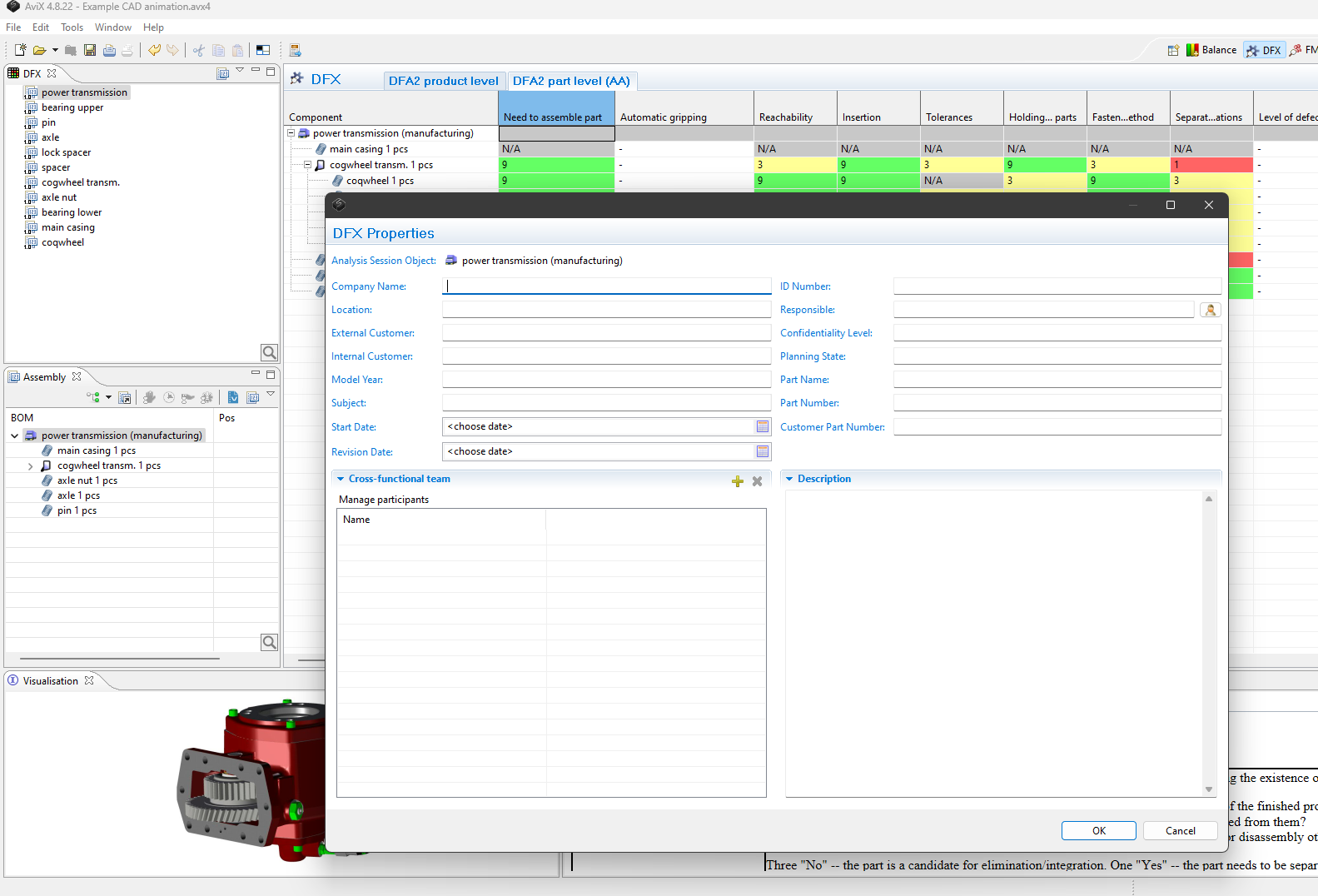
First, (this is optional) add the necessary information about the project and team.
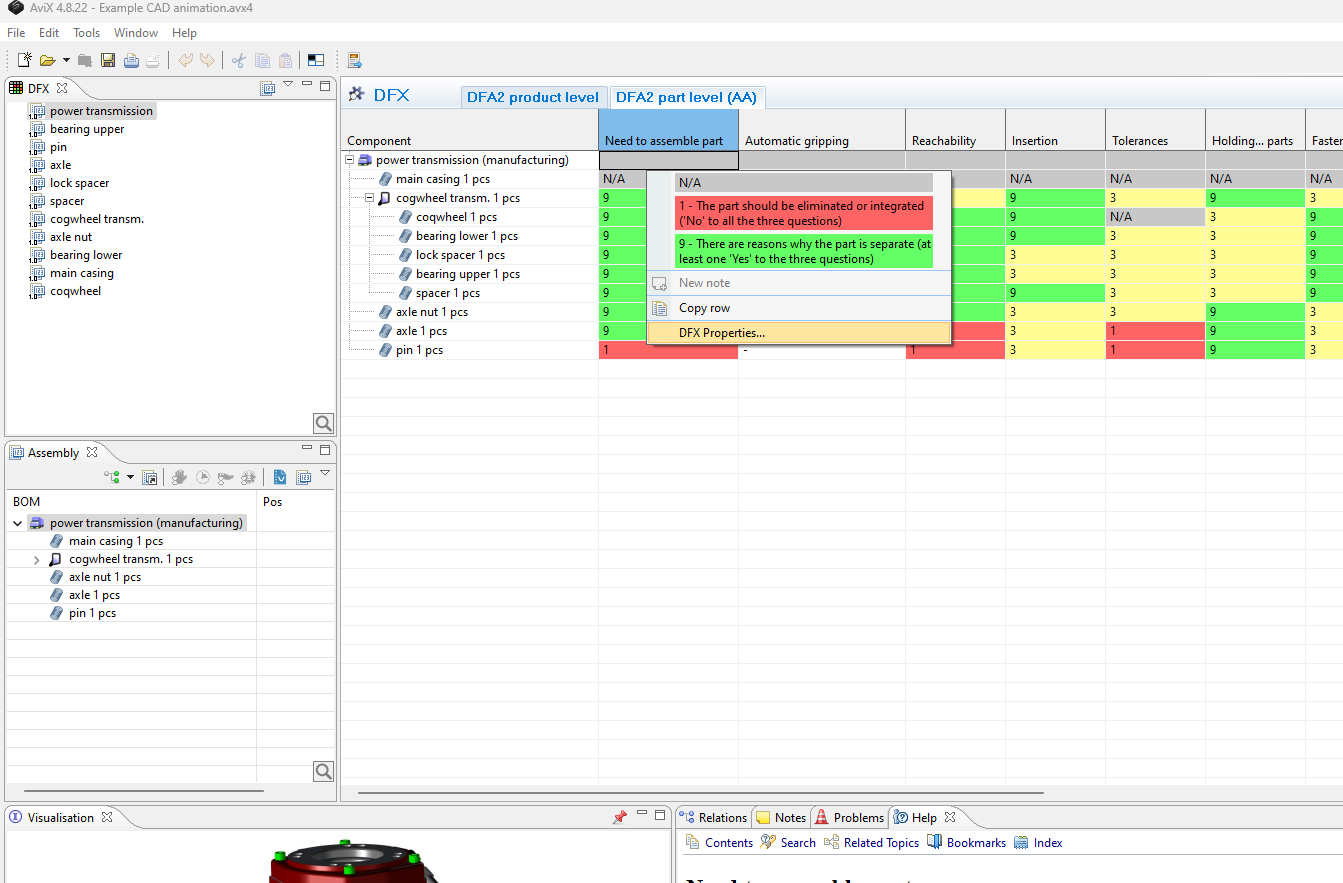
Add the information
DFX ANALYSIS
Start working with the DFX analysis is straight forward:
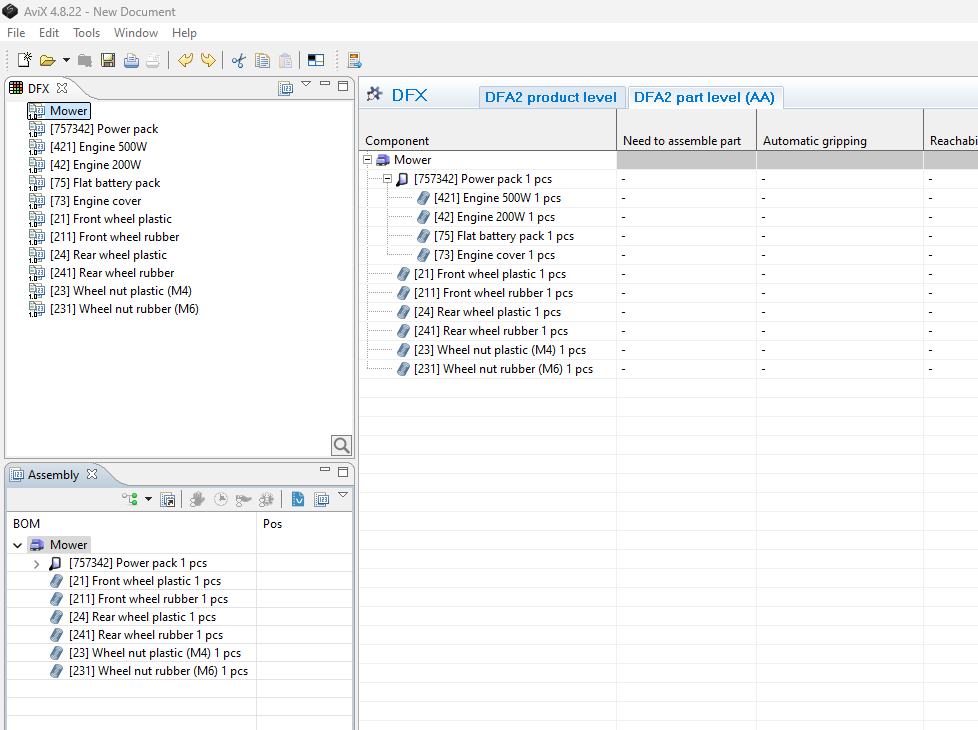
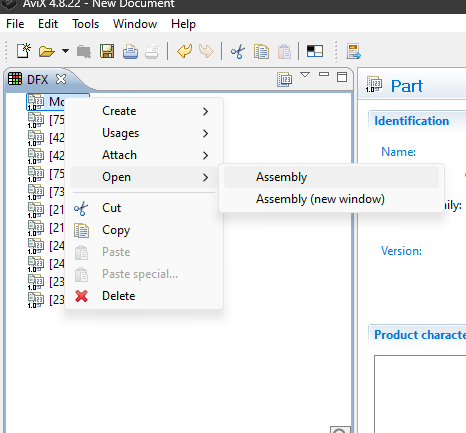
- Select the desired top part in the parts list and right-click "open in assembly view". The MBOM will now show in the assembly view.
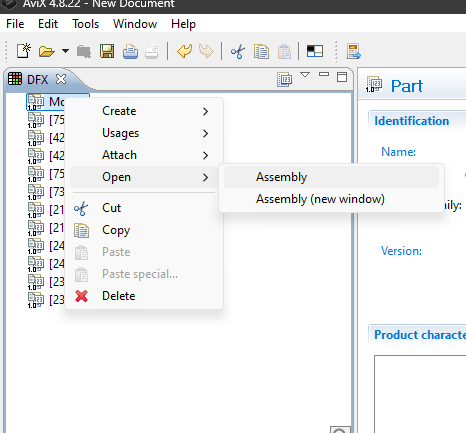
- Select the product structure in the assembly view and the DFX table/matrix will be available. You can now choose between the DFX at part-level or product-level. (the aspects can be changed in the settings)
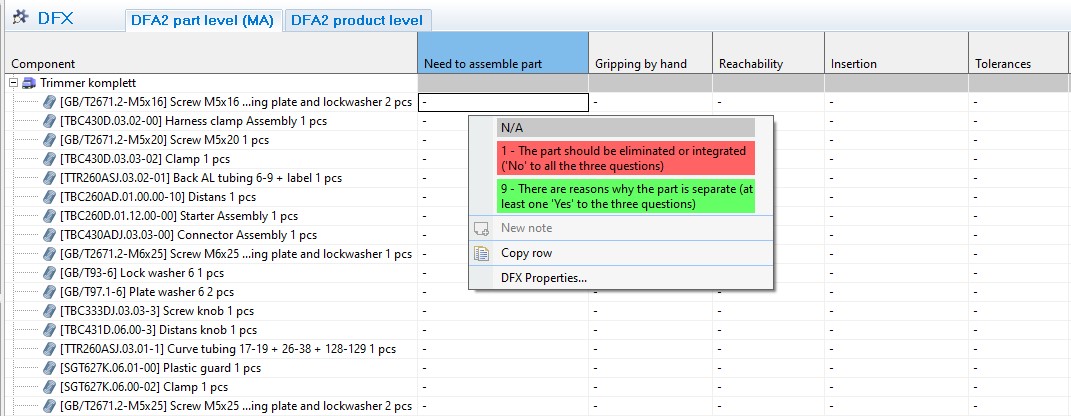
- The DFX analysis can now be performed by selecting the desired DFX aspect, and then right-click to evaluate the part
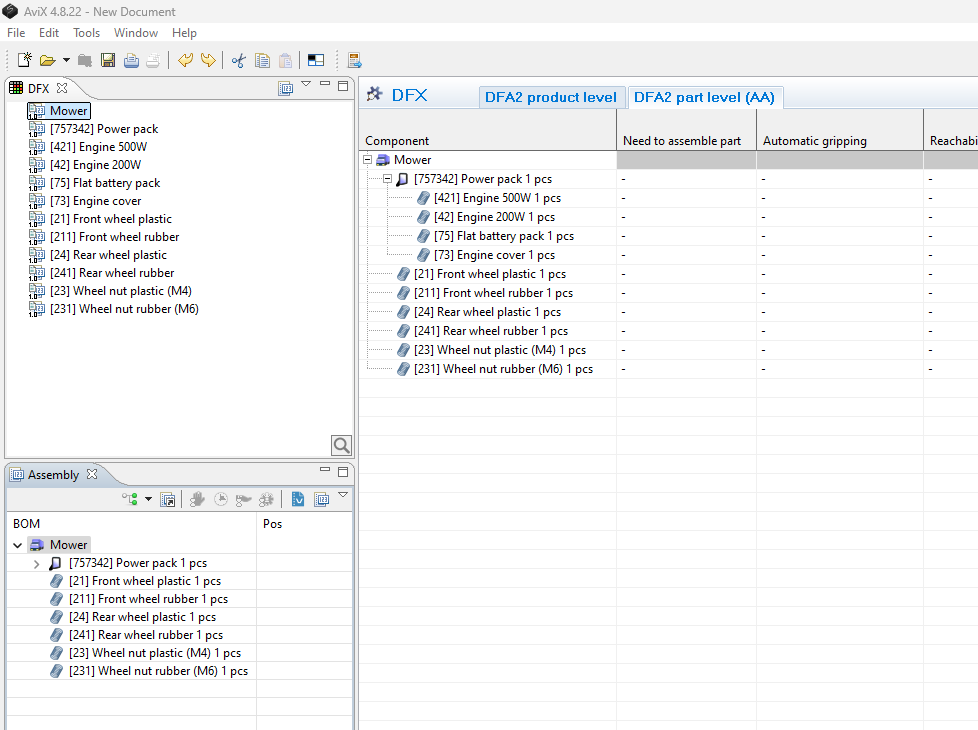
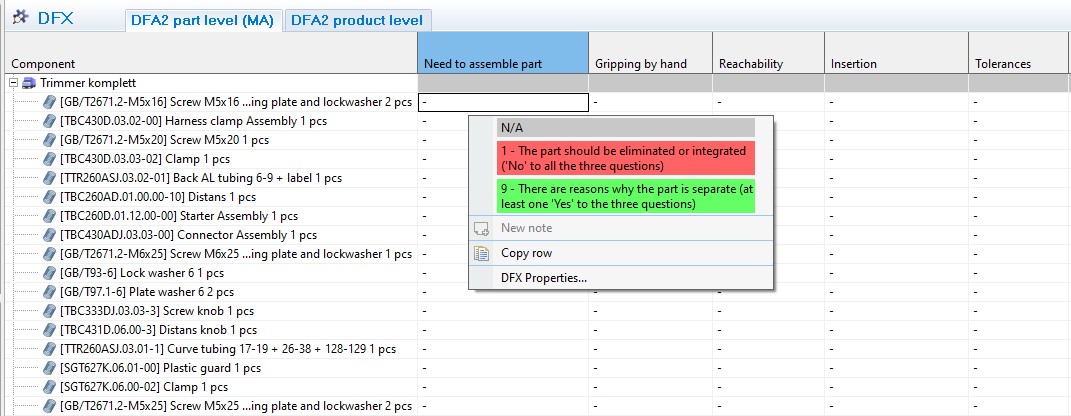
- The analysis editor has a grid layout, where the BOM structure appears in the first column)
- The remaining columns in the grid are the DFX aspects in use, as well as two “result” columns which display specific score results.
- Analyzing a component for a certain aspect is carried out in one of the grid cells. This is done by the right-click menu, or simply by using the keyboard (e.g. by typing 9 for setting the highest score).
- Selecting N/A (Not applicable) is indicated by a grey cell.
Help view
The help view is displayed when selecting a DFA aspect in the grid.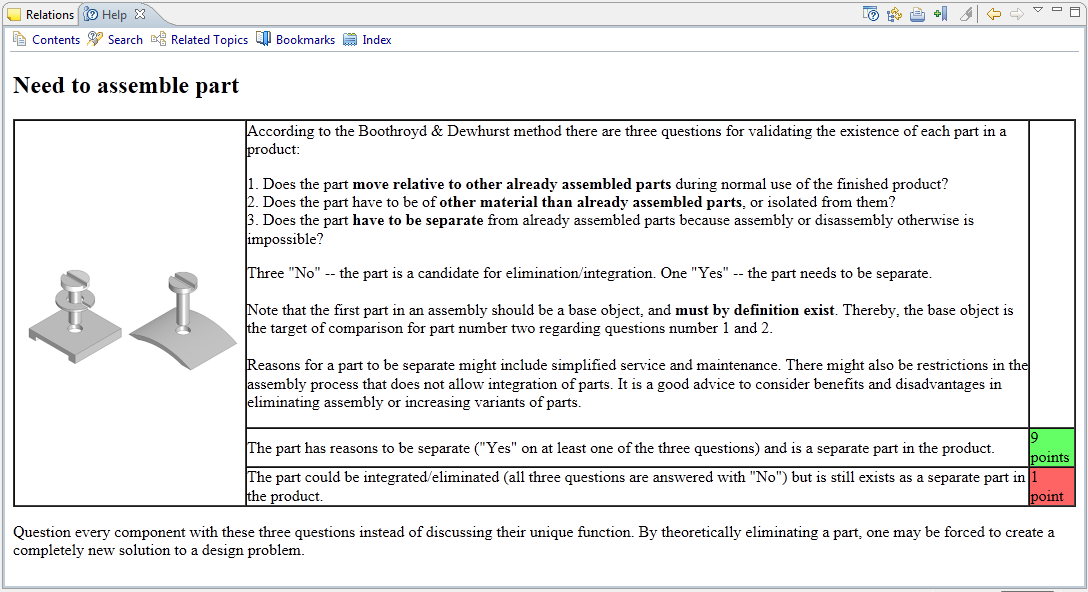
"Detaching” the Help view, making it a floating window frees up available screen space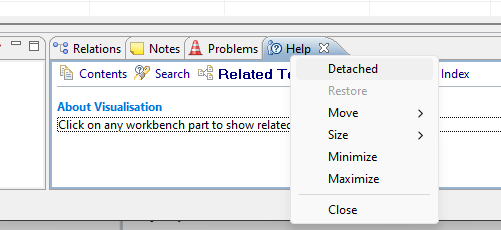
Note/action follow-up information
It is of significance for the follow-up work that the discussions and comments that typically arise during an “analysis session” are captured. This is, of course, even more important in the case of a problem: when the score of 1 is set for a Component, it is advisory to document the cause and what actions are to be taken. All this can be achieved by adding a “Note” (from the right-click menu in the grid), and entering the relevant information.