
Install as Windows service
Preparations
- You need to download the installation media, which is a zip file (.exe) for AVIX 4.8.8 (or later)
- Download Shop Floor Viewer (SFV)
Make sure to have a server zip archive. If you don´t have a download path, ask your contact at Solme AB.
AVIX Shop Floor Viewer ran on a local PC (demo purpose)
Setting up and configuration
Install the AVIX client. NOTE: AVIX files saved in AviX4.7.1 and earlier are not compatible with the Shop Floor Viewer. The downloaded Shop Floor Viewer archive (zip-archive) can be extracted anywhere on your PC.
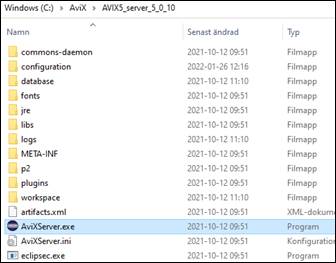
After extraction of the zip, you will find a .exe file in the extracted folder. The .exe file starts the SFV server.
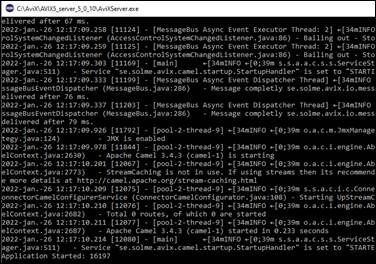
When starting the server, you will see this prompt loading the server. You will see the text “application started” when loading is done. Close the prompt to shut down the server.
Open a browser (Chrome works well) and enter the address: http://127.0.0.1:45500/dwi/#/browse.
As a rule of thumb, start the server first and the start the AVIX-client.
45500 is the default port, it may be configured, see further in this document. If changing the port number, the address entered will have to change accordingly.
The AVIX-client will also start a server and it has the same default port, 45500. If SFV is started after AVIX the port for SFV will be 45501 since 45500 is already allocated by the client.
Default path setting
You will need to set the correct search path for videos, i.e. where should the SFV be looking for the videos used.
The user account running the server need read access to the videos.
Publishing/viewing data
To publish data on the SFV server, you can either:
- upload an AVIX file from the SFV interface or
- publish the file directly from AVIX.
Uploading manually
To upload an AVIX-file manually, go to “settings” and click “upload”
[image]
Publishing/uploading directly from AVIX
To publish the AVIX file directly from AVIX, you need to set the corresponding setting of port number and server IP as defined by the server.
Go to AVIX preferences > Server preferences
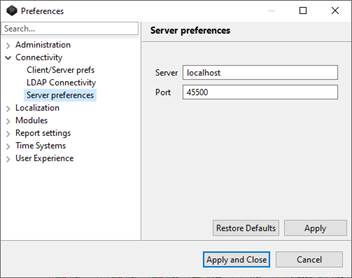
If the server address or port number has been changed when setting up the SFV server, these settings must be updated accordingly.
AVIX Shop Floor Viewer as a Windows service (on a server)
Setting up and configuration
Move the downloaded Shop Floor Viewer "server" zip to a suitable place at the host where you intend to install it. Unzip it.
Avoid white spaces in the path!
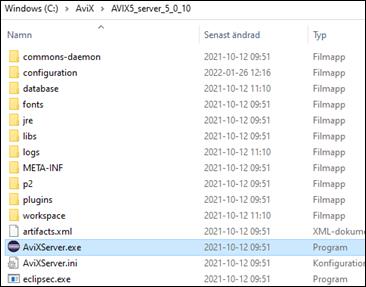
The unzipped structure will look like this:
- Open a command prompt with administrative privileges.
- Press Windows key to open the Start meny. Start typing "cmd" to get Command Prompt application to appear
- Right-click and "Run as administrator"
- In the open Command prompt, navigate to the unzipped AVIX5 server
- Tip: use the change directory command. Example: "cd .." to move one step up. "cd temp" to open a directory called temp.
- Tip: The command "dir" will display contents of current directory.
- Assert you are in the root directory of the AVIX5 server. In the example above - the "AVIX5_server_5_0_10" directory.
- Install the service:
- commons-daemon\register_service.bat (tip: start typing ”co..” and press TAB)
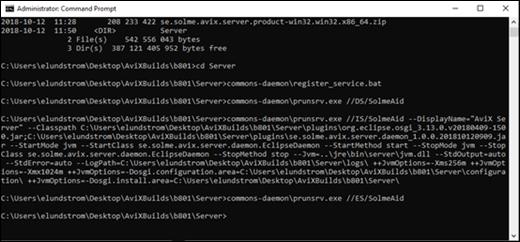
Carry-over from old server installation
This is only relevant, of installing a new version of the server. I.e. there is an existing installation, with some stuff that needs to be carried over.
- The database folder (in case h2 is used)
- configuration/se.solme.avix.prefs
- xml
- xml
- id
- Also, check that the jvm parameters are to your liking
- They are reset when re-installing (as per contents in "register_service.bat" script)
- Set options for the service can be reviewed by running commons-daemon/SolmeAviXServer.exe service manager application.
- Should you change say the XMX, a restart of the service is needed.
Verify service installation
Open Windows Services manager. Locate the "Solme AviX Server Service":
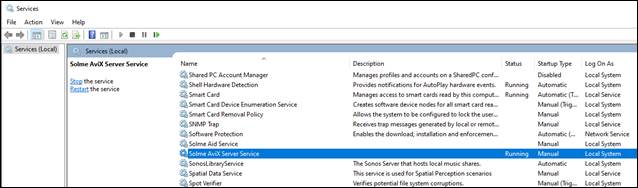
Verify that the service is running the AVIX5 server you just installed: Right-click and select "Properties":
Verify server installation
Check that ports are open (by default TCP 2036 and 45500)
If you test it on the same machine (as the server is installed on), try: http://localhost:45500/services
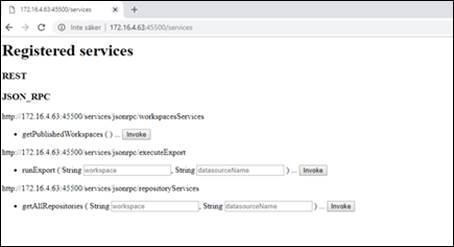
Additional configurations
If you need to do further configurations or are experiencing problems, below chapters are useful.
Ports and firewalls
Verify ports are open (by default TCP 2036 and 45500).
Check that firewall is open on server host for the ports:
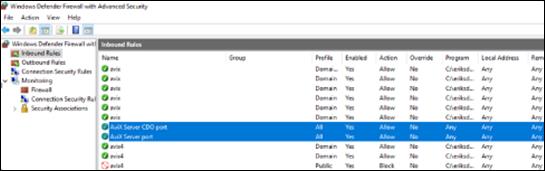
If you need to change the ports of the AVIX5 (Shop Floor Viewer) server, do the following:
- Stop the windows service
- Open the "se.solme.avix.prefs" file of the AVIX5 (Shop Floor Viewer) server
- Under the preference section for [se.solme.avix.server.cdo], you can specify the following port (to another value than default being 2036):
- server.tcp.ports=2050
- Under the preference section for [se.solme.avix.server], you can specify the following port (to another value than default being 45500):
- server.tcp.port=45510
- Start the windows service
Assign more memory
Currently, when the server is installed as a service, the memory allocated to the java server app is stated in the install script (commons-daemon\register_service.bat)
--LogPath=%CURRENT_DIR%\logs\^
++JvmOptions=-Xms256m^
++JvmOptions=-Xmx4096m^
++JvmOptions=-Dosgi.configuration.area=%CURRENT_DIR%\configuration\^
++JvmOptions=-Dosgi.install.area=%CURRENT_DIR%\commons-daemon\prunsrv.exe //ES/SolmeAvixServer
If ”out of memory” errors start happening on the server, the ”xmx” can be increased. Either by re-installation (with a higher value), or by stopping the server service, and then editing the registry value:
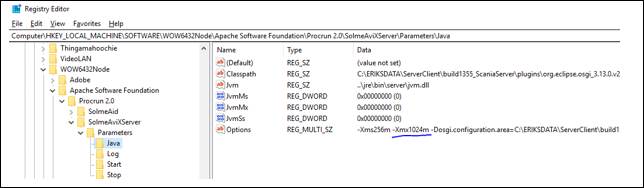
The easiest way to affect the correct registry value is by running the ”service manager” executable. It is found here: commons-daemon\SolmeAviXServer.exe. Run it, and look on the Java tab:
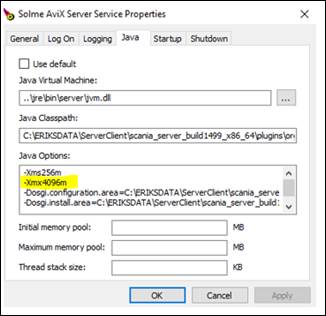
Try assigning more xmx. Example values (depending on how much physical memory the machine has): 16384m, 8192m, 4096m, 2048m.
After changing the registry value, restart the server service.
Other settings
se.solme.avix.prefs
Remove the # to activate a setting.
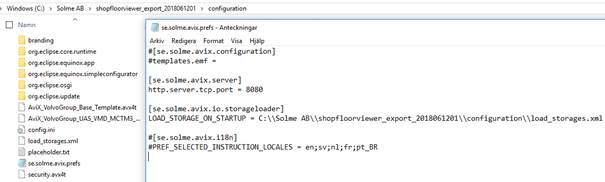
Templates.emf is used to point out .avx4t files. However, we recommend not to use this setting since it will be changed in the future. To achieve the same result (to load custom .avx4t files) place the .avx4t-files in the folder configuration end remove the default .avx4t file if redundant.
#[se.solme.avix.configuration]#templates.emf =
Below controls which port to communicate on. Default port is 45500.
[se.solme.avix.server]
http.server.tcp.port = 45500
Below controls where Shopfloor Viewer should look for the file load_storages.xml. Load_storage.xml controls which folders and/or AviX-files that should be loaded on startup of the server.
As an alternative. users logged in as admin may upload any AviX-file manually.
#[se.solme.avix.io.storageloader]#LOAD_STORAGE_ON_STARTUP = C:\\Solme AB\\shopfloorviewer_export_2018061201\\configuration\\load_storages.xml
Below controls which languages should be available in the application
#[se.solme.avix.i18n]#PREF_SELECTED_INSTRUCTION_LOCALES = en;sv;nl;fr;pt_BR
Load_storages.xml (example)
<?xml version="1.0" ?><load_storage_config> <load_storage workspace="Workspace1" storage="C:\Solme AB\my_test\test of config2222.avx4"/> <load_storages workspacePrefix="ws2_" storageDirectory="C:\Solme AB\my_test_directory\" uploadtarget="true"/></load_storage_config>
The file load_storage.xml shall be encoded in UTF-8. Be aware if you use Notepad, it may result in a different encoding and the file won´t work. Notepad++ or similar text editors work well.