Installing as Windows service
Preparations
Installation media
Download the installation media, the server zip archive. If you don´t have a download URL, ask your contact at Solme AB to get one. The downloadable unit is entitled "se.solme.avix.server.product-win32.win32.x86_64.zip" or similarly.
Unzip zip Archive
Unzip the server zip file at the host where you intend to install it.
Avoid white spaces in the path!
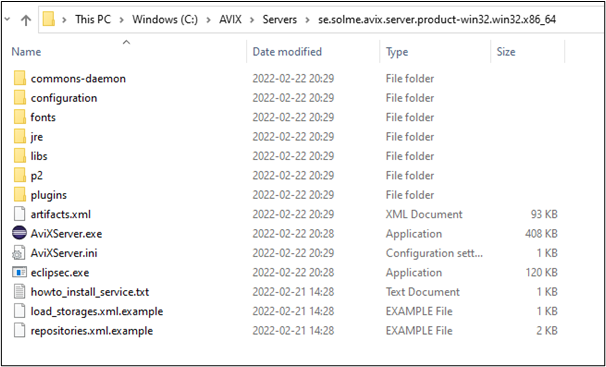
The unzipped content will look like this:
Carry-over
This is only relevant, if you have an existing server installation, i.e. if you are upgrading to a newer server version. The server has some settings and configuration files, which you will need to carry-over (copy) to the new installation.
- The database folder (in case internal h2 db has been used)
- configuration/se.solme.avix.prefs
- load_storages.xml
- repositories.xml
- host.id
- Also, check that the jvm parameters are to your liking (for instance the XMX memory)
- They are reset to default value when re-installing (as per contents in "commons-daemon/register_service.
bat"bat" script) SetPleaseoptionsrefer to "CC" forthefurtherservice can be reviewed by runningcommons-daemon/SolmeAviXServer.exeservice manager application.Should you change say the XMX, a restart of the service is needed.
- They are reset to default value when re-installing (as per contents in "commons-daemon/register_service.
Before the next step, installing the service, it is recommended to stop the "Solme AviX Server Service" in the Windows Services manager.
Install as Windows Service
- Open a command prompt with administrative privileges
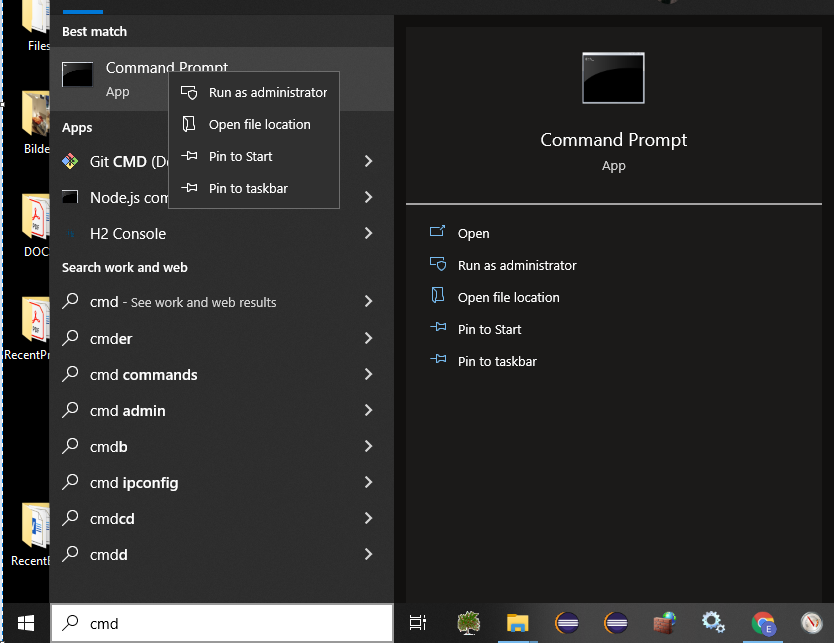
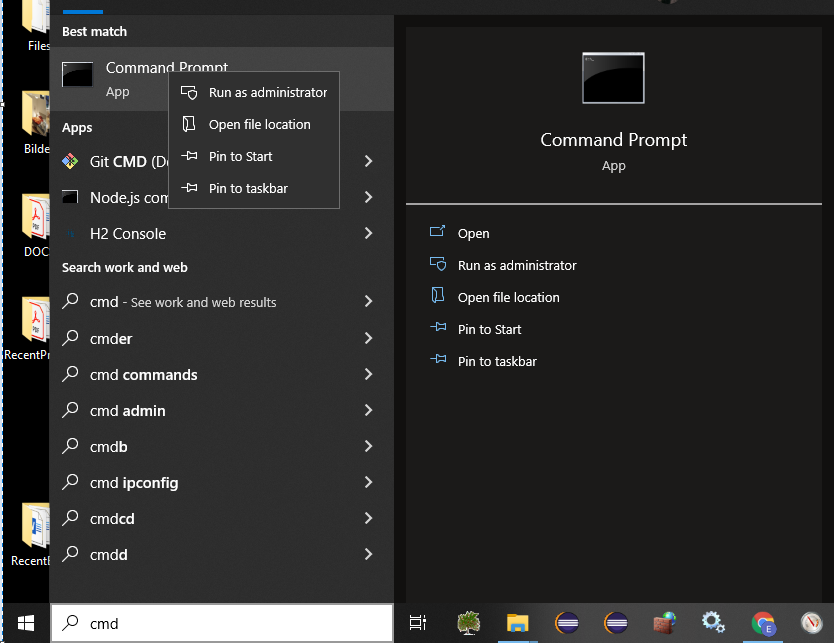
- Press Windows key to open the Start menu. Start typing "cmd" to get Command Prompt application to appear
- Right-click and "Run as administrator"
- In the opened Command prompt, navigate to the unzipped AVIX server directory
- Tip: use the change directory command. Example: "cd .." to move one step up. "cd temp" to open a directory called temp.
- Tip: The command "dir" will display contents of current directory.
- Assert you are in the root directory of the AVIX server. Using the example screenshot from the "Unzip" section above, the "C:\AVIX\Servers\se.solme.avix.server.product-win32.win32.x86_64" directory.
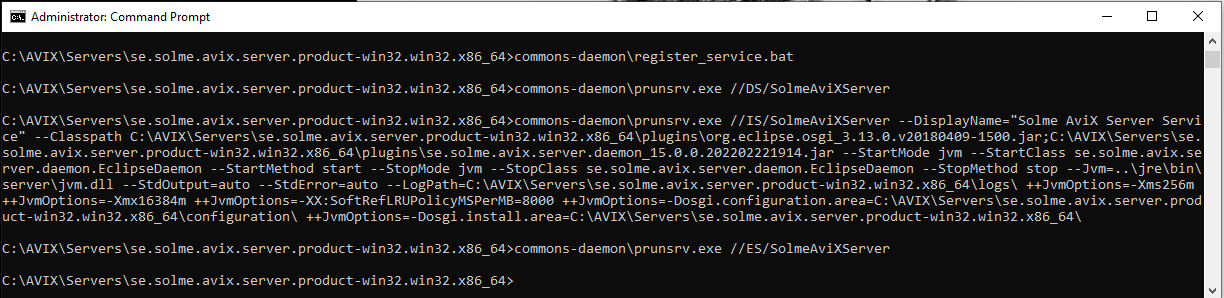
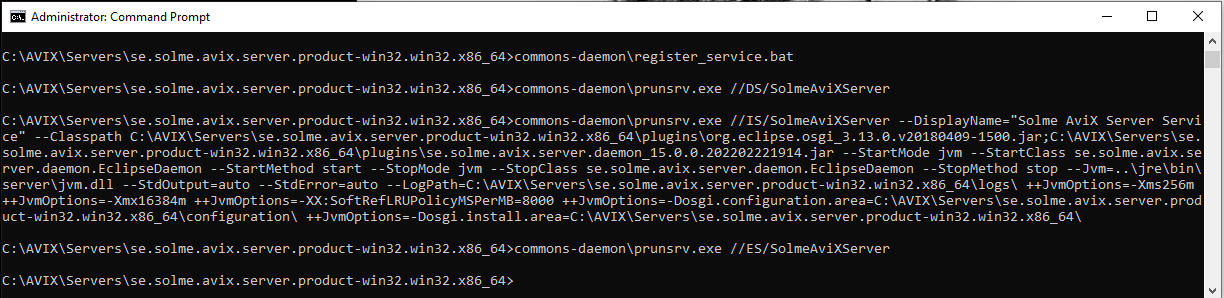
- Install the service, by running a batch script file:
- Type: commons-daemon\register_service.bat (tip: start typing ”co..” and press TAB) Press "Enter" to run the installation script.
-
Verify service installation
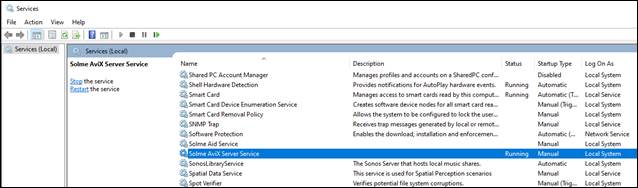
Open Windows Services manager. Locate the "Solme AviX Server Service":
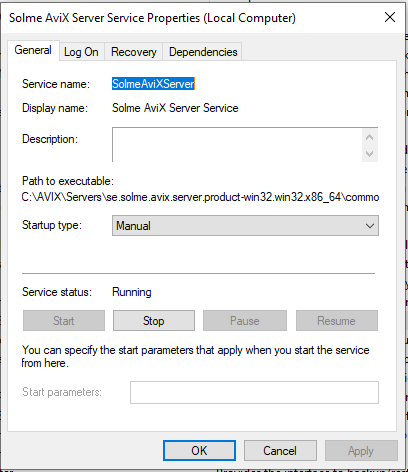
Verify that the service is running the AVIX server you just installed: Right-click and select "Properties":
Verify server installation
Check that ports are open (by default TCP 2036 and 45500)
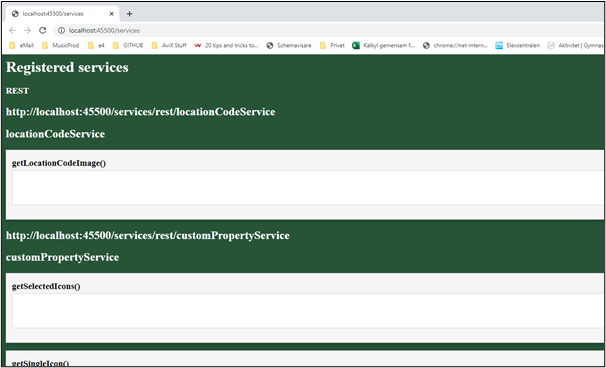
In case you are working on the host where the server is installed, try: http://localhost:45500/services
If working as intended, you should see something like this: