
Update Wizard
With the update wizard existing features can be updated from within AVIX. The update wizard gets information about available updates from all enabled update sites and hence those need to be setup before the update wizard is run. How update sites are handled is described in the chapter Managing update sites.
The update wizard is started via the menu item “Search for updates…” located in the help menu in the toolbar of the application. When started all enabled update sites are read and any updates for existing features are presented in a dialog. Both added features and the AVIX software itself can be updated this way.
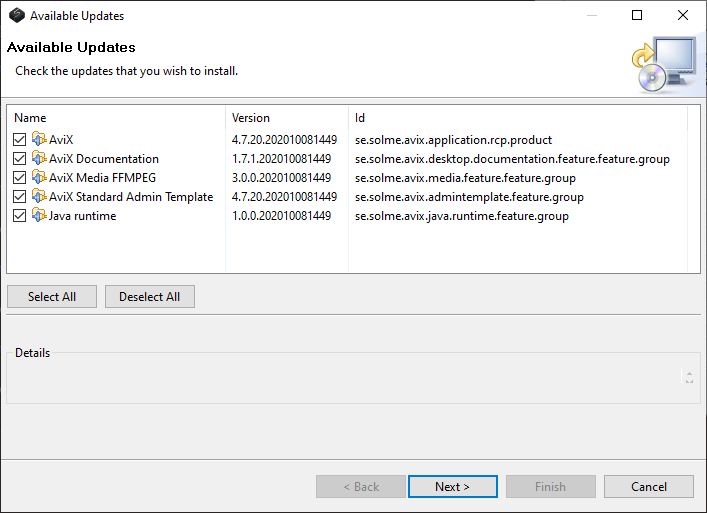
The updates that are applicable at the moment can be checked in the list. Updates that for some reason are not applicable cannot be checked and the reason for it is listed in the Details section when the component is selected. Reasons that can cause an update to be not applicable are for example unfulfilled requirements and dependencies or insufficient access privileges.
If AVIX is installed in the C:/Program (x86) or C:/Program-folders in Windows the application must be run with administrator privileges if AVIX itself should be updated. This is due to restrictions in the operating system being more strongly enforced from Windows Vista and onwards. The application can however be updated without elevated privileges if it is installed in a folder the current user have change rights in outside of the C:/Program (x86) or C:/Program-folders.
When the updates that should be applied have been selected and the user press the Next button the features again go through tests to verify that their requirements and dependencies are fulfilled and depending on the result from those tests the next dialog, the Update Details dialog, will show different information.
If the tests failed this will be visible in the dialog and the reasons why will be listed in the Detail area when a feature is selected.
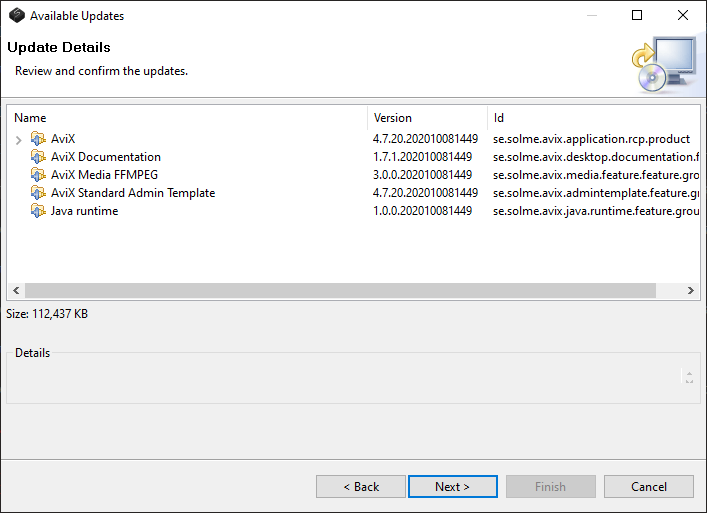
If the tests were successful, the dialog presents all updates again and lets the user review the features. Users can now decide if they want to go back one step and change the selected features (press the Back button) or go forward and proceed with the updates (press the Next or Finish button).
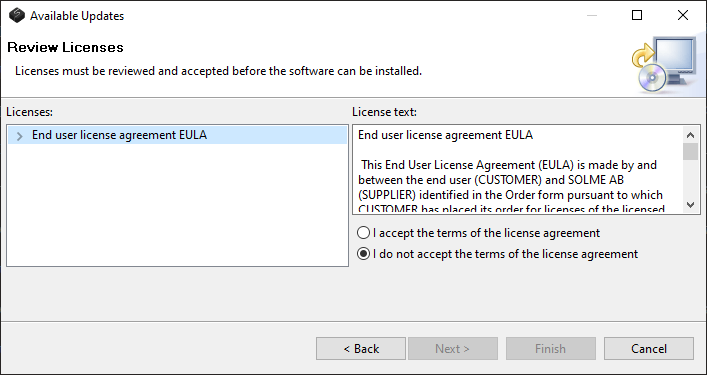
For most features a EULA must now be accepted before the actual update takes place.
If the features are digitally unsigned or signed with a currently not trusted certificate a security warning/certificate trust dialog is shown and if the user accepts the content the installation continues. If any of those dialogs are shown and the user does not select to continue, the installation is aborted leaving the application unchanged.
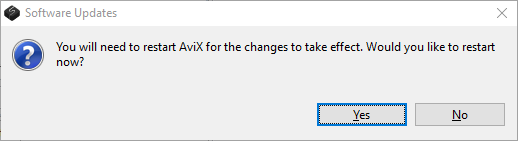
If the update finished, a “software Updates” dialog will be shown.
Click "Yes" to restart the application and apply the updates.
The following video shows how to download an UpdateSite to update AVIX to a newer version.