
Installation Wizard
Via the installation wizard new features can be installed and it is found in the “Help” menu. It is not possible to update existing features with the installation wizard. If already installed features should be updated, use the Update wizard instead.
The installation wizard gets information about available updates from all enabled update sites and hence those need to be setup before the update wizard is run. How update sites are handled is described in the chapter Managing update sites.
Open the Installation Wizard via the menu item “Install new software…” in the help menu.
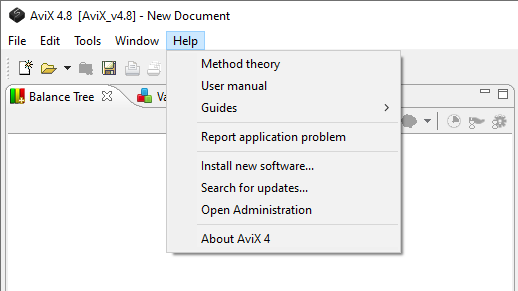
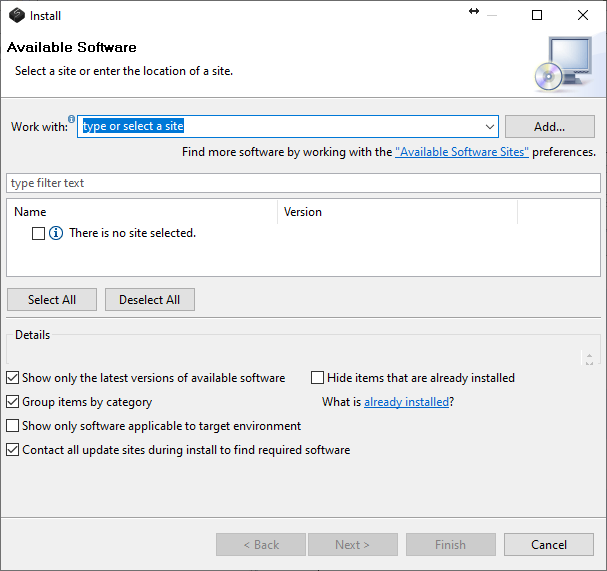
When it is started, all enabled update sites can be selected in the “Work with” combo box.
Select a specific update site or - -All Available Sites- - in the “Work with”-field and new features that can be installed will be listed.
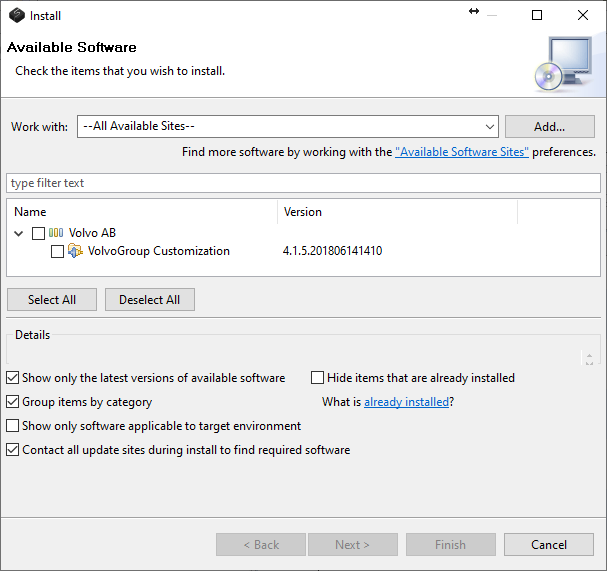
To install new features simply check them in the list and press the Next button to proceed. The selected features now goes through a test to verify that their requirements and dependencies are fulfilled and depending on the result from those tests the next dialog will show different information.
If the features do not pass the tests, the dialog will now show that the install operation cannot be completed and the reason for it is found in the Details section of the dialog. The reason is presented in a somewhat technical text, but that is needed to help pinpoint why the installation tests failed.
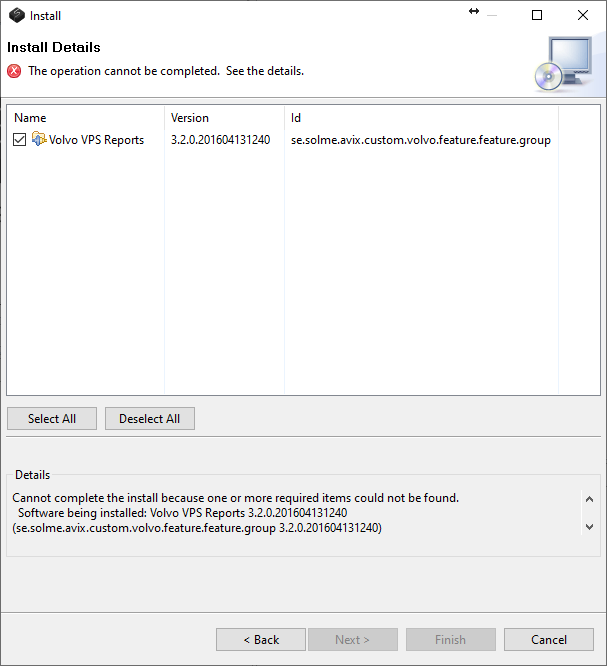
In the example above the custom report feature requires that a specific version of another feature is present and it cannot be found. Here we were trying to load an old report, which is not supported in this version of AVIX.
If you get these errors when trying to install features, first check that you are are using the correct version of the feature for the correct version of AVIX.
If this does not work, you can contact support@solme.se for help in getting a solution.
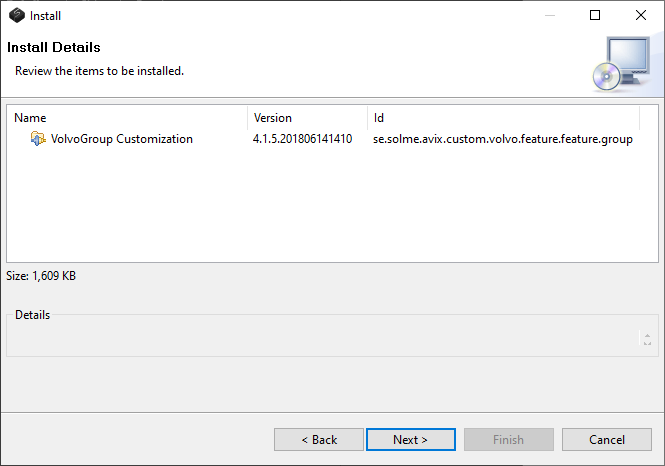
If the features passed the tests, installation details are shown and users can if they want review the features detail information. Users can now decide if they want to go back one step and change the selected f eatures (press the Back button) or go forward with the installation and proceed with the installation (press the Next or Finish button).
For most features an EULA must now be accepted before the actual installation takes place.
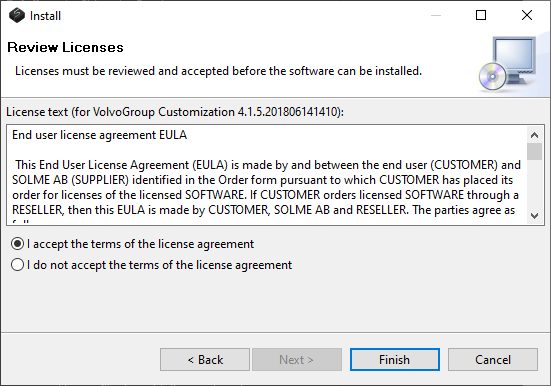
If the features are digitally unsigned or signed with a currently not trusted certificate a security warning/certificate trust dialog is shown and if the user accepts the content the installation continues. If any of those dialogs are shown and the user does not select to continue, the installation is aborted leaving the application unchanged.
If the installation finished, a “Software Updates” dialog will be shown, prompting the user to decide what to do next.
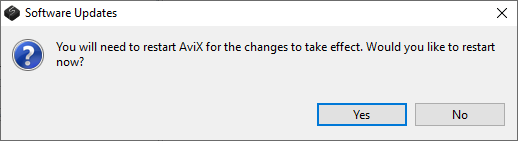
Click "Yes", and the application will restart and apply the updates.
Some aspects of the installation wizard and installation dialogs can be configured via preferences. See the chapter Updating settings for more information.