
Appendix 1
AVIX COMMAND LINE
Arguments accepted by AVIX
Apart from arguments inherited from the application platform used by AVIX – Eclipse RCP - a few arguments have been added by Solme.
Information about arguments that are accepted by the platform can be found on the Eclipse project on the web. For the Luna platform the information can be found here.
| -clearlicensedata | If set, the current license data on the computer will be flushed when the application is started. This can be useful to do if the existing license data becomes corrupt. Use with care as this will wipe away any fixed or checked out license. |
| -disableSingleInstanceCheck | If set this disables the mechanism that makes sure that all AVIX windows are run in the same process. This can be useful to do if the existing license data becomes corrupt. This can be useful to enable different version of AVIX to be run at the same time. AVIX files opened via File -> Open from within a running AVIX will still coexist in the same process Using it comes with some limitations, It is not possible to copy+paste data between AVIX windows that belong to different processes. |
How to use arguments with AVIX
Two common ways to use arguments with AVIX are
- Using the command prompt
- Using an application shortcut
Example of use via command prompt
Illustrates use of the argument -disableSingleInstanceCheck
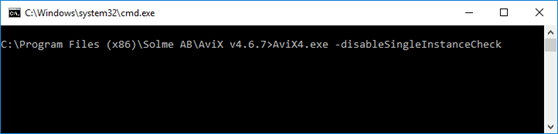
- Open a command prompt in the AVIX installation directory
- Type AVIX4.exe followed by the arguments that should be active.
Add a space before each used argument.
Path to AVIX> AVIX4.exe -disableSingleInstanceCheck
Example of use via application shortcut
Illustrates use of the argument -disableSingleInstanceCheck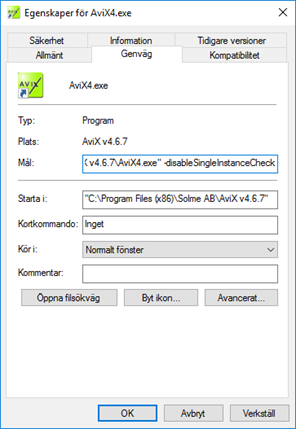
- Create a shortcut to the AVIX4.exe application
- Open the shortcut properties
- Add the arguments that should be used after the existing target.
Add a space before each used argument. - Press the button "OK" when done
- Start AVIX from the shortcut to apply the specified arguments