PREREQUISITE: Create Access Control db Storage
Preparations
AVIX SERVER Installation media
Download the installation media, the server zip archive. If you don´t have a download URL, ask your contact at Solme AB to get one. The downloadable unit is entitled "se.solme.avix.server.product-win32.win32.x86_64.zip" or similarly.
Note March 14th 2023: Use "master" build #1073 or later!
Unzip zip Archive
Unzip the server zip file at the host where you intend to install it.
Avoid white spaces in the path!
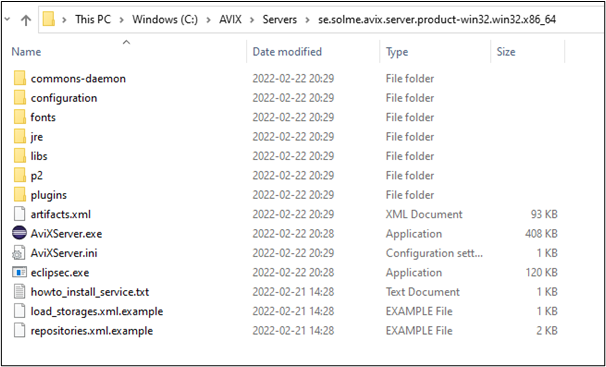
The unzipped content will look like this:
Carry-overRepositories.xml (Server upgrade)file
ThisMake issure onlyto relevant,create ifa file called "repositories.xml" in the root directory of the installation. The example content below uses embedded h2 db. (In a real deployment scenario, you havewill anlikely existinguse a professional DBMS e.g. MS SQL Server, Postgres etc)
<?xml version="1.0" encoding="UTF-8" standalone="yes" ?>
<repositoryConfig>
	<!-- h2 repository example (self-hosted by the AVIX server) -->
	<repository name="avix" type="se.solme.avix.server.cdo.h2" databaseName="avix"/>
	<repository name="admin" type="se.solme.avix.server.cdo.h2" databaseName="admin"/>
</repositoryConfig>
load_storages.xml file
Finally, make sure to create a file called "load_storages.xml" in the root directory of the installation. This file informs the server installation,on i.e.startup, ifwhich youstorages arethat upgradingshould be loaded. It should have the following contents to aload newerthe serverAC version.storage Thethat serverhas maybeen havecreated:
<?xml settingsversion="1.0" andencoding="UTF-8"?>
configuration<load_storage_config>
	files,<load_storage whichstorage="dba:/localhost:45500/admin/AC" youworkspace="AC"/>
</load_storage_config>
You will need to carry-overrestart (copy)the server for the load_storages.xml file to thebe new installation:
Before the next step, installing the service, it is recommended to stop the "Solme AviX Server Service" in the Windows Services manager.processed.
Install as Windows Service
- Open a command prompt with administrative privileges
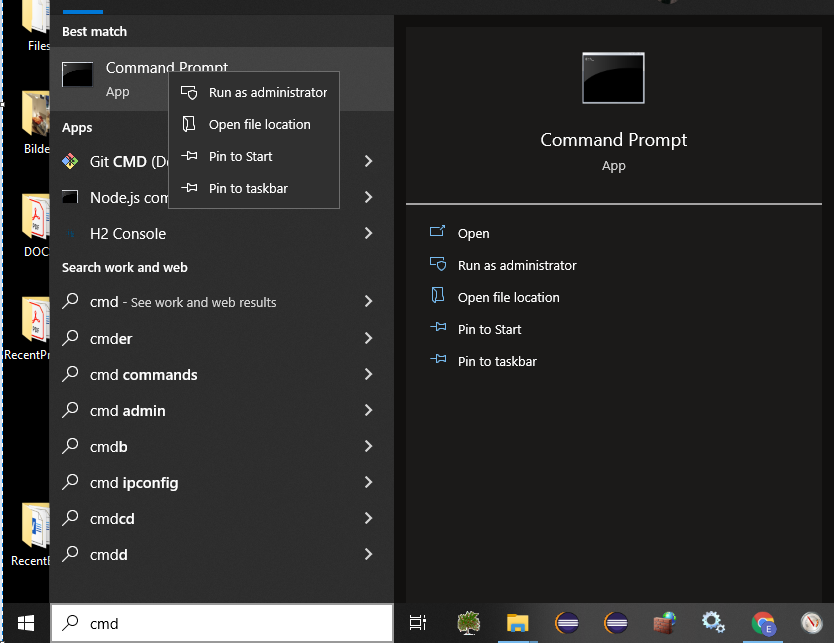
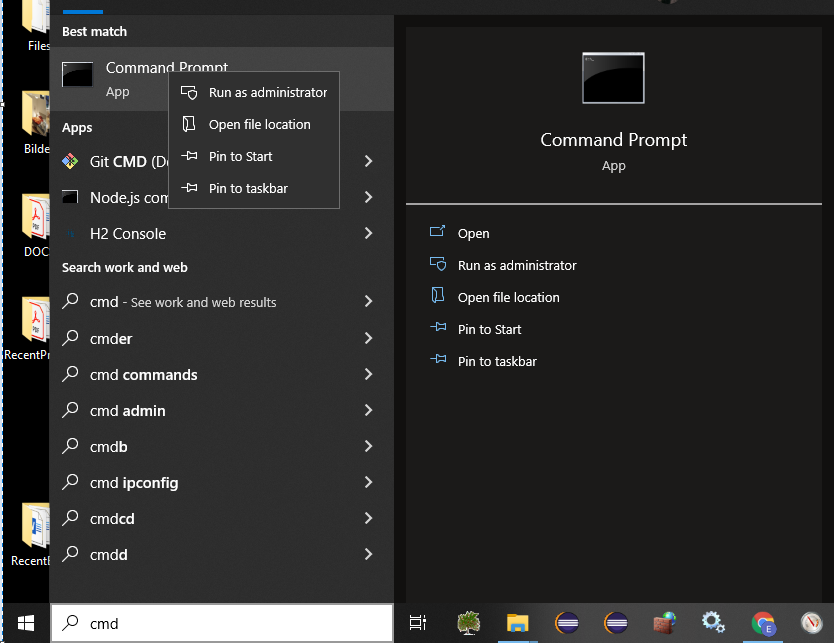
- Press Windows key to open the Start menu. Start typing "cmd" to get Command Prompt application to appear
- Right-click and "Run as administrator"
- In the opened Command prompt, navigate to the unzipped AVIX server directory
- Tip: use the change directory command. Example: "cd .." to move one step up. "cd temp" to open a directory called temp.
- Tip: The command "dir" will display contents of current directory.
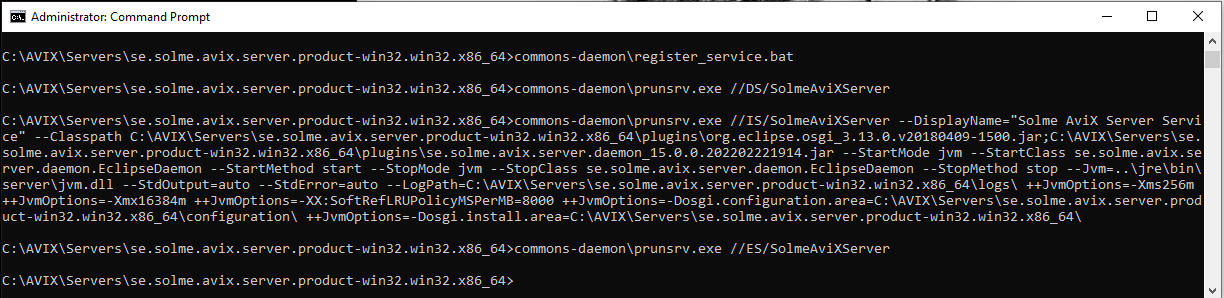
- Assert you are in the root directory of the AVIX server. Using the example screenshot from the "Unzip" section above, the "C:\AVIX\Servers\se.solme.avix.server.product-win32.win32.x86_64" directory.
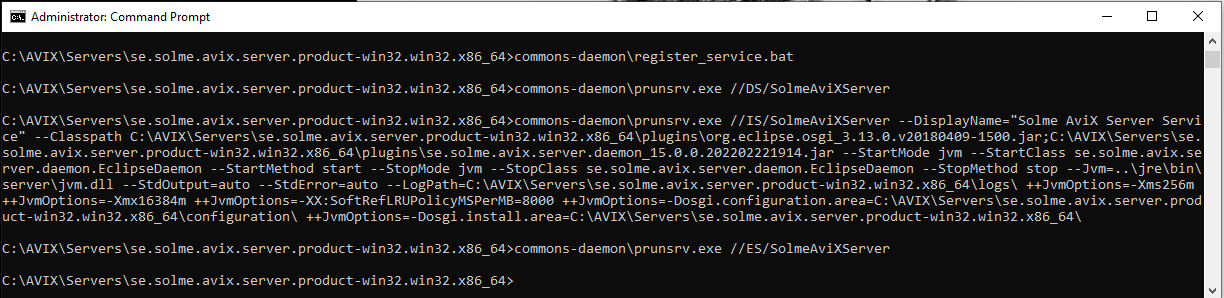
- Install the service, by running a batch script file:
- Type: commons-daemon\register_service.bat (tip: start typing ”co..” and press TAB) Press "Enter" to run the installation script.
-
Verify service installation
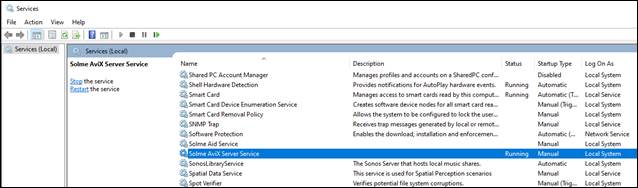
Open Windows Services manager. Locate the "Solme AviX Server Service":
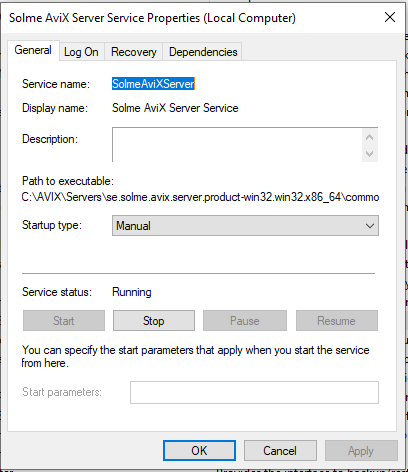
Verify that the service is running the AVIX server you just installed: Right-click and select "Properties":
Verify server installation
Check that ports are open (by default TCP 2036 and 45500)
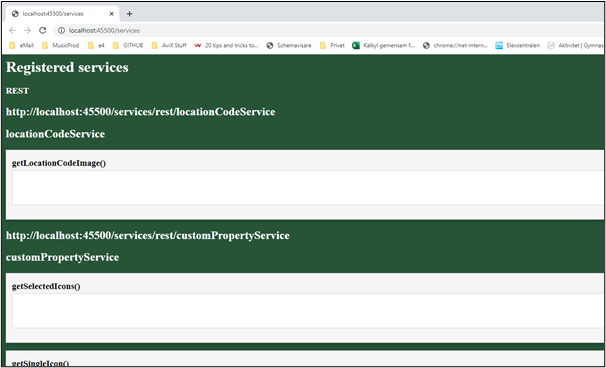
In case you are working on the host where the server is installed, try: http://localhost:45500/services
If working as intended, you should see something like this: