
VIDEO HANDLING
Which camera should I use?
Among AVIX users there are generally two types of needs when it comes to video cameras. The first case is a user recording short cycles (max 40-60 min), and the other case is users recording long assembly’s/resetting’s of machinery (> 60 min).
Theoretically AVIX can handle most common video files, however, practically there can be a difference between camera vendors and some use their own file format. To record and handle videos in an easy way, follow these recommendations:
- The file format should be .MP4 to achieve the best compression and playback in AVIX. The most common file formats (.MPEG, .AVI) works with AVIX, however, vendor specific file formats must be converted.
- It should be possible to adjust (lower) the camera resolution as much as possible. High resolution requires computer power at playback (both for AVIX and most office computers), and high resolution also generates extremely large video files (seven minutes HD video generates about 1 GB data).
- Battery capacity of about 1 hour of normal use, recording long processes requires a camera with a large battery and/or the feature of running on external power supply (check user manual before buy).
- Use your mobile phone camera (read more below)
Problems recording long sessions
Some cameras has a time limit splitting the recording in separate video files about every 20 minutes. It is still possible to record continuously, but several separate files will be created.
To solve this issue, the easiest way is to use Any Video Converter (or similar software) to merge the video files. (read more below). When merging the separate video files it will become one seamless video file.
At this moment the general explanation has to do with taxes applied on video cameras, and to avoid this, manufactures classify the video cameras as cameras. To do so, there has to be a time limit for each clip recorded.
Recommended cameras
LONG RECORDING TIME (> 60 MIN)
Recommended camera is Panasonic HC-V380 (or older versions HC-V130, V110, V180, V160, V260) or Canon Legria HF R806. Order it from any favorite e-store. These cameras can be complemented with extra large battery (order separately) or used with external power-supply.
RECORDING WITH ACTION CAMERA
To make the recording easier, or as a complement to show exactly what the operator sees, use a “action video camera”.
GoPro
New models are released continuously. The difference is mainly advanced features and resolution. All versions is really easy to configure and control using the GoPro app for Smartphones, and can be used together with an external power supply (i.e. no need to rely only on the battery).
Some older versions of the GoPro creates hidden .LRV files (Low Resolution Video). These files can be renamed to .MP4 and then used in AVIX. The resolution and video size is well suited for AVIX. Only cameras with wi-fi have this option.
Recommended resolution GoPro
Can easily be adjusted using the GoPro app (Capture).
Use 720p, 25-30 fps – Using higher resolution will only result in unnecessarily large video files.
RECORDING USING A MOBILE PHONE
It is also possible using a mobile phone as camera – Often this leads to large high resolution video files, which is not desirable. However, there is a solution by using an App making it possible to record a lower resolution than the default settings of the phone.
We recommend the following Apps:
Small Size Video Converter, available on App store here
LightVid, available on App store here
Instead of buying a camera, a good investment could be a Gimbal for image stabilization using your phone
Video conversion software
Sometimes video files need to be converted. It can be due to:
- The video format is not supported by AVIX
- The video format is to big handle in an easy way
- Several separate movie files should be combined to one big file.
We recommend one of the following softwares:
Handbrake: (preferred)
http://www.handbrake.fr
Complete instruction [Video]
Any Video Converter (can also merge movies):
http://www.any-video-converter.com/products/for_video_free/
Instructions Any Video Converter
OpenShot (for simple video editing)
https://www.openshot.org/
AVIX settings
If the video playback in AVIX isn’t smooth or doesn’t work at all, it can be due to playback settings. Try the following:
Playback settings
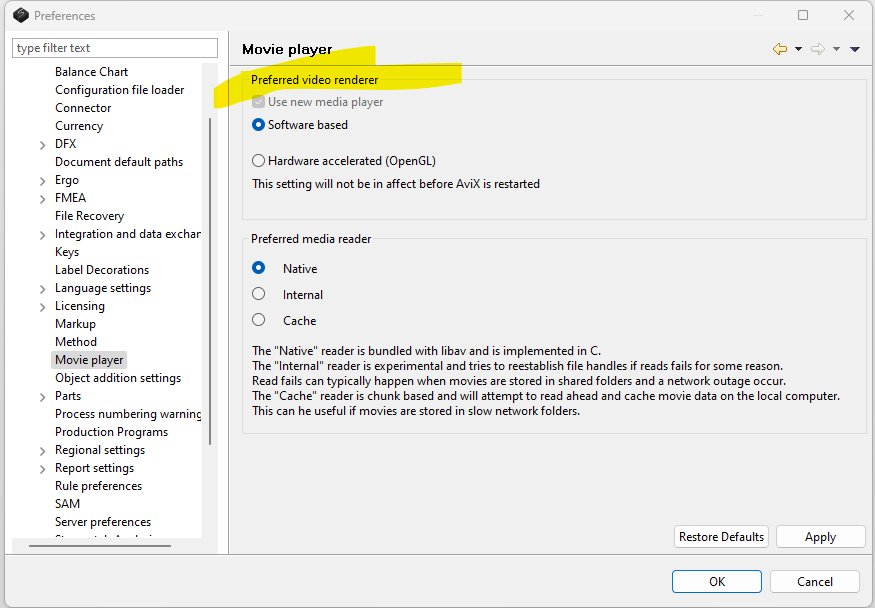
There are two settings in AVIX: “Software based” and “Hardware accelerated”. Go to “Preferences” and select “Movie player”, try changing between these two settings. Depending on your computers configuration, one of these is the most suitable.
Use default paths
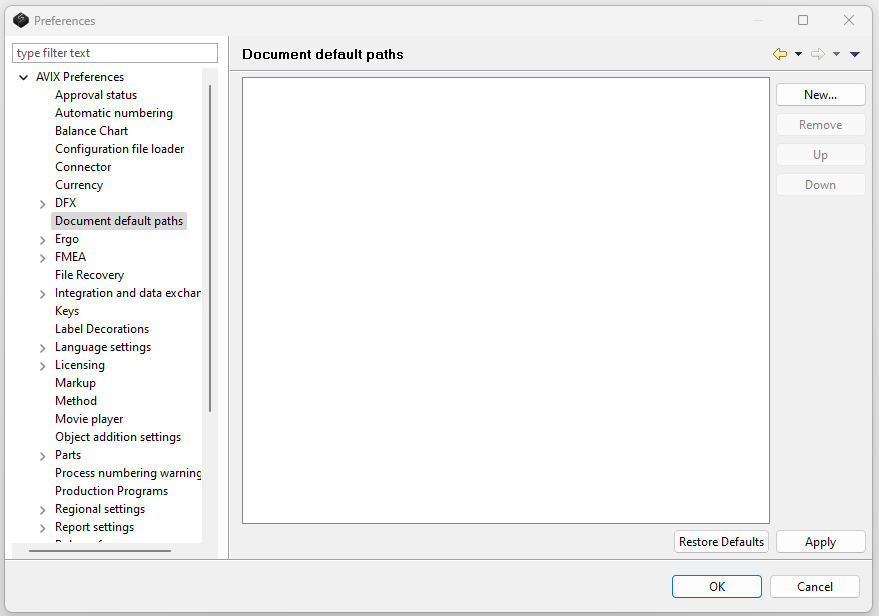
If the video is saved to a network with limited bandwidth and you’re experiencing problems with the video – Use the feature “default search paths” in the AVIX settings. You can set multiple search paths to videos/documents and prioritize which one to use first. Videos should always be saved to a network (networks normally have back-up routines), but the movies can also be stored on your computers hard drive during periods of intense work.
Add two search paths in AVIX, the first one pointing to the computer hard drive and the second one to the network location. AVIX will first try playing the movie from the hard drive and thereby avoiding network issues. If the video for some reason is not available on the hard drive, it will be played from the network instead, and thus be played anyway (with possible decreased performance).
Use video cache
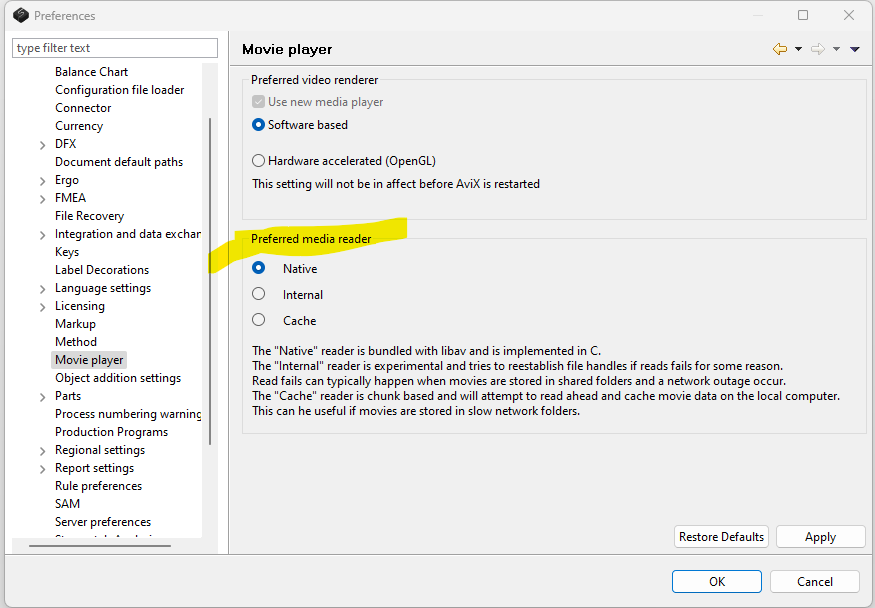
Running the 64-bit version of AVIX, you can also try is enabling “cache videos locally” in the AVIX settings – Instead of loading the whole video at once, AVIX will only load the videos partially when needed (i.e. selecting a task) and thereby limit the load on the network. Note, this will only have effect on videos saved to a network, and not on a local hard drive.
Ask us!
For more technical details regarding playback contact support@solme.se