
AVIX VALUE STREAM MAPPING: STEP-BY-STEP
Open AVIX and click on the "Balancing" icon in the top menu.
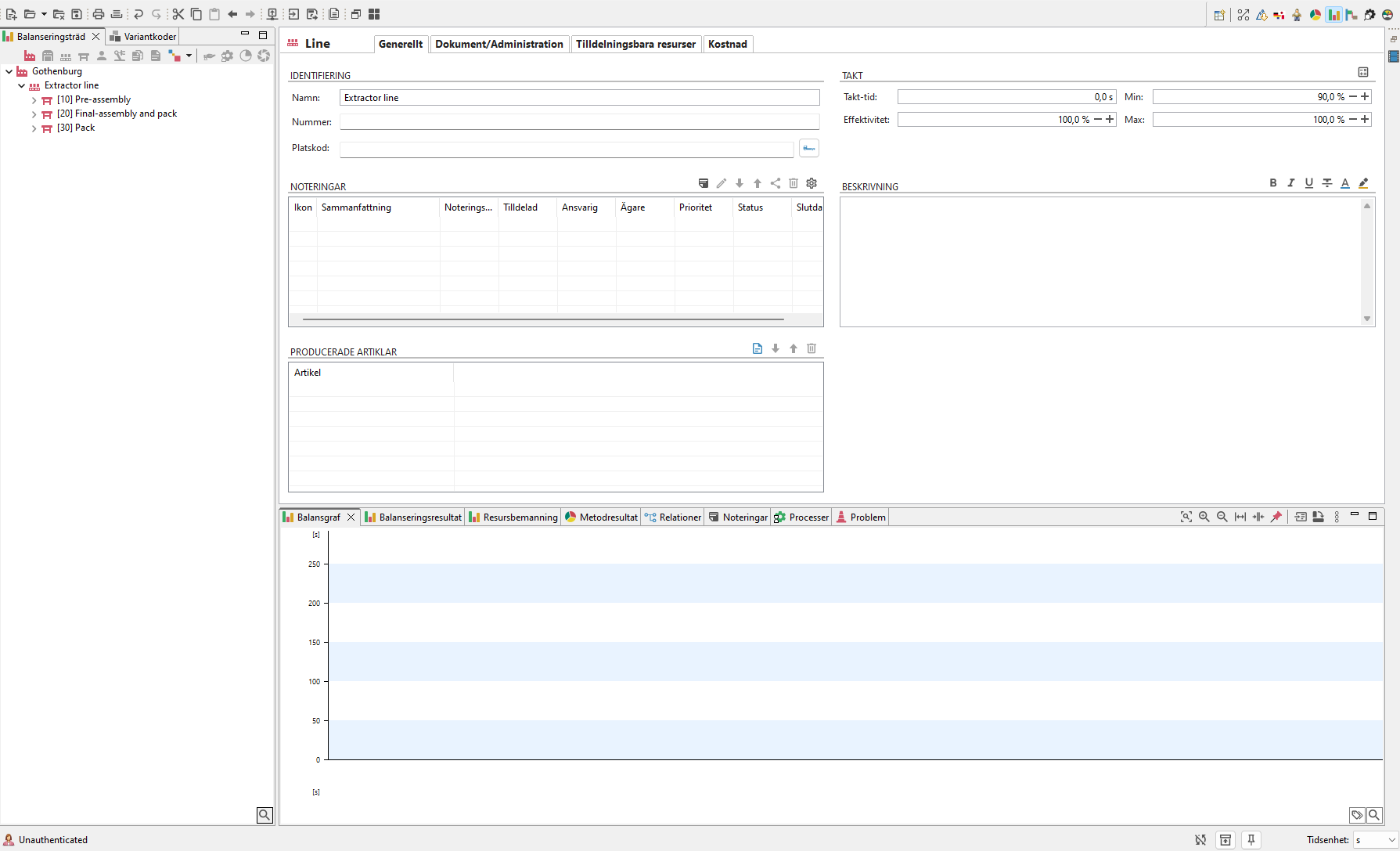
Picture 1: Default start layout of Balancing.
Setting Takt Time
Select the Line and fill in the Takt Time. Set Takt Time:
- Enter the Takt Time directly if you know it.
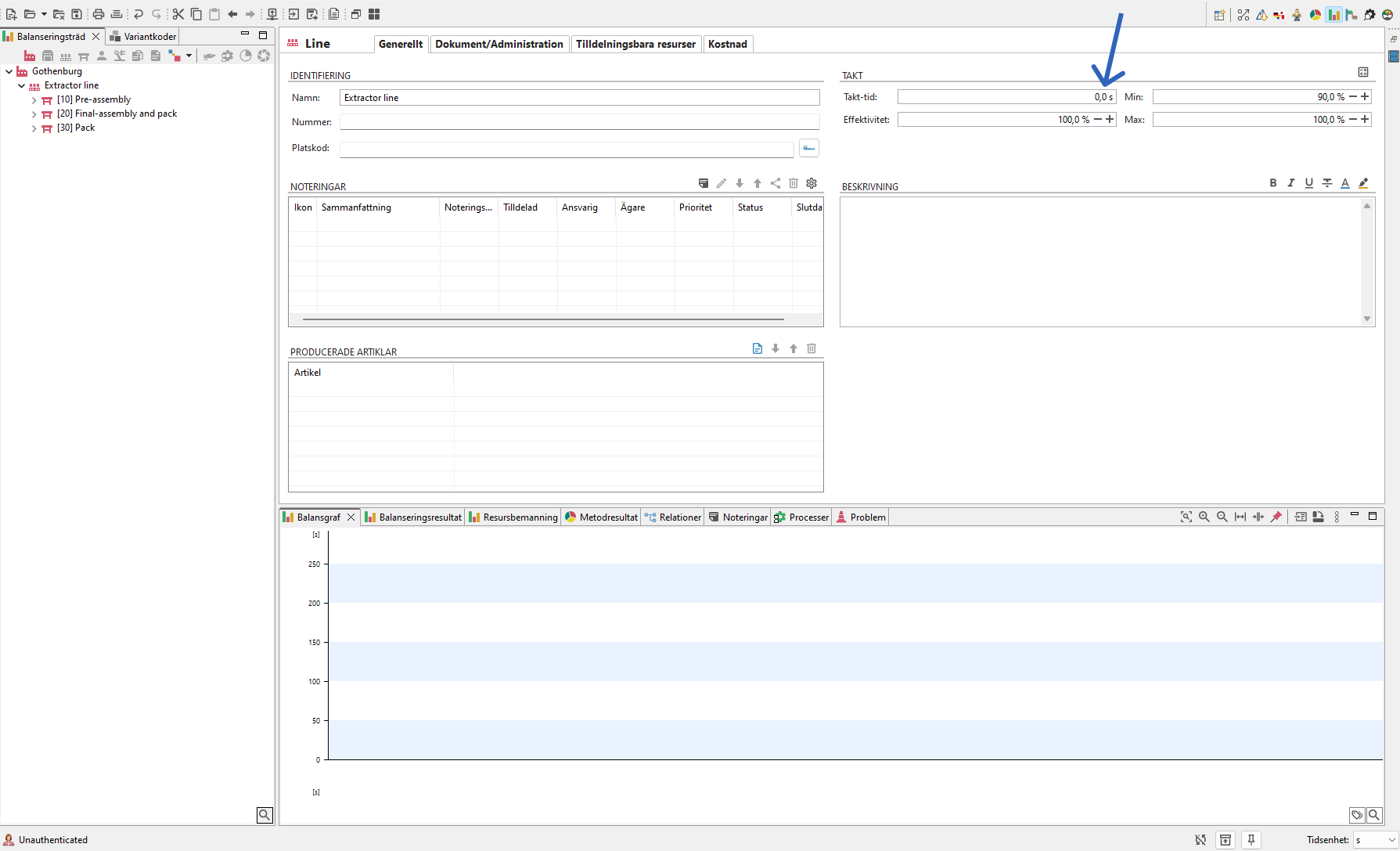
Picture 2: Manual input of Takt Time
- Use the Takt Time Calculator to calculate it.
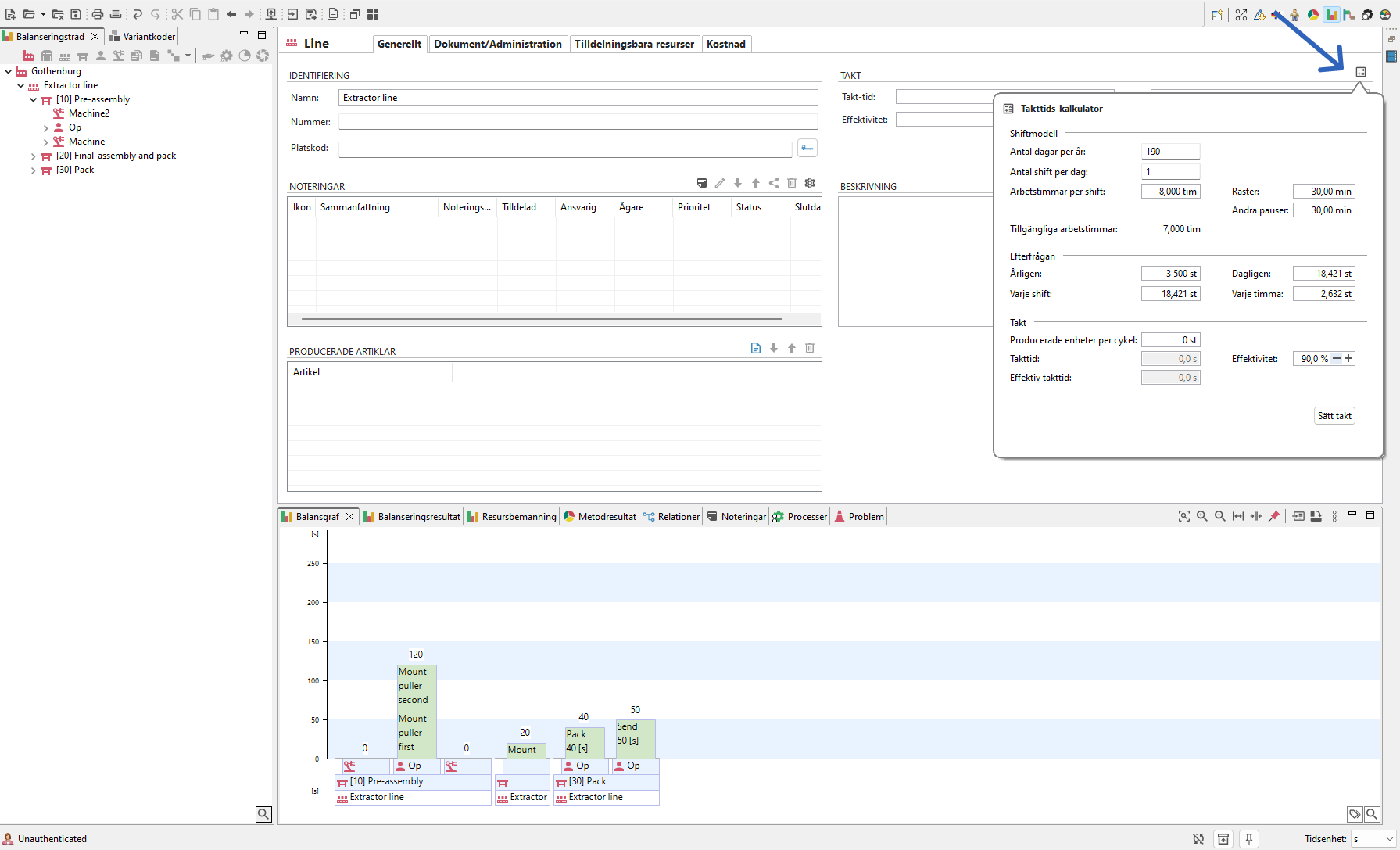
Picture 3: Click on icon to open Takt Time calculator and calculate Takt Time automatically.
Setting Parts Per Cycle
- Select the workstation.
- In the Workstation View, go to the "Cost and VSM" tab.
- Edit the following fields as needed:
-Scrap Rate
- Changeover Time
- Changeovers Per Day
- Select information arrows from the dropdown menu:
- Electronic, Manual, or None (default).
- Enter the Information Frequency text in the field below.
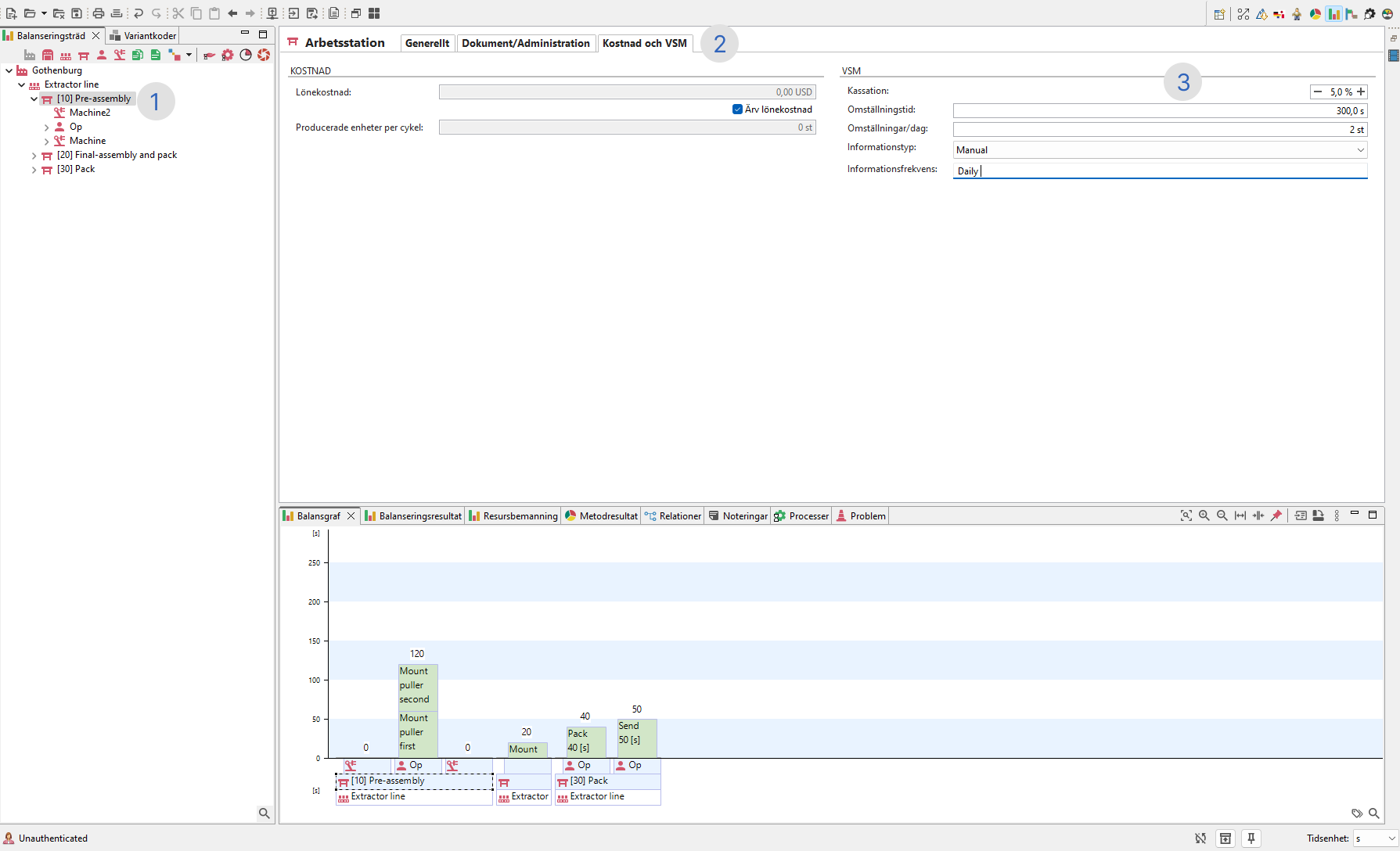
Picture 4: Steps for adding produced parts per cycle and information frequency on workstation.
Adding Buffer/Inventory
Right click on a workstation, then select "Create" > "Buffer".

Picture 5: Right click on the workstation to add a buffer.
- In the Buffer View, set the Capacity, which will appear as inventory in the Value Stream Map.
- Drag and drop the buffer to adjust its position:
- Default: At the end of the workstation, representing inventory between stations.