
Server service (Windows): changing user account
The user account running the AVIX Server service provides the access permissions for the server. Local Service - the default account in use after registering the AVIX Server as a Windows service - runs with low privileges. This means that is will not have any access to network file resources.
Why change user account? If the server cannot access folders or drives containing linked files (movies, images etc), you typically need to run the server with another account with adequate permissions.
Changing the account to run the AVIX Server service
This can be done in multiple ways:
- Using the Windows Services application
- Using the SolmeAviXServer service manager application
Using the Windows Service Application
Open the Windows Services application and search for the service named "Solme AVIX Server Service".
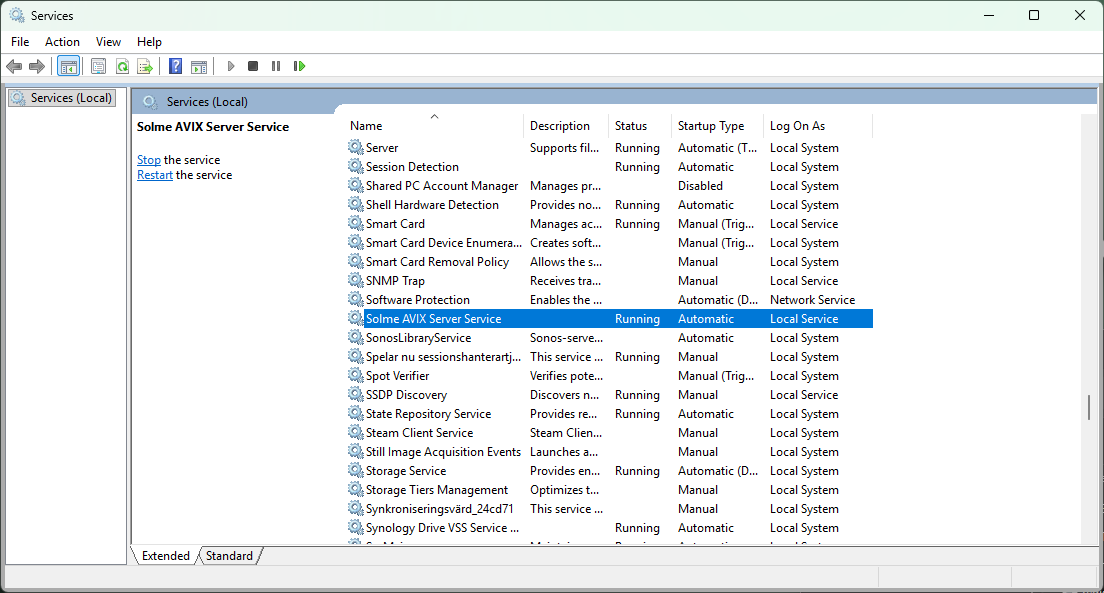
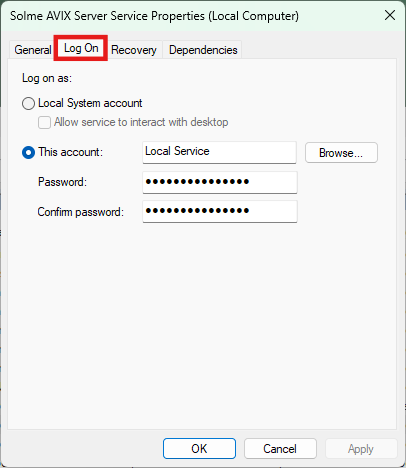
Open the properties for the service from its context menu or by double clicking on it. Switch over to the "Log On" tab. On this page it is possible to assign a new user account.
If account is changed, restart the service.
Using the Solme AviX Server Service Manager Application
In the /commons-daemon/ folder at the root of the AVIX Server installation, there is an application SolmeAviXServer.exe.
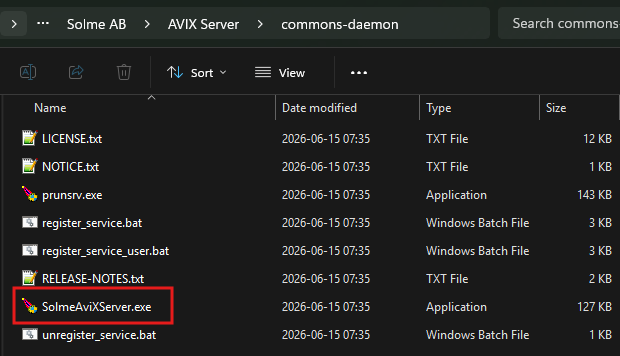
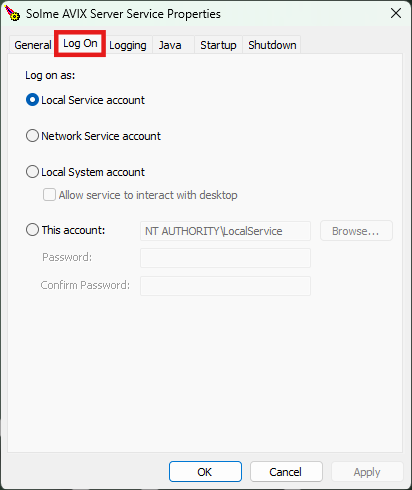
Run this application, you may will need to allow elevated access. Switch to the Log On tab. On this page it is possible to assign a new user account.
If account is changed, restart the service.
Error 1069
You may receive an 1069 error once you have changed the user account for "Log On", and then re-started the AVIX Server Service.
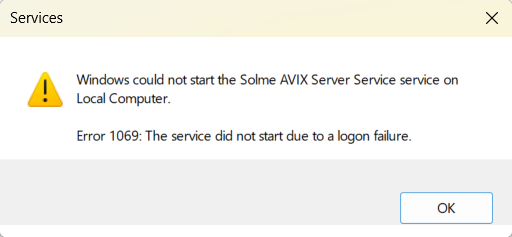
Unfortunately, the error message doesn't give much away, but there are a couple of potential causes.
Bad password
One obvious cause may be that an incorrect password was provided when changing the "Log On" user account.
Missing privilege to start a service
Another cause may be that the user account doesn't have the Log on as a service privilege.
Checklist to resolve 1069 and log-on issues
1 Test User Account credentials
- Open Command Prompt (cmd.exe)
- Type the following command (replace DOMAIN\username or COMPUTERNAME\username with the user account in question)
- runas /user:DOMAIN\username cmd.exe
- Windows will prompt:
Enter the password for DOMAIN\username:. - Type/paste the password (the text won't show), and hit Enter
- Result:
- 🟢 If it opens a new Command Prompt window: The username and password are correct.
- 🔴 If it fails with
1326: Logon failure: unknown user name or bad password: The password or username format is incorrect.
Note that in Windows, you may use any of these forms
- .\username
- COMPUTERNAME\username
since the dot (.) is built-in Windows shorthand for the local machine.
If the test result was successful - username and password were proven to be correct - and you are certain that you have entered the correct password in the Service Properties UI, but starting the service still gives you an error 1069: please continue to "2 Check Log on as a service..." below..
If the test result was a failure: please refer to "4 Microsoft Account... " below instead.
2 Check Log on as a service and Deny log on as a service policies
As stated in the former step, if runas works, the password is not the problem.
Verify that the user account you are trying to use have the Log on as a service privilege.
To verify whether the user account has the privilege, open the Group Policy Editor:
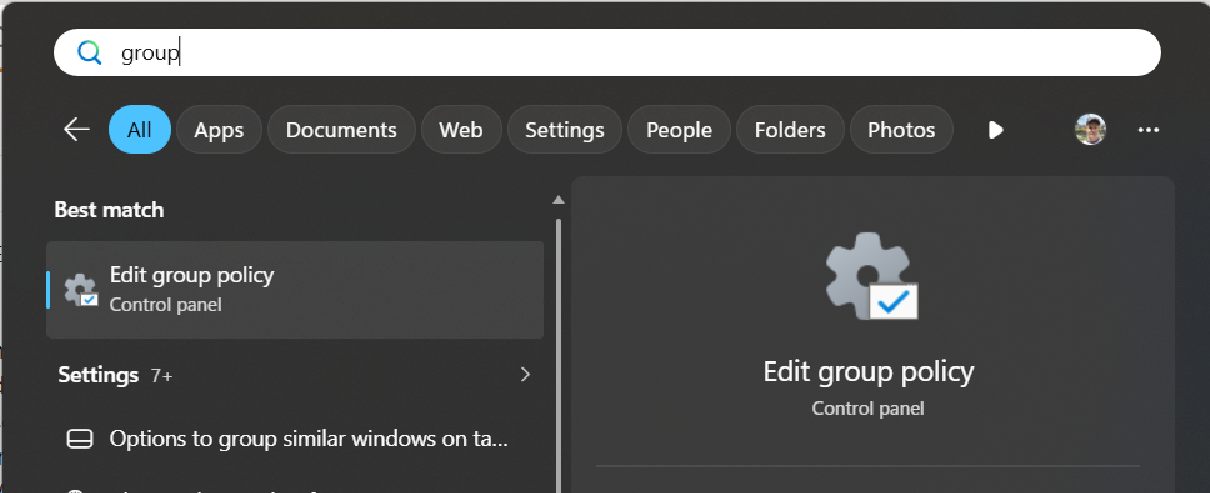
Once there, open the Properties for the policy
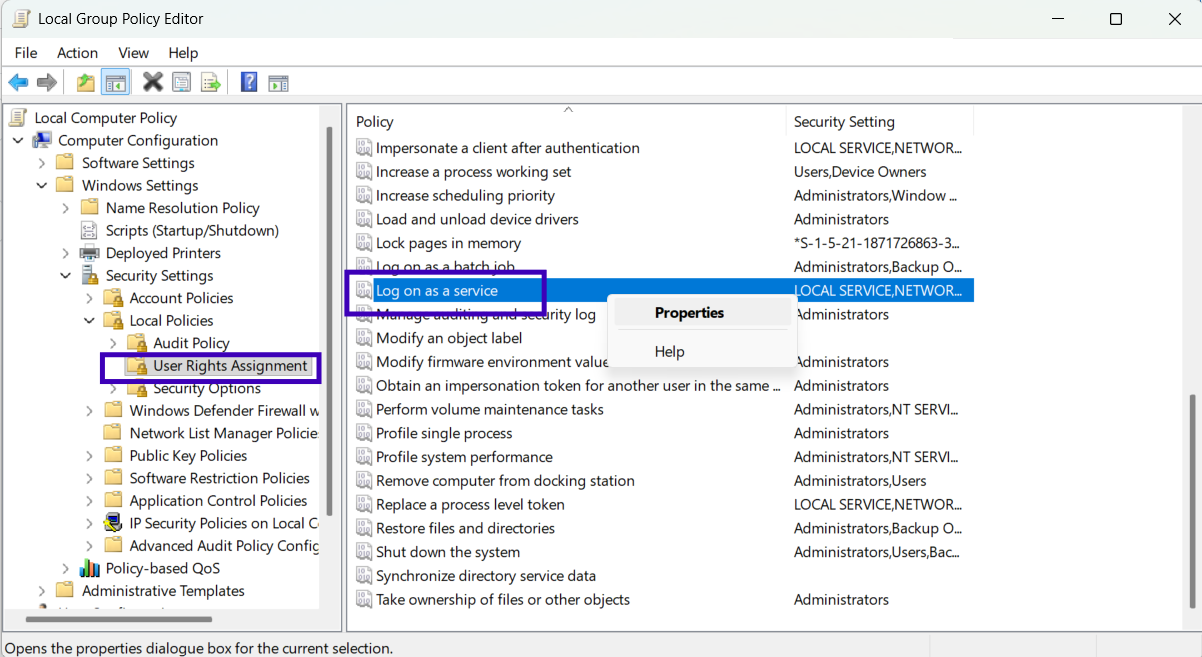
and make sure the user account in question is assigned to the policy.
Also double-check that the "Deny log on as a service" policy does not contain the user, or a group the user belongs to (like Users or Guests)
If you made any changes to the policies, try to re-start the server service.
If starting the service still gives you an error 1069: please continue to the step below.
3 Account constraints, service properties UI syntax
Account constraints: the account could be expired, locked out or flagged with "User must change pw at next logon". Verify this in lusrmgr.msc (Local Users and Groups).
Service properties UI: Typing .\username vs username vs DOMAIN\username in the Services MMC snap-in (the Service Control Manager can misinterpret username alone if local policies dictate domain resolution).
Also, Windows Service Manager is notoriously picky about how usernames are formatted:
-
Down-Level Format (Preferred for Services):
DOMAIN\Usernameor.\Username(for local accounts). -
UPN Format:
username@domain.com.
Sometimes entering username@domain.com will pass when typing it in, but fails with Error 1069 when the Service Control Manager actually attempts to create the logon token. Have the user re-type it using DOMAIN\username or COMPUTERNAME\username.
4 Microsoft Account / Azure AD (Entra ID) Account
If the user account is a Microsoft Account (like john@outlook.com) or an Azure AD business account, local password authentication via runas or Windows Services often fails because Windows uses a cached cloud token/PIN rather than a traditional local password.
If this is the case, it is effectively out of the question to use this account for the service: you cannot use a personal Microsoft Account (MSA) or a clound-only Azure AD / Entra ID account directly as the "Log on as" account for a Windows Service. The Windows Service Manager (SCM) expects a local or domain Active Directory account syntax, not a cloud-only identity or Microsoft Account PIN/Password.
Suggested fix: Create a dedicated local account (see below).
Create A (local) account to run service
Creating the account
Open Command Prompt as Administrator. To create a new user, decide for a good user name and take note of the selected password. In the example command below, the accountAVIXServerUser is created with the password "YourStrongPassword123!"
net user AVIXServerUser YourStrongPassword123! /addAn improvement to the above is to force the account to never expire, so that a background service doesn't break unexpectedly in 42 days (default Windows local policy):
net user AVIXServerUser YourStrongPassword123! /add
wmic useraccount where name='AVIXServerUser' set PasswordExpires=FALSE
Grant "Log on as a service" right
Use secpol.msc -> Local Policies -> User Rights Assignment for this. See also explanation of Group policy editor, step 2 above).
Grant permissions to Installation Folder
Open Command Prompt as Administrator. Then, execute the following command:
icacls "C:\Path\To\Server\Installation" /grant .\AVIXServerUser:(OI)(CI)(M) /t /c /lThis will grant modify permission recursively to the user, which allows for reading, creating, editing and deleting files/subfolders.
Documentation of flags:
| (OI) | Object Inherit (applies to files inside folders) |
| (CI) | Container Inherit (applies to subfolders) |
| (RX) | Read & Execute (Read files, list directories, execute binaries) |
| (M) | Modify (Read, Write, Create, Delete files and folders) |
| (F) |
Full Control (Modify + Take ownership & change permissions) |
| (OI)(CI) |
Ensures all future subfolders and files created inside this tree automatically inherit these same rights |
| /t |
Recursively applies permissions to existing subfolders/files |
| /c |
Continues processing despite access denied errors on locked system files |
| /l |
Operates on symbolic links/reparse points directly rather than resolving targets |
Note for Administrators: While permissions can be set via folder Properties-> Security in File Explorer, using the icacls command line is strongly recommended. File Explorer often fails when updating permissions on deep directory trees, active background files or synced folders.
Configure AVIX Server service and restart
Configure in services.msc under the Log On tab, then restart.
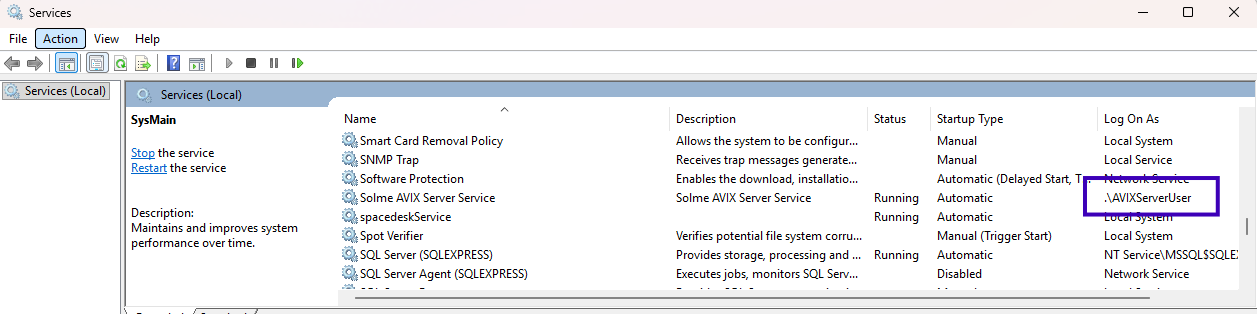
OneDrive access and Windows Services
Disclaimer: Note that OneDrive is an interactive desktop application:
-
The OneDrive syncing client (
onedrive.exe) relies on an active user desktop session to sync files down to local disk folders (e.g.,C:\Users\John\OneDrive). -
The AVIX service on the other hand, runs in Session 0 . Thus, the OneDrive sync client will typically not be running in the background (unless the user is actively logged into the physical Windows desktop)
-
If files are only "Files On-Demand" (cloud icons), the AVIX Server (running as a service) will fail to read them because Session 0 cannot trigger the OneDrive client to download the file on the fly.
However, if you are in the current situation:
- OneDrive syncs under a users interactive Microsoft Account session (e.g.
C:\Users\John\OneDrive ) - AVIX Server service is running, e.g. with a local service account as described in 5 above: (
.\AVIXServerUser) - The AVIX Server (being run with
.\AVIXServerUser) does not have permission to read the personal user folder (C:\Users\John\OneDrive)
you may want to explicitly grant AVIXServerUser the read/write access. Follow the steps below, and then re-start the AVIX Server service.
A Ensure OneDrive files exist locally (Files On-Demand)
The OneDrive is as stated above an interactive desktop application, not a Windows service. Thus, it only runs and syncs when the user e.g. John is actively signed into a Windows desktop session. So if the server reboots, or John logs out, background syncing stops completely.
However, making sure to do the following helps out:
-
Log in as OneDrive account owner (e.g.
John) - Right-click on
C:\Users\John\OneDrive - Select Always keep on this device
B Grant traversal access to parent profile folder
Open Command Prompt as Administrator. Then, execute the following command:
icacls "C:\Users\john" /grant .\AVIXServerUser:(RX)This will allow for entering the folder path (without giving access to any particular subfolders therein like "Desktop", "Documents" and so on).
C Grant read permissions to OneDrive folder
Open Command Prompt as Administrator. Then, execute the following command:
icacls "C:\Users\john\OneDrive" /grant .\AVIXServerUser:(OI)(CI)(RX) /t /c /lShould the server ever need to write something back to the OneDrive directory structure, (RX) can be changed to (M), but since it probably only is for serving the media out to web clients, (RX) is ideal.