
Server service: changing user account
The user account running the AVIX Server service provides the access permissions for the server. Local Service - the default account in use after registering the AVIX Server as a Windows service - runs with low privileges. This means that is will not have any access to network file resources.
Why change user account? If the server cannot access folders or drives containing linked files (movies, images etc), you typically need to run the server with another account with adequate permissions.
How to edit the account used to run the AVIX Server service
This can be done in multiple ways:
- Using the Windows Services application
- Using the SolmeAviXServer service manager application
Using the Windows Service Application
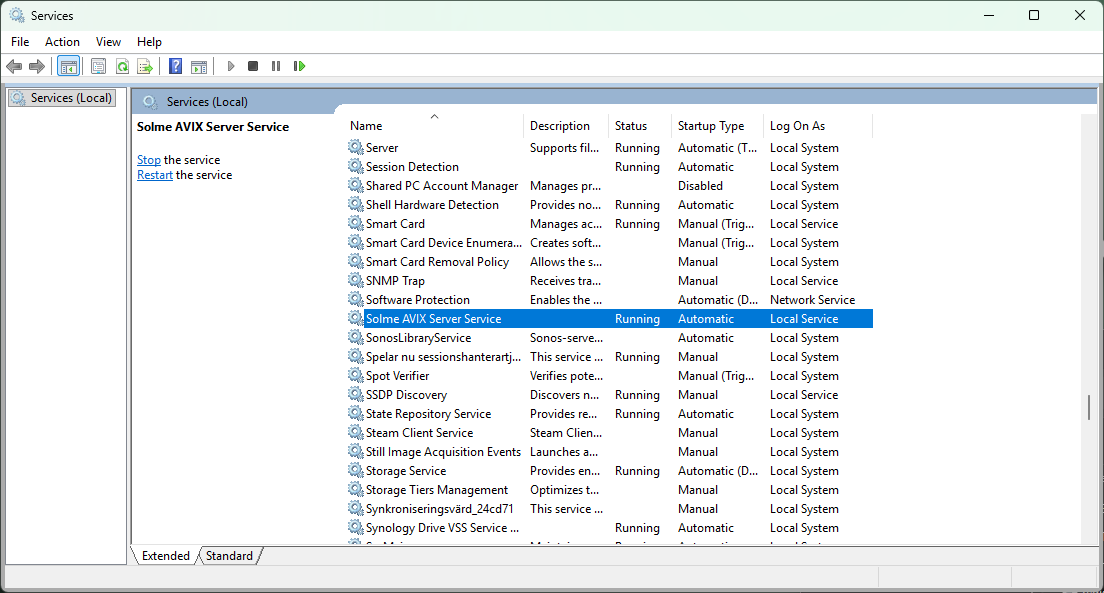
Open the Windows Services application and search for the service named "Solme AVIX Server Service".
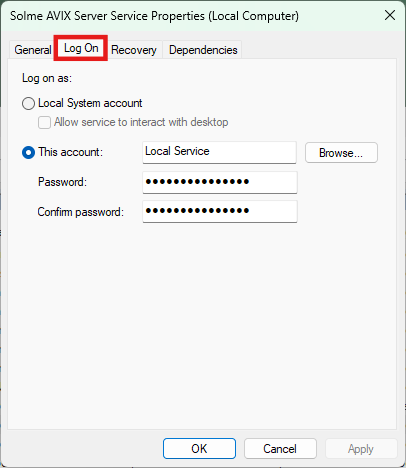
Open the properties for the service from its context menu or by double clicking on it. Switch over to the "Log On" tab. On this page it is possible to assign a new user account.
If account is changed, restart the service.
Using the Solme AviX Server Service Manager Application
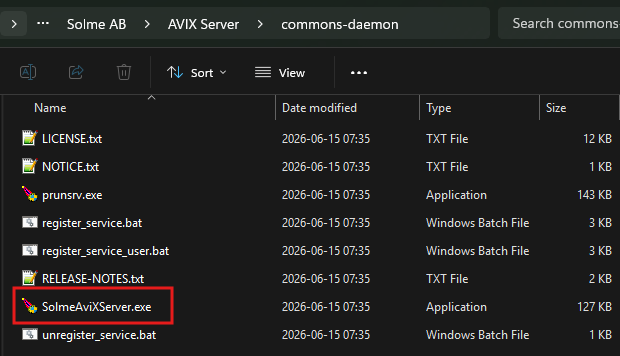
In the /commons-daemon/ folder at the root of the AVIX Server installation, there is an application SolmeAviXServer.exe.
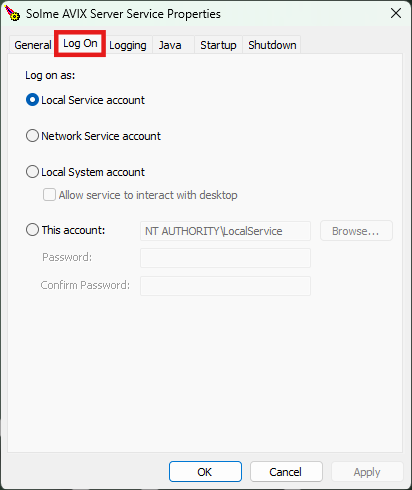
Run this application, you may will need to allow elevated access. Switch to the Log On tab. On this page it is possible to assign a new user account.
If account is changed, restart the service.
error 1069
You may receive an 1069 error once you have changed the user account for "Log On", and then re-started the AVIX Server Service.
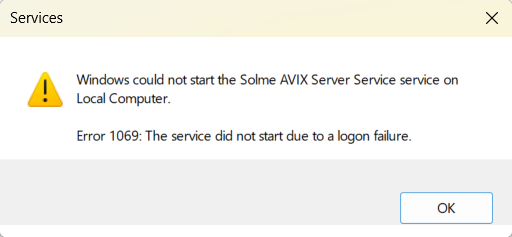
Unfortunately, the error message doesn't give much away, but there are a couple of potential causes.
Bad password
One obvious cause may be that an incorrect password was provided when changing the "Log On" user account.
missing privilege to start a service
Another cause may be that the user account doesn't have the Log on as a service privilege.
The checklist below can be followed, to hopefully make the service start with the desired user account.
checklist to resolve 1069 and log-on issues
1 Test User Account credentials
- Open Command Prompt (cmd.exe)
- Type the following command (replace DOMAIN\username or COMPUTERNAME\username with the user account in question)
- runas /user:DOMAIN\username cmd.exe
- Windows will prompt:
Enter the password for DOMAIN\username:. - Type/paste the password (the text won't show), and hit Enter
- Result:
- 🟢 If it opens a new Command Prompt window: The username and password are correct.
- 🔴 If it fails with
1326: Logon failure: unknown user name or bad password: The password or username format is incorrect.
Note that in Windows, you may use any of these forms
- .\username
- COMPUTERNAME\username
since the dot (.) is built-in Windows shorthand for the local machine.
If the test result was successful - username and password were proven to be correct - and you are certain that you have entered the correct password in the Service Properties UI, but starting the service still gives you an error 1069: please continue to "2 Check Log on as a service..." below..
If the test result was a failure: please continue to "4 Microsoft Account... " below instead.
2 Check Log on as a service and Deny log on as a service policies
As stated in the former step, if runas works, the password is not the problem.
Verify that the user account you are trying to use have the Log on as a service privilege.
To verify whether the user account has the privilege, open the Group Policy Editor:
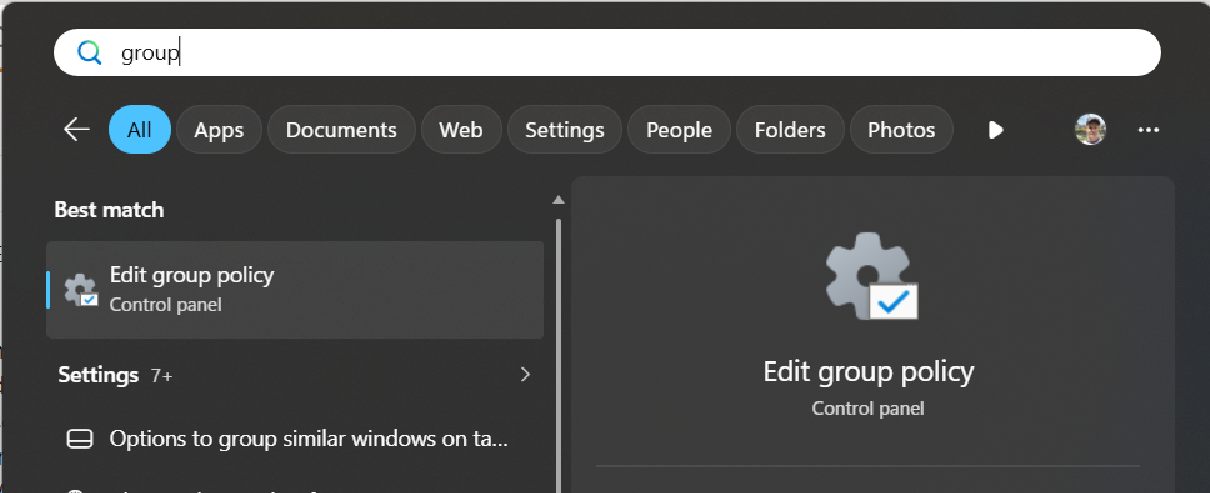
Once there, open the Properties for the policy
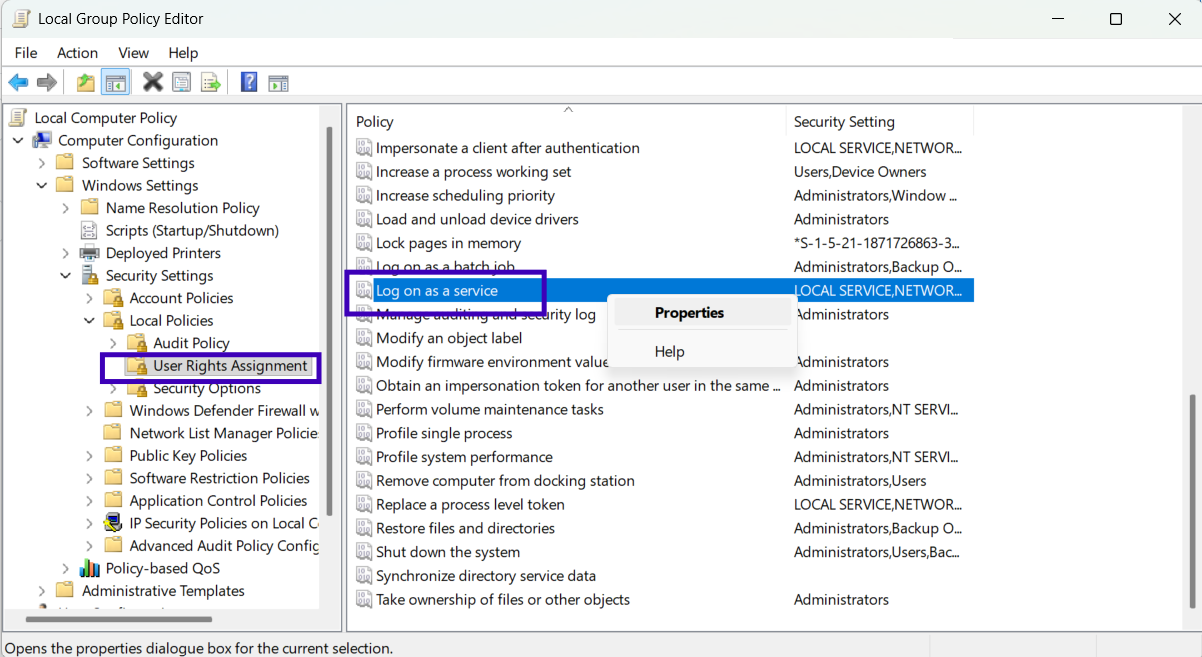
and make sure the user account in question is assigned to the policy.
Also double-check that the "Deny log on as a service" policy does not contain the user, or a group the user belongs to (like Users or Guests)
If you made any changes to the policies, try to re-start the server service.
If starting the service still gives you an error 1069: please continue to the step below.
3 Account constraints or typo in the service properties UI
Account constraints: the account could be expired, locked out or flagged with "User must change pw at next logon". Verify this in lusrmgr.msc (Local Users and Groups).
Service properties UI: Typing .\username vs username vs DOMAIN\username in the Services MMC snap-in (the Service Control Manager can misinterpret username alone if local policies dictate domain resolution).
4 Microsoft Account / Azure AD (Entra ID) Account
If the user account is a Microsoft Account (like john@outlook.com) or an Azure AD business account, local password authentication via runas or Windows Services often fails because Windows uses a cached cloud token/PIN rather than a traditional local password.
If this is the case, it is effectively out of the question to use this account for the service: you cannot use a personal Microsoft Account (MSA) or a clound-only Azure AD / Entra ID account directly as the "Log on as" account for a Windows Service.
Suggested fix: Create a dedicated local service account
Create a standard local account specifically to run the AVIX Server application:
- Open Command Prompt as Administrator.
- Run: net user AVIXServerUser YourStrongPassword123! /add
- (This creates a local user named
AVIXServerUserwith a traditional local password).
- (This creates a local user named
- Grant
AVIXServerUserthe "Log on as a service" right insecpol.msc(Group policy editor, see 2 above) - Grant
AVIXServerUserRead/Write NTFS permissions to the folders/files that the AVIX Server application needs to access (Right-click Folder → Properties → Security). - Configure Windows Service
Log Ontab:- This account:
.\AVIXServerUser - Password:
YourStrongPassword123!
- This account: