
AVIX Server service: changing user account
The user thataccount runsrunning the AVIX Server service provides the access permissions for the server. TheLocal Service - the default useraccount thatin isuse used whenafter registering the AVIX Server as a Windows service in- theruns Windowswith installerlow usesprivileges. theThis Localmeans Servicethat accountis which doeswill not have any access to network file resources.
How to check the currently used account
There are multiple ways to do it, but two easy ways are
Check Log On Account
Check Log On Account Using the Windows Services application
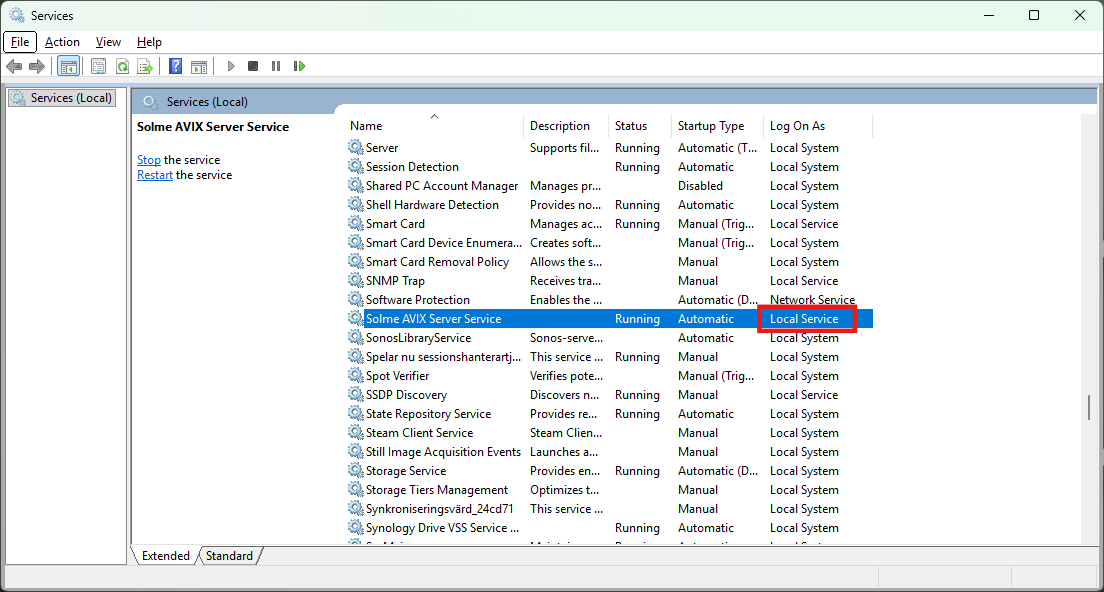
Open the Windows Services application and search for the service named "Solme AVIX Server Service". The currently used logon account is shown directly in the service list in the "Log On As" column.
Check Log On Account Using the Solme AviX Server service properties application
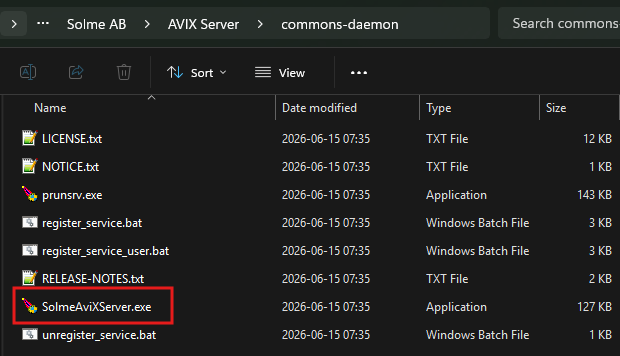
In the installation folder of AVIX Server - the default location is "C:\Solme AB\AVIX Server" - open the folder "commons-daemon" in a File Explorer. In this folder there is an application "SolmeAviXServer.exe".
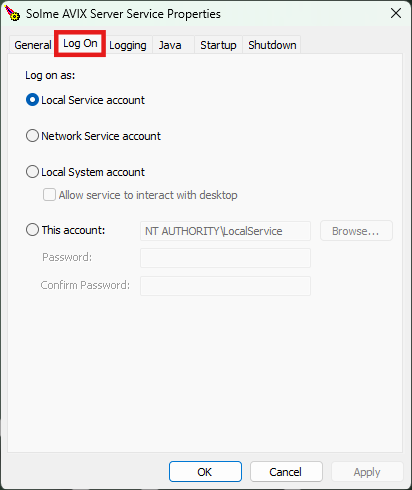
Run this application, you may will need to allow elevated access. Switch to the "Log On" tab and the current log on information should be visible.
How to changeedit the account used to run the AVIX Server service
This can be done in multiple ways and two such ways are, are
- Use the Windows Services application
- User the SolmeAviXServer service properties application
Change Log On Account Using the Windows Service Application
Open the Windows Services application and search for the service named "Solme AVIX Server Service".
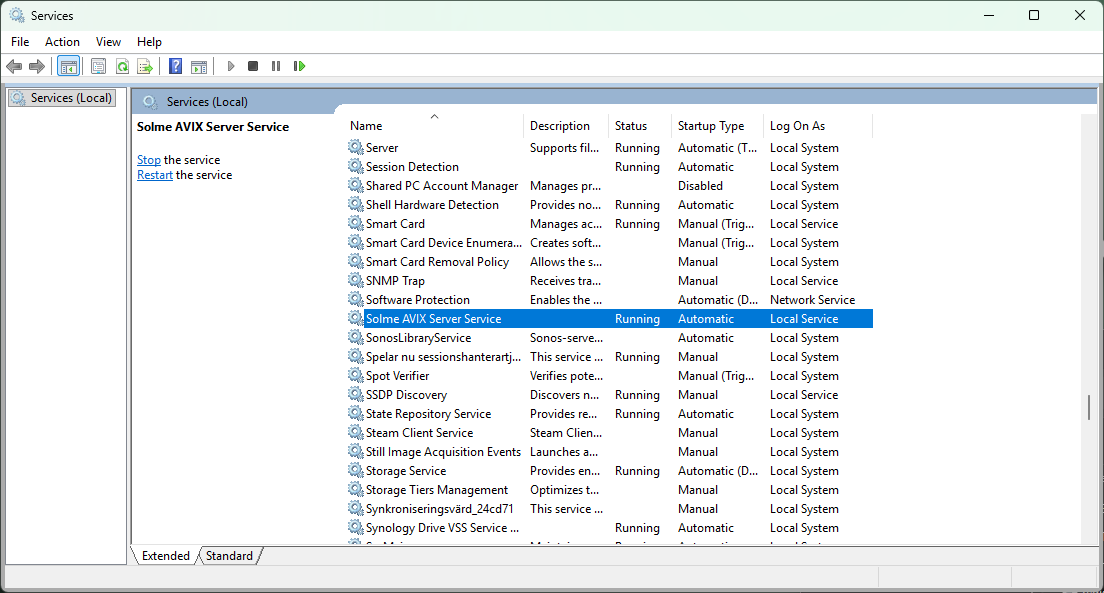
Open the properties for the service from its context menu or by double clicking on it. Switch over to the "Log On" tab. On this page it is possible to assign a new user account.
If account is changed, restart the service.
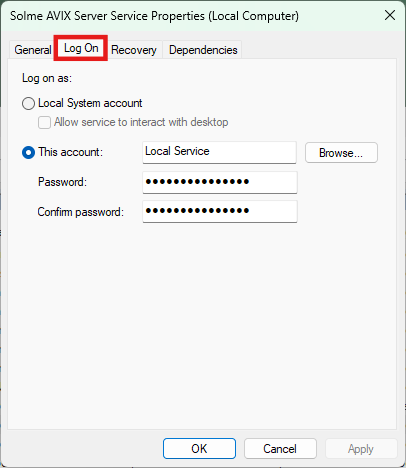
Change Log On Account Using the Solme AviX Server Service Properties Application
In the installation folder of AVIX Server - the default location is "C:\Solme AB\AVIX Server" - open the folder "commons-daemon" in a File Explorer. In this folder there is an application "SolmeAviXServer.exe".
Run this application, you may will need to allow elevated access. Switch to the "Log On" tab. On this page it is possible to assign a new user account.
If account is changed, restart the service.