
Configuration: Postgre SQL set up
This document guides IT administrators through setting up a dedicated PostgreSQL database instance for use as a database repository for the AVIX Server.
Overview & Prerequisites
Before configuring AVIX Server, the database engine must be installed, configured for network connectivity, and populated with the target database schema/owner. This table demonstrate configuration properties and values from the XML configuration file /repositories.xml at the root of the AVIX Server installation:
| Parameter | Configuration Property | Example Value |
| Host Address | serverHost |
|
| Port | portNumber |
|
| Database Name | databaseName |
|
| Database User | databaseUser |
|
| Password | databasePassword |
|
| SSL Connection | useSSL |
|
1. Engine Installation
Windows
-
Download the official PostgreSQL Interactive Installer from EDB (see https://www.postgresql.org/download/windows/ and https://www.enterprisedb.com/downloads/postgres-postgresql-downloads )
-
Run the executable and accept default paths
-
-
Select PostgreSQL Server, pgAdmin 4, and Command Line Tools.
-
-
Specify a master password for the
postgressuperuser during setup.-
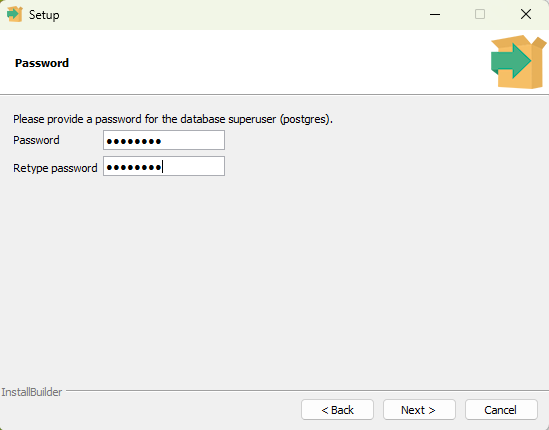
-
Take note of the password!
-
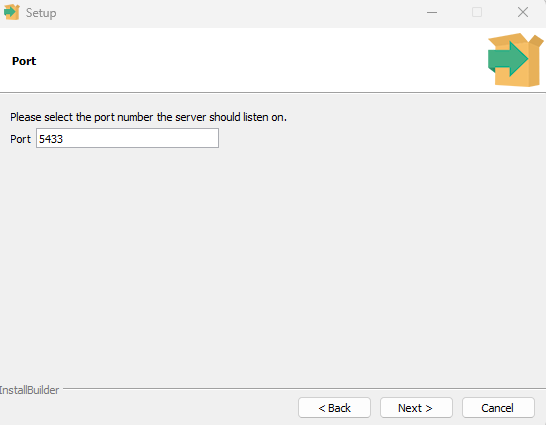
- Specify the port of the Postgres server:
-
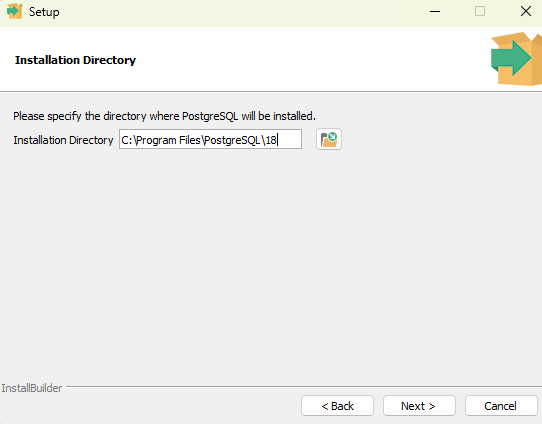
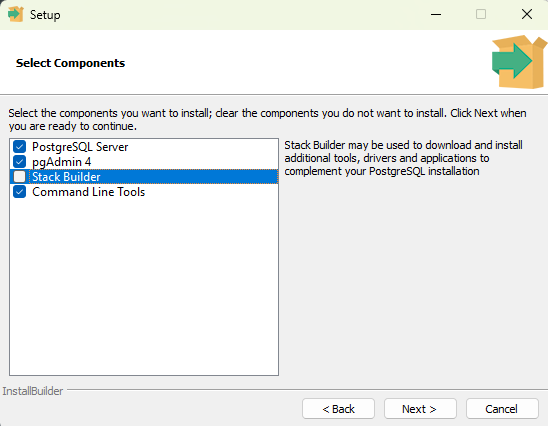
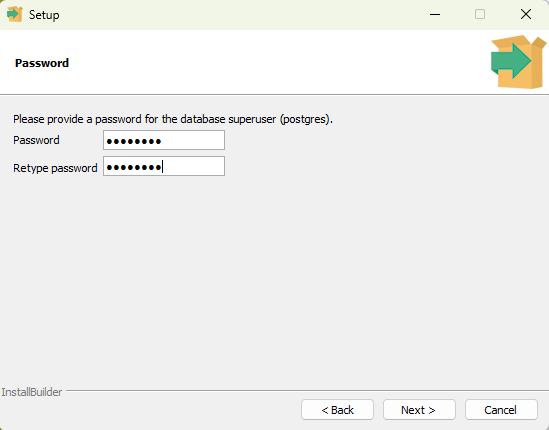
Linux (Ubuntu / Debian)
sudo apt update
sudo apt install -y postgresql postgresql-contrib
Linux (Red Hat / Rocky / Fedora)
sudo dnf install -y postgresql-server postgresql-contrib
sudo postgresql-setup --initdb
sudo systemctl enable --now postgresql
2. Network & Authentication Configuration
By default, PostgreSQL only accepts connections on localhost. Perform these steps if AVIX Server runs on a separate machine:
Edit
postgresql.conf
-
Windows Location:
C:\Program Files\PostgreSQL\<version>\data\postgresql.conf -
Linux Location:
/etc/postgresql/<version>/main/postgresql.conf(Debian/Ubuntu) or/var/lib/pgsql/data/postgresql.conf(RHEL)
Set the listen address and verify the port:
listen_addresses = '*'
port = 5432
Edit pg_hba.conf
In the same data directory, add an authorization rule for the AVIX Server host IP:
# TYPE  DATABASE        USER            ADDRESS                 METHOD
host    all             all             <AVIX_SERVER_IP>/32     scram-sha-256
Restart Service & Firewall
-
Windows: Restart
postgresql-x64-<version>viaservices.mscand allow TCP port5432in Windows Defender Firewall. -
Linux:
Bashsudo systemctl restart postgresql # Firewall (Ubuntu UFW) sudo ufw allow 5432/tcp # Firewall (RHEL firewalld) sudo firewall-cmd --add-port=5432/tcp --permanent && sudo firewall-cmd --reload
3. Database & User Creation
Log into psql using the postgres administrator account:
# Linux
sudo -i -u postgres psql

# Windows (SQL Shell / CMD)
psql -U postgres
Windows: Should the PostgreSQL bin directory not be in your system's PATH environment variable, instead use the full path:
# Windows (SQL Shell / CMD)
"C:\Program Files\PostgreSQL\18\bin\psql.exe" -U postgres
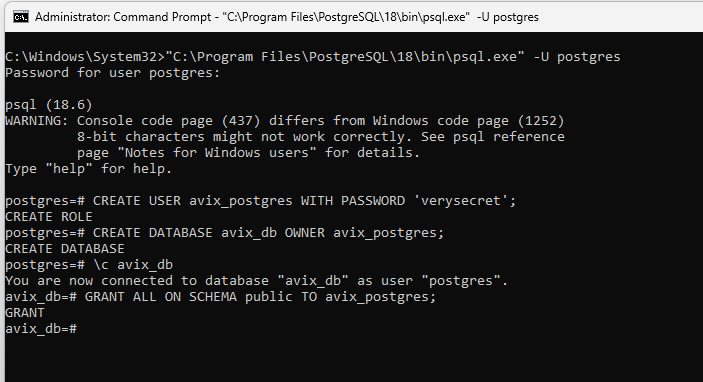
Execute the following SQL commands to prepare the environment.
Make sure to set the password of your choice (instead of 'verysecret'), and store it in a safe place.
-- 1. Create dedicated application user
CREATE USER avix_postgres WITH PASSWORD 'verysecret';

-- 2. Create target database owned by the new user
CREATE DATABASE avix_db OWNER avix_postgres;

-- 3. Connect to the new database   (ensures no permission errors occur when AVIX Server connects and table structures are created)
\c avix_db

-- 4. Grant schema-level permissions (required for PostgreSQL 15+)
GRANT ALL ON SCHEMA public TO avix_postgres;
Example:
4. Verification & AVIX repositories.xml Integration
Connection Verification
Test connection from the machine hosting AVIX Server prior to service launch:
psql -h <serverHost> -p 5432 -U avix_postgres -d avix_db
XML Configuration
Update repositories.xml on the AVIX Server host to reflect the database parameters:
<repositoryConfig>
    <repository name="postgre_repo"
                type="se.solme.avix.server.cdo.postgresql"
                serverHost="localhost"
                portNumber="5432"
                databaseName="avix_db"
                databaseUser="avix_postgres"
                databasePassword="verysecret"
                useSSL="false"/>
</repositoryConfig>
Comment: the name field (set to 'postgre_repo' here) is how this repository - a connection to the underlying db - will be presented in AVIX client UI.