CONFIGURATION: MS SQL SERVER
This page intends to document how a successful MS SQL Server "setup" is achieved. I.e. necessary configuration of the SQL Server instance, as well as the creation of a DB instance that is to be used for AVIX purposes.
AVIX 5.1 has been verified to work with:
- MS SQL Server 15.0.2110 - SQL Server 2019
* See MS SQL Server Server Versions list on https://www.sqlserverversions.com/
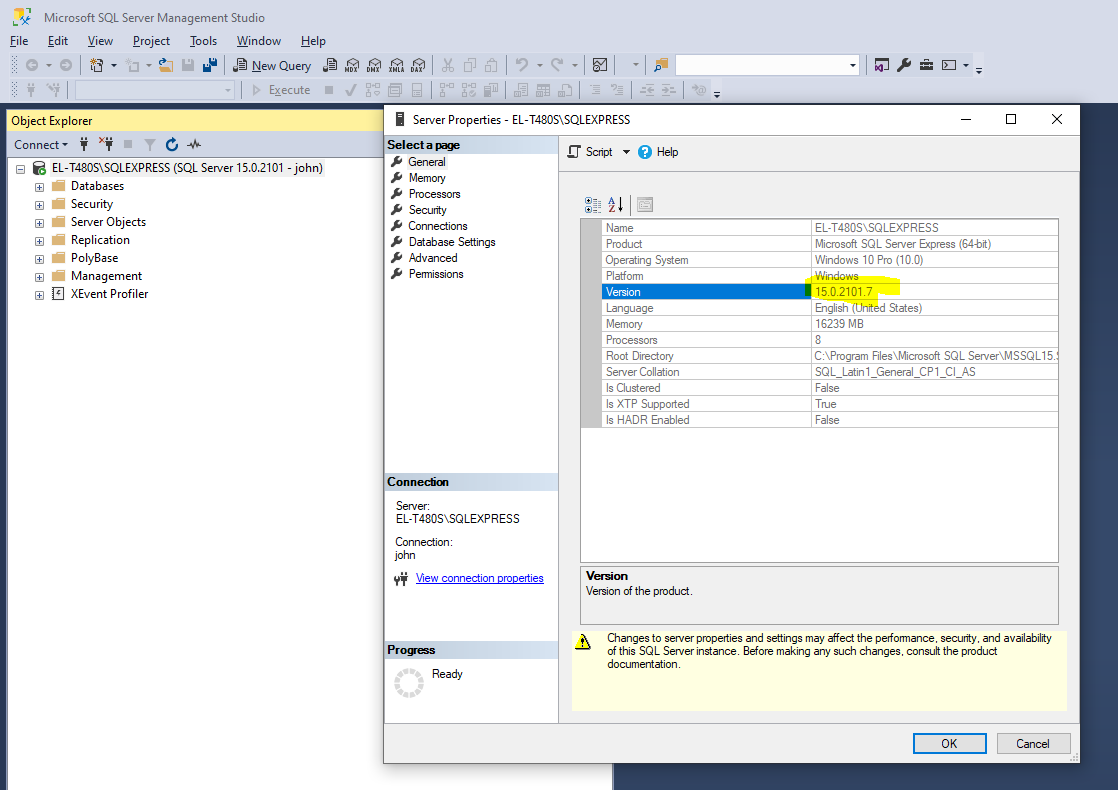
* To find the RTM (build version), you can use MS SQL Server Management Studio: right-click on the SQL Server instance in "Object Explorer" and see "Properties".
Detect server version
https://www.sqlserverversions.com/
Helps you to detect the release version of the SQL Server you have installed. Use the SQL Server SMS and connect to your SQL Server instance, and right-click to show the properties:
SQL Server Configuration Manager
A tool you'll need to check ports etc.
SQL Server Configuration Manager - SQL Server | Microsoft Learn
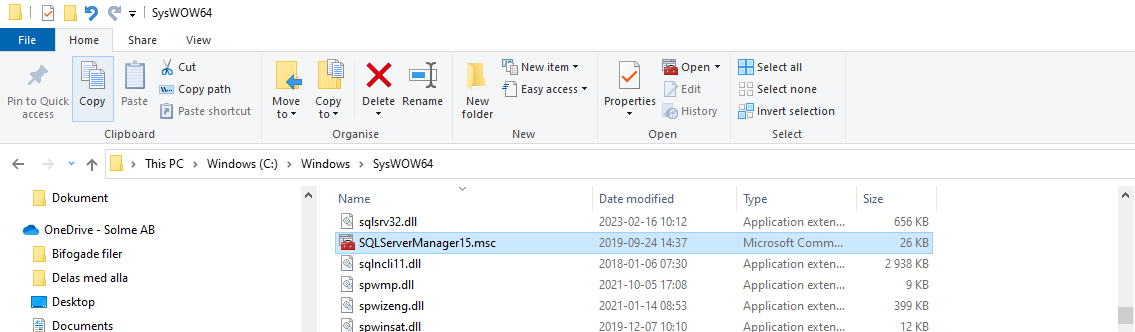
Basically, if you have SQL Server installed, but cannot find the configuration manager by searching the start menu, you'll have to access it as a so-called "MMC snap-in". Thus it might not be an installed application.
All in all, on more modern Windows systems you'll find the the file in C:\Windows\SysWOW64\, as seen below. Just run it.
SQL Server setup
SQL Server port
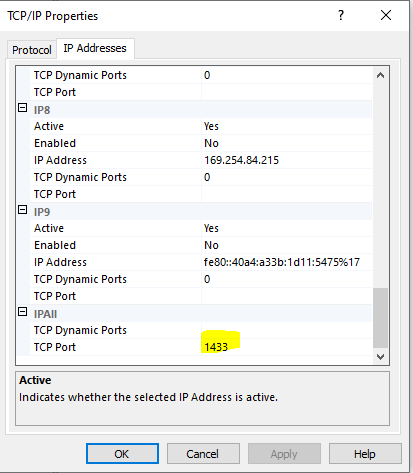
1433 is a default port. Below, it is assumed that 1433 is used, but that may of course be changed.
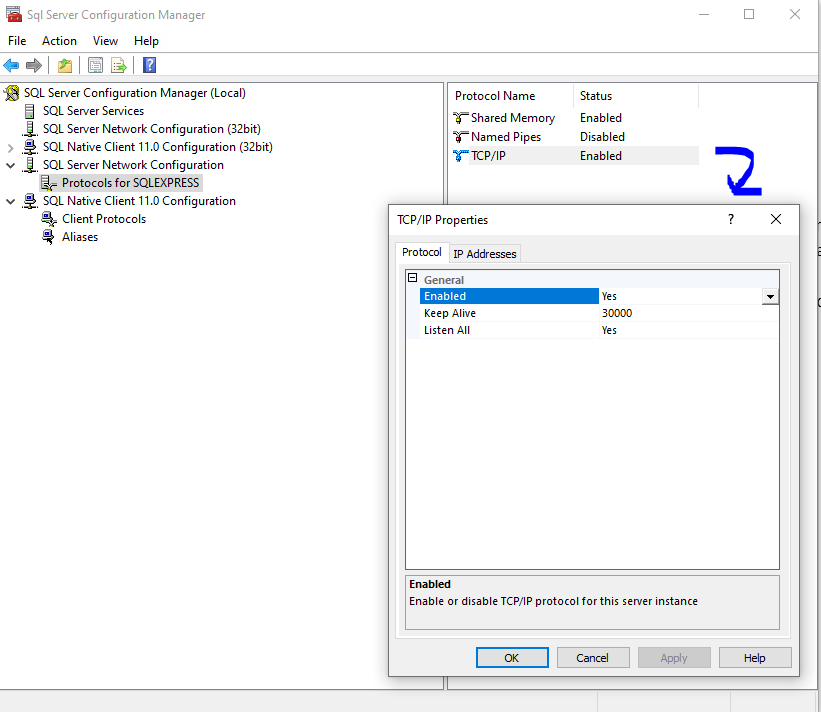
Assert that you're running SQL Server on port 1433, that the service is running and that you don't have a firewall blocking incoming connections. So, really check that TCP/IP protocol is enabled in your local SQLEXPRESS instance:
- Open "Sql Server Configuration Manager"
- Expand "SQL Server Network Configuration"
- Go to "Protocols for SQLEXPRESS"
- Make sure that TCP/IP is enabled
-
- Port settings:
-
SQL Server browser
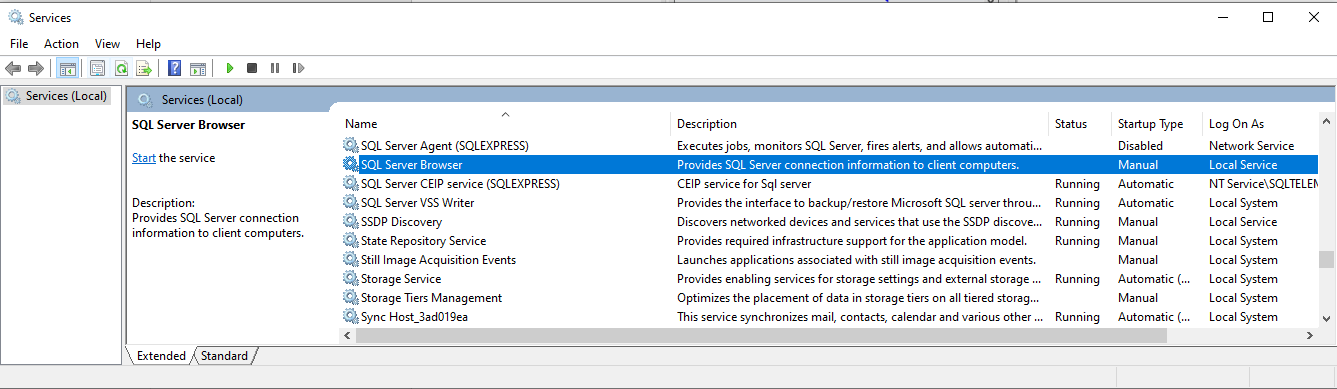
A bit unclear on whether this is needed or not for the typical installation, but it might be worthwhile to activate the SQL Server Browser service:
Create new user (if using "SQL Server authentication")
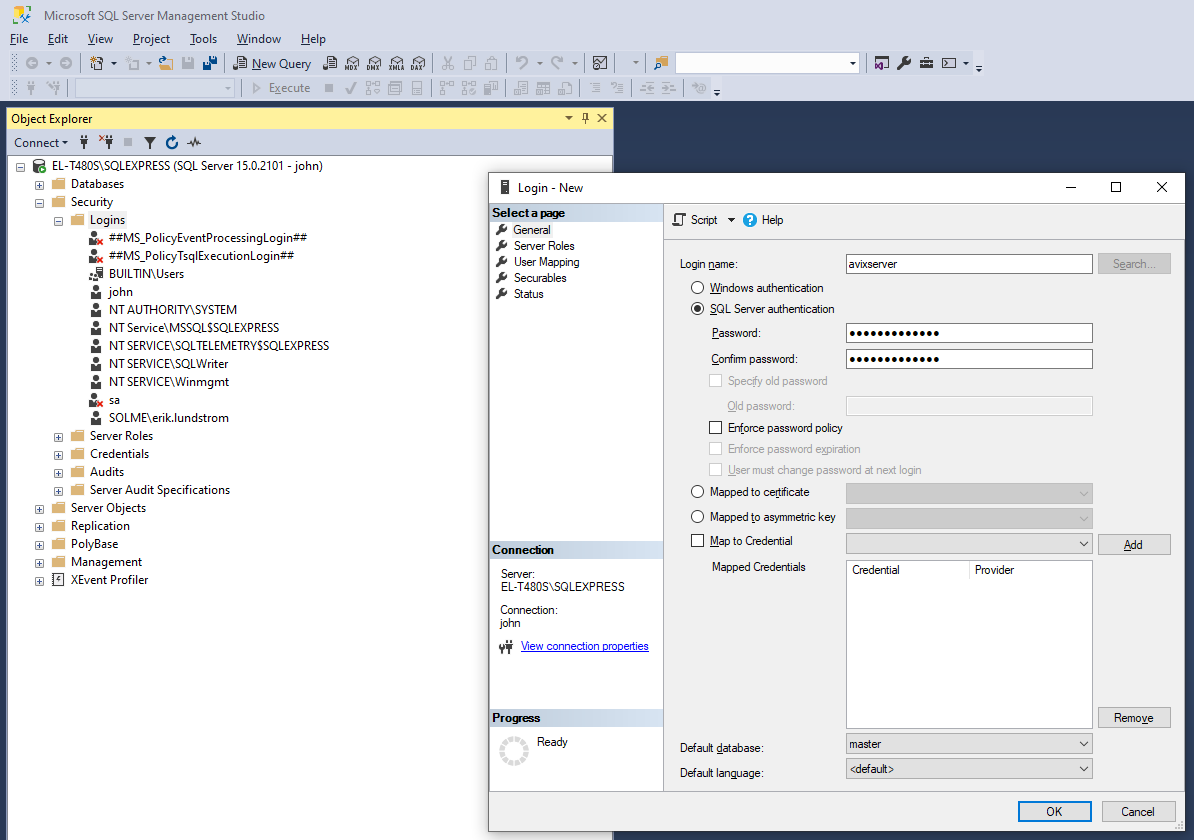
If using SQL Server authentication - as opposed to WIndows (integrated) authentication - you will define users or "logins" in SQL Server Management Studio. The login name and password will have to be noted (they need to be entered in the configuration file "repositories.xml" in the AVIX server).
To create a new user – named "avixserver" - perform steps outlined below using MS SQL Server Management Studio.
Right-click on "Security/Logins", select "New Login...". On the "General" pane, fill in the details. (You may have to uncheck ‘Enforce password policy’ when creating the new user, depending on the password.)
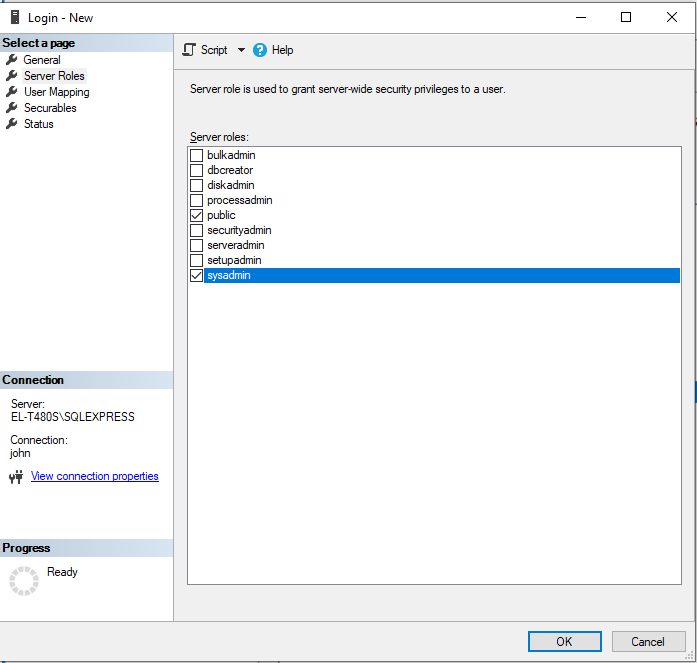
On the "Server Roles" pane, add sysadmin role:
Server properties - security
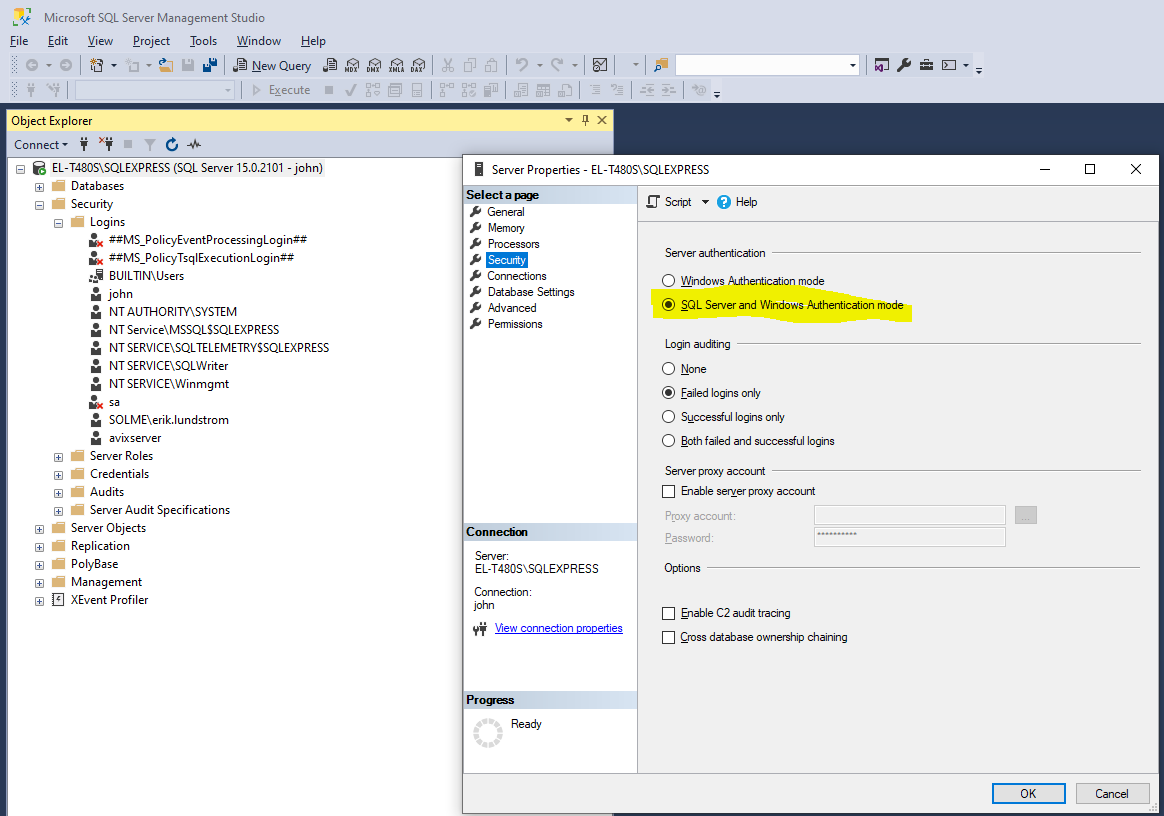
Make sure you set the authentication to ‘SQL Server and Windows Authentication mode’. (Or simply Windows Authentication mode only, if you are certain that you will only use integrated/Windows authentication).
Open MS SQL Server Management Studio, and right-click on the SQL Server instance and select "Properties". In the "Security" pane you can change this:
Create new DB
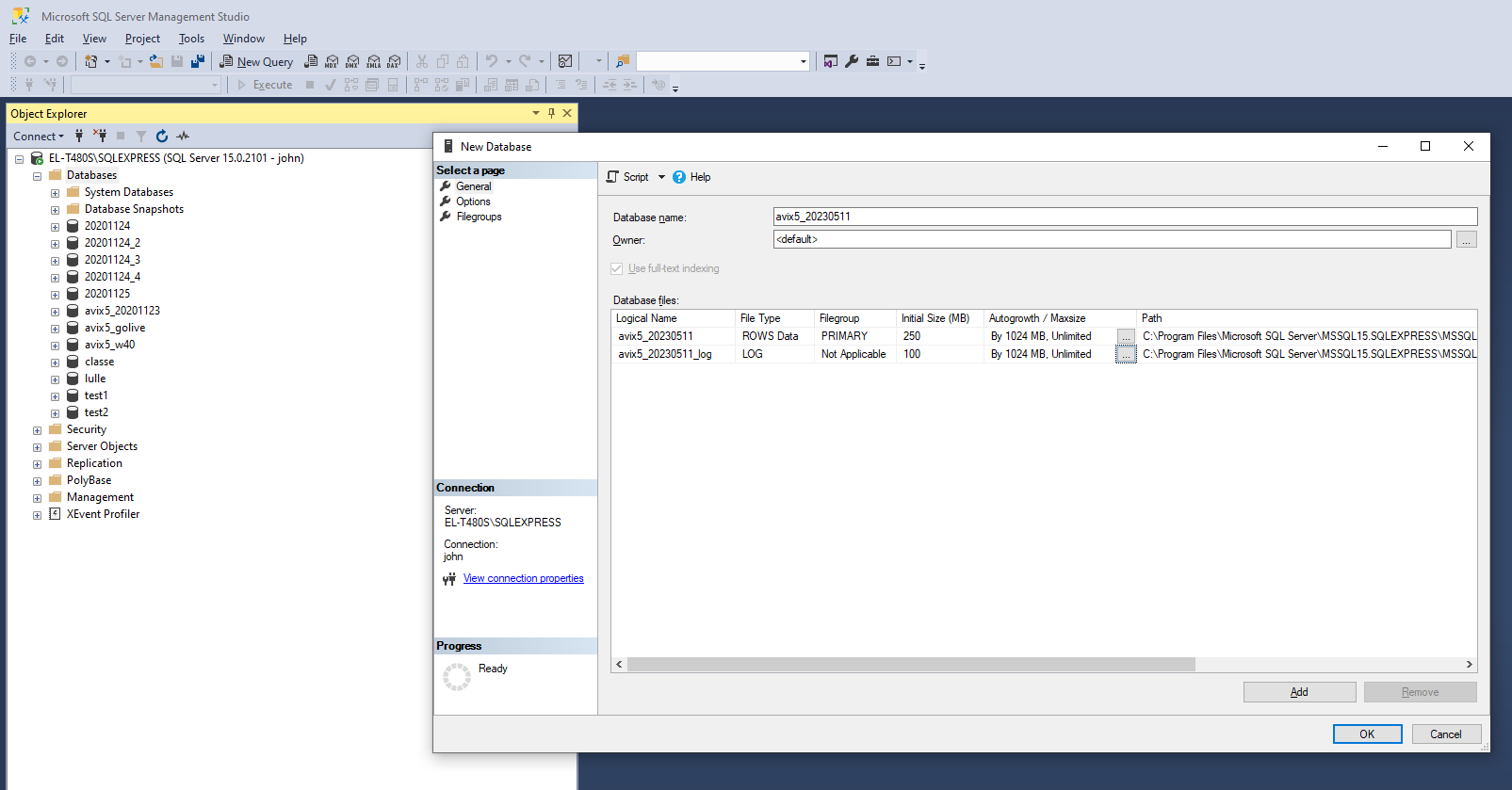
Right-click on the “Databases” node, and select “New database...”