
CONFIGURATION: MS SQL SERVER 2
This document guides IT administrators through setting up a dedicated SQL Server database instance for use as a database repository for the AVIX Server.
Overview & Prerequisites
Before configuring AVIX Server, the database engine must be installed and populated with the target database. This table demonstrates configuration properties and values from the XML configuration file /repositories.xml at the root of the AVIX Server installation:
| Parameter | Configuration Property | Example Value |
| Host Address | serverHost |
|
| Port | portNumber |
|
| Database Name | databaseName |
|
| Database User | databaseUser |
|
| Password | databasePassword |
|
| SSL Connection | useSSL |
|
1. Engine Installation
This guide demonstrates installing and configuring SQL Server 2022 (and 2025) Express Edition.
Windows
Download the SQL Server Express edition of your choice.
| Edition | Download Link |
| SQL Server 2025 Express |
https://download.microsoft.com/download/7ab8f535-7eb8-4b16-82eb-eca0fa2d38f3/SQL2025-SSEI-Expr.exe |
| SQL Server 2025 Express Core |
https://download.microsoft.com/download/dea8c210-c44a-4a9d-9d80-0c81578860c5/ENU/SQLEXPR_x64_ENU.exe |
| SQL Server 2022 Express | |
| SQL Server 2022 Express Core |
(Express Core is the SQL Server Engine only)
Winget install Microsoft SQL Server 2025 Express (v17), or 2022 Express (v16):
winget install Microsoft.SQLServer.2025.Expresswinget install Microsoft.SQLServer.2022.ExpressCaution before installing sql server on windows 11/ SERVER 2022
If installing on a Windows 11/Server 2022, there may be problems due to system disk sector size greater than the supported 4KB. Please read more about it on the Microsoft knowledgebase article.
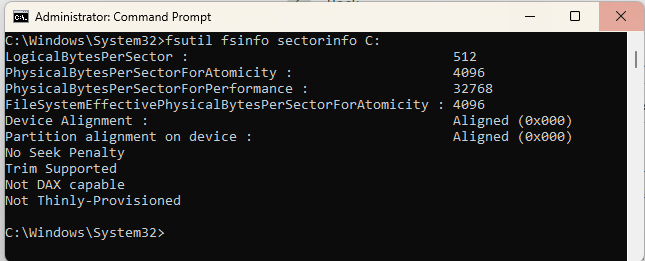
To know if your Windows is affected, the easiest way is to run a Command prompt as Administrator, and run:
fsutil fsinfo sectorinfo <DriveLetter>:
for example:
Quoting the Microsoft KB article:
"Look for the values PhysicalBytesPerSectorForAtomicity and PhysicalBytesPerSectorForPerformance, returned in bytes. If they're different, retain the largest one to ascertain the disk sector size. A value of 4096 indicates a sector storage size of 4 KB."
So,If the values reported for both of these values are 4096, you should be fine to go on and install SQL Server.
If not (as in the example above, thebelow): Windows 11 system is reporting a higher value than 4 KB, which SQL Server cannot handle. You are recommended to handle this before installing SQL Server.
As the KB article indicates, there are mainly two remedies to the situation:
- Make sure to set the value of the registry key
ForcedPhysicalSectorSizeInBytesto* 4095. This forces the sector size to be emulated as 4 KB. - Plan to have the SQL Server's DB files off the internal NVMe drive: format a virtual hard disk - create a fix-sized virtual disk in Windows Disk Management, format it explicitly with 4096-byte sector size, and mount as a local drive letter (e.g. D: ).
2. Network configuration - TCP/IP and port
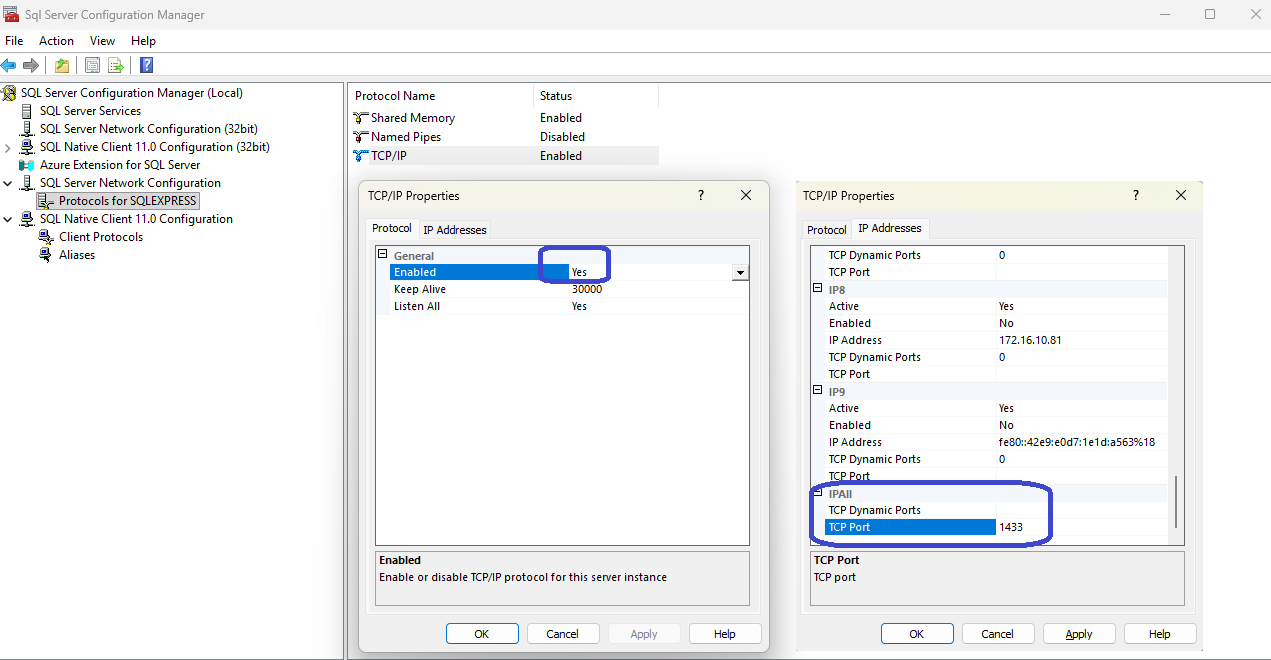
Ensure that the TCP/IP protocol is enabled so clients (e.g. AVIX Server) can connect remotely.
The SQL Server Configuration Manager will be used to verify this.
SQL Server Configuration Manager - SQL Server | Microsoft Learn
Locate the manager application:
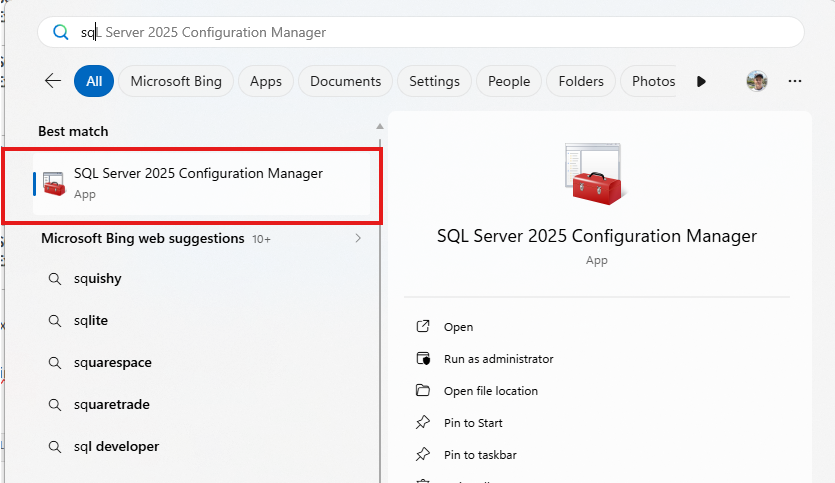
or:
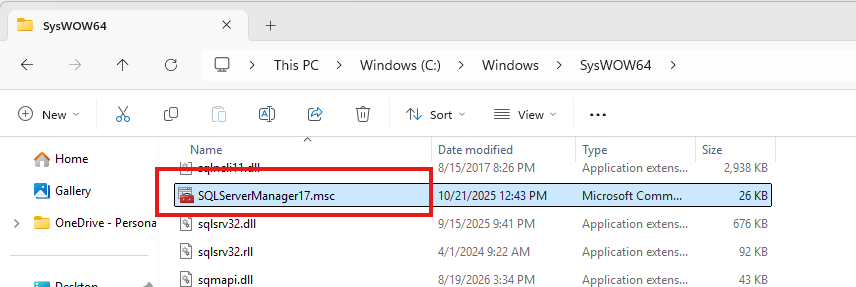
Step-by-step configuration
- Open SQL Server Configuration Manager
- Expand SQL Server Network Configuration → Protocols for [Instance Name]
- Double-click TCP/IP (ensure it is set to Enabled).
- Select the IP Addresses tab.
- Scroll down to the IPAll section at the bottom.
Static port is recommended, since it ensures that applications (AVIX Server) always connect to the same endpoint, making firewall rules simple:
-
TCP Dynamic Ports: Clear this field completely (leave it blank).
-
TCP Port: Enter your desired port number (default is
1433).
Crucial post-configuration steps
-
Restart the SQL Server Service: Changes made in SQL Server Configuration Manager do not take effect until you restart the
SQL Server (INSTANCE)service under SQL Server Services. -
Configure Windows Firewall: Create an Inbound Rule on the server hosting SQL Server to allow inbound traffic on your specified TCP port (e.g.,
1433).