
CONFIGURATION: MS SQL SERVER 2
This document guides IT administrators through setting up a dedicated SQL Server database instance for use as a database repository for the AVIX Server.
Overview & Prerequisites
Before configuring AVIX Server, the database engine must be installed and populated with the target database. This table demonstrates configuration properties and values from the XML configuration file /repositories.xml at the root of the AVIX Server installation:
| Parameter | Configuration Property | Example Value |
| Host Address | serverHost |
|
| Port | portNumber |
|
| Database Name | databaseName |
|
| Database User | databaseUser |
|
| Password | databasePassword |
|
| SSL Connection | useSSL |
|
1. Engine Installation
This guide demonstrates installing and configuring SQL Server 2022 (and 2025) Express Edition.
Windows
Download the SQL Server Express edition of your choice.
| Edition | Download Link |
| SQL Server 2025 Express |
https://download.microsoft.com/download/7ab8f535-7eb8-4b16-82eb-eca0fa2d38f3/SQL2025-SSEI-Expr.exe |
| SQL Server 2025 Express Core |
https://download.microsoft.com/download/dea8c210-c44a-4a9d-9d80-0c81578860c5/ENU/SQLEXPR_x64_ENU.exe |
| SQL Server 2022 Express | |
| SQL Server 2022 Express Core |
(Express Core is the SQL Server Engine only)
Winget install Microsoft SQL Server 2025 Express (v17), or 2022 Express (v16):
winget install Microsoft.SQLServer.2025.Expresswinget install Microsoft.SQLServer.2022.Express2. Network configuration - TCP/IP and port
Ensure that the TCP/IP protocol is enabled so clients (e.g. AVIX Server) can connect remotely.
The SQL Server Configuration Manager will be used to verify this.
SQL Server Configuration Manager - SQL Server | Microsoft Learn
Locate the manager application:
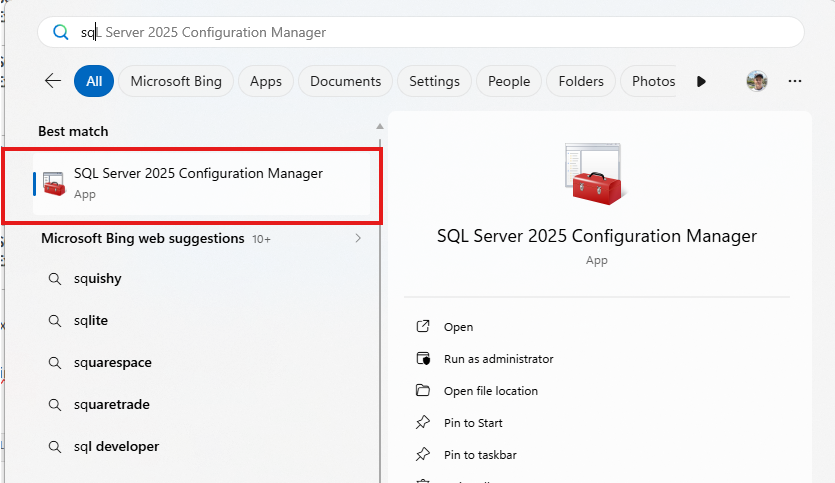
or:
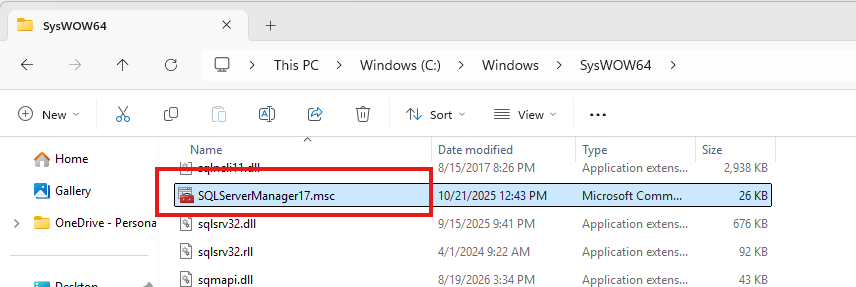
Step-by-step configuration
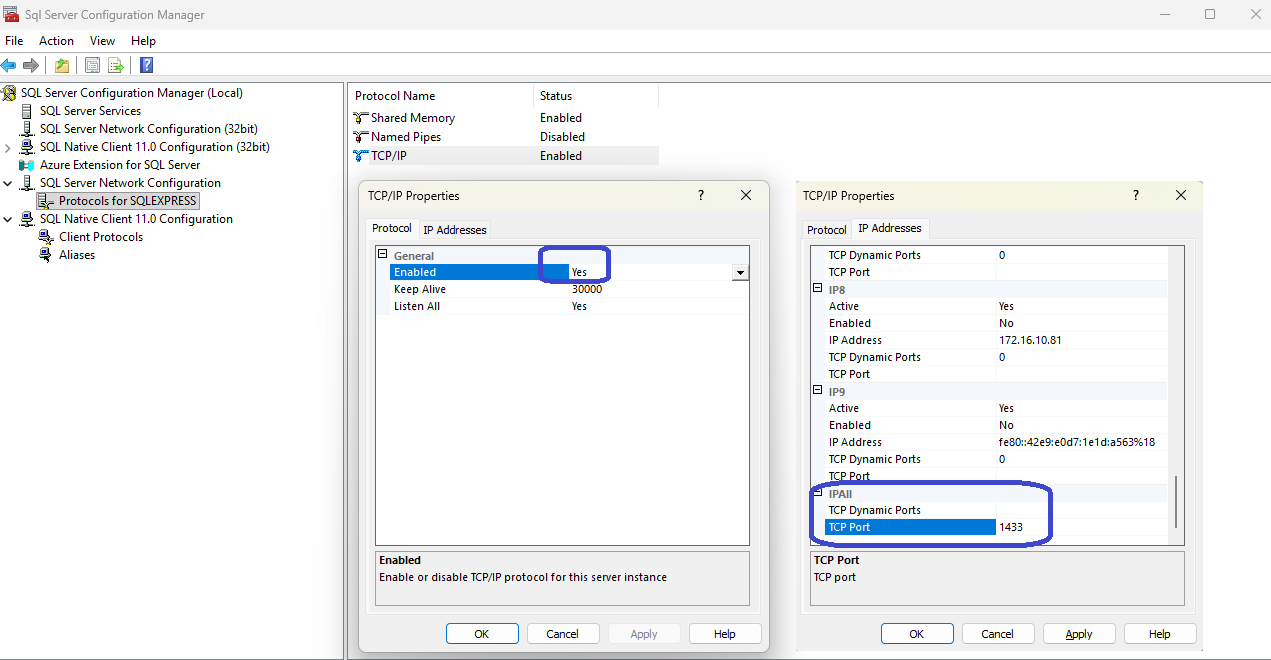
- Open SQL Server Configuration Manager
- Expand SQL Server Network Configuration → Protocols for [Instance Name]
- Double-click TCP/IP (ensure it is set to Enabled).
- Select the IP Addresses tab.
- Scroll down to the IPAll section at the bottom.
Static port is recommended, since it ensures that applications (AVIX Server) always connect to the same endpoint, making firewall rules simple:
-
TCP Dynamic Ports: Clear this field completely (leave it blank).
-
TCP Port: Enter your desired port number (default is
1433).
Crucial post-configuration steps
-
Restart the SQL Server Service: Changes made in SQL Server Configuration Manager do not take effect until you restart the
SQL Server (INSTANCE)service under SQL Server Services. -
Configure Windows Firewall: Create an Inbound Rule on the server hosting SQL Server to allow inbound traffic on your specified TCP port (e.g.,
1433).