
Configuration: Database repositories
Your AVIX server will need restarting, if you make any changes to configuration files.
In order to make the AVIX server provide data to its consumers (the AVIX desktop application, the Shop Floor Viewer web application etc), the server needs to connect to the actual database(s) where the data is stored. A server repository represents the connection to a certain database, which in turn exists in a database management system (DBMS) on an accessible host.
If you are looking for information on how to set up a MS SQL Server database for AVIX purposes, see the document "MS SQL SERVER FOR AVIX"
REPOSITORIES.XML configuration file
By default, the AVIX server will pick up the repositories configuration from an XML file called repositories.xml, residing in the root directory of the AVIX server.
To change where AVIX server reads the repositiories configuration: set the cdo.server.repository.configuration preference in the configuration/se.solme.avix.prefs file. Example:
#
# CDO Server settings
#
[se.solme.avix.server.cdo]
cdo.server.repository.configuration=\\SomeServer\\AVIXConfiguration\\repositories.xml
In a clean server installation, no such file exists yet. However, there is an example file entitled repositories.xml.example that can be used to get started:
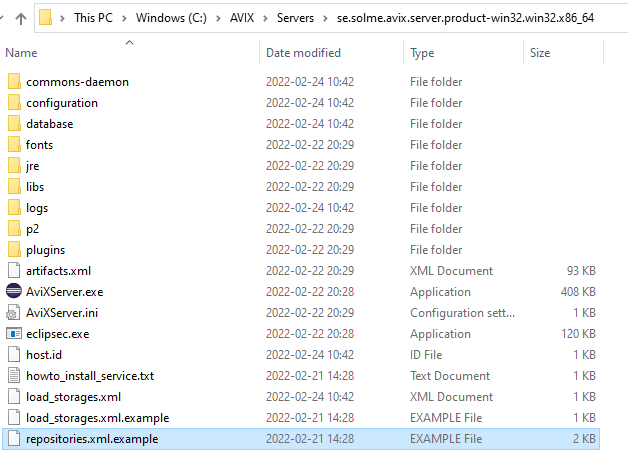
This is the content of the example file, showcasing the usage of both Postgre SQL, MS SQL Server and H2 databases.
<?xml version="1.0" encoding="UTF-8" standalone="yes" ?>
<repositoryConfig>
	<!-- POSTGRE SQL repository example -->
	<repository name="repo1" type="se.solme.avix.server.cdo.postgresql"
		serverHost="localhost"
		portNumber="5432"
		databaseName="avix1"
		databaseUser="postgres"
		databasePassword="postgres"
		useSSL="false"/>

	<!-- MS SQL Server repository example -->
	<repository name="repo2" type="se.solme.avix.server.cdo.mssql"
		serverHost="localhost"
		portNumber="1433"
		databaseName="avix2"
		databaseUser="user"
		databasePassword="pw"
		useSSL="false"/>

	<!-- MS SQL Server repository example 2 (same server, another db) -->
	<repository name="repo3" type="se.solme.avix.server.cdo.mssql"
		serverHost="localhost"
		portNumber="1433"
		databaseName="avix3"
		databaseUser="user"
		databasePassword="pw"
		useSSL="false"/>

    <!-- MS SQL Server repository example using Windows/integrated authentication -->
    <repository name="repo2" type="se.solme.avix.server.cdo.mssql"
		serverHost="localhost"
		portNumber="1433"
		databaseName="avix3"
		integratedSecurity="true"
		authenticationScheme="NativeAuthentication"
		useSSL="false"/>

	<!-- h2 repository example (self-hosted by the AVIX server) -->
	<repository name="admin" type="se.solme.avix.server.cdo.h2" databaseName="admin"/>
</repositoryConfig>
A note on windows (integrated) authentication for MS sql server
When AVIX5 server is configured to use Windows/integrated authentication with "NativeAuthentication", the Windows service that is running AVIX will typically need to have its "Log On As" set to a Windows account, which has access to the SQL Server instance. Example:
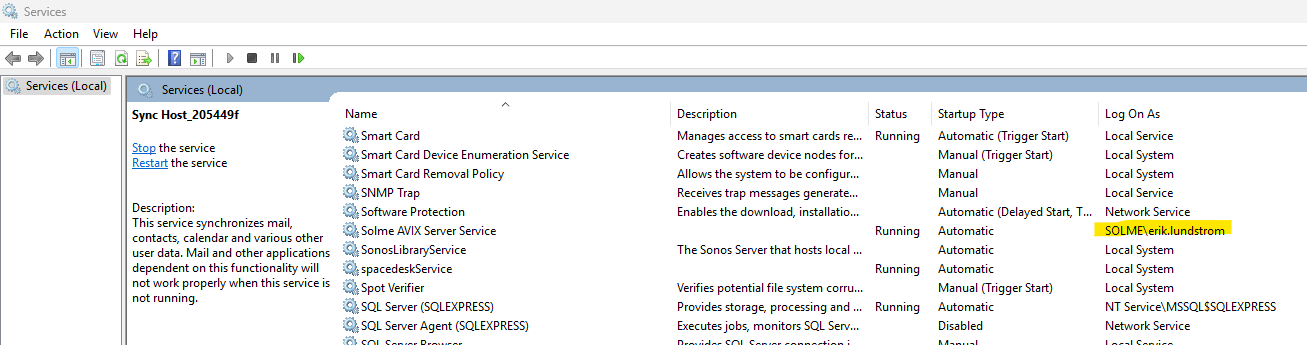
See here to learn more on how to change the user account of the AVIX Server Service.
Configure your database repository
To connect the AVIX server to a database you intend to use for the AVIX application, make sure to create the repositories.xml file, and define a "repository" XML element with the appropriate values. Example of repositories.xml, which connects to an available Postgre SQL DBMS:
<?xml version="1.0" encoding="UTF-8" standalone="yes" ?>
<repositoryConfig>
	<repository name="repo1"
                type="se.solme.avix.server.cdo.postgresql"
				serverHost="localhost"
				portNumber="5432"
				databaseName="testavix2"
				databaseUser="postgres"
				databasePassword="c863qsQt5sr3WlRPdogc1m"
				useSSL="false"/>
</repositoryConfig>
When finished, restart the server.
Verify database repository and connection
To test the example configuration described above, you may launch an AVIX application and connect to your server.
- Start AVIX5 application
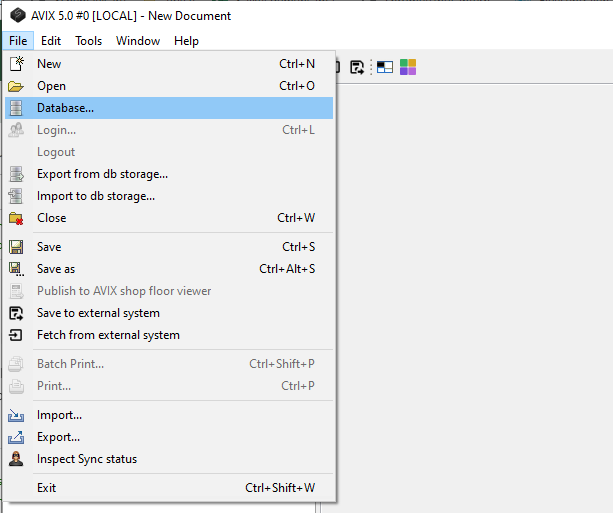
- Open the "Database browser" dialog:
-
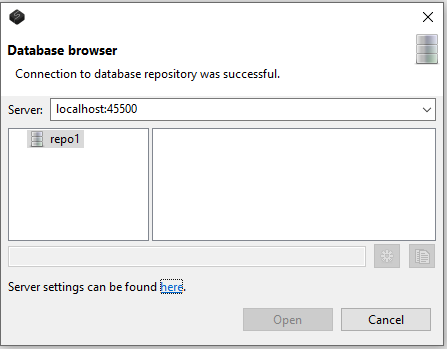
- Connect to your server, to see all repositories.
- Host: If you are running the AVIX application on the same machine as the server is running, enter "localhost". Otherwise, the host name or its IP will have to be inserted.
- Port: The default port is 45500
- Example of connection URL: localhost:45500
- Terminate with "Enter", to connect.
- If connection could be established, you should see the repository that the server holds:
-
- In the example above, no AVIX storage yet exists in the repository.
- Create your first storage, if desired.
Troubleshooting
The log file logs/AviXLogfile.log of the server can be inspected, to see information relating to repository management. Some excerpts indicating what you can look out for .
The path to the repositories.xml that the server reads should be presented:
AviX CDO Server starting
Default location for CDO Server 'repositories.xml' file is in Platform.getInstallLocation(), resulting in: file:/C:/AVIX/Servers/se.solme.avix.server.product-win32.win32.x86_64/
...
CDO Server 'repositories.xml' config file is read from existing file C:\AVIX\Servers\se.solme.avix.server.product-win32.win32.x86_64\repositories.xml
Information relating to creation of defined repository:
Creating CDO repository for PostgreSQL with name: "repo1"
Server:localhost, Port:5432, DbName:testavix2, User:postgres, SSL:false
If successful connection, you should be able to see something like:
(s.s.a.s.c.p.PostgreSQLUtil:64) - SUCCESS creating repo: "repo1"In case of failure, expect something like this instead:
s.s.a.s.c.p.PostgreSQLUtil:67)    - Unsuccesful with creating the repo.
org.eclipse.net4j.db.DBException: org.postgresql.util.PSQLException: FATAL: password authentication failed for user "postgres"
	at org.eclipse.net4j.internal.db.DataSourceConnectionProvider.getConnection(DataSourceConnectionProvider.java:56)
	at org.eclipse.emf.cdo.server.internal.db.DBStore.getConnection(DBStore.java:220)
	...