SQL Server setup
SQL Server port
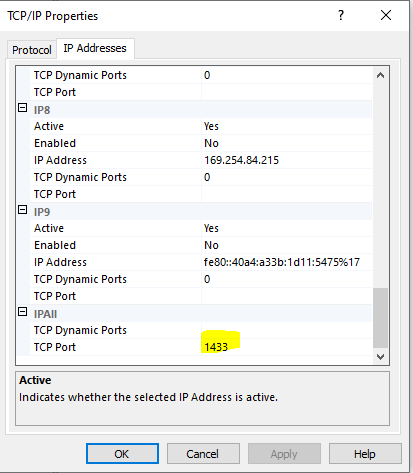
1433 is a default port. Below, it is assumed that 1433 is used, but that may of course be changed.
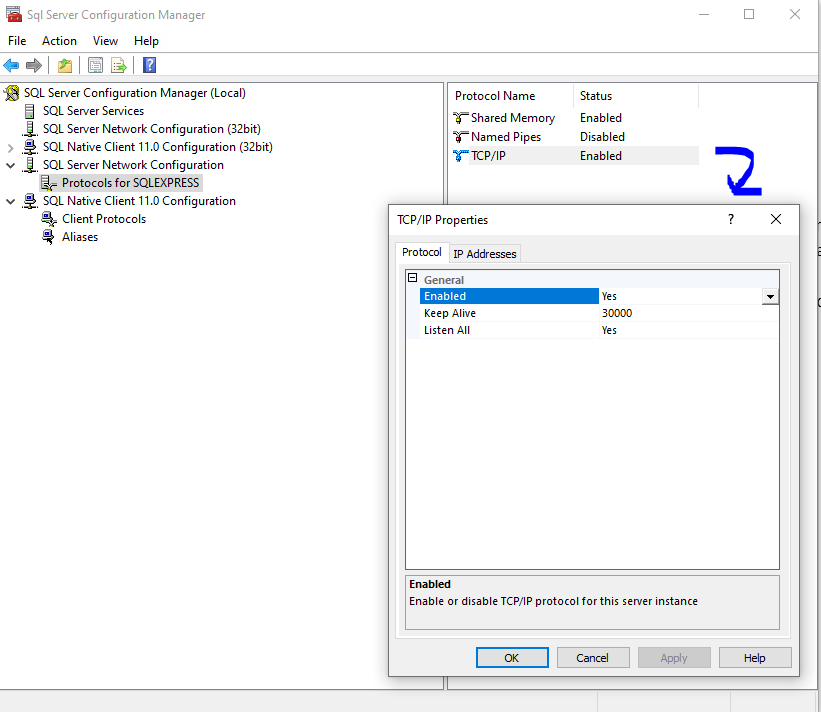
Assert that you're running SQL Server on port 1433, that the service is running and that you don't have a firewall blocking incoming connections. So, really check that TCP/IP protocol is enabled in your local SQLEXPRESS instance:
- Open "Sql Server Configuration Manager"
- Expand "SQL Server Network Configuration"
- Go to "Protocols for SQLEXPRESS"
- Make sure that TCP/IP is enabled
-
- Port settings:
-
SQL Server browser
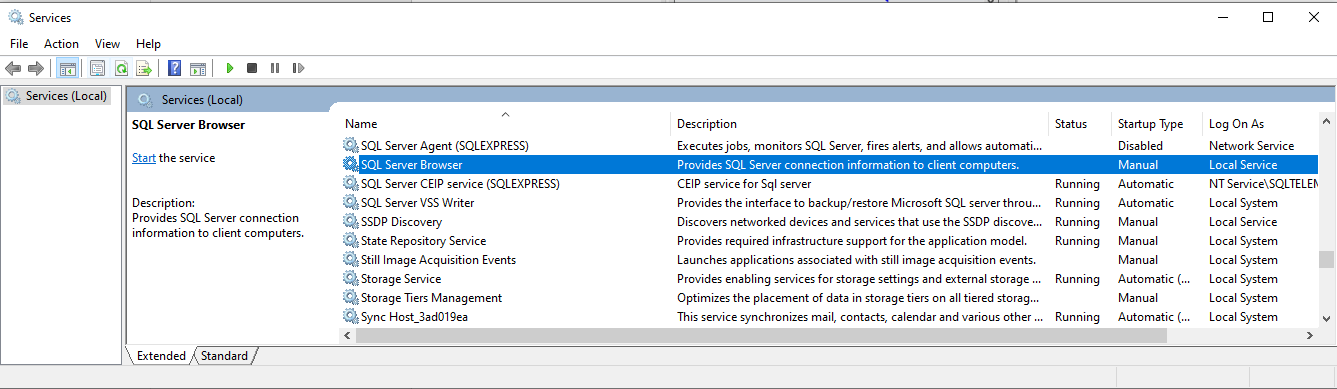
A bit unclear on whether this is needed or not for the typical installation, but it might be worthwhile to activate the SQL Server Browser service:
Server properties - security
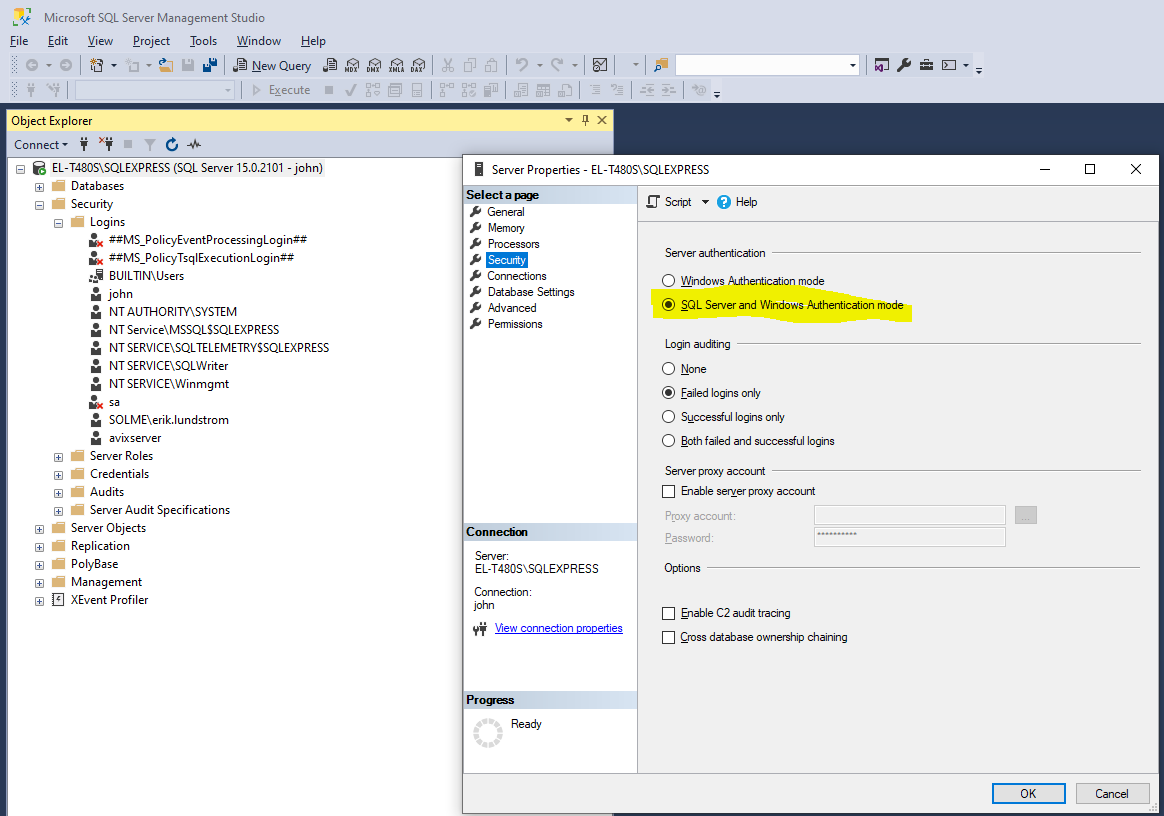
Make sure you set the authentication to ‘SQL Server and Windows Authentication mode’.
Open MS SQL Server Management Studio, and right-click on the SQL Server instance and select "Properties". In the "Security" pane you can change this: