Create new user
Make sure that the AVIX server is started, exposing at least a repository named "AC" which contains the access control entities. The server should furthermore have been configured as outlined in the previous chapter.
Set up Group entity in avix for sync vs. ad
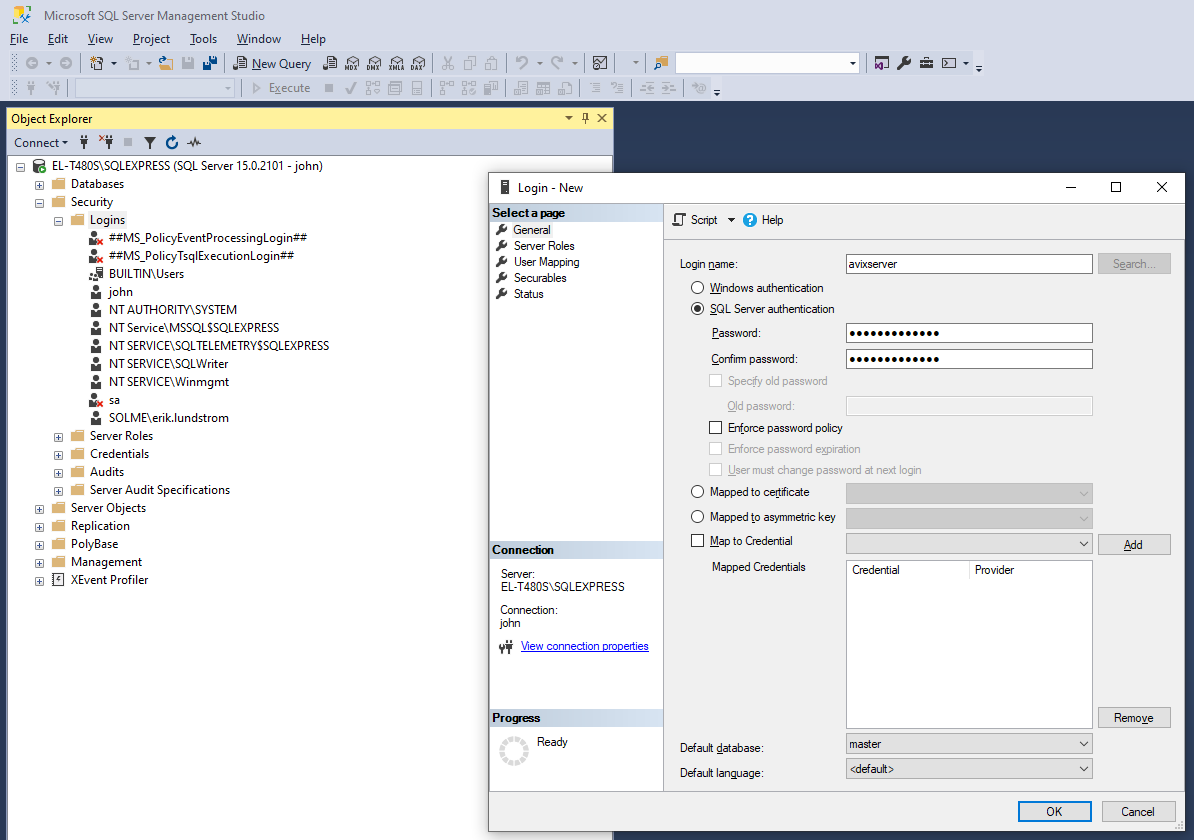
Start the AVIX application, and open an already existing db storage that makes use of the "AC" db storage for access control. (OrTo create a new dbuser storage,– and makenamed it"avixserver" refer- perform steps outlined below using MS SQL Server Management Studio.
welcometoavix
Right-click on "Security/Logins", select "New Login...". On the "AC"General" dbpane, storage).
Open Security View and authenticate
Openin the Security viewdetails. (Help->OpenYou Security).may Authenticatehave with a user having administrative permissions (to edituncheck ‘Enforce password policy’ when creating the ACnew systemuser, itself).depending on the password.)
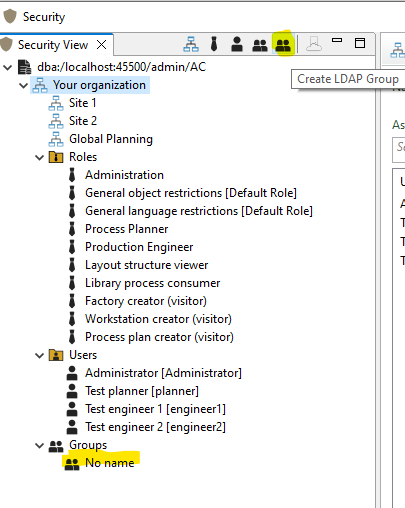
CREATE ldap group
ClickOn the "CreateServer LDAP Group" to create this type of Group object:
Opening the editor of the new LDAP Group will display its attributes:
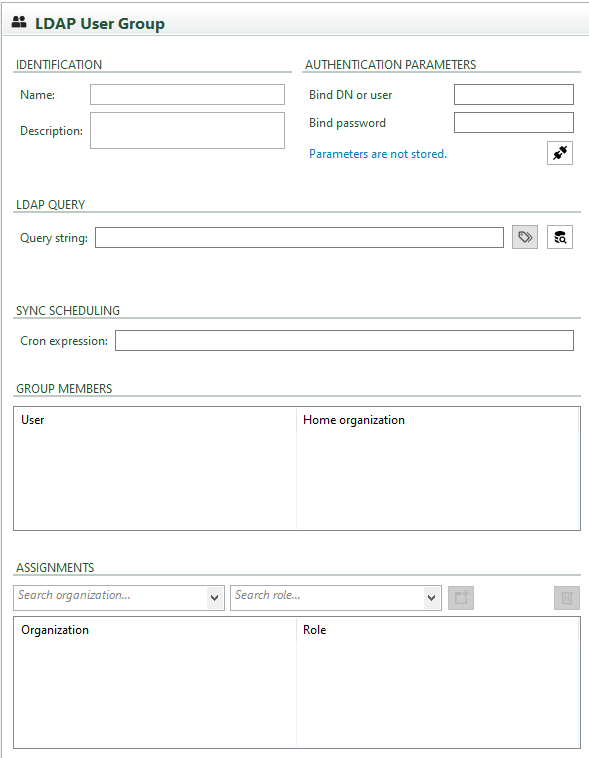
"IdentificationRoles" containpane, trivialadd informativesysadmin fields.role: It is recommended to enter at least a good name. (Tracing of server-side syncs are easier if a name is given, since logging entries will include the group name.)
The "Authentication Parameters" contains fields that you may fill in to be able to try out communication with the Directory Service. As stated, these parameters are not stored and you need to re-enter them if you close the editor.
The "LDAP Query" scheduling section is about entering the query string that will eventually be used to get the members from the correct group in the Directory Service. As a convenience, a query builder UI dialog is available (the little button adjacent to the text field).
Since queries are intended to be run server-side, we will not actually run the query AND affect the "Group Members" from this UI. It is possible however, if ones would like to trigger the sync manually.
The "Sync scheduling" section is about specifying the "cron" expression for scheduling the sync of the LDAP Group. Please refer to web guides for the cron UNIX tool for more information. Since AVIX are employing Quartz, the syntax can be explored in these web resources:
http://www.quartz-scheduler.org/documentation/quartz-2.3.0/tutorials/crontrigger.html
https://docs.oracle.com/cd/E12058_01/doc/doc.1014/e12030/cron_expressions.htm
ENTER details for a "jira" ldap group
We name the group "JIRA", since the intention is to sync against a known group in the Active Directory that represent JIRA users.
Having entered correct authentication parameters and established connection, it is possible to bring up the query builder:
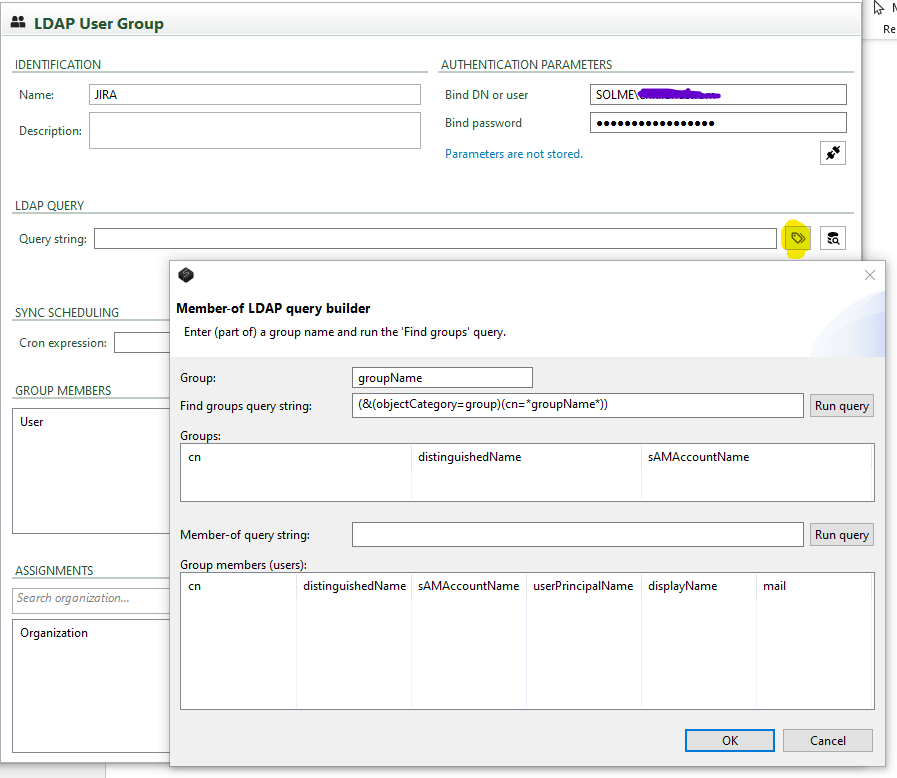
Entering (a part of) the name of the Directory group and then hitting "Run query" will present the available groups matching the name:
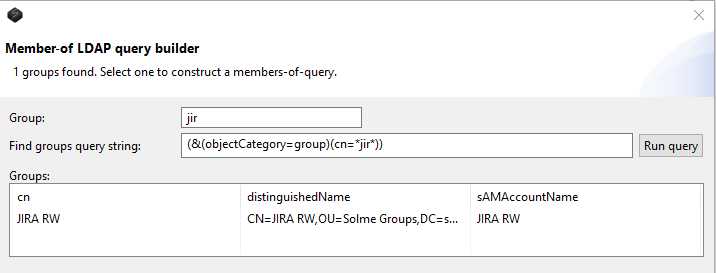
If I select it, a well-formed "member-of" query is generated, and hitting its "Run query" button will present the members in the bottom pane:
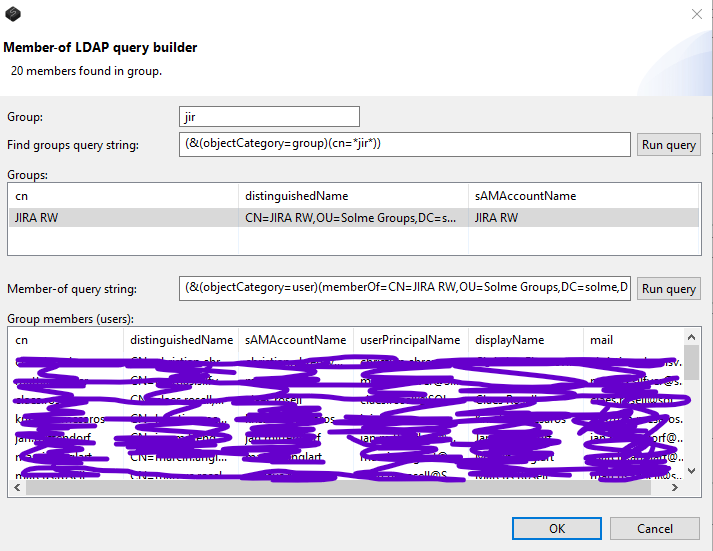
Hitting "OK" will set the query expression in AVIX, but not import any members.
Now, the final piece of the puzzle is to provide a cron expression, so that the server will schedule a sync job that will be triggered according to the cron.
In this case, we use the cron expression "0 * * * * ?", which means that the job will be triggered every minute. This is probably not desired in the deployed case, but for testing it suits our purpose of seeing a result pretty quickly.
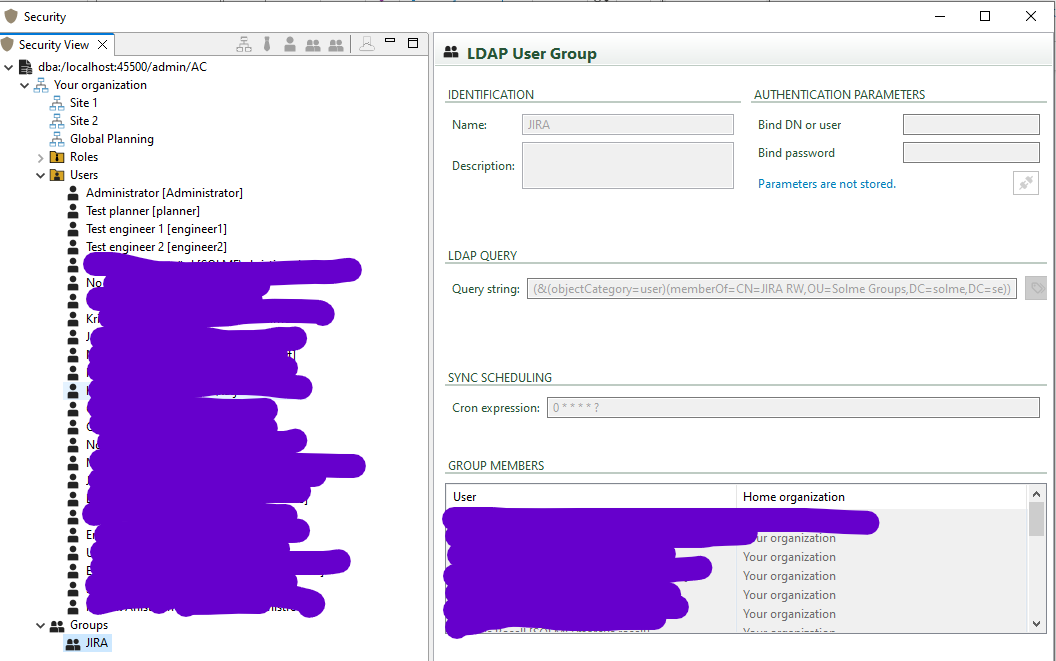
So this is the final state of our "JIRA" LDAP Group, which is now ready for syncing:
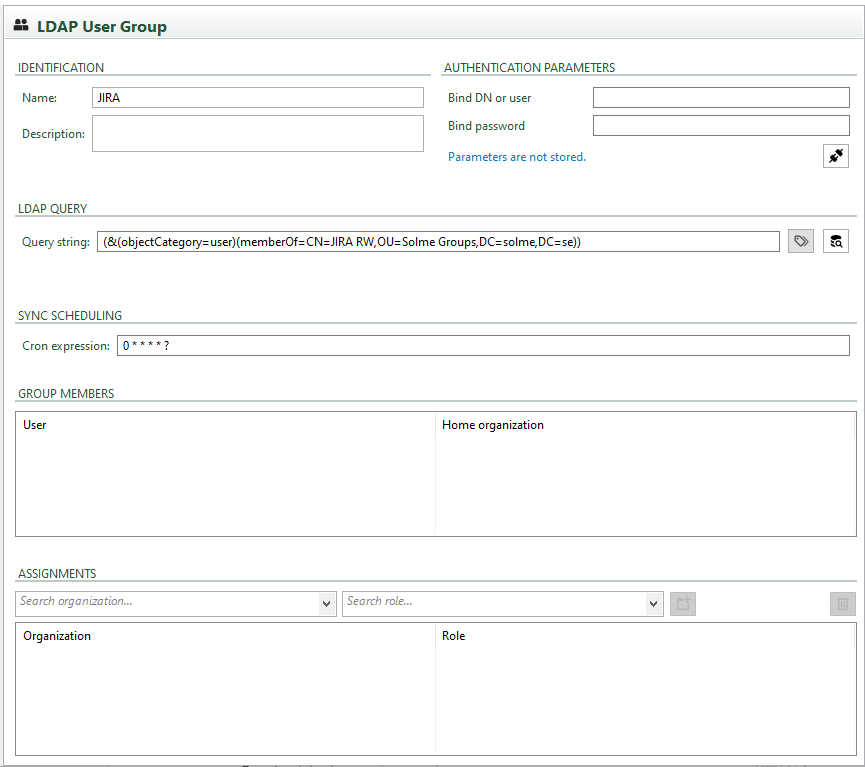
Once the first sync has actually been executed by the AVIX server, you should expect to see users in the "Group Members" section.
Currently,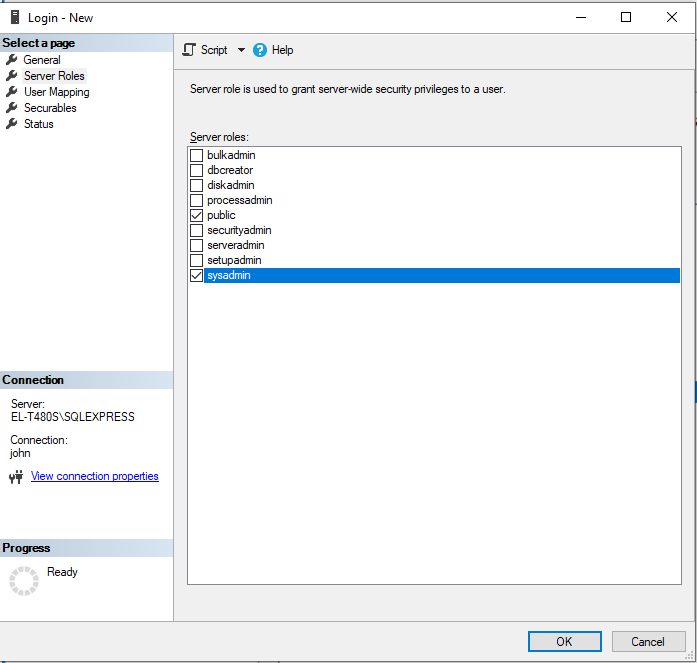
Example of state of the "AC" db storage after syncing. Non-existing users are created in the "Users" folder of the top/default organization. Members are added to the Group entity: