
Import Plants, Parts, Processes, Tools and variant codes
Almost anything related to the necessary dataset can be imported from Excel to AVIX. In AVIX there’s a built-in wizard to import from Excel (.xls/.xlsx).
Following steps below is the same regardless of what attribute is being imported.
How it works:
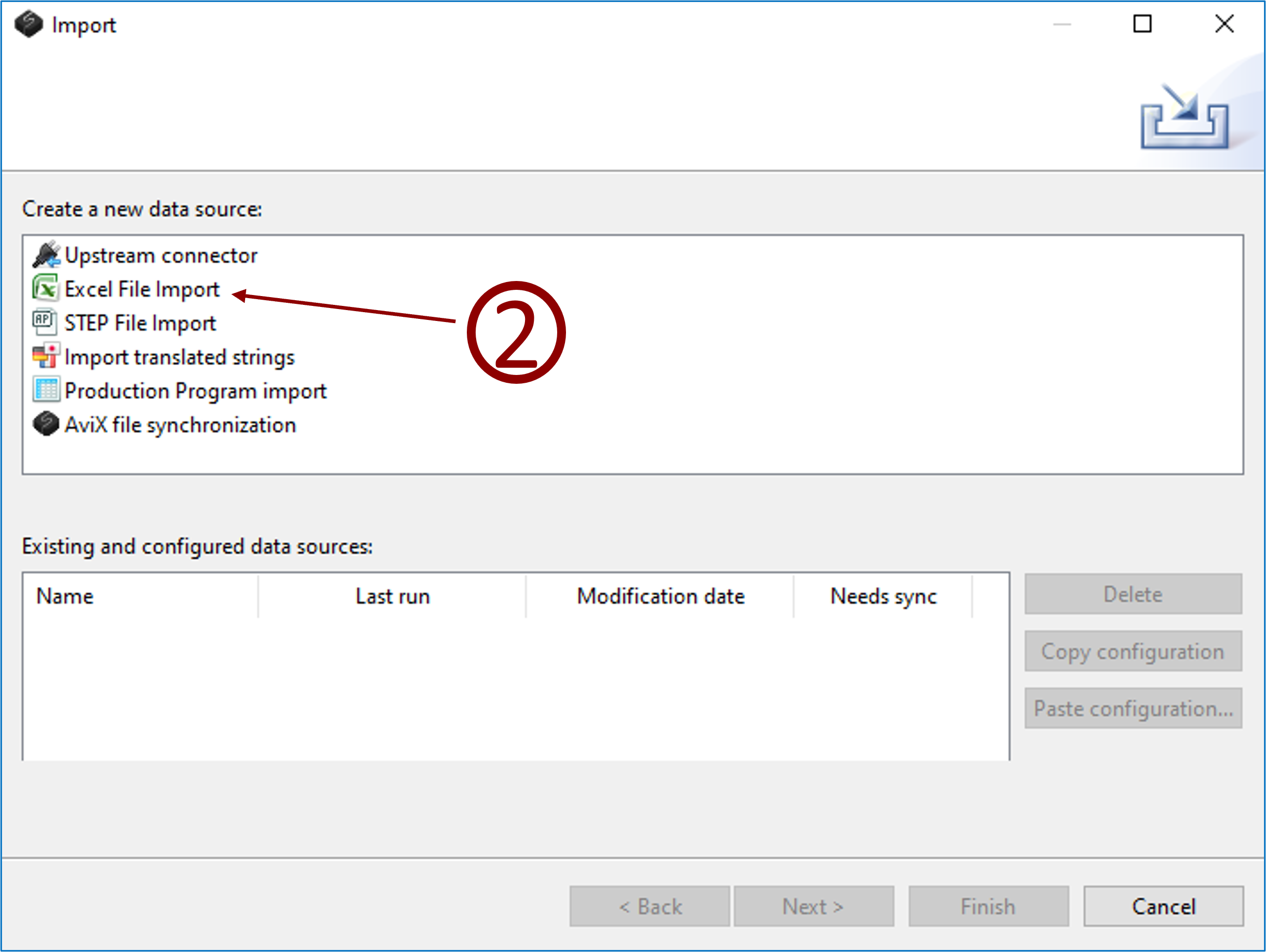
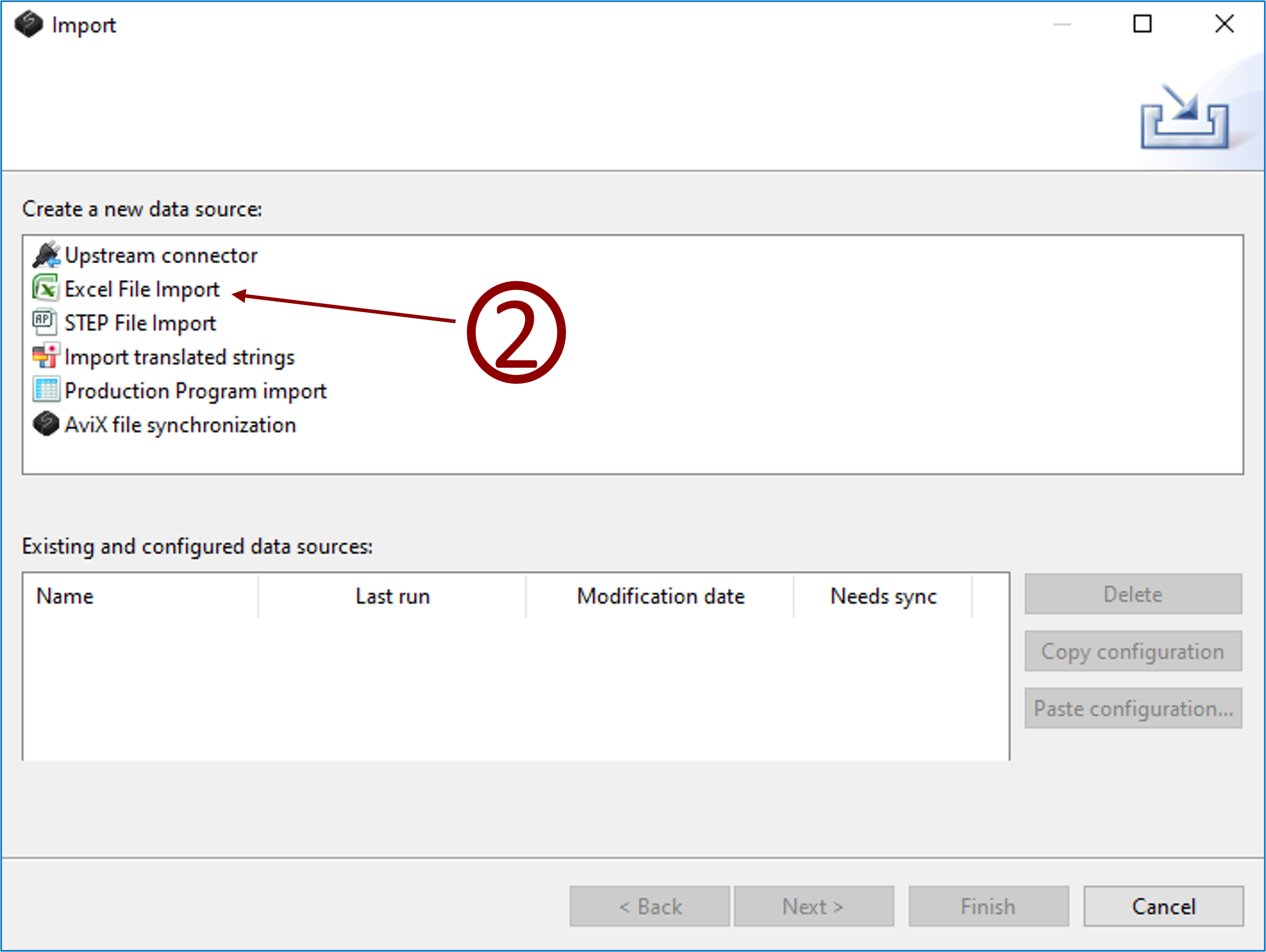
- Click menu File → Import
- Select Excel file import and click next.
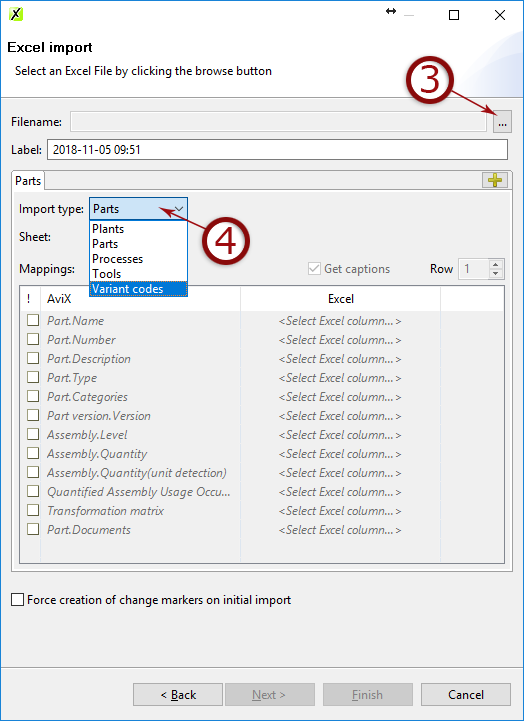
- Select the Excel document where your data is stored
- Select what to import and click next.
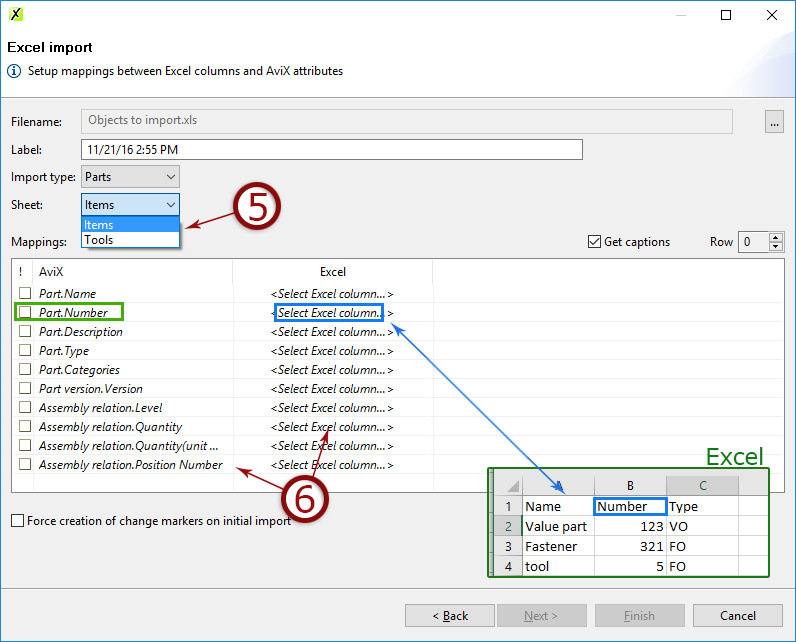
- Select the sheet from Excel document that contains the data
- Map the fields containing data
- Click next to see a preview or click finish.
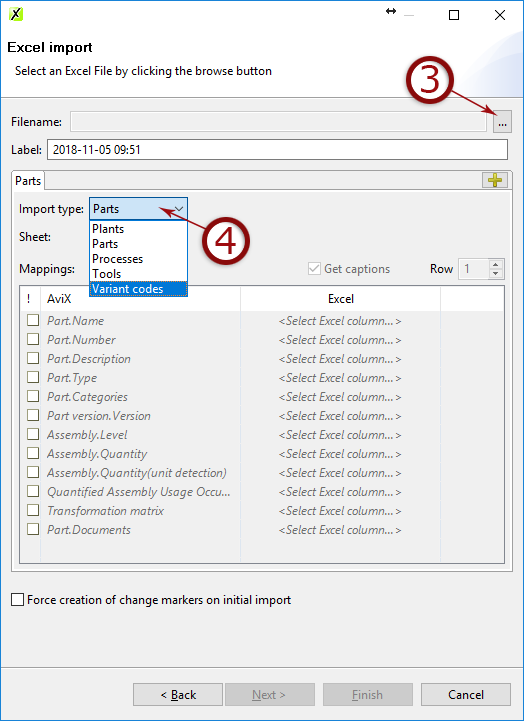
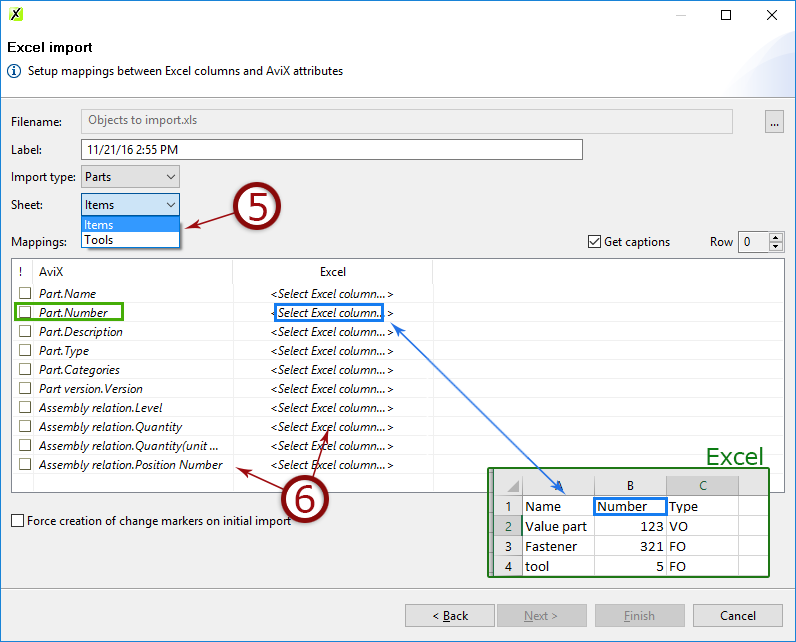
8. Follow the wizard and map the data in AVIX to the columns in Excel. Done!
ATTRIBUTES that can be imported
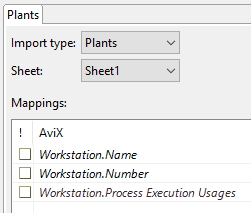 Attributes related to plants
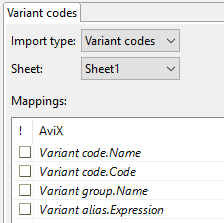 Attributes related to variant codes
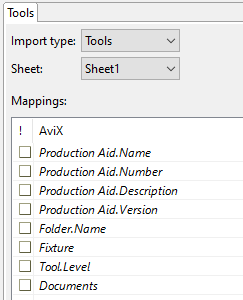 Attributes related to Tools
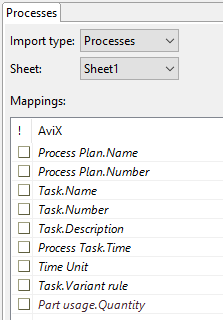 Attributes related to processes
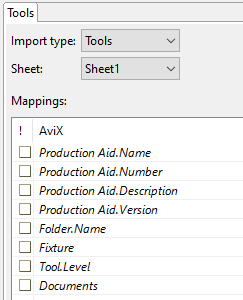 Attributes related to tools
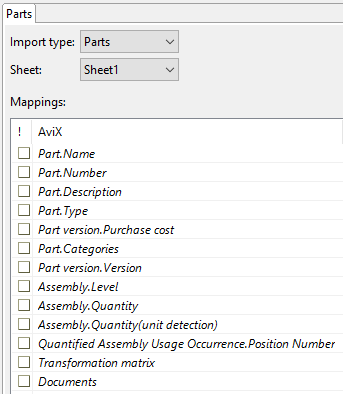 Attributed related to parts
Importing PART/TOOLS documents & images
Documents and images (also linked) can be imported to parts and tools. This is done by adding the source of the image, e.g. c:\images\hammer.jpg.
Multiple images can be imported by separating the link using a semi-colon (;) e.g. c:\images\hammer1.jpg;c:\images\hammer2.jpg

Importing andFaCtory, combiningLINE, dataWS, PROCESS STEP
If you have a data-set including e.g. both process steps and their corresponding workstation where they are being executed, you can import it all by combining multiple imports
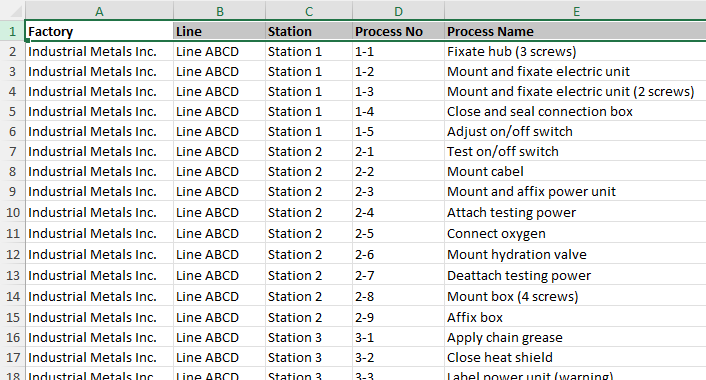
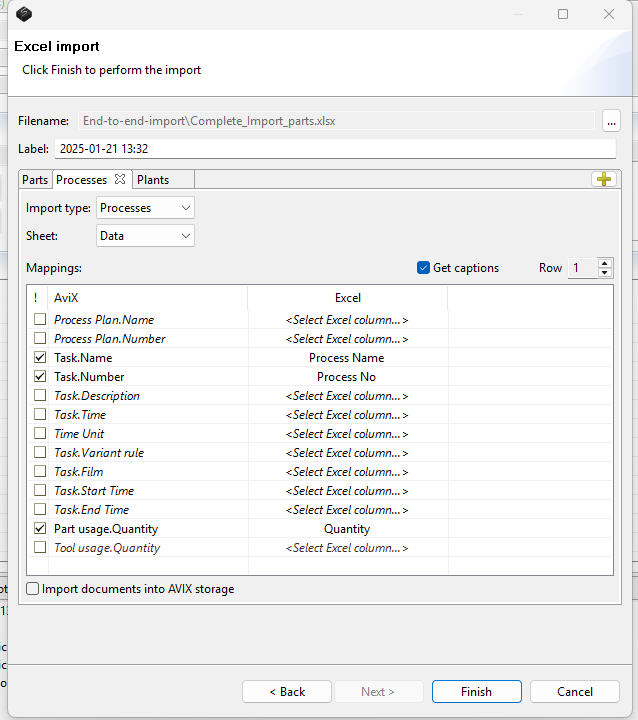
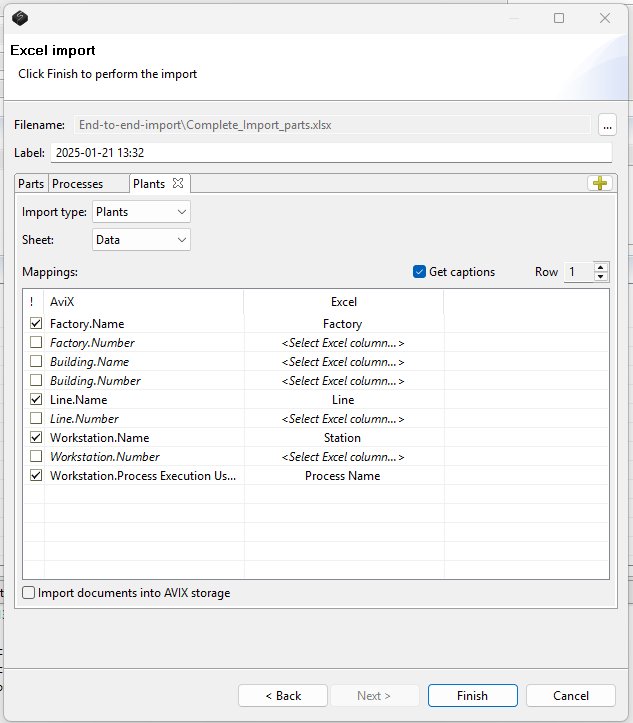
In the import wizard, use the (+) to add multiple imports - In the example below, we import a number of "processes" combined with "plants"
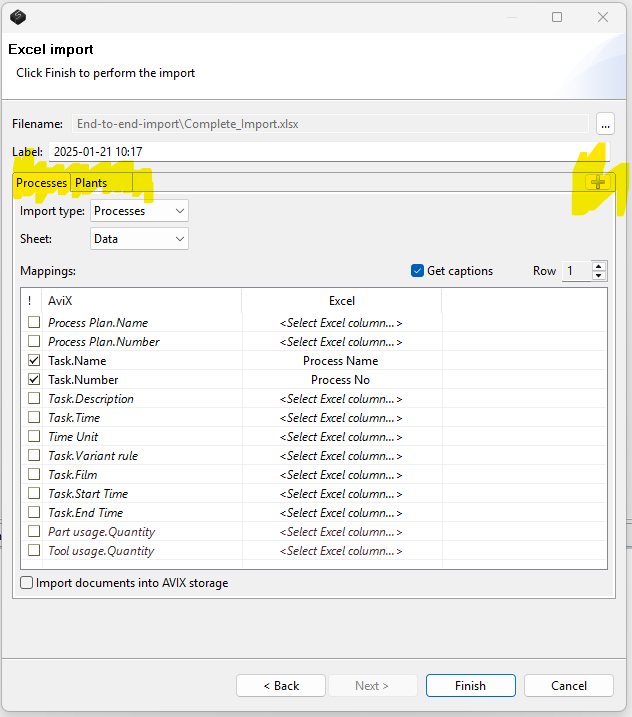
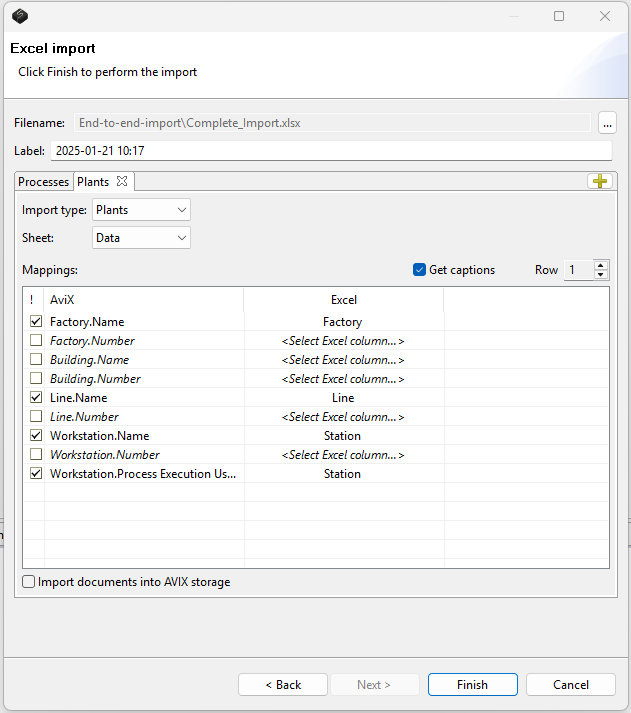
Below, note that we use the "workstation process execution usage", this is to link which WS that carries out the specific process steps.
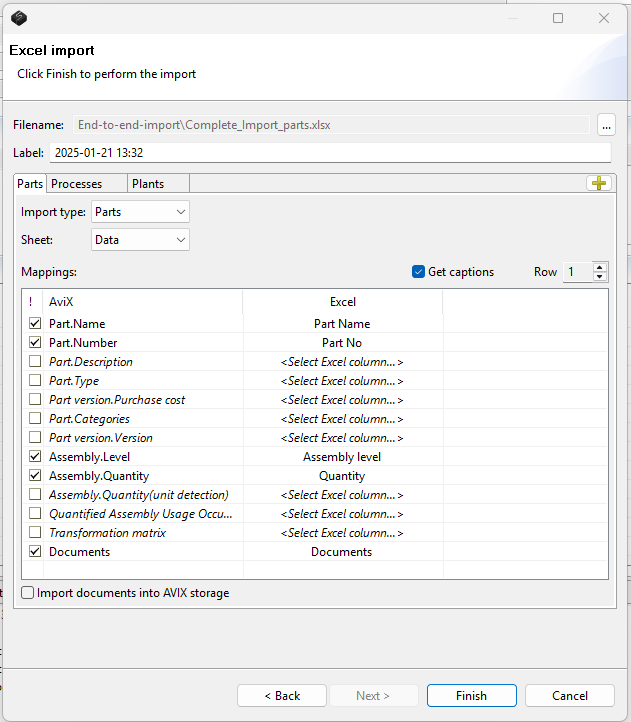
Importing FaCtory, LINE, WS, PROCESS STEP, PARTS & DOCUMENTS
An even more extended example, below we import process steps, parts, doc

Video instructions
Watch video: Import tools and parts
Watch video: Import variant codes
Watch video: Import processes & execution usage