
Import Plants, Parts, Processes, Tools and variant codes
Almost anything related to the necessary dataset can be imported from Excel to AVIX. In AVIX there’s a built-in wizard to import from Excel (.xls/.xlsx).
Following steps below is the same regardless of what is being imported.
How it works:
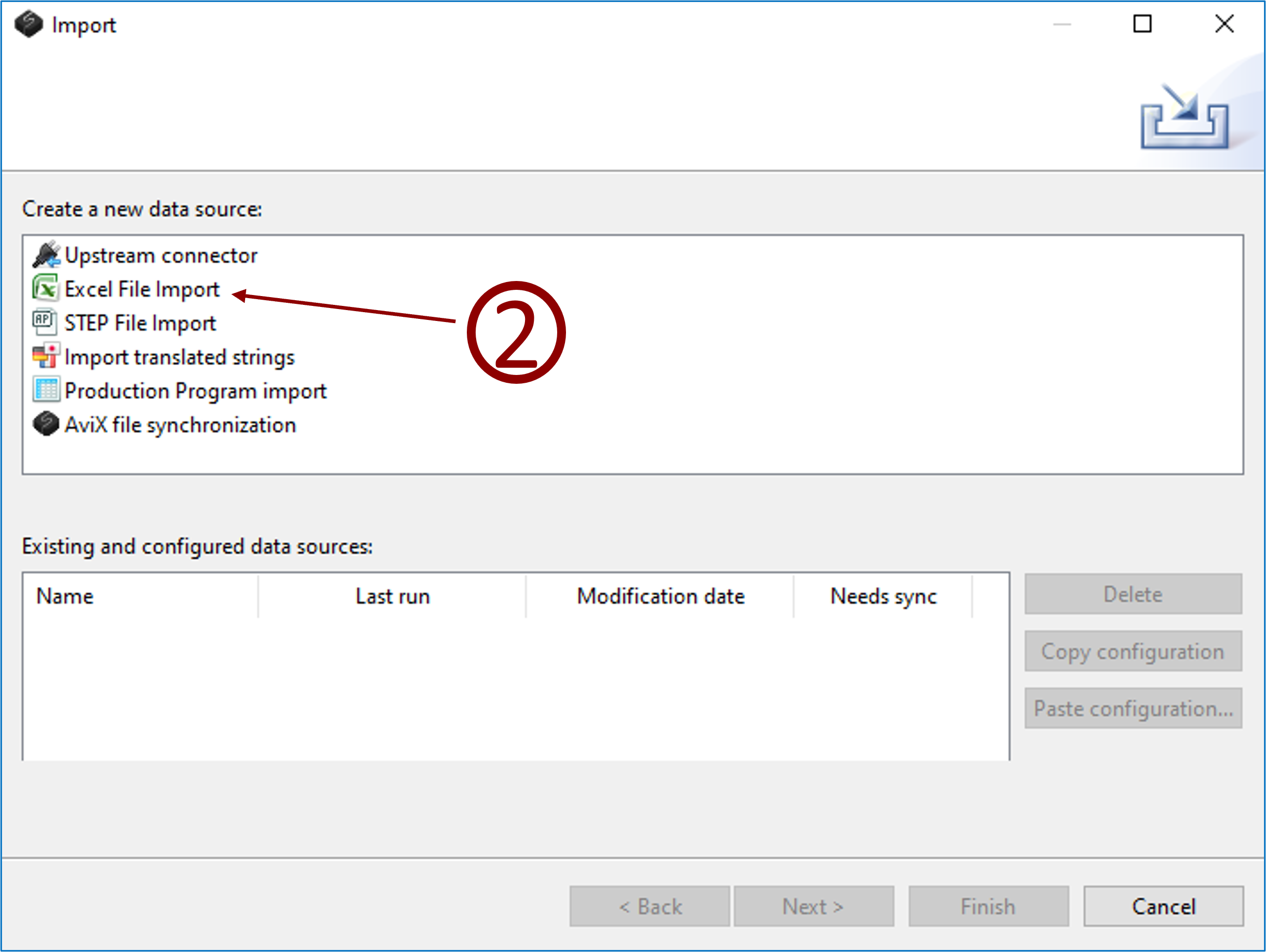
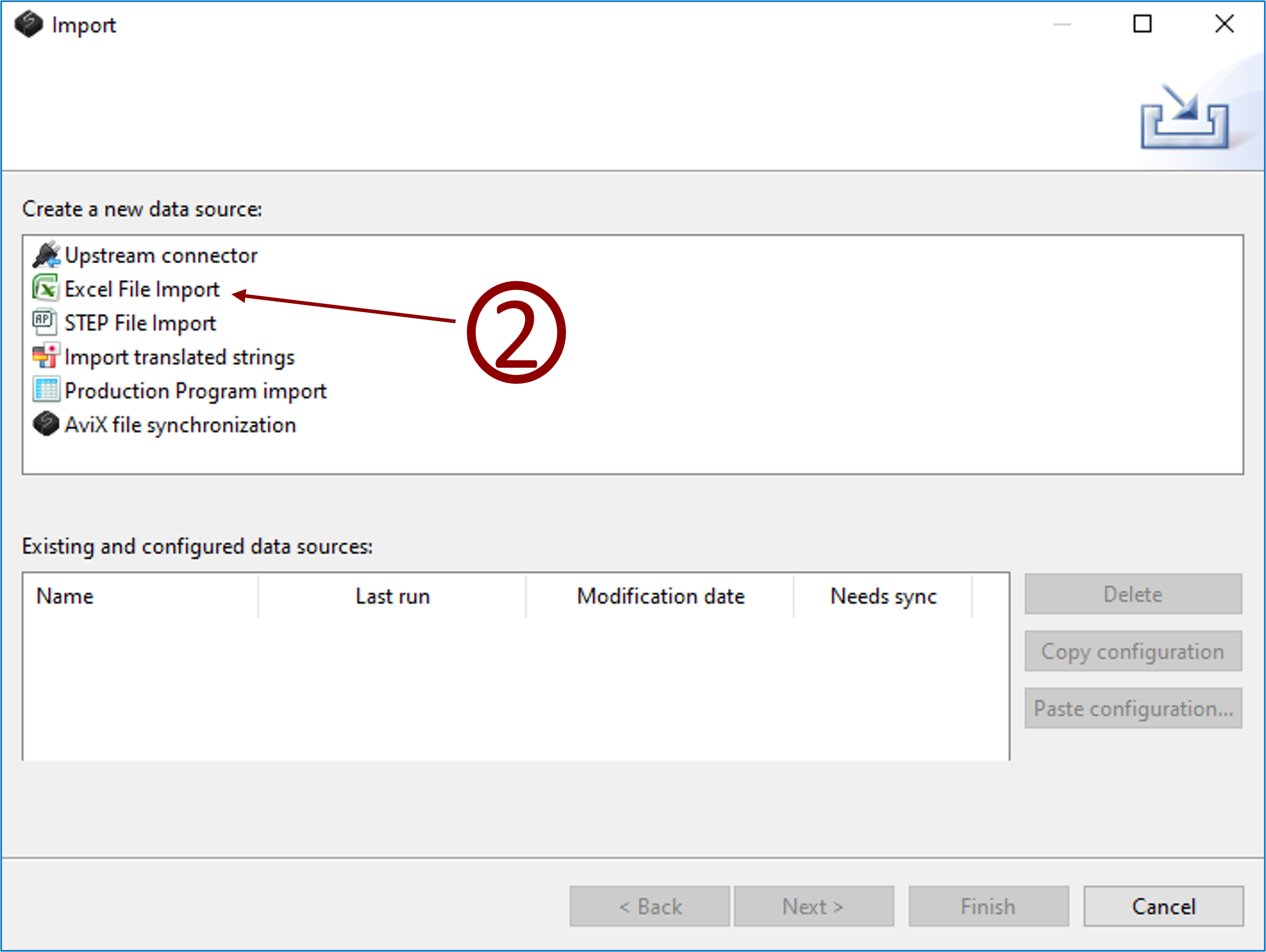
- Click menu File → Import
- Select Excel file import and click next.
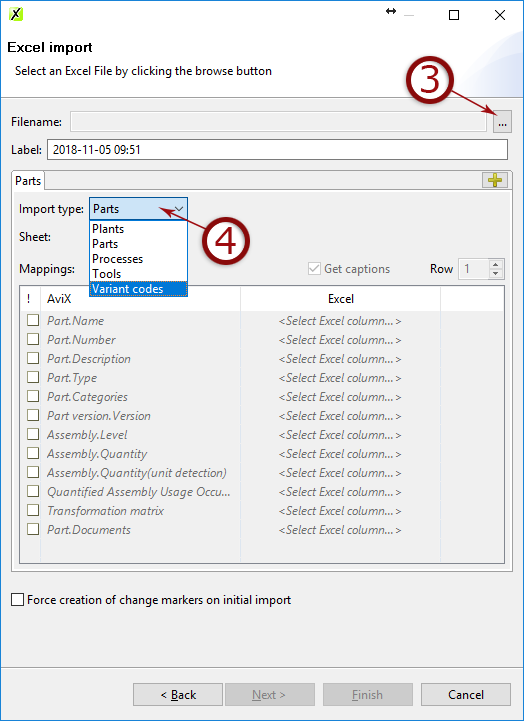
- Select the Excel document where your data is stored
- Select what to import and click next.
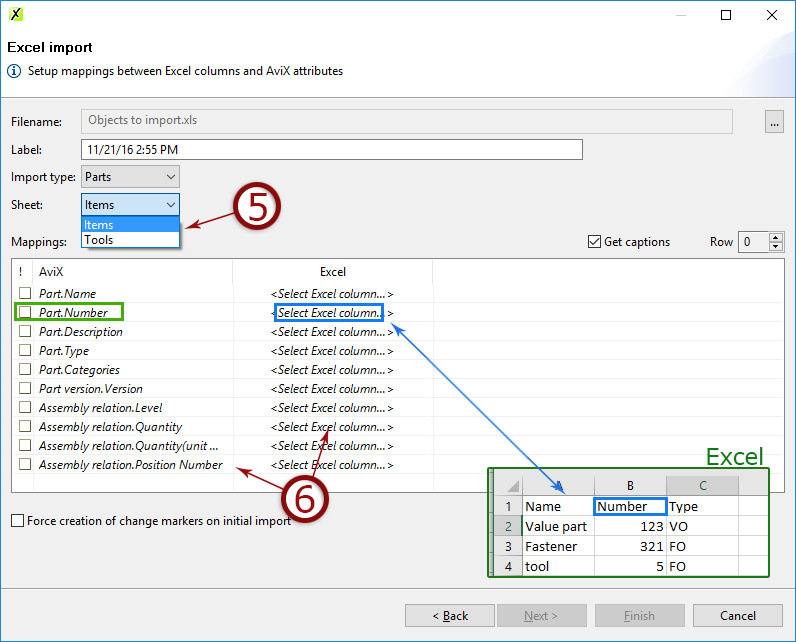
- Select the sheet from Excel document that contains the data
- Map the fields containing data
- Click next to see a preview or click finish.
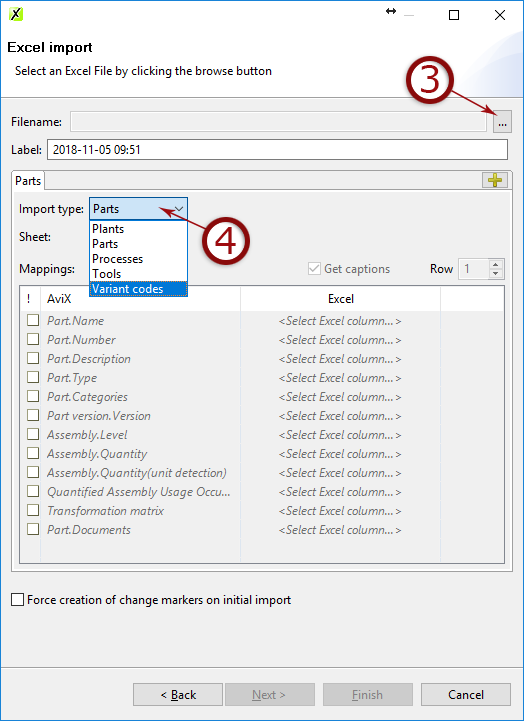
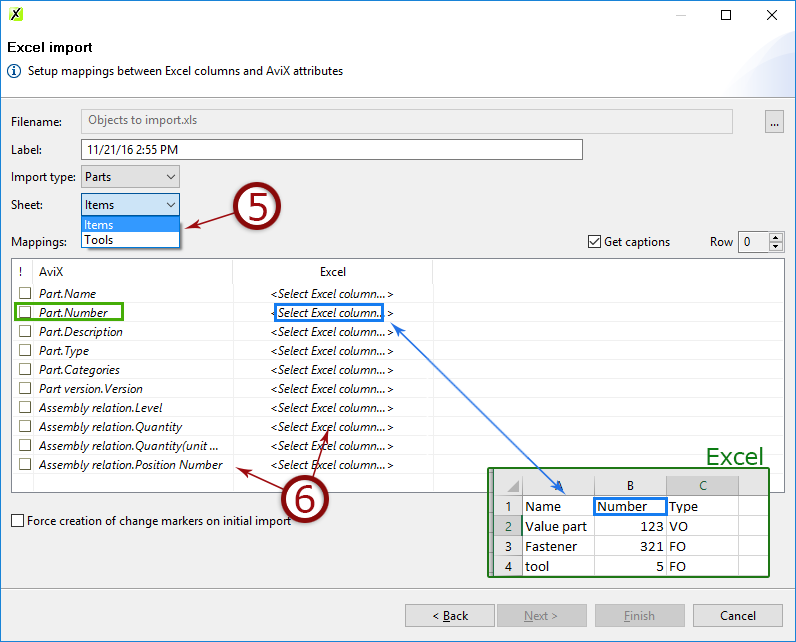
8. Follow the wizard and map the data in AviX to the columns in Excel. Done!
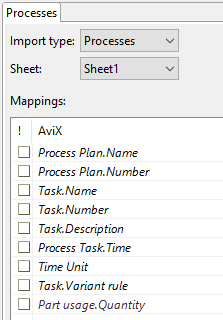
Properties for all import types that can be imported via Excel is listed below:
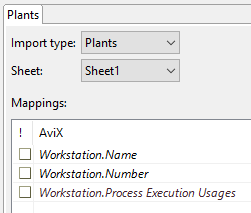
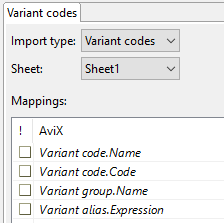
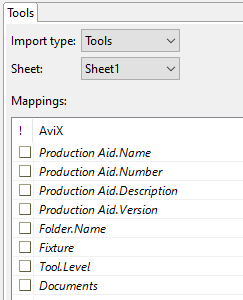
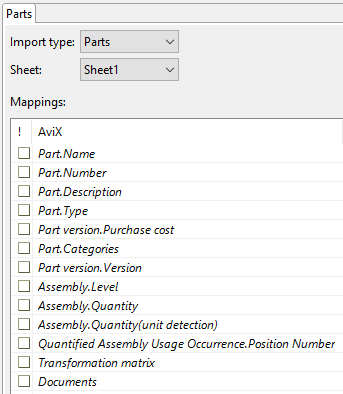
Documents and images (also linked) can be imported to parts and tools. This is done by adding the source of the image, e.g. c:\images\hammer.jpg.
Multiple images can be imported by separating the link using a semi-colon (;) e.g. c:\images\hammer1.jpg;c:\images\hammer2.jpg
