Running AVIX DFX
When AVIX is running you switch to DFX perspective (module) by pressing on the DFX button 
The default appearance of AVIX DFX looks like below.
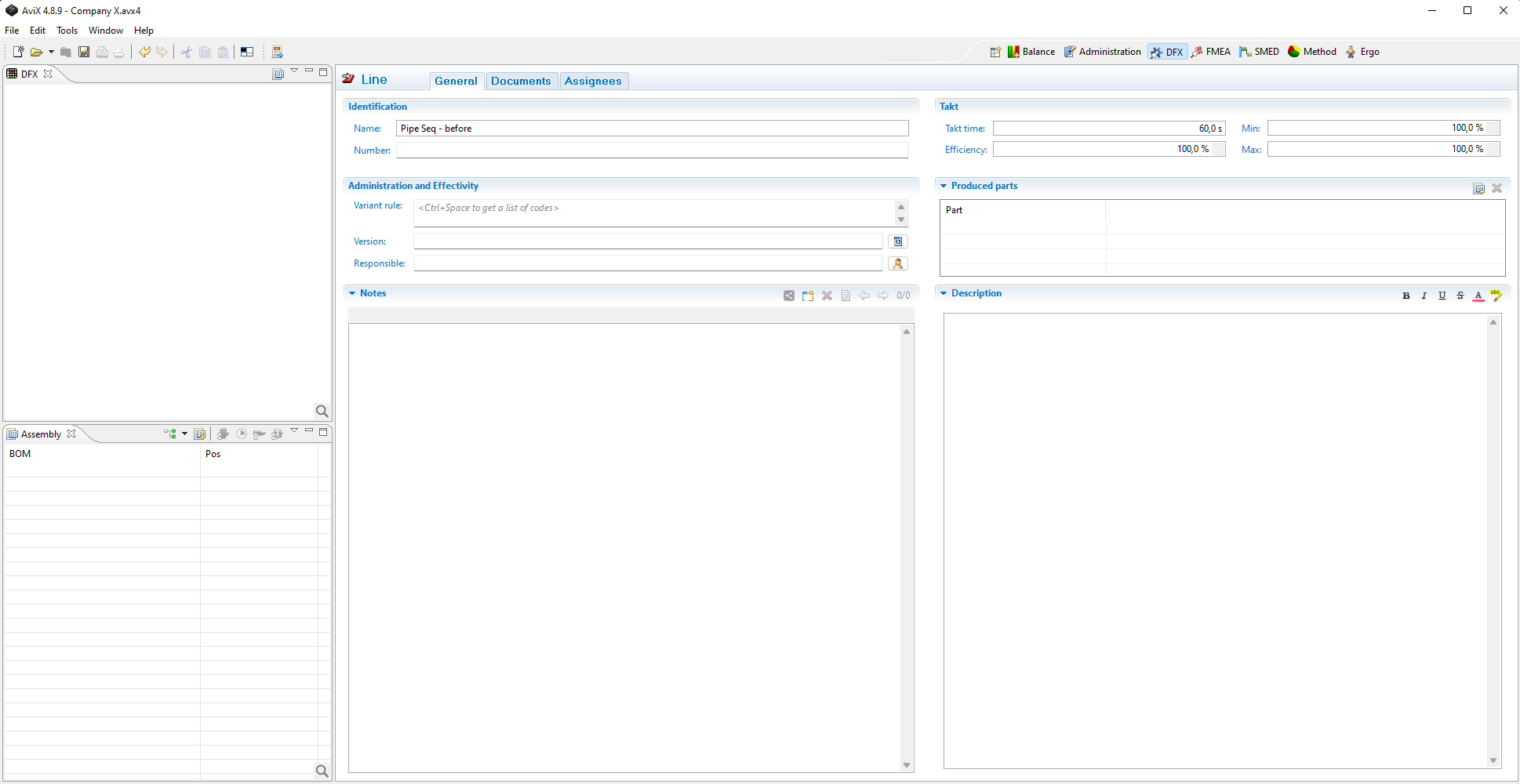
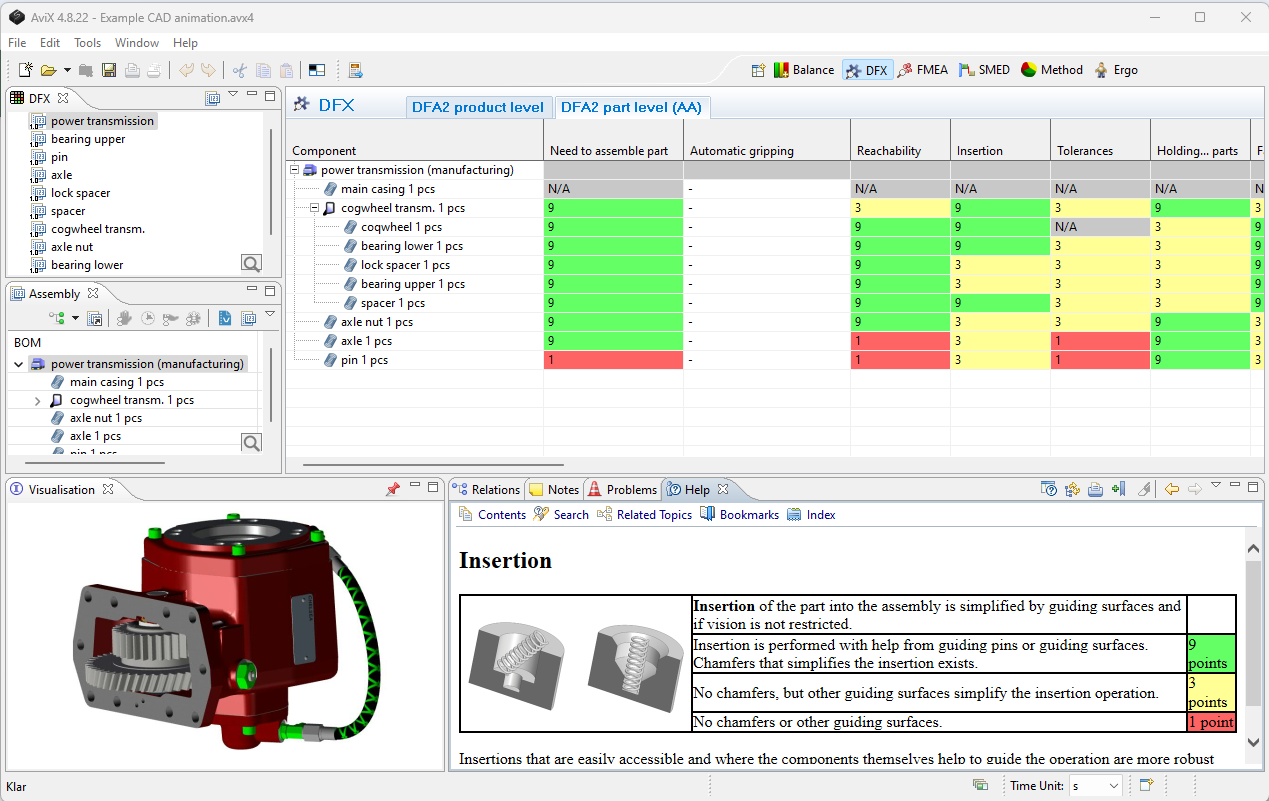
The different views or windows will be explained throughout this guide, but let’s start with a quick overview of the view outline:
- The DFX tab in the upper left corner is where your parts/items are created and organized e.g. new versions
- Visualization in the lower left corner is where images are displayed (useful when images or drawings are attached to items or components).
- Relations display related information for the Item or Component selected in the DFX view. This is where attached Documents and written Notes are presented.
- Help is where the aspect documentation for the different DFX methods are presented, which is very valuable during the analysis phase. (Tip: “Detaching” this view – this making in floating – is preferred by some when analyzing, thus freeing up the available screen space. See the “Performing a DFX analysis” section.
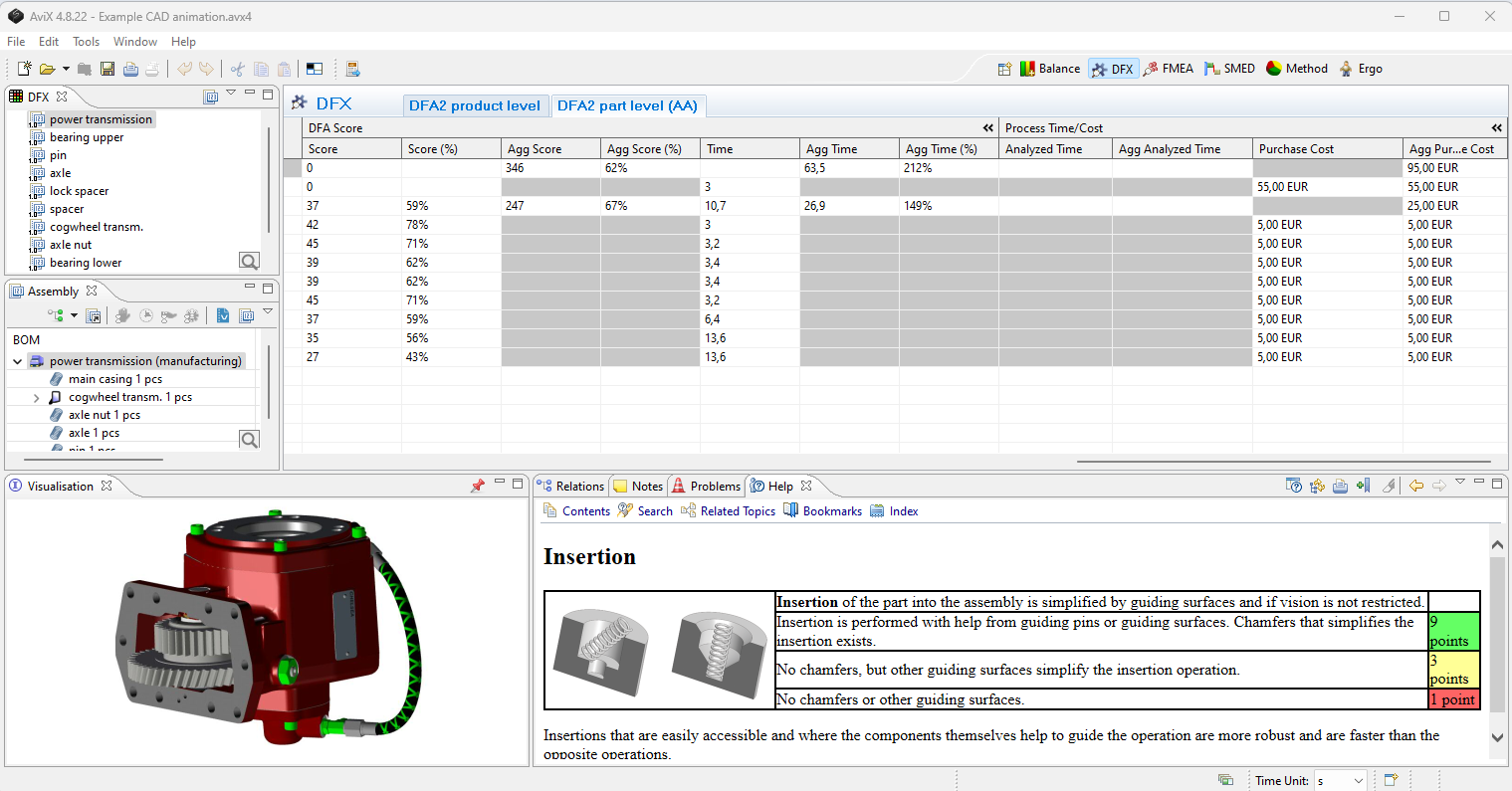
ResultResult,is a view where tabular results forscrolling the DFXanalysesgridaretopresented.the right shows the summary