Transfer data to AVIX version 5.1.6
AVIX 5.1.6 includes an overhaul of how more centralized data such as the configuration (admin template) and the access control are handled.
In previous versions, including 5.1.5, possible setups were:
| Storage type | Configuration | Access control | |
| AVIX file (.avx5) |
As per user preference :
|
Storage-centric:
|
|
| AVIX DB storage | Same as above | Same as above, but most likely another "DB storage" | |
Regardless if we are setting out to work with a pure file-based AVIX 5.1.6, or full-fledged server setup, there is a need to "export" or extract these various data sets from an AVIX 5.1.5 (or earlier) storage:
- the normal AVIX data
- the access control data (be it "local" or existing in a separate DB storage)
- the configuration data
Above exports will store the data in a JSON file format (along with possible binary data in a separate folder). Having done the 5.1.5 export(s), an import can be done using AVIX 5.1.6.
The following sections will describe the 5.1.5 exports and the 5.1.6 imports in turn, using some examples.
EXportExport from 5.1.5
We
Exporting define two tasks: one that will bring the server down, and one that will start the server again. Let's also leaveusing a bitfile of space in-between, say 10 minutes, to give the server a chance to shutdown gracefully.
Preparations before DEFINING "stop" and "start" tasksstorage
OpenExporttheAccessWindowscontrolServices Management Console by typing "services.msc" in the run box.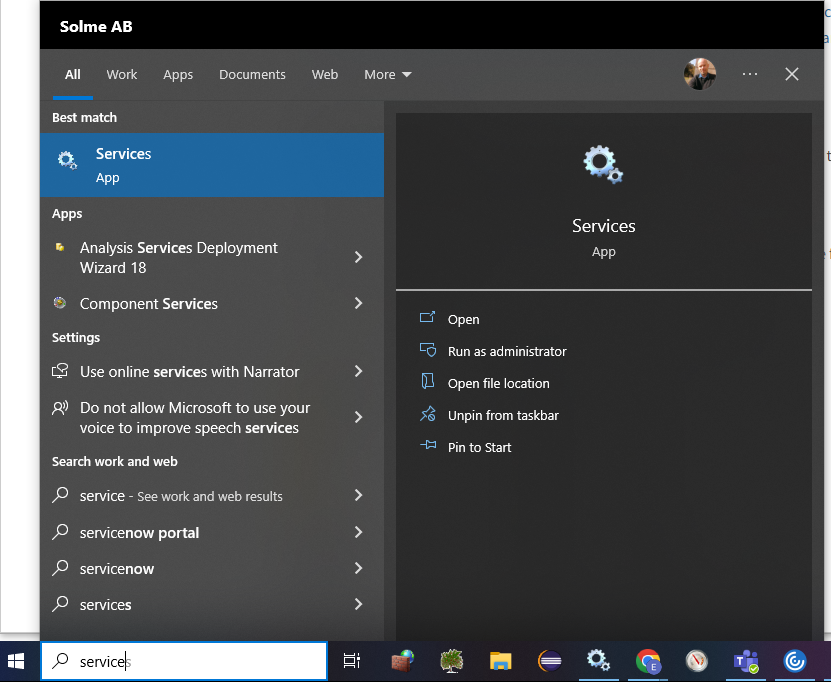
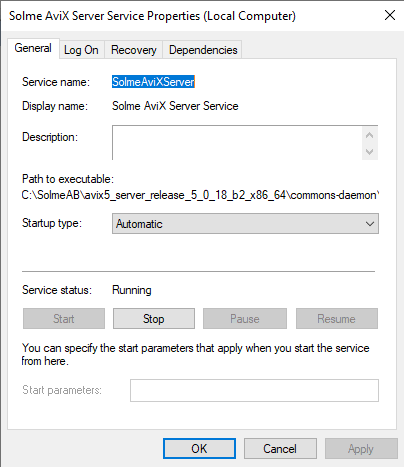
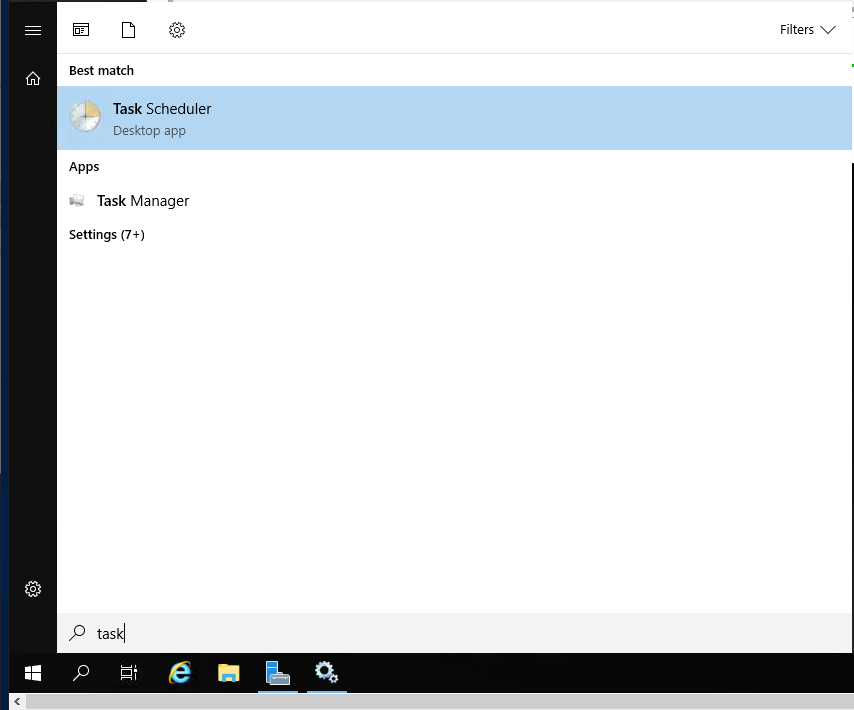
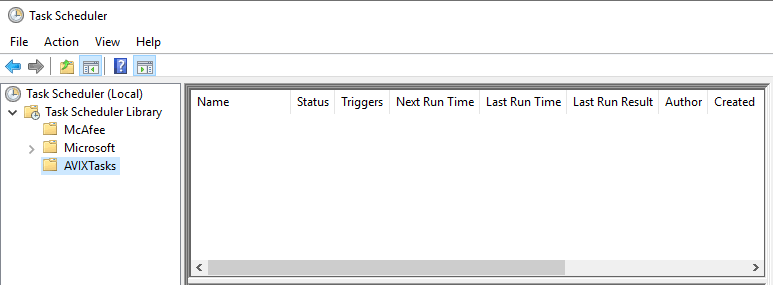
Define "Stop" Task
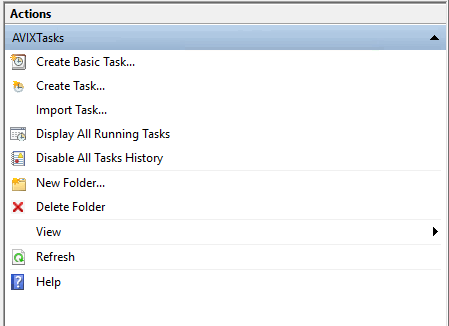
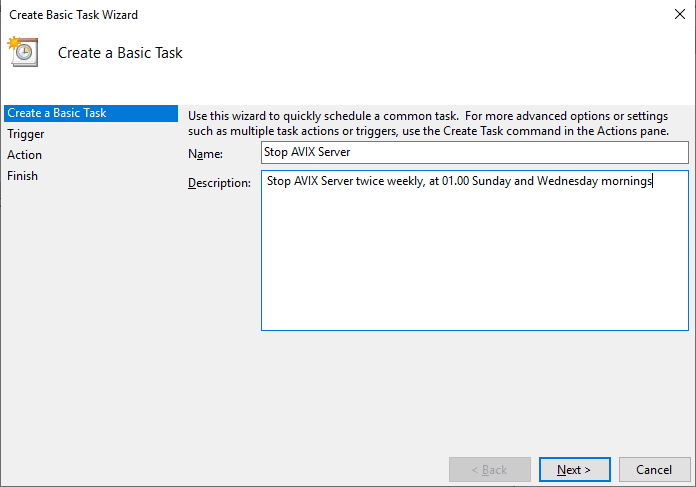
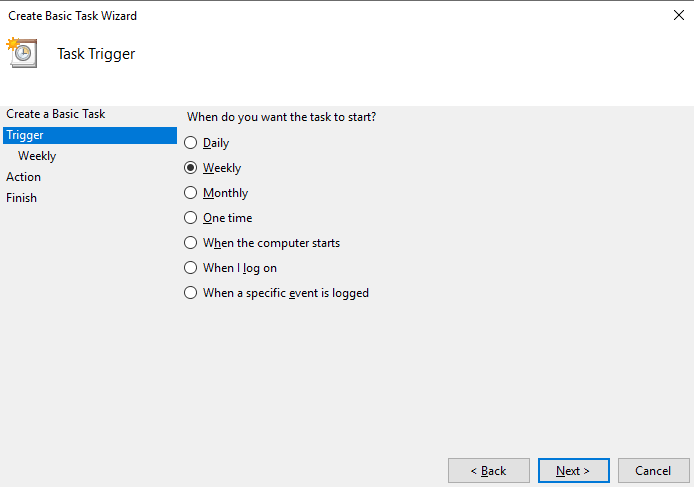
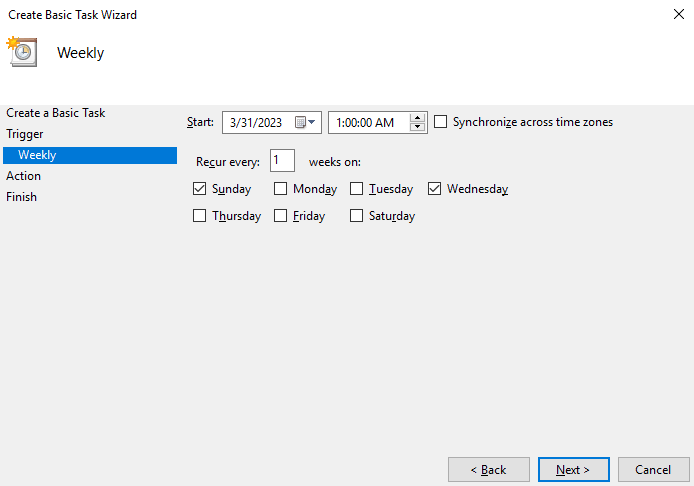
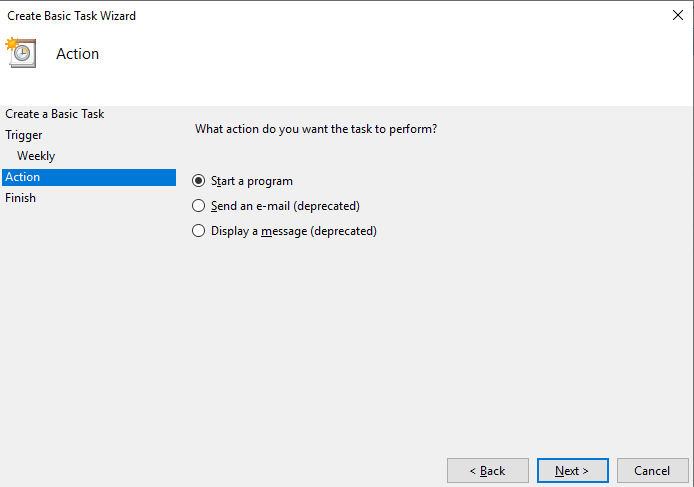
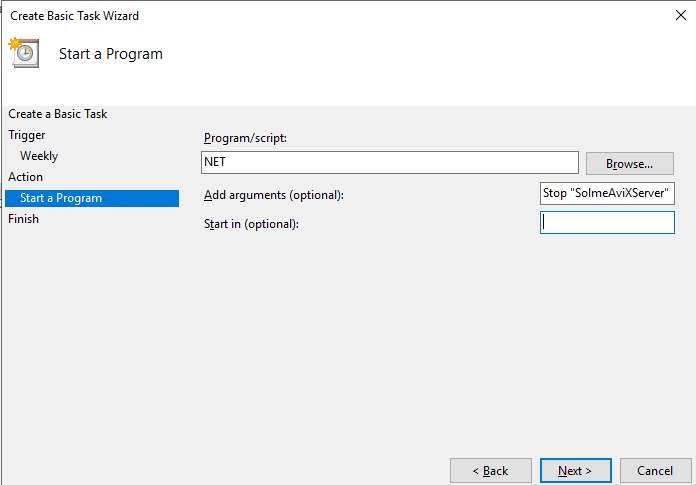
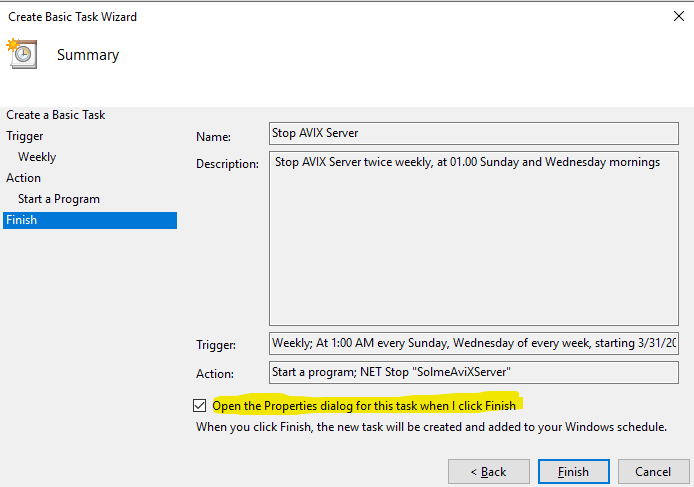
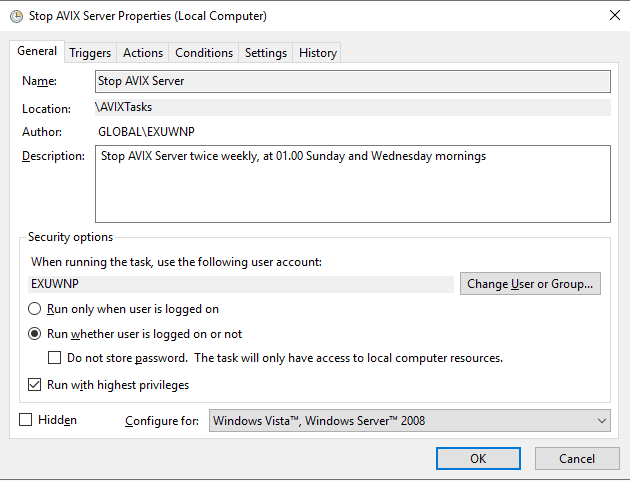
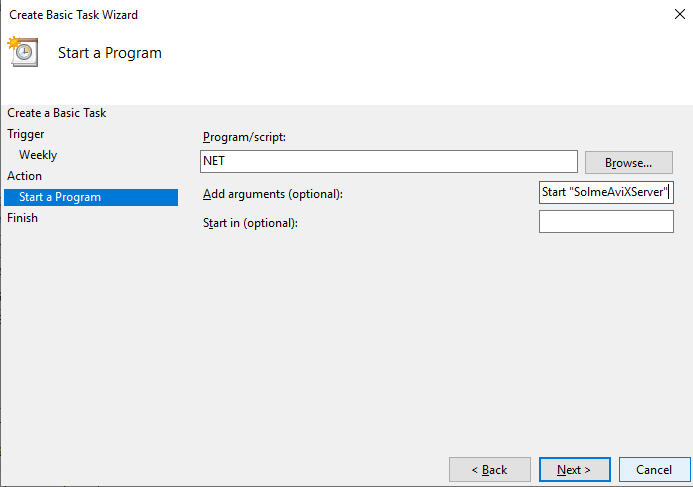
The task we have now defined will stop the AVIX Server service, twice weekly at a chosen time.
Define "start" Task
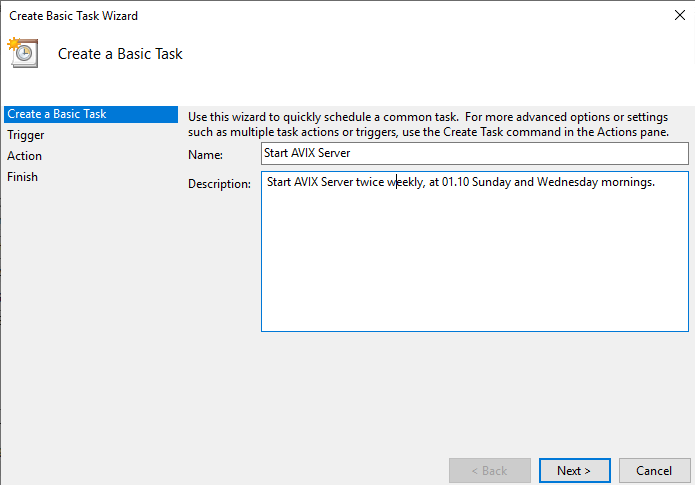
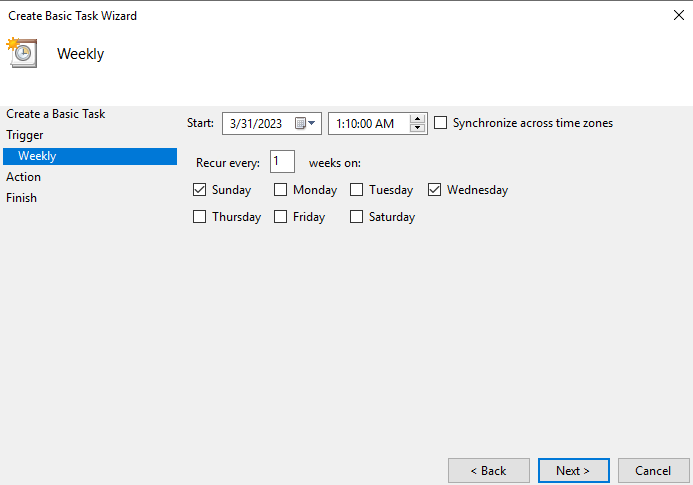
We will start AVIX Server 10 minutes later, to give the Windows Service some time to close all pending tasks before restarting.
Summary
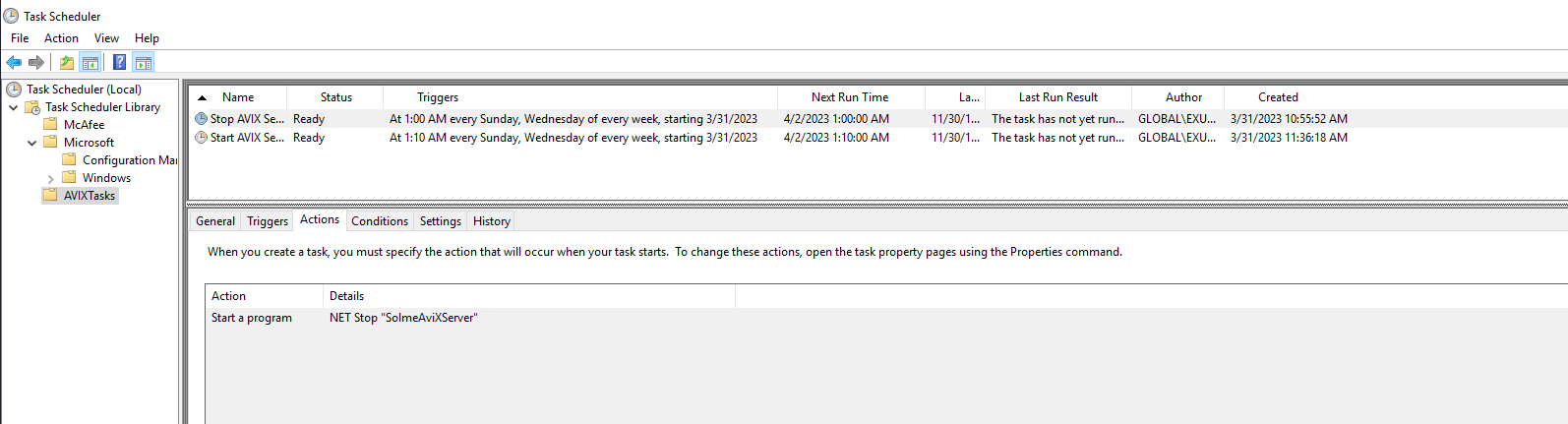
You have now created two scheduled tasks,open one will stop the AVIX Server service and the other will start it again 10 minutes later. The overview of the tasksDB look like this:storages.
addendum 1
It has been observed that scheduled tasks fail to execute, should the password be changed for the user account who is running them. In the screenshots above, the user is "EXUWNP".
Instead, a better approach could be to run the task with the "Administrators" group or similar:
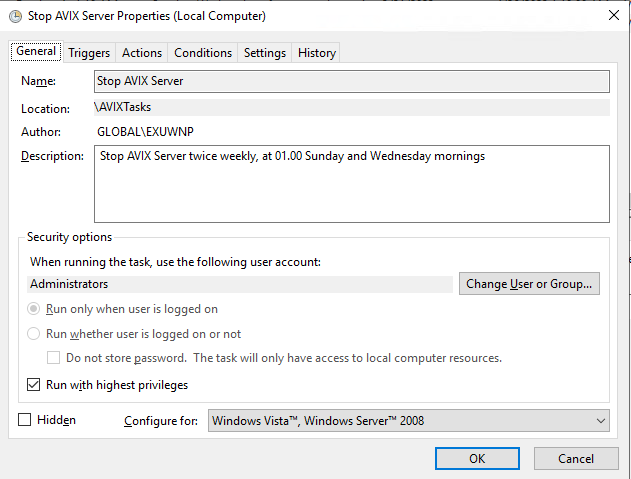
This can be specified by: Clicking on "Change User or Group...", and then clicking on "Advanced". Then, click on "Find Now" in the Common Queries section, and select the appropriate group.
addendum 2
While the "Administrators" group approach is an improvement, there are still problems with it. Should the machine be re-started, it is likely that no user belonging to the "Administrators" group is logged on. Hence, the service will not execute after a restart.
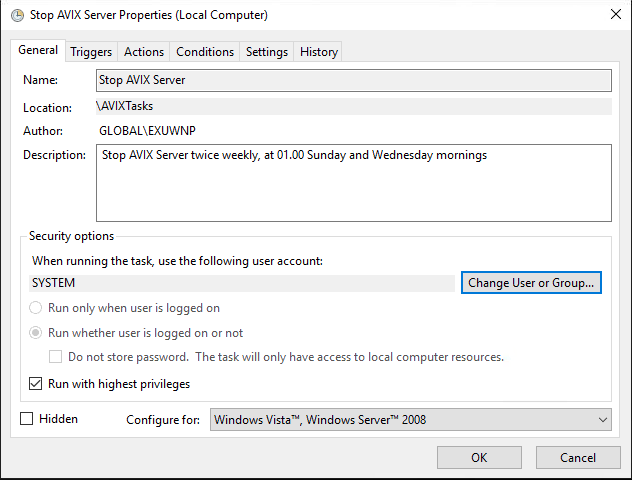
Instead, make sure to run as "SYSTEM" instead:
Click on "Change User or Group...", and then clicking on "Advanced". Then, click on "Find Now" in the Common Queries section. Locate SYSTEM, and click OK:
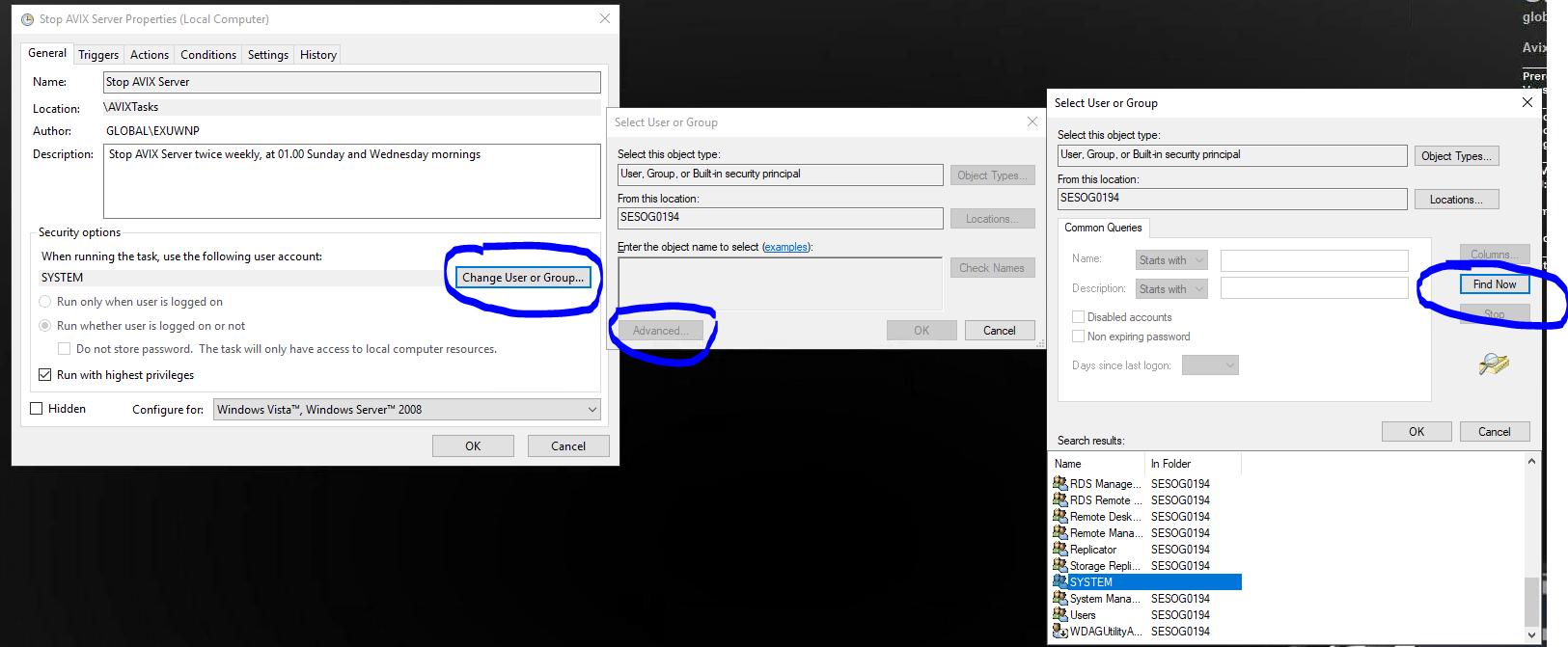
Notice the "Run whether user is logged on or not" (it was reset to this value automatically when I saved my setup):
This should be the end result: