Installing AVIX server
Installing
ShopFloor Viewer or SFV is a part of AVIX server.
In the text we will refer to the software as AVIX server (SFV).
- Stop the AVIX server (SFV) service (if it is running).
- If you have an older version of AVIX server (SFV) installed and you want to upgrade:
Rename the existing install folder to AVIX Server OLD - If your AVIX server (SFV) is not working, uninstall it.
You can do this by running the unins000.exe in the install folder - Download AVIX server (SFV) [AVIX v5/AVIX v5.1/AVIX 5.1 Server/]
If you don´t see the AVIX server (SFV) folder on our community site, then you need added permission.
Ask your contact at Solme AB. - Install AVIX server (SFV) (Make sure you made the backup first).
- If you are upgrading AVIX server (SFV), then copy back commons-daemon/workspace/ folder, configuration/se.solme.avix.prefs and load_storages.xml files from the previously renamed AVIX Server OLD to your new AVIX Server folder.
- If the SFV server is going to access videos, then the AVIX server (SFV) service needs to be running as a user that has read permissions for the folder that contains the videos.
We recommend using the AVIX Server (SFV) computer as a file server and sharing the videos folder on the network so the AVIX clients can reach it.
AVIX server (SFV) cannot access content on web pages like Sharepoint. - AVIX server (SFV) can only be used with AVIX version after 4.8.8.
So use AVIX 4.8.8 or later, e.g. 4.8.13.
BACKUPS
AVIX server/SFV makes backups.
The restore functionality is only available in AVIX5. [November 2025]
The backup delete policy is as follows and is currently not configurable:
- Keep all backups made "today".
- Keep one backup per day for a week.
- Keep one backup per week for a month.
- Keep one backup per month for three months.
The backup is always enabled and can currently not be disabled.
The location of the backup is configurable via the se.solme.avix.prefs file.
[se.solme.avix.io.storageloader]
backup-default-path=C:\Solme AB\AVIX Server\backups
In the future we will add more configurability to the backup function, as well as document it on docs.solme.se
Backup files can be deleted and should not interfere with server functionality or future backups.
AVIX SERver (SFV) - INSTALL
NOTE: AVIX files saved in AviX4.7.1 and earlier are not compatible with the Shop Floor Viewer.
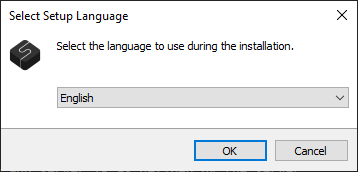
Install the AVIX server (SFV)
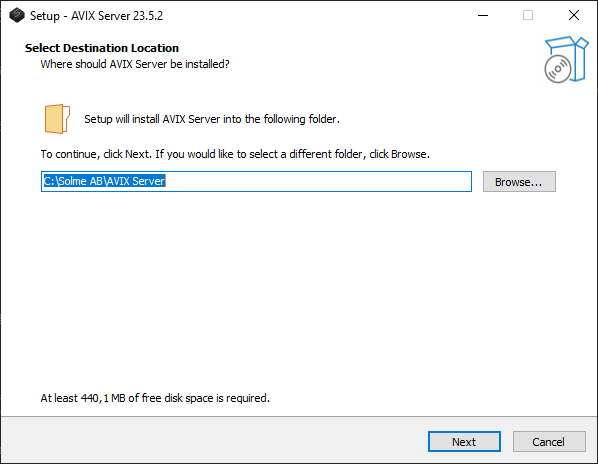
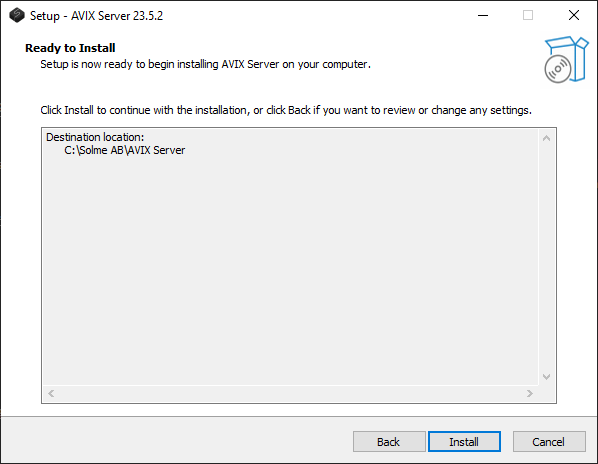
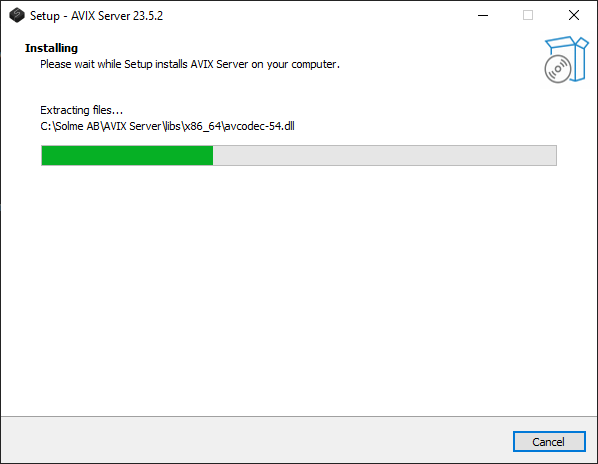
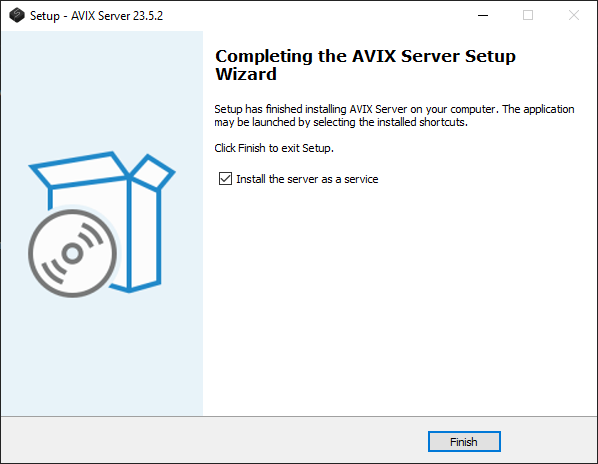
The service should now be running
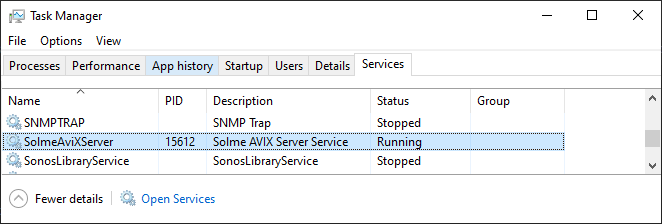
The installation of AVIX server is now complete.
Next we will continue with the SFV, which is a part of AVIX server.
ShopFloor Viewer (SFV)
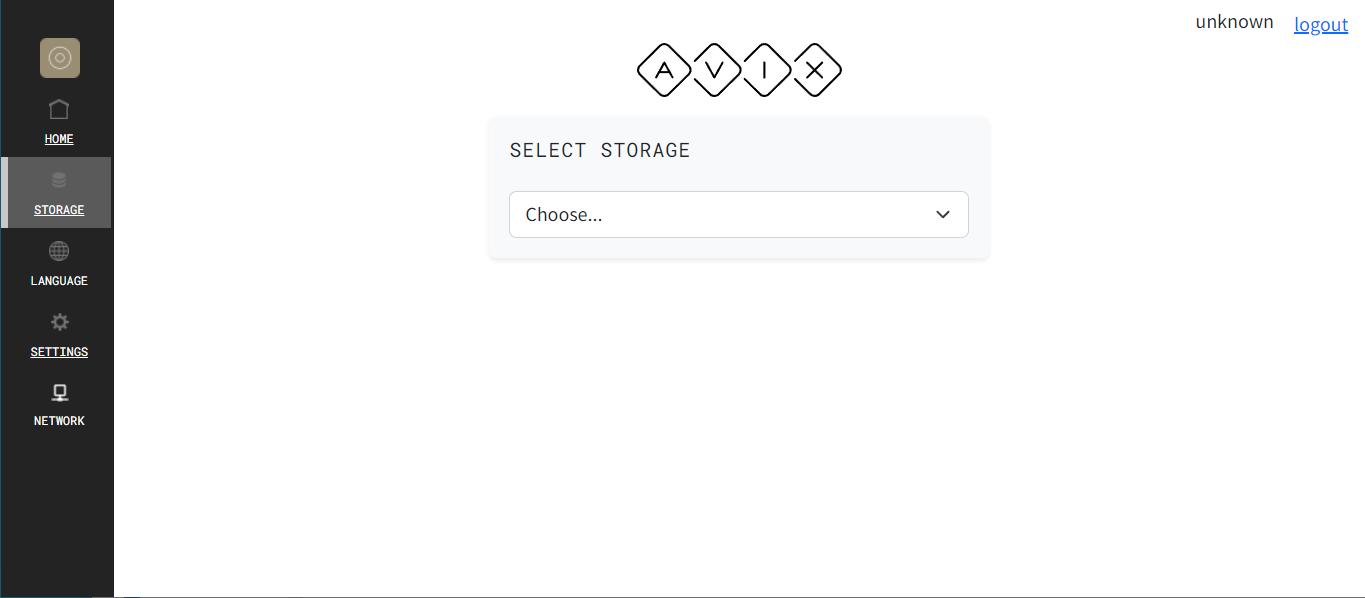
Open a browser on the server computer (Chrome works well) and enter the address: http://localhost:45500/dwi/
When testing from another computer, replace "localhost" with the ip-number/hostname of the server.
If there is a firewall filtering the traffic, TCP ports 45500 and 2036 needs to be opened.
You can also use https. It has a self signed certificate.
It uses the port 45543: https://localhost:45543/dwi/
(How to configure HTTPS/SSL)
In this case you need to open this port in the firewall.
45500 is the default port, it may be configured, see further in this document. If changing the port number, the address entered will have to change accordingly.
If you are using AVIX5, this AVIX client will also start a AVIX server and it has the same default port, 45500. If AVIX server (SFV) is started after AVIX5 the port for SFV will be 45501 since 45500 is already allocated by the client.
Default path setting
Note that videos are NOT uploaded from AVIX to the AVIX server (SFV).
Therefore videos need to be located in a (network or local to the server) folder where both the AVIX client and the ShopFloorViewer server can reach them.
You must tell the ShopFloorViewer where the videos are located.
This is done using the document default path.
The document default path only works if it is also set in AVIX.
You will need to set the correct document default path for videos, i.e. where should the SFV be looking for the videos used. (Learn more about Document default path)
For the Shop Floor Viewer to be able to read the files, like videos/images, in a folder or to connect to a network drive, the user that the AVIX Server (SFV) service is executing as, must have access privilege to read this folder or to mount this drive.
For a network drive, possibly you have to login to the server using this account and mount the drive and then restart the AVIX Server (SFV) service.
Just monting the network drive with your regular user account will probably not work if the AVIX Server (SFV) service is running as another user.
This is a task for an IT person. If you are a regular user and don't know how to do this, you need to ask your IT for help.
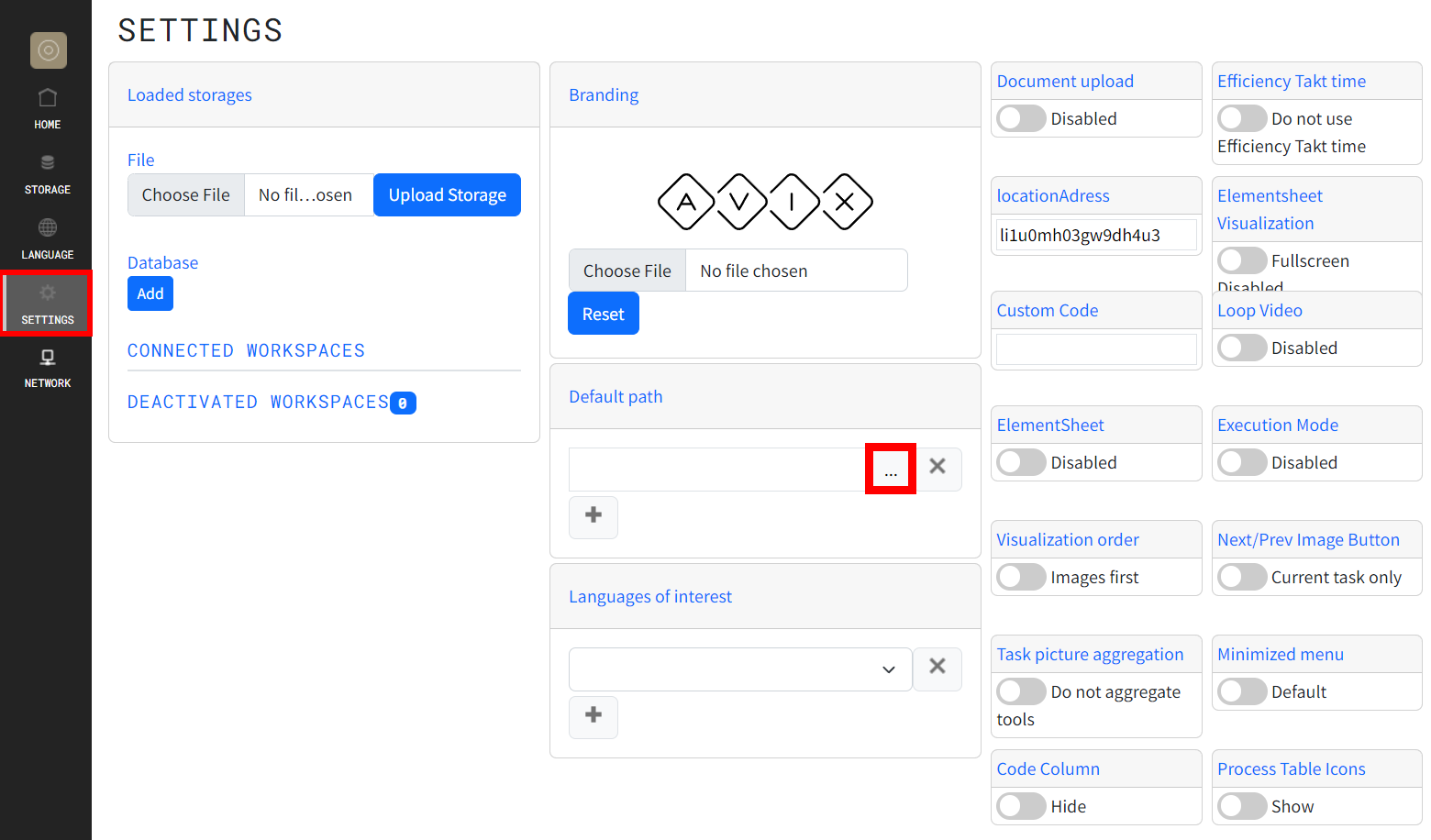
The user account running the server need read access to the videos.
Publishing/viewing data
To publish data on the SFV server, you can either:
- upload an AVIX file from the SFV interface, or
- publish/upload the file from AVIX (from AVIX 4.8.14).
Publishing/uploading files from AVIX using https/ssl is supported from version 4.8.14.
This means that if you are using 4.8.13 or earlier, then you need to upload files from within SFV.
Uploading from SFV
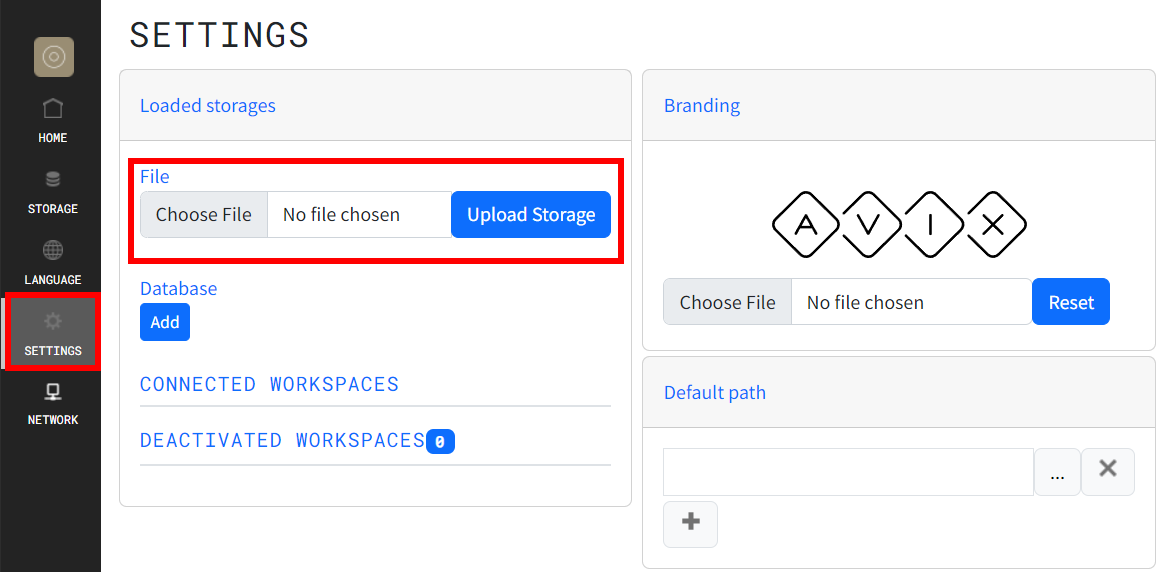
To upload an AVIX-file from SFV, go to "settings" and click "Choose File", then "upload storage"
Publishing/uploading from AVIX
To publish a file from AVIX, you need to set the server IP/hostname and the port number of the AVIX server (SFV) in AVIX preferences.
Go to AVIX preferences > Server preferences
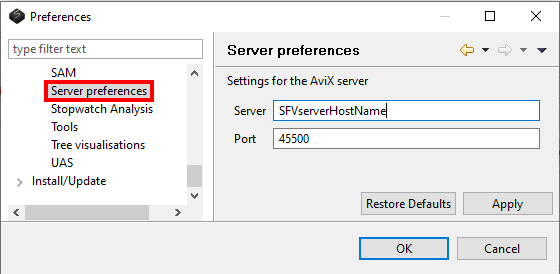
If you changed the server address or port number when setting up the AVIX server (SFV), then these settings must be used in the browser/AVIX to access SFV.
Then upload from AVIX by clicking the Publish/upload button

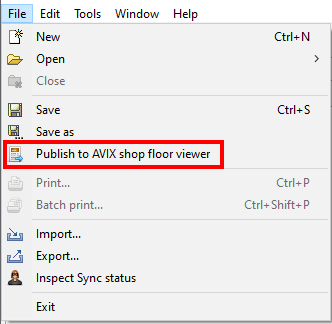
or publish from the file menu...