
AVIX5 Server configuration for time-scheduled tasks
To enable the AVIX server to run time-scheduled jobs, you will need to configure a couple of directives in the preference file.
Furthermore, since the aim is that the AVIX server will perform queries vs. Directory Service (e.g. Active Directory), you will need to submit user credentials (user name + password) so that the AVIX server is able to authenticate to the directory service.
quartz scheduling preferences
Make sure that you have a preference file "configuration/se.solme.avix.prefs" in the installation path of the server. Now add the following preference keys:
[se.solme.avix.scheduling]
# Whether Quartz scheduler should be enabled. Default is false.
# This needs to be enabled, to make Cron scheduling work (e.g. for LDAPUserGroups that are synced from ActiveDirectory)
avix.quartzscheduler.enable = true

[se.solme.avix.security.storage]
# Cron expression for when the Storage scanning (a job that goes through loaded storage, and finds objects of interest that have sync configuration) will be triggered.
# The default is "0 0 * * * ?", which means fire every hour.
# Note that the pref 'avix.quartzscheduler.enable' needs to be enabled too.
# Below example read: Fire every 2 minutes.
avix.scheduler.storagescan.cronexpr = 0 0/2 * * * ?
As seen in the comments, the "enable" preference has to be set to true. The "cronexpr" example value is set to fire every 2 minutes, which is good for testing purposes when you want to see the effect pretty quickly. In a real-world production scenario, this is likely to be too frequent.
Your AVIX server will need restarting, if you make any changes to the configuration files.file.
In
USER toCREdentials
Put a certain database, which in turn exists in a database management system (DBMS) on an accessible host.
REPOSITORIES.XML configuration file
By default, the AVIX server will pick up the repository information from an XMLtext file called "repositories.xml", residingauth.txt" in the root directory of the AVIXserver server.installation. In this file, add credentials (domain, user name, password) using either of these forms:
In a clean server installation, no such file exists yet. However, there is an example file entitled "repositories.xml.example" that can be used to get started:domain/user,password
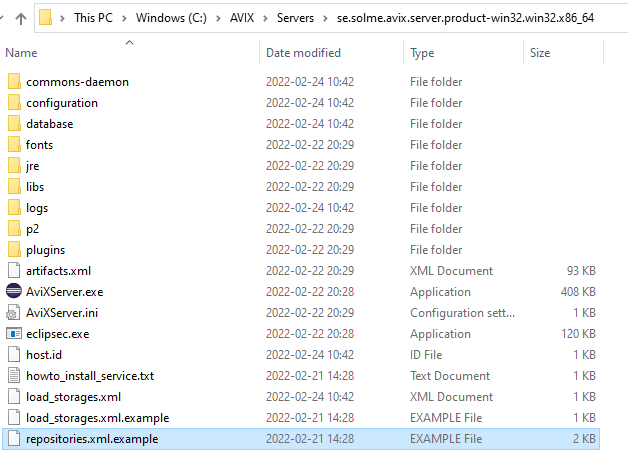
This is the content of the example file, showcasing the usage of both Postgre SQL, MS SQL Server and H2 databases.
<?xml version="1.0" encoding="UTF-8" standalone="yes" ?>
<repositoryConfig>
	<!-- POSTGRE SQL repository example -->
	<repository name="repo1" type="se.solme.avix.server.cdo.postgresql"
		serverHost="localhost"
		portNumber="5432"
		databaseName="avix1"
		databaseUser="postgres"
		databasePassword="postgres"
		useSSL="false"/>

	<!-- MS SQL Server repository example -->
	<repository name="repo2" type="se.solme.avix.server.cdo.mssql"
		serverHost="localhost"
		portNumber="1433"
		instance="SQLEXPRESS"
		databaseName="avix2"
		databaseUser="user"
		databasePassword="pw"
		useSSL="false"/>

	<!-- MS SQL Server repository example 2 (same server, another db) -->
	<repository name="repo3" type="se.solme.avix.server.cdo.mssql"
		serverHost="localhost"
		portNumber="1433"
		instance="SQLEXPRESS"
		databaseName="avix3"
		databaseUser="user"
		databasePassword="pw"
		useSSL="false"/>

	<!-- h2 repository example (self-hosted by the AVIX server) -->
	<repository name="admin" type="se.solme.avix.server.cdo.h2" databaseName="admin"/>
</repositoryConfig>
Configure
Since yourthis databasefile repositorycontains
Toconfidential connectcredentials, it is advisable that you assign the appropriate security permissions to it. The user running the AVIX server toservice awill databaseneed youRead intendpermission to use for the AVIX application, make sure to create the "repositories.xml" file, and define a "repository" XML element with the appropriate values. Example of "repositories.xml", which connects to an available Postgre SQL DBMS:
<?xml version="1.0" encoding="UTF-8" standalone="yes" ?>
<repositoryConfig>
	<repository name="repo1"
                type="se.solme.avix.server.cdo.postgresql"
				serverHost="localhost"
				portNumber="5432"
				databaseName="testavix2"
				databaseUser="postgres"
				databasePassword="c863qsQt5sr3WlRPdogc1m"
				useSSL="false"/>
</repositoryConfig>
When finished, restart the server.
Verify database repository and connection
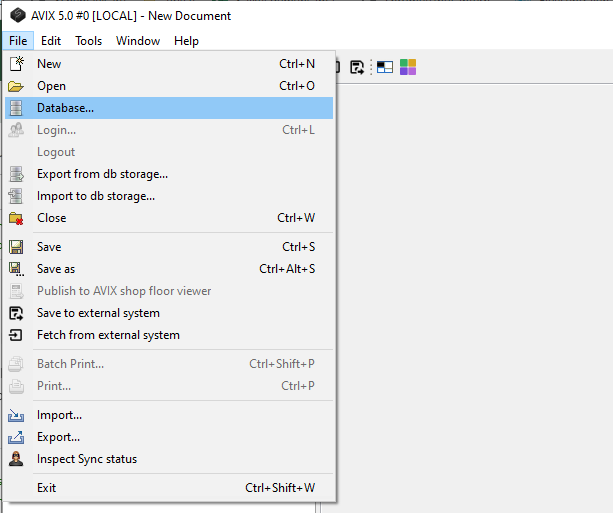
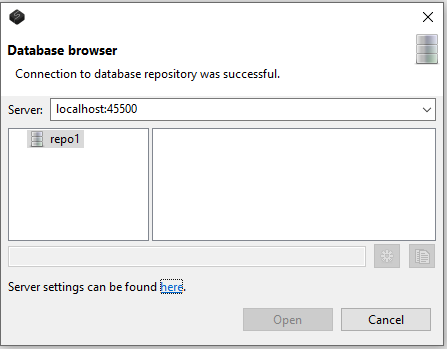
To test the example configuration described above, you may launch an AVIX application and connect to your server.
Troubleshooting
The log file "logs/AviXLogfile.log" of the server can be inspected, to see information relating to repository management. Some excerpts indicating what you can look out for .
The path to the "repositories.xml" that the server reads should be presented:
AviX CDO Server starting
Default location for CDO Server 'repositories.xml' file is in Platform.getInstallLocation(), resulting in: file:/C:/AVIX/Servers/se.solme.avix.server.product-win32.win32.x86_64/
...
CDO Server 'repositories.xml' config file is read from existing file C:\AVIX\Servers\se.solme.avix.server.product-win32.win32.x86_64\repositories.xml
Information relating to creation of defined repository:
Creating CDO repository for PostgreSQL with name: "repo1"
Server:localhost, Port:5432, DbName:testavix2, User:postgres, SSL:false
If successful connection, you should be able to see something like:
(s.s.a.s.c.p.PostgreSQLUtil:64) - SUCCESS creating repo: "repo1"In case of failure, expect something like this instead:
s.s.a.s.c.p.PostgreSQLUtil:67)    - Unsuccesful with creating the repo.
org.eclipse.net4j.db.DBException: org.postgresql.util.PSQLException: FATAL: password authentication failed for user "postgres"
	at org.eclipse.net4j.internal.db.DataSourceConnectionProvider.getConnection(DataSourceConnectionProvider.java:56)
	at org.eclipse.emf.cdo.server.internal.db.DBStore.getConnection(DBStore.java:220)
	...
Other
As stated above, the AVIX server will by default pick up the file "repositories.xml" if existing in the root directory of the server. However, if you would like to put this file elsewhere, this is possible by explicitly setting the cdo.server.repository.configuration preference in the "configuration/se.solme.avix.prefs" file of the server. Example:
#
# CDO Server settings
#
[se.solme.avix.server.cdo]
cdo.server.repository.configuration=\\SomeServer\\AVIXConfiguration\\repositories.xml
it.